-
Daz to Unity Update 4.0
Hi, the Unity Bridge is not transfering any model for me.
Please can someone help?
I'm using latest version of daz 4.24
saved the sceen with Victoria 8
File -> Send to Unity
Unity version opened 2022.3.62f3, HighDefinition template
No errors just one warning
The figure is not being imported
Import Error Code:(4)
Message: Build asset version error: assets/daz3d/scripts/editor/daz3ddtuimporter.cs in SourceAssetDB has modification time of '2022-07-09T06:02:39Z' while content on disk has modification time of '2026-01-05T10:41:39.674778Z'
Please can someone help me?
[Released] Content Wizard [Commercial]Ran across a bug where installing Smart Content fails if the Product Name contains certain characters, including ":" and "/". It creates a Product but fails before adding metadata to any of the contents. It's particularly frustrating because it leaves behind a glitched Product with no contents or categories, which prevents you from just fixing the name and trying again. If you do, it complains that there were errors during installation.
It is possible to get rid of the corrupted Product, but it's a hassle. In the Products tab of Smart Content, click on All Products and filter to find the Product (which will have no image). Right click on it and select "Show Product in Content Library". It will switch to the Content Library with that Product selected. Right click on that and select "Delete". You should now be able to go back and try to reinstall. There may be other ways to do it but this is what worked for me. AFAICT this doesn't have any side effects.
It looks like it may be sanitizing the string to remove forbidden characters, but not all of the time, so string comparisons fail and it gets confused. As I recall, when trying to reinstall with a corrected name without deleting the glitched Product first, the log will show a message like "Expected <corrected product name> but received <broken product name>" where <broken product name" is the original product name with colons and slashes removed. Unfortunately I didn't save the log so I can't show you an example right now. The next time it happens (it's probably inevitable that I'll get sloppy or miss something at some point) I'll attach a log.
One product that caught me with this recently is "Gia Halter Dress for G8/8.1 Females by: Rhiannon" on Renderosity. It actually got me twice: once because I accidentally included the "By: Rhiannon" part when I copied and pasted the product name, then again because I missed the forward slash.
Looking For Medieval bedroom fit for a king or queenYes, they won't be in Daz Install Manager.
DIM can only download products from Daz site. It can install some content from other sites if you place it in its downloads folder, but only if that content has been packaged in a specific way which is usually not done for content from Rendo or freebies.
To install content manually:
- Unzip the product zip into a temp folder
- Look in the temp folder and locate the main DS folders like "data", "runtime", "people"... Depending on how the product was packaged they might be directly at the top of the zip, or there might be one or more top folders like "my library", "content", or sometimes one with the name of the product above them.
- Take all folders you have in the directory where you found the "runtime" or "data" folder, and merge them into your DS content directory: merge "data" from the zip with the ones already installed, same for "runtime" and any other folder already existing, and simply copy over those which don't exist yet.
- Your new content should now be available in the "content library" tab next time you open DS (or after a refresh if it was already open).
- If the vendor provided a "Support" folder with metadata for the content, you can reimport metadata and it should then appear in "smart content" tab too. Otherwise, if you want the content to appear in "smart content" tab too, you can manually categorize the new files.
DIM - Product Install IssuesHi All -
I recently performed a clean install of DIM (Windows 11 system), for the purpose of installing all my DAZ content on a dedicated External SSD (new drive). After performing the clean install (see steps below), DIM began experiencing issues (failed installs, DIM crashing, etc.) during DAZ product installations. Additionally, when product are installed, some are showing up as "package has no additional metadata" (see screenshot) I have had DAZ for +3 years and have never had issues like this before; they only seem to have cropped up after upgrading my OS to Windows 11 (via a clean install).
In terms of DIM failed product installs, it's occurring for roughly 15% of the products. The logs consistently show a "[WARNING] :: Extract File Failed - CRC mismatch, data likely corrupted.: F:/Daz/Users/Public/Documents/My DAZ 3D Library....." error for each failed product install.
When DIM crashes, it appears that the External SSD connection is also being affected, as the system appears to be making the typical Windows USB connect/disconnect alert sound. Based on my observation, DIM is only crashing when it's downloading and installing 200+ queued products. DIM only crashes when installing products, and doesn't crash if I just download the products.
I also have seen several "[WARNING] :: Remote Name Collision:" messages in the logs. I know that Logs will inheritantly contain warning messages, even when the issues get resolved, so this may not be related.
I have taken the following steps to resolve the issue(s), with no luck:
- Tried installing DAZ products (via DIM) with all firewalls, AV, and Windows Security disabled.
- Installed the GoDaddy Certificate
- Whitelisted all the DIM, Daz, & CMS apps in the Windows Firewall
- Created AV Scan Folder Exceptions for the DIM, Daz, PostgreSQL CMS, Carrara, & Hexagon
- Deleted the & the External Drive Daz folders
I took the following steps when clean installing DIM, with no luck:
- Uninstalled all Daz products via DIM
- Uninstalled DIM, Daz, PostgreSQL CMS, Carrara, & Hexagon
- Deleted leftover folder for DIM, Daz, PostgreSQL CMS, Carrara, & Hexagon
- Reformatted the External Drive
- Deleted the Daz Registry Key
- Restarted the Computer, prior to reinstalling DIM
- Upon initially opening the DIM (Reinstalled), I used the work offline feature to configure the Daz & DIM folder paths for:
- F:\Daz\Users\Public\Documents\DAZ 3D\InstallManager\Downloads
- F:\Daz\Users\Public\Documents\DAZ 3D\InstallManager\ManifestFiles
- F:\Daz\Users\Public\Documents\DAZ 3D\InstallManager\Thumbnails
- F:\Daz\Users\Public\Documents\My DAZ 3D Library
- F:\Daz\Users\[MyUserName]\Documents
New Year's DAZ-olutions?I am never good with 1 January resolutions so I started some 'non-resolutions' last year. With my doctor monitoring me, I have been losing weight on average 5lbs a month. Bought some hiking sticks to support my back so I can get back to walking again. But a new health issue has popped up and my energy is getting wiped out with exhaustion. Hopefully tests this coming week will determine the actual cause and an action plan. And dental copays up to $4000.00 for two procedures are a hit. And for DAZ, I pushed to render that backlog of characters who needed initial rendering, and by doing that I worked with lighting sets, new backdrops, and environments I have bought. And don't forget clothing and hair and makeup (which is something I often ignore or prefer not to use). But the past few months have worn down my rendering as the sales have really taken a toll on my actual time for working on Daz Studio, except for metadata and thumbnails for new items. My purchases will be down. Wishlist will grow.
Daz Studio 6 Beta - version 6.26.2026.26903! (Updated September 29, 2026)Richard Haseltine said:
memcneil70 said:
I have opened DS6 (v32308) on my MacMini and moved it from my MAC Studio Monitor to my HP monitor and found that every drop down menu is appearing on the MAC Studio Monitor in that extremely tiny print and almost illegible. Does anyone have a way to get it to appear on the HP monitor where the Studio is opened on? I have tried closing D|S while it is on that monitor and reopening it, but it defaults to the MAC Studio Monitor and I have to move it again to the HP monitor. BTW this has never happened before. The screenshot is off of the MAC Studio Monitor.
Edit to Add: I have tried rebooting my computer with D|S having been on my HP monitor and it still opens on the MAC Studio Monitor. Depending on what I was working on when I shut off my Mac, and what monitor a program was on, it reopens on that monitor. And this is the first time I have seen this behavior with DAZ. Just opened 4.24.0.4 and it opened on the HP monitor without issue.
Please check that this is true in the current build, 6.25.2025.35308.
Richard, I resolved my problem by changing my primary monitor on the MacMini to my HP monitor which has a lower resolution and D|S (both versions) opens just fine there. I have had to adjust my personal habits but that is on me. So the folks working on D|S don't feel bad, my Apple Studio Display shrinks down every window I pull over to it and I often have to squint to see them. Just depends on what I am working on what is useful for me.
On my Windows 11 computer I am not having any issues. And regarding the metadata, that was on me. I was trying to work on both computers the previous day and started to miss products. So no issues with that.
Mary
Looking For Medieval bedroom fit for a king or queenRenderosity is a legitimate 3D content store, selling mostly content for Daz Studio and Poser (they're also the current owners of Poser). It's probably the biggest site for DS content beside Daz store.
If you purchase content from them be aware that in most cases you'll have to install it manually, and it might not have metadata for Smart Content.
Another thing to know about Rendo is that they have a free content section where you can find lots of interesting freebies.
Only empty or black render results.My RTX 4070 Ti Super is selected as the hardware, but I've also tried it with the CPU and both, and I've pressed the default button several times.
The log file shows the following for a single render attempt:
2026-01-02 19:35:44.141 [INFO] :: Rendering image...
2026-01-02 19:35:45.392 Iray [INFO] - TRAV:DATABASE :: 1.0 TRAV db progr: Traversing scene.
2026-01-02 19:35:45.884 Iray [INFO] - TRAV:DATABASE :: 1.0 TRAV db info : Traversing scene took 492.069 ms.
2026-01-02 19:35:45.919 Iray (Scene Traversal) : Initializing update
2026-01-02 19:35:45.920 Iray (Scene Traversal) : Retrieving journal and checking for changes
2026-01-02 19:35:45.920 Iray (Scene Update) : Updating LPE labels
2026-01-02 19:35:45.920 Iray (Scene Update) : Updating geometry contexts
2026-01-02 19:35:45.921 Iray [INFO] - IRAY:RENDER :: 1.0 IRAY rend info : Updating geometry contexts.
2026-01-02 19:35:45.921 Iray (Scene Update) : Updating geometry
2026-01-02 19:35:45.921 Iray [INFO] - IRAY:RENDER :: 1.0 IRAY rend info : Updating geometry.
2026-01-02 19:35:45.921 Iray [INFO] - IRAY:RENDER :: 1.0 IRAY rend info : Importing scene graph.
2026-01-02 19:35:46.006 Iray [INFO] - IRAY:RENDER :: 1.0 IRAY rend info : Auto instancing compression 1.0x (Full instancing compression 1.0x)
2026-01-02 19:35:46.007 Iray (Scene Update) : Retrieving geometry
2026-01-02 19:35:46.007 Iray [INFO] - IRAY:RENDER :: 1.0 IRAY rend info : Importing geometry for motion time 0
2026-01-02 19:35:46.081 Iray [INFO] - IRAY:RENDER :: 1.0 IRAY rend info : Geometry import (2 triangle objects with 1 M triangles, 2 instances yielding 1 M triangles) took 74.472 ms
2026-01-02 19:35:46.082 Iray (Scene Update) : Updating motion transform data
2026-01-02 19:35:46.082 Iray [INFO] - IRAY:RENDER :: 1.0 IRAY rend info : Updating motion transforms.
2026-01-02 19:35:46.082 Iray (Scene Update) : Updating section objects
2026-01-02 19:35:46.082 Iray [INFO] - IRAY:RENDER :: 1.0 IRAY rend info : Updating section objects.
2026-01-02 19:35:46.082 Iray (Scene Update) : Updating materials
2026-01-02 19:35:46.082 Iray [INFO] - IRAY:RENDER :: 1.0 IRAY rend info : Updating materials.
2026-01-02 19:35:46.135 Iray [INFO] - MATCNV:RENDER :: 1.0 MATCNV rend info : found 1125 textures, 0 lambdas (0 unique)
2026-01-02 19:35:46.135 Iray [INFO] - IRAY:RENDER :: 1.0 IRAY rend info : Emitter geometry import (18 light sources with 7233 triangles, 1 instance) took 373.300 us
2026-01-02 19:35:46.148 Iray (Scene Update) : Updating environment
2026-01-02 19:35:46.148 Iray [INFO] - IRAY:RENDER :: 1.0 IRAY rend info : Updating environment.
2026-01-02 19:35:46.152 Iray (Scene Update) : Updating code
2026-01-02 19:35:46.152 Iray [INFO] - IRAY:RENDER :: 1.0 IRAY rend info : Updating compiled material code.
2026-01-02 19:35:46.152 Iray [INFO] - IRAY:RENDER :: 1.0 IRAY rend info : Updating compiled environment code.
2026-01-02 19:35:46.153 Iray (Scene Update) : Updating textures
2026-01-02 19:35:46.153 Iray [INFO] - IRAY:RENDER :: 1.0 IRAY rend info : Updating material textures.
2026-01-02 19:35:46.188 Iray [INFO] - IRAY:RENDER :: 1.0 IRAY rend info : Updating environment textures.
2026-01-02 19:35:46.188 Iray [INFO] - IRAY:RENDER :: 1.0 IRAY rend info : Updating BSDFs.
2026-01-02 19:35:46.188 Iray (Scene Update) : Updating volumes
2026-01-02 19:35:46.188 Iray [INFO] - IRAY:RENDER :: 1.0 IRAY rend info : Updating volumes.
2026-01-02 19:35:46.189 Iray (Scene Update) : Updating lens data
2026-01-02 19:35:46.189 Iray [INFO] - IRAY:RENDER :: 1.0 IRAY rend info : Updating lens.
2026-01-02 19:35:46.189 Iray (Scene Update) : Updating lights
2026-01-02 19:35:46.189 Iray [INFO] - IRAY:RENDER :: 1.0 IRAY rend info : Updating lights.
2026-01-02 19:35:46.190 Iray (Scene Update) : Updating instance topology
2026-01-02 19:35:46.190 Iray (Scene Update) : Updating flags
2026-01-02 19:35:46.190 Iray [INFO] - IRAY:RENDER :: 1.0 IRAY rend info : Updating object flags.
2026-01-02 19:35:46.191 Iray (Scene Update) : Updating backplate
2026-01-02 19:35:46.192 Iray [INFO] - IRAY:RENDER :: 1.0 IRAY rend info : Updating backplate.
2026-01-02 19:35:46.192 Iray [INFO] - IRAY:RENDER :: 1.0 IRAY rend info : Updating compiled backplate code.
2026-01-02 19:35:46.192 Iray [INFO] - IRAY:RENDER :: 1.0 IRAY rend info : Updating backplate textures.
2026-01-02 19:35:46.192 Iray (Scene Update) : Updating decals
2026-01-02 19:35:46.192 Iray [INFO] - IRAY:RENDER :: 1.0 IRAY rend info : Updating decals.
2026-01-02 19:35:46.198 Iray [INFO] - IRAY:RENDER :: 1.0 IRAY rend info : Using iray core convergence estimate.
2026-01-02 19:35:46.199 Iray [INFO] - IRAY:RENDER :: 1.0 IRAY rend info : Allocating 1-layer frame buffer
2026-01-02 19:35:46.205 Iray [INFO] - IRAY:RENDER :: 1.0 IRAY rend info : Using batch scheduling, caustic sampler disabled
2026-01-02 19:35:46.205 Iray [INFO] - IRAY:RENDER :: 1.0 IRAY rend info : Initializing local rendering.
2026-01-02 19:35:46.205 Iray [INFO] - IRAY:RENDER :: 1.0 IRAY rend info : Available GPU memory has increased since out-of-memory failure. Re-enabling CUDA device 0 (NVIDIA GeForce RTX 4070 Ti SUPER)
2026-01-02 19:35:46.209 Iray [INFO] - IRAY:RENDER :: 1.0 IRAY rend info : Initializing OptiX for CUDA device 0
2026-01-02 19:35:46.576 Iray [INFO] - IRAY:RENDER :: 1.0 IRAY rend info : Rendering with 1 device(s):
2026-01-02 19:35:46.576 Iray [INFO] - IRAY:RENDER :: 1.0 IRAY rend info : CUDA device 0 (NVIDIA GeForce RTX 4070 Ti SUPER)
2026-01-02 19:35:46.576 Iray [INFO] - IRAY:RENDER :: 1.0 IRAY rend info : Rendering...
2026-01-02 19:35:46.576 Iray [INFO] - IRAY:RENDER :: 1.13 IRAY rend progr: CUDA device 0 (NVIDIA GeForce RTX 4070 Ti SUPER): Processing scene...
2026-01-02 19:35:46.577 Iray (Scene Access) : Retrieving geometry
2026-01-02 19:35:46.577 Iray (Scene Access) : Retrieving device geometry
2026-01-02 19:35:46.769 Iray (Scene Access) : Retrieving volumes
2026-01-02 19:35:46.770 Iray (Scene Access) : Retrieving textures
2026-01-02 19:35:46.776 Iray (Scene Access) : Retrieving device textures
2026-01-02 19:35:50.504 Iray (Scene Access) : Retrieving flags
2026-01-02 19:35:50.504 Iray (Scene Access) : Retrieving device flags
2026-01-02 19:35:50.506 Iray (Scene Access) : Retrieving lights
2026-01-02 19:35:50.506 Iray [INFO] - IRAY:RENDER :: 1.9 IRAY rend info : Importing lights for motion time 0
2026-01-02 19:35:50.506 Iray [INFO] - IRAY:RENDER :: 1.9 IRAY rend info : Initializing light hierarchy.
2026-01-02 19:35:50.601 Iray [INFO] - IRAY:RENDER :: 1.9 IRAY rend info : Light hierarchy initialization took 94.884 ms
2026-01-02 19:35:50.602 Iray (Scene Access) : Retrieving device lights
2026-01-02 19:35:50.602 Iray (Scene Access) : Retrieving section objects
2026-01-02 19:35:50.602 Iray (Scene Access) : Retrieving device section objects
2026-01-02 19:35:50.603 Iray (Scene Access) : Retrieving materials
2026-01-02 19:35:50.612 Iray (Scene Access) : Compiling custom code
2026-01-02 19:35:50.612 Iray (Scene Access) : Retrieving environment
2026-01-02 19:35:50.620 Iray (Scene Access) : Retrieving device environment
2026-01-02 19:35:50.624 Iray (Scene Access) : Retrieving backplate
2026-01-02 19:35:50.624 Iray (Scene Access) : Retrieving device backplate
2026-01-02 19:35:50.624 Iray (Scene Access) : Retrieving decals
2026-01-02 19:35:50.624 Iray (Scene Access) : Retrieving device decals
2026-01-02 19:35:50.625 Iray (Scene Access) : Retrieving motion transform data
2026-01-02 19:35:50.625 Iray (Scene Access) : Retrieving device motion transform data
2026-01-02 19:35:50.625 Iray (Scene Access) : Retrieving lens data
2026-01-02 19:35:50.625 Iray (Scene Access) : Retrieving device lens data
2026-01-02 19:35:50.655 Iray [INFO] - IRAY:RENDER :: 1.9 IRAY rend info : JIT-linking wavefront kernel in 23.545 ms
2026-01-02 19:35:50.669 Iray [INFO] - IRAY:RENDER :: 1.13 IRAY rend info : CUDA device 0 (NVIDIA GeForce RTX 4070 Ti SUPER): Scene processed in 4.093s
2026-01-02 19:35:50.670 [WARNING] :: \src\pluginsource\DzIrayRender\dzneuraymgr.cpp(373): Iray [ERROR] - IRAY:RENDER :: 1.13 IRAY rend error: CUDA device 0 (NVIDIA GeForce RTX 4070 Ti SUPER): Not enough memory for kernel launches (700.850 MiB (out of 700.850 MiB total) still required, 0 B available). Cannot allocate framebuffer.
2026-01-02 19:35:50.670 [WARNING] :: \src\pluginsource\DzIrayRender\dzneuraymgr.cpp(373): Iray [ERROR] - IRAY:RENDER :: 1.13 IRAY rend error: CUDA device 0 (NVIDIA GeForce RTX 4070 Ti SUPER): Failed to setup device frame buffer
2026-01-02 19:35:50.671 [WARNING] :: \src\pluginsource\DzIrayRender\dzneuraymgr.cpp(373): Iray [ERROR] - IRAY:RENDER :: 1.13 IRAY rend error: CUDA device 0 (NVIDIA GeForce RTX 4070 Ti SUPER): Device failed while rendering
2026-01-02 19:35:50.671 [WARNING] :: \src\pluginsource\DzIrayRender\dzneuraymgr.cpp(373): Iray [WARNING] - IRAY:RENDER :: 1.13 IRAY rend warn : CUDA device 0 (NVIDIA GeForce RTX 4070 Ti SUPER) ran out of memory and is temporarily unavailable for rendering.
2026-01-02 19:35:51.155 [WARNING] :: \src\pluginsource\DzIrayRender\dzneuraymgr.cpp(373): Iray [WARNING] - IRAY:RENDER :: 1.13 IRAY rend warn : All available GPUs failed.
2026-01-02 19:35:51.156 [WARNING] :: \src\pluginsource\DzIrayRender\dzneuraymgr.cpp(373): Iray [ERROR] - IRAY:RENDER :: 1.13 IRAY rend error: Fallback to CPU not allowed.
2026-01-02 19:35:51.156 [WARNING] :: \src\pluginsource\DzIrayRender\dzneuraymgr.cpp(373): Iray [ERROR] - IRAY:RENDER :: 1.13 IRAY rend error: All workers failed: aborting render
2026-01-02 19:35:51.156 [ERROR] Iray :: Internal rendering error.
2026-01-02 19:35:51.336 [INFO] :: Saved image: C:\Users\Ingo\AppData\Roaming\DAZ 3D\Studio4\temp\render\r.png
2026-01-02 19:35:51.337 [INFO] :: Finished rendering.
2026-01-02 19:35:51.429 [INFO] :: Total Rendering Time: 7.39 secondsDo I need the vendor version of Daz to make HD morphs in Zbrush?Strictly speaking, you don't need to be a PA to make HD morphs in ZBrush. You do, however, need to be a PA to import them into DS as morphs.
Free Software that Makes Life Easieropen sauce you say

import time
import randomdef estimate_render_time():
"""
Fake render-time estimator.
Returns a random number of seconds between 30 and 600.
"""
return random.randint(30, 600)def send_to_cyberspace(job_id):
"""
Pretend to vaporise the job into the digital void.
"""
print(f"[{job_id}] Render exceeded 3 minutes. Initiating cyberspace ejection sequence...")
time.sleep(1)
print(f"[{job_id}] ✨ Job has been banished to the infinite void. Goodbye forever.")def render_job(job_id):
print(f"[{job_id}] Checking estimated render time...")
est = estimate_render_time()
print(f"[{job_id}] Estimated render time: {est} seconds")if est > 180:
send_to_cyberspace(job_id)
else:
print(f"[{job_id}] Render time acceptable. Beginning render...")
time.sleep(est / 10) # Fake shorter wait
print(f"[{job_id}] Render complete. Nice and quick!")# Example usage
for i in range(1, 6):
render_job(f"JOB-{i}")
print()PS.. the above mockup code is totally fake and shouldn't work...

 Morph Loader Problems - please help
Import with Morph Loader Pro (via : Edit > Figure > Shape > Morph Loader Pro... ) rather than Morph Loader Advanced ~~ The latter gives you wrong result because it has no option of Reverse Deformations... since you're using a non G8M Base figure but a character...
The settings of Exporting to OBJ as well as Morph Loader Pro are shown in the attached screen shot ~~
Besides, you have to make delta modifciation to the mesh of the exported OBJ... otherwise creating a morph with Morph Loader Pro will be meaningless ~~
Morph Loader Problems - please helpHello everybody and a happy new year!
Today I have a massive problem with the morph loader,
i can't load any morph without any distortions in the mesh,
Testing: export character without changes and import it in the
morph loader, slider 100 percent - figur shrinks or whatever....
Can you help me with the settings on ex - and import? Or do you have
the same problems?
loading figure, setting resolution on "base"
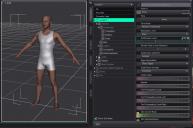
selecting character
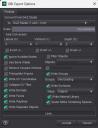
exporting obj
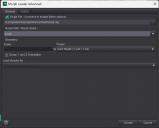
import as morph target
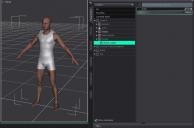
distorted
New Year's DAZ-olutions?I would like to monetize my art.
More time in the gym
Lighting. Lighting. and lighting lol. Its not that I don't know how, I'm just really slow, so i need to figure out a base set up as as starting point and get faster at modifying it.
Learn to use dforce effectively, and figure out how to move clothes and hair in hexagon and re import to daz.
Work on my world building project.
Daz Studio 6 Beta - version 6.26.2026.26903! (Updated September 29, 2026)I just noticed that all the extra metadata that I added to DS 4.24.0.3 and then 0.4 for products which used to show up in DS6, is not appearing now. I ran Update and Merge Windows a second time and have after working on the metadata yesterday in DS4.24 I exported my user data before shutting down. Previous versions of DS 6 did show the extra metadata I use to work in Smart Content when it was on the same computer. Checking other files, I am finding some products I worked on during the past few days do have the metadata, others do not. Very hit and miss. So I am not sure if I got confused with working on two systems at once or what. But I do remember working on these files on both my MacMini and Win 11.
Looking for vintage VHS camcorderIf it's got to be one of the full-size VHS ones, I think the one on the store is a more modern mini-tape format, so my suggestion is to head to Sketchfab:
(Sketchfab tends to be a good place for finding semi-obscure props like this, although annoyingly it's always work to import, very often unrigged, and even if something is on there, it's not necessarily available for download).
Looking for vintage VHS camcorder[Looking for vintage VHS camcorder] Those 80s devices that take a fullsize VHS tape, as seen here https://www.reddit.com/r/camcorders/comments/18hczjb/bought_this_hitachi_vhs_camcorder_for_a_couple/
Any format Daz can import.
Sagan: A DAZ Studio to Blender Alembic ExporterHi @starslinger
The config file behavior you cite is indeed how it shoudl work. I did find a bug in the code that is already fixed and will be in the next iteration.
The order of the material slots is an issue that has been known about for a long time. Diffeo gets the materials from the JSON. Sagan gets them from the SDK API. They are generally not gong to match. Recently, I've found that Diffeo creates fewer material slots than Sagan does. It seems like Diffeo is wrong, but I haven't investigated very far, yet. I'm considering putting back in the code that gets the materials from the JSON, like Diffeo does. It was removed because it required parsing the JSON, which just bloated the code, but since I've got to parse the JSON anyway for fiber eyebrows, I may as well fish out the materials data since I've already got the JSON parsed. I'm aware of the UV problem as well, and I, too, find it annoying. In the end, I'll probably output a script to convert diffeo's naming scheme to Sagan's, not the other way around because Sagan utilizes the human readable label one sees inside DAZ Studio, while Diffeo uses the ID from the JSON which may or may not even correspond to what the user sees in Daz Studio.
When the implementation settles, I'll explain all the metadata that gets generated.
Your hotkey is coming along. I'm killing two birds with one stone by using essentially the same code to make your hotkey work as to collaborate with the creator of the Daz To Houdini plugin. If anyone is doing God's work, it's that guy... amazing stuff.
Stay tuned.
Sagan: A DAZ Studio to Blender Alembic ExporterSo I've been working with sagan for couple of days now and there are a few things that bother me. The settings still dont save per scene file, they seem to be global. Im not sure if you plan to change this so I'm mentioning it. I think it is really important to have settings save per scene file, like for example frame range so that when you open the older project you know what you are working with and not have to constantly fiddle with frame ranges especially if you work with multiple files. Another thing is, the order of material and the uv naming does not follow diffeomorphic template. I've tried fiddling with diffeomorphic material order settings but no success, this fix used to work in older versions of sagan. My suggestion is, keep uv naming same as diffeomorphic and keep material order/index the same as diffeomorphic default import because this simplifies the material transfer by an order of magnitude. Currently as it is you have to fiddle with both the uv's and material orders just to get a single piece of clothing working and then you have to do it for every single unique piece. I saw sagan exports some scripts also, I am not sure if and how they are supposed to be used.
Importing rigged fbx modelsYou don't have to need any commercial options ~~ just import FBX files with DS 4.22+ (in which FBX Importer has been enhanced and bug fixed...). Older DS versions brings you no expected result.
The imported FBX figures can be posed... but with no joint corrective morphs.
Has anyone tried Clip Studio Paint?CSP is primarily for creating 2D art. As others point out, it's known for the creation of comics (manga or manhuwa) and still images but also for animation. As an animation software, I can't say how CSP stacks up against other industry tools, but it certainly shines when it comes to its asset store. There's just tons of brushes, templates and image assets to meet a 2D artist's needs -- in most cases, affordably priced.
Recent version of CSP started adding 3D functionalities. Starting with rag doll figures that an illustrator can pose and use as reference, CSP can now import OBJ (and FBX, I think) and process the accompanying UV and textures. The pose functionality now includes shape keys; a growing number of 3D figures have adjustable facial expressions. It goes without saying: Daz3D is lightyears ahead of CSP in this regard. In general though, the idea is to import 3D assets into CSP. The other way going out to external content creation tools isn't there yet at all.
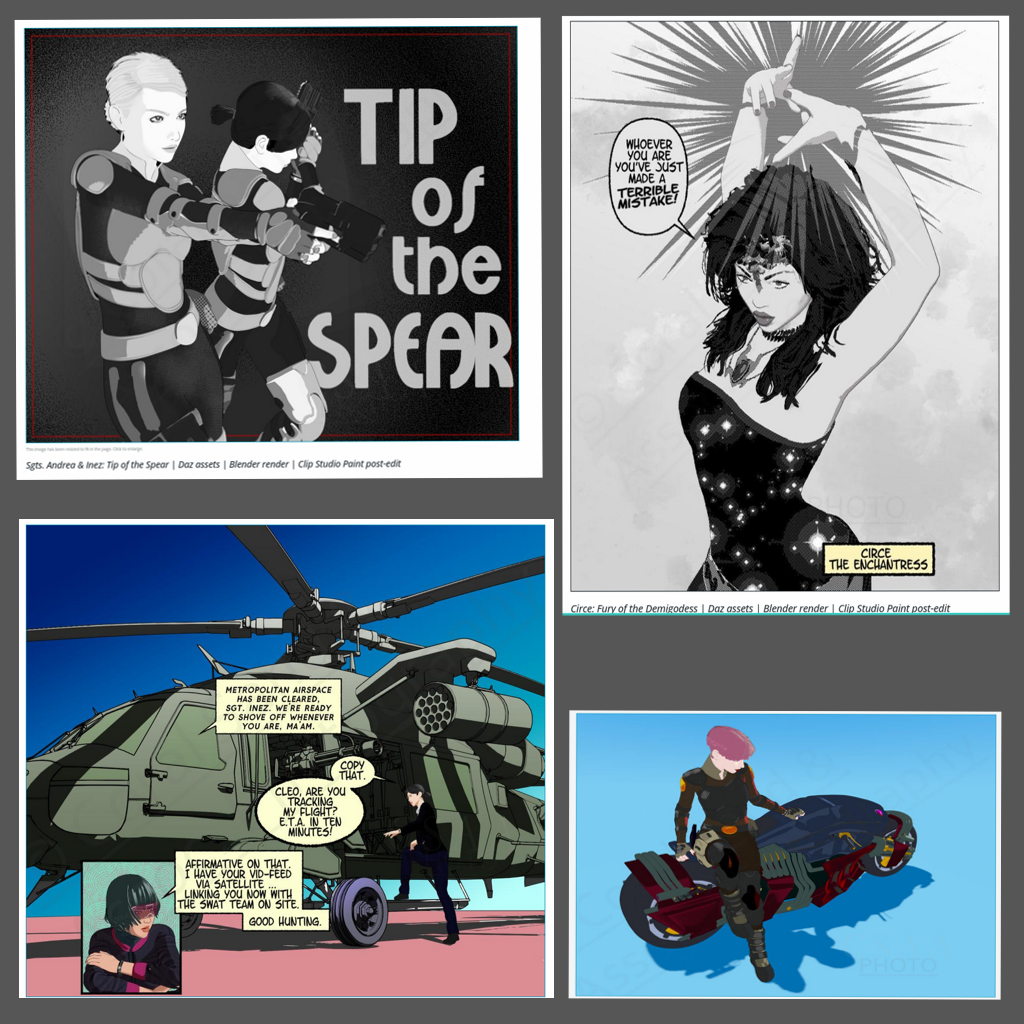
When I was still tinkering, my toolchain included CSP. I'd start with Daz3D, export assets to Blender (via Diffeomorphic) to customize the texture; then I'd render a 2D scene and open the image file in CSP for final editing. Below are some of the images I've made this way (apologies for the slight distortions).
Cheers!
Daz 3D is part of

Connect
DAZ Productions, Inc.
7533 S Center View Ct #4664
West Jordan, UT 84084Licensing Agreement | Terms of Service | Privacy Policy | EULA
© 2026 Daz Productions Inc. All Rights Reserved.