The exported model’s hair has too many polygons when using it in Unity.
 yajingameproject
Posts: 0
yajingameproject
Posts: 0
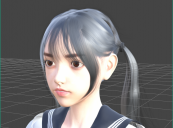
I exported a character from Daz Studio to use in Unity after applying a hairstyle.
However, when I checked it in the Unity Editor, the hair looked noisy or grainy, as shown in the second image.
After checking further, it seems the hair alone exceeds 40,000 polygons.
How can I reduce the polygon count while keeping the hair’s appearance similar to how it looks in Daz Studio (as in the first image)?
Here is the model I’m using:
https://www.daz3d.com/shizuka-hd-character-and-hair-for-genesis-8-female


Daz 3D is part of 
Connect
DAZ Productions, Inc.
7533 S Center View Ct #4664
West Jordan, UT 84084
Licensing Agreement | Terms of Service | Privacy Policy | EULA
© 2026 Daz Productions Inc. All Rights Reserved.
Comments
Invest in PolyFew on the UAS. It's the best LOD creator. Add Magica Cloth 2 for moving hair.
Sorry reread your post.. regarding the second image, remember there is no anti-aliasing in the scene viewport so that'll look like how it does. To get scene view AA you need to use HDRP. The actual gameview will look fine.
Thank you for your reply.
I had already considered using LOD, and before introducing assets, I first tried using Unity 6's LOD generation function.
However, because each strand of hair is made into a tube-shaped model, I couldn't reduce the number of polygons as I wanted, and trying to reduce them further would distort the shape of the hair.
Ideally, I would like to generate a model for each hair clump rather than generating a model for each strand of hair, or to attach a hair texture to the mesh.
I'm aiming for a maximum of 4000 polygons for the hair. I think I can reduce it even further if I use only a mesh and texture.
Can this be achieved in Daz Studio?
Yes, you can reduce number of polygons in Daz Studio. See below.
1. Check if you have Decimator:
* It’s a paid add-on for Daz Studio.
https://www.daz3d.com/decimator-for-daz-studio
* If installed, go to Window → Panes (Tabs) → Decimator.
2. Load the Hair:
* Select the hair object in the **Scene** tab.
3. Apply Decimation:
* In Decimator, set the target polygon count (e.g., 4000).
* Preview the result before applying.
4. Export:
* Save as OBJ or FBX for use in other software.
You could use Daz to Unity bridge, as well.
https://www.daz3d.com/daz-to-unity-bridge
In Unity:
1. Texture Workflow
* Use **baked textures** (Diffuse, Normal, Alpha).
* Save in **PNG or TGA** for transparency.
* In Unity:
* Create a **Material → Shader: HDRP/Lit** or **URP/Lit** (depending on pipeline).
* Assign **Base Map** (Diffuse), **Normal Map**, and **Opacity**.
* Enable **Alpha Clipping** for transparency.
2. Hair Transparency
* Hair usually uses **Alpha Cutout** or **Alpha Blend**:
* In Material settings:
* **Surface Type**: Transparent
* **Alpha Clipping**: ON (for sharp edges)
* Adjust **Threshold** for best look.
3. Performance Tips
* **Mipmaps**: Enable for textures.
* **Compression**: Use ASTC or DXT for mobile/desktop.
* **LOD Groups**:
* Create LODs for hair (e.g., 4k → 2k → 500 polys).
* **GPU Instancing**: Enable if multiple characters use same hair.
4. Lighting & Shadows
* Hair can look flat if shadows are wrong:
* Enable **Cast Shadows** in Mesh Renderer.
* Use **Double-Sided Rendering** in shader for hair strands.
5. Physics (Optional)
* For movement:
* Use **Unity Hair Physics** or **Dynamic Bone** (paid asset).
* Or simulate with **Cloth Component** for simple sway.
If you do not have Decimator for Daz Studio, you could export hair and reduce in Blender.
1. Export Hair from Daz:
* File → Export → OBJ (or FBX).
* Make sure to export only the hair.
2. Import into Blender:
* Use **File → Import → OBJ/FBX**.
3. Use Decimate Modifier:
* Select the hair mesh.
* Add **Modifier → Decimate**.
* Set **Ratio** so that final poly count ≈ 4000.
* Apply modifier.
4. Optional Retopology:
* For better quality, use **Quad Remesher** or Blender’s **Remesh** tool.
5. Apply Transformations in Blender:
* `Ctrl+A → Apply All Transforms` (Location, Rotation, Scale).
Use baked textures (Diffuse, Normal, Alpha).
* Save in **PNG or TGA** for transparency.
* Export as FBX:
* Use File → Export → FBX.
* **Settings**:
* Apply Modifiers: ON
* Smoothing: Face
* Scale: 1.0
* Forward: `-Z Forward`, Up: `Y Up` (Unity standard).
I have decimated Shizuka hair in Decimator in Daz Studio to 4000 polygons.
It does not look good in Unity 6000.2.6 URP (on the right)
Shizuka hair reduced to about 4000 polygons in Blender.
Still needs more work to be usable in Unity.
I didn't have much luck using the decimater in daz - instead I used LOD tool poly few in unity. Also turn off your shadow casting for the hair as well.
Great tips, thanks for posting.
Hopefully the creator of the thread will see them.
No, Daz hair is strand based and the exports are high poly version of that. Card based hair is used in most games, Unity did release a strand based hair system on GIT, I doubt it is worth the time to try to take Daz hair and use with that, as Daz export doesn't have a way to export the strand based hair other than turn it into geometry with very high poly. Card based hair is available on CGTrader etc...
Just a little more explanation (useful for me).
What is Card-Based Hair?
Card-based hair is a technique for rendering hair in real-time 3D environments
using flat polygon strips (cards) with hair textures and alpha transparency.
Instead of simulating thousands of individual strands, you group strands into textured cards,
which drastically reduces geometry complexity while maintaining visual fidelity.
Why use in Unity?
Performance Optimization:
Full strand-based hair is expensive for real-time rendering.
Cards reduce vertex count and shading complexity.
Visual Quality:
With proper textures and normal maps, cards can mimic the look of dense hair
while remaining lightweight.
Compatibility:
Works well with Unity’s HDRP and URP pipelines,
especially when combined with Shader Graph for anisotropic highlights.