How do I export Gen9 w high heels to Blender to .glb?
 Makpah
Posts: 7
Makpah
Posts: 7
Hi there, I am an old time Daz (Victoria) user. I have successfully exported Gen9 figures Daz>Blender>glb and they work great. But, now I am trying to export figures with High heels and poses and the pose is lost in process. I have spent the last couple days trying everything I can find online.
To eliminate possible issues I am using the Gen9 base, I have the Gumball high heels from the store - they come with H-Pose for feet and toes. At this point I have dropped the shoes and just trying to get the Base figure to export with the pose intact. Is this possible?
Can someone please walk me through the steps?
TIA

Daz 3D is part of 
Connect
DAZ Productions, Inc.
7533 S Center View Ct #4664
West Jordan, UT 84084
Licensing Agreement | Terms of Service | Privacy Policy | EULA
© 2026 Daz Productions Inc. All Rights Reserved.
Comments
1. In Daz, put clothed figure into desired pose
2. Export posed figure + clothes etc as obj. (Obj is fine as it is vertex exact so will look exactly the same as in Daz)
3. Manually set up all materials in Blender for figure and shoes
4. export in desired format, e.g., glb
The only difficult part would be setting up shaders in Blender.
So an alternative workflow that wont require you to set up shaders could be to use a bridge like Diffeomorphic.
Thanks for that. However,I am trying to keep the final version with the rig preserved so it can be animated. Obj does not keep that info. Is there any other way to do it?
I should also mention I am a noob to Blender and am only using it as a way to export to glb
Given you seem to be prone to leaving points out of your question and only mentioning them afterwards (e.g., requirement of preserving rig), it may pay to advise upfront why you need glb format in the first place, as there may be is another route that doesnt require Blender as an intermediate step in the workflow.
In any case, and on the basis that you will continue using Blender as an intermediate, maybe look into a bridge like Diffeormophic or BlendertoDaz. That will preserve the armature from Daz to Blender. I havent tried exporting rigged figures from Blender in glb or gltf, only static props. Is glb format going to preserve all the things make posing look good on a Daz figure in Daz or Blender via a bridge, like the correctives?
I assume the way you exported G9 in DS was to export to Blender File (*.blend)... If so, there're two ways you can make it:
1) Since "Export to *.blend file" uses DTB bridge, you need to check Include Animation (i.e. pose data will be included...) in FBX Export Options dialogue when exporting the figure ~~
2) Or, if you don't want to Include Animation... before Export to Blender file, you need to Bake Joint Rotations in DS > Joint Editor tool.
Then open *.blenb file, go for the process of export / import *.glb format.
Thank you both. My intention is to export a rigged avatar from Daz to .glb/gtlf that can be animated. Blender is the only method I am aware of.
Process: I have exported a Gen9 "flat foot" normal pose as a .blend to Blender using Daz2Blend. I "include skeletal mesh". The result in Blender is usually perfect as long as there are no clothing or accesories. This figure can be exported as a .glb which can be animated. However, some Gen9 clothes seem to affect the rig when using this same process.
Biggest problem: High heels are an issue. When I take a character and dress with heels (and the included heel/toe pose), the resulting figure in Daz looks great - but the export to Blender has a flat foot pose and shoes which are rotated toe up / heel down. The glb exports the same.
Yesterday, largely through trial and error, by unparenting the shoes, using "bake" rotations, reparenting, and baking transformations on the figure, I was finally able to export a blend file which maintained the heel pose and the shoes correctly placed. This was using a base Gen9 character and a pair of Gen9 shoes (Fun Platform "bubblegum", $1.99). This file exported to .glb and could be animated. (I'm just loosely describing the process but could be exact if needed - now included below).
Then, I tried the same process on a Character figure "Kat". Shoes worked just fine - except NOW the eyebrows, lashes, tear, eyes, mouth, are all "lower". Actually, they are in the original position as the original pose and the body has moved up...
Does this make any sense? I am obviously missing something.
Exporting unmodified GEN9 Base with “High heel pose” to .glb (using Fun Platforms "Bubble Gum" shoes)
that process above is covered here
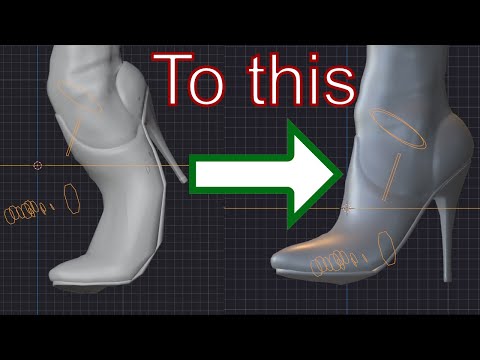
Still, I'd like to recommend the much simpler way by using Animation option as I mentioned above ~
Here's the process: https://mega.nz/file/XeR0hCJY#pNOSblof6PiqFXid5Fa4ITtsfXxHX2uxJ7OvYICdmns ;
(edited - I answered before watching the video, I'm gonna try that right now! THANKS)
So - that works when I start with an unmodified Gen9 and add Heels and Foot/Toe pose. But if I do the same but start with a character, the eyes/lashes/etc end up in the wrong place. I feel like there is some checkbox I'm missing.
The attached pic was the result of my original process BTW.
Make sure you check Merge Followers as well as Include Animation in FBX Export Options.
The attached example was an export / import of Victoria 9's glb ~~
Crosswind! Thank you so much. Your process worked awesome and is super easy.
You're welcome !
Well, shoes solved! I have moved on to clothes, hair, and makeup. Now I have a new question... If I apply makeup like the Gen9 Shell - when I export it the resulting glb does not have the makeup attached to the body, it is also unscaled. Is there an export trick for this that you're aware of? Thanks
Geo-shells should also work as expected with glb... and the process is all the same but just make sure you check Include Props when exporting to blend file.
Here's an example of using Victoria 9 + shell make-ups... and the imported glb figure.
Hello fellas, idk if this topic is valid, but for my pipeline i need a zero pose figure to not to cause a problems with posing in perspective (i have a model with bunch of other shoes like flat sole one), and i need a high heel one, the problem is: in zero pose, shoes like : https://www.daz3d.com/hl-sabina-platform-sandal-for-genesis-9-8-and-81-female : will deform badly, making them impossible to look good in Blender after transfering, iguess the workaround is to limit shoes to react on fingers (?) pose that ruining the whole thing ://////////