Blender vs Maya Constraints
 DrGonzo62
Posts: 423
DrGonzo62
Posts: 423
Hi!
In Maya or Motionbuilder I am able to use a Parent/Child constraint to lock bones from 2 different characters together.
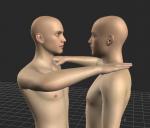
Like in the example below, the hand of one character locked to the shoulder position of another character. And no matter which character I move, ALL constraint bones will always stay 100% connected.
When I use a Child Of constraint in Blender however, when I move one of the characters, only the other characters constraint hand will stay in place.
So - my question is, can this not be done in Blender, or am I using the wrong constraint?
This is a very essential functionality for me.
Thanks!



Daz 3D is part of 
Connect
DAZ Productions, Inc.
7533 S Center View Ct #4664
West Jordan, UT 84084
Licensing Agreement | Terms of Service | Privacy Policy | EULA
© 2026 Daz Productions Inc. All Rights Reserved.
Comments
The child constraint is only needed for dynamic parenting, as the hand first become parent to shoulder then to head for example. You set the target by keyframing the influence. But you need to plan first as you have to add a empty for every target.
I'm attaching the blend file for you to test. Had to remove the figure for the DAZ EULA but the blender armature and animation are there.
steps:
p.s. However, for advanced tips on blender rigging, you may find better answers on a blender site as https://blenderartists.org for example.
I never had to do that, just adding the Child of constraint on each of the hand targeting each of the other person's shoulder bone is enough to do what the OP intended. The only thing I could think of that would make it not work is if the hand wasn't in IK mode, but the OP would know that immediately based on how they were posed. I'm also talking about standard rigify. Not sure if there are caveats with other rigs.
Hi,
I'll try to explain the issue better.
The idea is that the red character's hand stays on the green character's shoulder no matter which character gets moved.
I've parented an empty to the green characters right shoulder bone, as Padone suggested.
Then I added a Child Of constraint to the red character's left hand, targeting that empty locked to the green character's shoulder.
Now, when I move the green character's root up (image 2), the red character's hand moves up along with green's shoulder.
But when I move the red character's root up (image 3), her hand will not stay locked to green's shoulder.
In Motionbuilder, it would.
Constraints there are always active, no matter which character you move. A bidirectional relationship, if you will.
Once constraint to each other, the bones are locked together no matter what you move, or until the limbs get moved too far to stay together.
It seems that in Blender the effect of the Child Of constraint depends on which character you move, like a one way relationship only.
I hope the issue I'm having becomes more clear now.
Hi, I understood your issue fromt the start and I'm telling you that it should work simply with putting the Child of Constraint on one bone targeting another, it should stay glued to that target no matter which armature you move.
I'm attaching some images on how it behaves in mine. These are dummy models with standard rigify but it should work with any armature since Child Of constraint is meant to work with any object being attached to another including attaching a bone to another bone.
First two images called hand1 and hand2 show each of Yellow's(called Dummy.001) hands attached directly on Pink dummy's (called Dummy) bones, one directly on the shoulder bone and the other directly on the head bone.You can see the bone constranits on each of the hand in each picture and they're directly targetting the other armature's bones, not empties.
Next 2 images called move1 and move2 show Yellow dummy's hands staying on where they're attached regardless of whether Pink was moved(move1) or Yellow was moved(move2).
If this isn't the behavior your armature gets you, then I'd check for other factors such as FK/IK switches and other factors. Are you sure you're adding the constraint on the bone and not on the object? It should be done on pose mode while that bone is selected and it should be on the Add Bone Constraint tab not the Add Object Constraint tab (see last image).
OK, thanks!
I've been using MHX rigs, but I'll try it with riggify. Maybe the ik handles work differently.
I'll try constraining bone to bone.
Good to know that it should be working at least.
@DrGonzo62 My example does exactly what you're asking for, I used the simple-ik rig but it's the same for MHX. You have to constraint the IK targets of course, as hands and feet, other bones may not not be "free" to move, depending on other constraints they're using.
@mattlight07 The empties are needed to offset the target from the bone, which may not be in the position we want for targeting.
@Padone Not sure if that's necessary. An object or bone that has a Child of constraint on a target bone can still be repositioned afterwards independent of the target, you can still fine tune its position.
The proper workflow for this is to pose your models in your intended pose, example: Person A's hand holding Person B's shoulder. Then apply the Child Of constraint(bone) on Person A's hand, target Person B armature, then select shoulder as target bone. When you do this, it will move Person A's hand in a direction that compensates for the hand's transformations as if Person B's shoulder is its new origin(somewhere very far and not what you intend).Don't panic. You should then click on "Set Inverse" button to restore its position to before the target was selected(to the original pose you set). And it's done. From there you can still move Person A's hand to fine tune, but moving Person B's shoulder should also move it. This should work regardless of the type of rig that you have, as long as the hand is set to IK.
OK, mystery solved...
To quickly test the constraints, I kept moving the root/master nodes of the rigs.
Then I finally remembered that this isn't always a good idea when I was animating in Motionbuilder.
So I went nuts and rotated the hips of the characters instead, and sure enough, the constraints worked just as expected.
Oh man... Who's feeling silly now!
Thanks to you guys for all your help though!