• Daz 3D
  • Shop
  • 3D Software
    • Daz Studio Premier
    • Daz Studio
    • Install Manager
    • Partnerships
    • AI Training data
    • Exporters
    • Daz to Roblox
    • Daz to Maya
    • Daz to Blender
    • Daz to Unreal
    • Daz to Unity
    • Daz to 3ds Max
    • Daz to Cinema 4D
  • 3D Models
    • Genesis 9
    • Genesis 8.1
    • Free 3D Models
  • Community
    • Gallery
    • Forums
    • Blog
    • Press
    • Help
  • Memberships
    • Daz Premier
    • Daz Plus
    • Daz Base
    • Compare
  • Download Studio
ADVANCED SEARCH
  • Menu
  • Daz 3D
ADVANCED SEARCH
Add image
  • Shop
  • 3d Software
    • Daz Studio Premier
    • Daz Studio
    • Install Manager
    • Partnerships
    • AI Training data
    • Exporters
    • Daz to Roblox
    • Daz to Maya
    • Daz to Blender
    • Daz to Unreal
    • Daz to Unity
    • Daz to 3ds Max
    • Daz to Cinema 4D
  • 3D Models
    • Genesis 9
    • Genesis 8.1
    • Free 3D Models
  • Community
    • Our Community
    • Gallery
    • Forums
    • Blog
    • Press
    • Help
  • Memberships
    • Daz Premier
    • Daz Plus
    • Daz Base
    • Compare

Notifications

You currently have no notifications.

Loading...
    • Categories
    • Recent Discussions
Daz 3D Forums > 3rd Party Software > Blender Discussion

I messed up my skin and I don't know how to fix it

josiahmora20josiahmora20 Posts: 83
March 2024 edited March 2024 in Blender Discussion

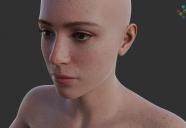
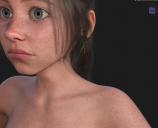
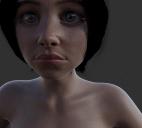
I've been building my first character in Daz and tried moving it over to diffeomorphic for the first time to find that the skin looked really strange and plasticy (see first picture). I've been at this now for 6 hours. I originally though it was an issue with Diffeo but I created a new basic gen 9 female with the same skin and upon import to blender it looks correct and the same as Daz (see second picture). I snooped around the sufface editors and the node trees look the same. I can't figure out what I did to my character that could have caused this or how to undo it. the whites of my characters eyes are also not right, they seem to be grey-ish, and her hair is suppost to be brown not black (see third picture for how she is supposed to look).

I've ensured the enviroment settings are the same between my test character and real character (so my eyes arent just playing tricks on me). I've tried re-applying the Victoria 9 skin (which should undo any makeup). I had played around with Skin Effects Adventure acouple days ago and had applied Daz Uber Base to get it to work over my other geoshell/graffs (stx navel/nipples and Golden Palace) as per the recomendation of a tutorial i watched on the matter. I thought maybe THAT could have been what messed it up, but after applying dzDefault shader it didn't fix it. Not sure what else to do. Please help! thank you


3.jpg
845 x 760 - 198K
2.jpg
1044 x 720 - 276K
4.jpg
993 x 804 - 184K
Post edited by josiahmora20 on March 2024

Comments

  • PadonePadone Posts: 4,001
    March 2024

    If you can reference the figure and hair you're using may be I can give her a look. In general though, materials are influenced by lights and tone mapping, that means the HDRI environment, the scene lights, and the color management settings in blender. In your picture it seems the lighting is not the same, in blender you get a blue fill light with a strong backlight, while in daz studio the backlight is missing amd the fill light appears white.

    In essence, to compare materials you need the same lights and camera angle, and a similar tone mapping.

  • josiahmora20josiahmora20 Posts: 83
    March 2024 edited March 2024
    Padone said:

    If you can reference the figure and hair you're using may be I can give her a look. In general though, materials are influenced by lights and tone mapping, that means the HDRI environment, the scene lights, and the color management settings in blender. In your picture it seems the lighting is not the same, in blender you get a blue fill light with a strong backlight, while in daz studio the backlight is missing amd the fill light appears white.

    In essence, to compare materials you need the same lights and camera angle, and a similar tone mapping.

    No really, I made sure both are the same in both blender and daz! Environment, tone mapping, render settings reset to default. There's no light set up in either software except hdri, both using the same hdri with strength set the same. It's like there's something covering every material on my character to my their skin respond incorrectly to light. I've even tried loading both in the same blender project and get this issue
    Post edited by josiahmora20 on March 2024
  • PadonePadone Posts: 4,001
    March 2024

    Then nothing more I can think of. Again if you can reference I could give a look.

  • josiahmora20josiahmora20 Posts: 83
    March 2024

    Padone said:

    Then nothing more I can think of. Again if you can reference I could give a look.

    Welp, I fixed it. I started by creating a new project and erc freezing every parameter that made up my character body, created a new project and reapplied the skin, imported to Daz and materials are correct. Added the ponytail and re-imported and all materials go back to being messed up. So heads up, "Out of Touch, Sports Ponytail" breaks diffeomorphic.

  • PadonePadone Posts: 4,001
    March 2024

    Custom shaders created by PAs are not supported, including OOT's.

    https://bitbucket.org/Diffeomorphic/import_daz/wiki/Material Methods

  • josiahmora20josiahmora20 Posts: 83
    March 2024
    Padone said:

    Custom shaders created by PAs are not supported, including OOT's.

    https://bitbucket.org/Diffeomorphic/import_daz/wiki/Material Methods

    Ah thank you! Missed that
Sign In or Register to comment.
Adding to Cart…

Daz 3D is part of Tafi

Connect

DAZ Productions, Inc.
7533 S Center View Ct #4664
West Jordan, UT 84084

HELP

Contact Us

Tutorials

Help Center

Sell Your 3D Content

Affiliate Program

Documentation Center

Open Source

Consent Preferences

JOIN DAZ

Memberships

Blog

About Us

Press

Careers

Bridges

Community

In the Studio

Gallery

Forum

DAZ STORE

Shop

Freebies

Published Artists

Licensing Agreement | Terms of Service | Privacy Policy | EULA

© 2025 Daz Productions Inc. All Rights Reserved.