• Daz 3D
  • Shop
  • 3D Software
    • Daz Studio Premier
    • Daz Studio
    • Install Manager
    • Partnerships
    • AI Training data
    • Exporters
    • Daz to Roblox
    • Daz to Maya
    • Daz to Blender
    • Daz to Unreal
    • Daz to Unity
    • Daz to 3ds Max
    • Daz to Cinema 4D
  • 3D Models
    • Genesis 9
    • Genesis 8.1
    • Free 3D Models
  • Community
    • Gallery
    • Forums
    • Blog
    • Press
    • Help
  • Memberships
    • Daz Premier
    • Daz Plus
    • Daz Base
    • Compare
  • Download Studio
ADVANCED SEARCH
  • Menu
  • Daz 3D
ADVANCED SEARCH
Add image
  • Shop
  • 3d Software
    • Daz Studio Premier
    • Daz Studio
    • Install Manager
    • Partnerships
    • AI Training data
    • Exporters
    • Daz to Roblox
    • Daz to Maya
    • Daz to Blender
    • Daz to Unreal
    • Daz to Unity
    • Daz to 3ds Max
    • Daz to Cinema 4D
  • 3D Models
    • Genesis 9
    • Genesis 8.1
    • Free 3D Models
  • Community
    • Our Community
    • Gallery
    • Forums
    • Blog
    • Press
    • Help
  • Memberships
    • Daz Premier
    • Daz Plus
    • Daz Base
    • Compare

Notifications

You currently have no notifications.

Loading...
    • Categories
    • Recent Discussions
Daz 3D Forums > 3rd Party Software > Blender Discussion

Are there Horizontal and Verticle tiles in the Material Editor for Blender

tam_c3df5332fctam_c3df5332fc Posts: 122
September 2021 in Blender Discussion

Hey guys,

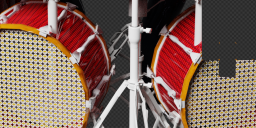
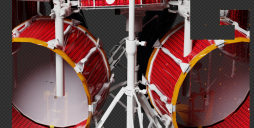
I am able to use Horizontal and Verticle tiles with Daz> Surfaces to keep an image from repeating - see attached file

When I send this file to Blender, it begins to repeat the image - see attached file

As a result, I went into the Material Editor and changed the settings from Repeat to Extend - see attached files

Then I begin to render, but now, the texture is not visible - see attached file

I can only assume that it is there, but I need to set some type of Horizontal and Verticle tiles to be able to view the texture.

Where is that setting in Blender?

Thanks in advance


Screen Shot 2021-09-07 at 10.24.48 PM.png
1190 x 527 - 293K
Screen Shot 2021-09-07 at 10.24.13 PM.png
1072 x 484 - 1M
Screen Shot 2021-09-07 at 10.22.26 PM.png
1891 x 1036 - 535K
Screen Shot 2021-09-07 at 10.19.49 PM.png
1886 x 1073 - 585K
Screen Shot 2021-09-07 at 10.21.56 PM.png
1095 x 551 - 1M

Comments

  • TheMysteryIsThePointTheMysteryIsThePoint Posts: 3,220
    September 2021

    It looks like you probably just need to uv unwrap the bass drum.

  • margravemargrave Posts: 1,822
    September 2021

    You can either unwrap the UVs, as TheMysteryIsThePoint said, or you can go into the Shader Editor and add both a Texture Coordinate & Mapping node. The Scale option on the mapping node is functionally identical to the Horizontal/Vertical Tiles option in the Uber shader.

    https://docs.blender.org/manual/en/2.93/render/shader_nodes/vector/mapping.html

  • tam_c3df5332fctam_c3df5332fc Posts: 122
    September 2021 edited September 2021

    TheMysteryIsThePoint said:

    It looks like you probably just need to uv unwrap the bass drum.

    Thanks for replying @TheMysteryIsThePoint,
    Nothing is showing up in the UV Mapper - see attached screen shot. All indications are that this should be working

    Edit: I was able to see the image in the UV Mapper by selecting it from the list of images at the top, but it is still not showing up in the rendered mode - see attached screenshot

    Screen Shot 2021-09-08 at 6.10.25 AM.png
    1892 x 925 - 520K
    Screen Shot 2021-09-08 at 6.26.13 AM.png
    1291 x 753 - 559K
    Post edited by tam_c3df5332fc on September 2021
  • tam_c3df5332fctam_c3df5332fc Posts: 122
    September 2021 edited September 2021

    OK, I figured it out.

    1) Go into Object mode and select the item that you want to apply the texture

    2) After selection, switch to the Edit mode

    3) Go to the Select menu and choose All

    4) Go to the UV menu and choose Unwrap

    see attached screenshot for the result

    Now the images are not aligned correctly, but if someone could tell me how to correct that, then this will be working to my satisfaction

    Edit: I was able to select the object and rotate/move them into their correct positions/rotations - see attached screenshot.

    Just in case anyone else has a hard to moving/rotating objects, as if they were cemmented into their positions/rotations, then go into the Tool menu (right hand side drawer menu), under Options - unselect Origins and Locations - see the previously mentioned screenshot

    Seriously thank you for the feedback and letting me bounce ideas until I was able to understand
     

    Screen Shot 2021-09-08 at 7.06.13 AM.png
    1462 x 997 - 1M
    Screen Shot 2021-09-08 at 7.24.43 AM.png
    1441 x 929 - 1M
    Post edited by tam_c3df5332fc on September 2021
  • TheMysteryIsThePointTheMysteryIsThePoint Posts: 3,220
    September 2021

    @tam_c3df5332fc

    Glad you figured it out.

  • PadonePadone Posts: 4,001
    September 2021

    @tam I suppose you're using the daz bridge here. As for diffeo it automatically converts textures tiles to blender.

Sign In or Register to comment.
Adding to Cart…

Daz 3D is part of Tafi

Connect

DAZ Productions, Inc.
7533 S Center View Ct #4664
West Jordan, UT 84084

HELP

Contact Us

Tutorials

Help Center

Sell Your 3D Content

Affiliate Program

Documentation Center

Open Source

Consent Preferences

JOIN DAZ

Memberships

Blog

About Us

Press

Careers

Bridges

Community

In the Studio

Gallery

Forum

DAZ STORE

Shop

Freebies

Published Artists

Licensing Agreement | Terms of Service | Privacy Policy | EULA

© 2025 Daz Productions Inc. All Rights Reserved.