Ron's Space Brushes
 barrieM
Posts: 307
barrieM
Posts: 307
in The Commons
Got Ron's Space Brushes and installed the brushes in Photoshop with no problem. Can't get Ron's Space Styles to work. The .asl file is installed as shown in attachment but won't show up in Photoshop. Does it need expanding into individual files? If so how can it be done on a Macintosh?
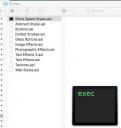
Ron's Space Styles.jpeg
427 x 451 - 44K

Daz 3D is part of 
Connect
DAZ Productions, Inc.
7533 S Center View Ct #4664
West Jordan, UT 84084
Licensing Agreement | Terms of Service | Privacy Policy | EULA
© 2026 Daz Productions Inc. All Rights Reserved.
Comments
I know nothing about Macs, but I just checked my CS6 PS install, and it looks like you load Styles the same way you load brushes. I recommend you "Save Styles" if you've created any of your own first. Then you can either append or replace when you load the Space styles, and you'll be able "reset" to your current Styles.
Maybe download manually to a folder on your desktop then with photoshop open double click the styles in the folder and they should show up in your styles on your machine.
Let me know if you get these to work or not the styles really make the brushes pop into a realist space inviroment.
Thanks Ron
My attachment didn't show up in my initial post. I will include it here.
I forgot to set the instalation path in the install manager and found the zip file in the downloads folder. I got the brush file and the style file and dragged the brush file into photoshop preset/brush folder and that worked fine. I dragged the style file into the photoshop preset/styles folder but it didn't show in Photoshop. Rons style icon is different to the other style icons although they all have the same .dsl designation.
If my attachment is visible, hopefully you will see the problem.
Just noticed you are the creater of this product. Many thanks for being there. I found all your art creations today and fell in love with them.
I don't know your expertise level, but just in case; .asl files live in the Styles folder inside the Presets folder of the main Photoshop (or Elements) Application folder. To make them accessible you go to the Styles pallate and load them. Brush files are .abr files and live in the Brushes folder.
Thanks Jodel. Yes I am aware of that. My attachment shows it installed in the photoshop presets folder. Since Rons style file is labled .dsl I assumed it would be OK. But it is not a dinkum .dsl file. ( it may be OK for Windows or unix) I'm wondering if I missed the real .dsl file.
I install actions and styles and whatnot by the simplest method I have ever seen and am amazed it is not The Standard Method.
I open Photoshop and drag and drop the unzipped item directly onto the Photoshop workspace - BLAMMO! Installed! Actions show up straight away, no restarting or anything. AWESOME!
Gogger, that is interesting I will try that. I have deleted items from my first attempt so I will download a fresh set from my product library. There are two parts (see attachment). Should both be installed in photoshop?
........... and which destination in Install manager do I select? 64 bit software or do I just change the path for content files?
@barrieM, DIM should automatically sort that for you.
DIM should detect where Photoshop is installed the first time you need to install a PS asset, such as brushes. If you check the Applications tab in the Settings popup dialog, you should see the path to your install of Photoshop listed, as you previously installed Ron's Space Brushes. If it couldn't find PS when it installed those brushes the first time, it would have given you an error message.
The PS assets will be installed to the PS path in Presets/Brushes/, and Presets/Styles/. The image files will be installed to My Daz 3D Library (or, whatever you named your main library,) under General/Deviney/Ron's Space Brushes/.
I hope this helps.
Yes L'Adair It does help. Thank you.
Those downloads are two different things - Ron's Space Brushes should be unzipped and dropped onto your PhotoShop workspace background (NOT a blank image, or regular image, but the Photoshop background itself). The second download looks to be Photoshop files that you can open and use as inspiration or as a start for your own images using the brushes.
(If you have trouble with the Photoshop workspace background concept, I can do a screen shot from mine, but you might need to make sure you don't have any images open if you are using the setting 'Open new documents as tabs'.) I have this set, but don't currently have it installed. Hopefully we can get your sorted out! :)
Still struggling. I tied Gogger's method but the file just bounced back to my desktop. dragged the zip file and tried the unzipped file into the grey workspace that surrounds the document area. The brushes can be simply dragged into Photoshops preset/Brushes folder. But I can't get Photoshop to recognise the Style file. (As you see from one of the above attachments the file does not display the same icon as the other .asl files. Perhaps Ron intended it to be installed automatically.
I tried the auto method described by L'Adair but It failed probably due to my ignorance of using DIM. Here is what I did. I set up a path to photoshops preset folder.and selected it (see attachment). Had difficulty with the next steps. After clicking the accept button the selection cleared and the window closed. In the "Ready to install" tab I selected the "selected path" button. (I now know that the select path button is for content updates). I got the error message attached.
How will I know that the path is selected before I hit the download button? I didn't see any indicator or selection under the Ready to download tab.
You need to add the Photoshop details in the Applciatiosn tab, not set it as a content directory.
I'm not sur when styles like this came in with Photoshop - it's possible CS3 is just too old.
Thanks Richard, Hopefully that will do the trick. I understand the product was good for C3 and up.
Have you tried unzipping them somewhere and then loading them from Photoshop by browsing to where you unzipped them.
Yes I tried import and open. Not recognised by Photoshop.
I think the problem is that Ron's style.asl file is not compatible with my iMac and/or my CS3. Look at the atached .asl icons. Very disappointing, I have use for several Ron's brushes.
How can I contact him here?
If you look closely at the error message, you'll see DIM is looking for a path to "Photoshop CC, CS6, 7" …
I don't know if there is any way to make these work with CS3.
I don't think you can contact Ron directly, but if you put in a trouble ticket (here,) Tech Support will contact him on your behalf. Worst case scenario, you can probably return the brushes for a full refund. However, I've used this set many times, and had completely forgotten it even included Styles!
Did you import through the Styles panel - Window>Styles, open the option menu (the lined button in the top-right corner)>Load Styles?
I read that as CC through C6 Assuming CC was the before C1. Just found that is High end photoshop.Do you know if Rons brushes work on Photoshop elements?
Is that trouble ticket also good for refunds? Thank you for your help.
It can be.
But kibitzing elsewhere, it was brought to my attention, the "7" in the install files is Photoshop 7, which is the last version before the CS, (Creative Suite) came out. It seems odd that the file will work with Photoshop four vesions older than yours, but not work with yours. So consensus is this is an install issue, not a compatibility issue.
So don't give up just yet.
The brushes work perfectly well in Photoshop Elements 2018 (the current version is PSE 2019, so I presume they will work there too).
I'm not sure about the styles, but if you can wait a cuple of hours I could try them there. (I'm on my laptop at the moment, not my main PC where PSE and Ron's stuff are installed)
I suspect not - do you have a Styles panel/palette/pane?
To expand on Richard's question, here is a screencap of PS CS6 with the Styles pane open and the Windows menu expanded.
Do you have anything like this in your version of Elements?
Even if you don't, I think it's worth waiting for MelanieL to report back on Styles and her install of Elements.
How do I get those quotes "barrieM said:,,,,,,,,,,"
L'Adair I don't have elements but I will consider geting it if I can't get Rons brushes working on my CS3. I will gladly take your advice and not give up but don't know what to do next,
MelanieL Thank you. I will be interested to hear if Styles work in Elements.
My CS3 has a styles Menu like the attached.
Thank you, @barrieM, for the screenshot, and clarification on which version of Photoshop you have installed.
Look at your screenshot, and notice there is a "Window" menu five places to the right of your "Layer" menu. Open that menu and look for Styles. If the pane is already open or docked, there will be a checkmark next the menu item, as there is in my screenshot. If the checkmark is missing, click on Styles to open the pane.
Let me know what you find, and we'll take it from there.
Well I tried PSE 2018 and successfully loaded the styles presets, which appeared to apply, but I'm not sure they are working properly. (They seem to mostly wipe out the layer they are aplied to, which looks not much like Ron's promos) Here are two styles applied to the same image background.
L'Adair - could you possibly show an example of how style Space12 and Space10 work on an image in Photoshop CS6?
ETA: I tried tweaking the options that the cog menu in the styles panel reveals, but they didn't rally have any effect.
@MelanieL, the Styles are intended to be applied to the "brush strokes" of the product. On solid layers, as your background appears to be, the effect you see is exactly right. Except, maybe, for the beveled look of the layer. Was that already there? Or added by the layer Styles?
(Image examples to follow…)
Okay. Here are three examples. I created a simple gradient for a background, and applied a one-click brush stroke from one of the brushes in the pack. The image on the left is without using any styles. The image in the center uses the "Space10" Style preset, and the image on the right uses the "Space12" Style preset.
Aha! Got-ya!
I was applying the style to a layer which I had filled with colour then painted on with Space brushes.
If I create a separate layer for the paintbrush strokes then the styles seem to work.
Edit: Attached the same two styles but "applied properly"! Thank you, L'Adair - I now have a much better understanding of how to use the parts of Ron's oeuvre I've not touched because I only understood the brushes! I can hardly wait to try out some of his other style sets.
@barrieM - so it seems that the styles do work in Photoshop Elements.