Brush on the Details: Prop Painter scattering bricks, grass and debris across a Daz Studio scene

Prop Painter

Paint props directly onto your scenes.

A plugin for placing and scattering props directly onto scene surfaces.

Shop Now
Daz Studio scene without Prop Painter

Without Prop Painter

The same scene dressed with props painted using Prop Painter

With Prop Painter

Second Daz Studio scene without Prop Painter

Without Prop Painter

The second scene dressed with props painted using Prop Painter

With Prop Painter

Take Your Scene Further

Bring your world to life with diverse props.

Urban Debris for Prop Painter: cardboard, paper and leaves on a street

Urban Debris for Prop Painter

Bring lived-in detail to your environments with a collection of 64 props.

Shop Now
Grass and Weeds for Prop Painter: weeds growing around a street pole

Grass and Weeds for Prop Painter

Add natural detail to your environments with a collection of vegetation props.

Shop Now

Simple Controls

Paint directly in the viewport.

Prop Painter panel open in the Daz Studio viewport
1

Capture a target

Select the mesh in DAZ Studio, click USE AS TARGET.

2

Choose your props

Click a Starter Pack thumbnail.

3

Start with one item

Set Items per Dab, Scale, Surface Offset, and Random Tilt.

4

Activate & paint

Choose PAINT, then ACTIVATE PAINT MODE. Click or drag to place.

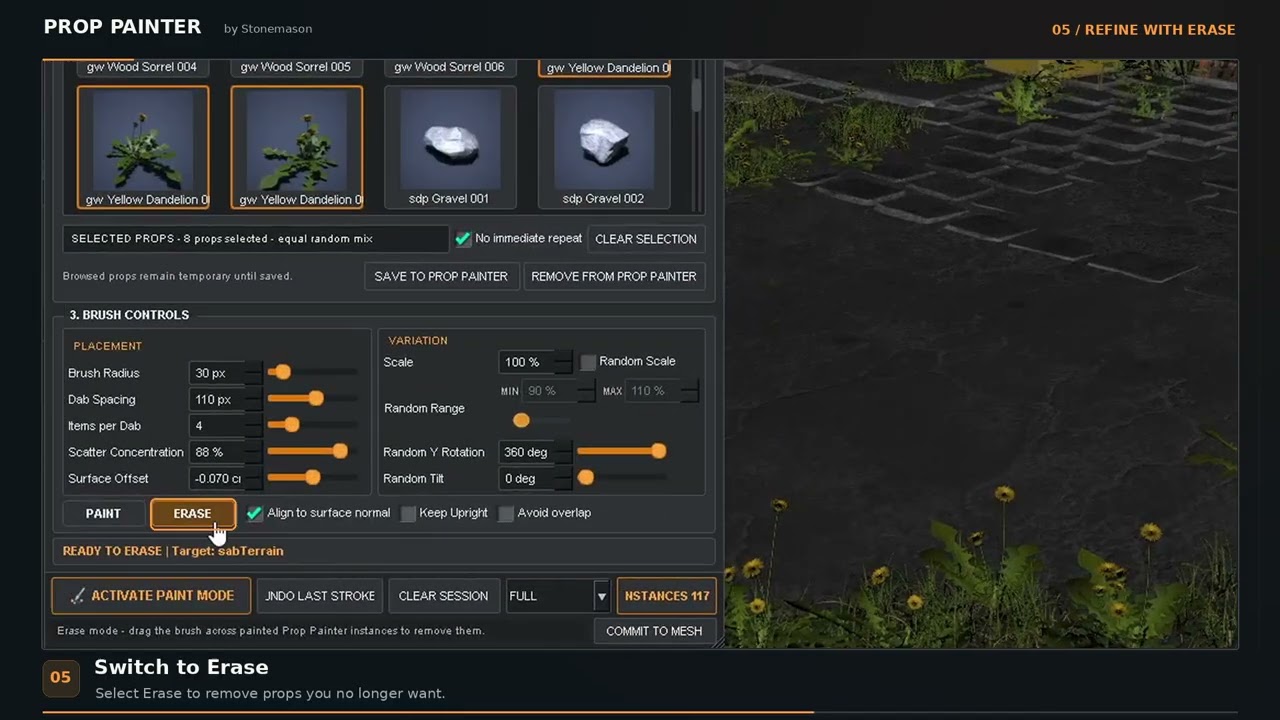
Dial in Your Brushes

Adjust your brush until you like what you see.

Prop Painter brush settings

Refine the Painting

Blend, define, highlight, and perfect your piece.

Prop Painter refinement tools

Quick Start Video

Prop Painter quick start video