-
Creating/Saving/Applying G9 Full Body Morph
You're not a PA anymore by now ? If you're still a PA, you have multi-resolution plugin then you can freely export / import OBJ with multi resolution ~~
Premier character vanished from my library :IAh, we should discuss the details:
When you log in with Daz Studio Premier, is update metadata checked and does it complete the metadata update (you should see a little progress bar in the lower right corner of your screen)?
Next, if you go to the Smart Content, do you see the product at all or is it missing when you are logged in? Is it missing from your Install tab too?
Daz Studio 6 Beta - version 6.25.2026.19821! (Updated July 23, 2026)nonesuch00 said:
Something that I've noticed has showed up in the 6 Alpha and the others, 4 Release, & 4 Beta are my top level Smart Content icons in the top right hand corner now mostly have a white symetric and vertiically bisected circle with a small white triangle pointed down at the bottom gap in the circle. What does that mean? Is this a icon telling me I have content available in that DAZ Connect again even though I've installed it via DIM? If so, I wish it wouldn't do that with the same product has already been installed via DIM. Or is that just notice that the meta data has been updated, example: data to better sort by genre, fashion, and other data, or that tells me I own the interactive license for that product. If so, how to I get DAZ Studio to update all of those metadata at once, but of if it's not wanting me to installs all of those products a second time, which would be a huge time wasting, space wasting, organizational disaster?
That does sound like the avaiualble for install through Connect con. In the latests builds of DS 4 and in DS 2025 it should be hidden on products that are nstalled through DIM (or manually installed and their metadata imported).
Also, while I'm asking that why is it that each time I start up DS 4.X Release, DS 4.X Public Beta, or DS 6 Alpha I get a dialogue messague before the DAZ Studio proper is on the screen that I am going to need to restart DS for the plugins changes and such to take effect. They haven't changed and restarting will just show that message again. When will that be fixed?
It was fixed some time ago.
The two issues together do sound as if something (security software, system utilty) is getting in the way of DS' and/or DIM's ability to update certain data.
Daz Studio 6 Beta - version 6.25.2026.19821! (Updated July 23, 2026)Something that I've noticed has showed up in the 6 Alpha and the others, 4 Release, & 4 Beta are my top level Smart Content icons in the top right hand corner now mostly have a white symetric and vertiically bisected circle with a small white triangle pointed down at the bottom gap in the circle. What does that mean? Is this a icon telling me I have content available in that DAZ Connect again even though I've installed it via DIM? If so, I wish it wouldn't do that with the same product has already been installed via DIM. Or is that just notice that the meta data has been updated, example: data to better sort by genre, fashion, and other data, or that tells me I own the interactive license for that product. If so, how to I get DAZ Studio to update all of those metadata at once, but of if it's not wanting me to installs all of those products a second time, which would be a huge time wasting, space wasting, organizational disaster?
Also, while I'm asking that why is it that each time I start up DS 4.X Release, DS 4.X Public Beta, or DS 6 Alpha I get a dialogue messague before the DAZ Studio proper is on the screen that I am going to need to restart DS for the plugins changes and such to take effect. They haven't changed and restarting will just show that message again. When will that be fixed?
[SOLVED] = My "Smart Content" suddenly stopped being smart.Drogo Nazhur said:
crosswind said:
Well, M3D Bennet is one of the unique case, i.e. there're two DUF files of Character Preset, one locates in \Characters folder, another locates in \MrBennet folder.... but both of them should have metadata with Icons and Compatibilities info. (screenshot 1).
There're some different cases: icons come from Content Type in metadata. Sometimes there're no Content Content type assigned but just Compatibilities data, like Mr. Bennet on your side, you see no icon there but just filtered result. Sometimes, there're zero metadata, you'll see no icon and filtered result either, like Lucas 8 on your side... I suppose you misdid something in DS or your Daz Library for some reason... then some metadata are gone.
Re-importing metadata should fix the issue. But you better first of all double check the case beforehand. For instance, Lucas 8, you couldn't filter it out. So, follow below step:
1. In Content Library, right-click on Characters folder > Edit Metadata....
2. In Content DB Editor, locate Lucas 8, check if there's a Content Type assigned, as well as /Genesis 8/Male assigned in Compatibilities (screenshot 2)If nothing is assigned, it'll prove the reason why you see no Icon and couldn't filter it out.
Then try re-importing the metadata of Lucas 8 ONLY ! Then see if it works.
Thank you for your help. That worked. If you are a member over at DA and are not a CORE member, I'd like to show my appreciation for your assistance and gift you with a CORE membership
Ah, great ! And I'm all good at DA, thank you very much for your kindness ! Happy rendering!
[SOLVED] = My "Smart Content" suddenly stopped being smart.crosswind said:
Well, M3D Bennet is one of the unique case, i.e. there're two DUF files of Character Preset, one locates in \Characters folder, another locates in \MrBennet folder.... but both of them should have metadata with Icons and Compatibilities info. (screenshot 1).
There're some different cases: icons come from Content Type in metadata. Sometimes there're no Content Content type assigned but just Compatibilities data, like Mr. Bennet on your side, you see no icon there but just filtered result. Sometimes, there're zero metadata, you'll see no icon and filtered result either, like Lucas 8 on your side... I suppose you misdid something in DS or your Daz Library for some reason... then some metadata are gone.
Re-importing metadata should fix the issue. But you better first of all double check the case beforehand. For instance, Lucas 8, you couldn't filter it out. So, follow below step:
1. In Content Library, right-click on Characters folder > Edit Metadata....
2. In Content DB Editor, locate Lucas 8, check if there's a Content Type assigned, as well as /Genesis 8/Male assigned in Compatibilities (screenshot 2)If nothing is assigned, it'll prove the reason why you see no Icon and couldn't filter it out.
Then try re-importing the metadata of Lucas 8 ONLY ! Then see if it works.
Thank you for your help. That worked. If you are a member over at DA and are not a CORE member, I'd like to show my appreciation for your assistance and gift you with a CORE membership
item will only show up in Lost and foundIt is Daz who makes metadata, and that product is one of those transferred from Renderosity, and Daz decided that it was too much to apply metadata for. In theory they could add them later, but now it is so long ago, I would say it won't happen.
Content Wizard can help you apply metadata.
Else you can do it yourself from the content library.
I can't remember if Jay Verluis has a video on it. Else @Elor has a description somewhere. He might drop by.
But in short if you open the folder in the content library, you can go to 'Content DB editor' and edit, and afterwards Categorize the content.
[SOLVED] = My "Smart Content" suddenly stopped being smart.Well, M3D Bennet is one of the unique case, i.e. there're two DUF files of Character Preset, one locates in \Characters folder, another locates in \MrBennet folder.... but both of them should have metadata with Icons and Compatibilities info. (screenshot 1).
There're some different cases: icons come from Content Type in metadata. Sometimes there're no Content Content type assigned but just Compatibilities data, like Mr. Bennet on your side, you see no icon there but just filtered result. Sometimes, there're zero metadata, you'll see no icon and filtered result either, like Lucas 8 on your side... I suppose you misdid something in DS or your Daz Library for some reason... then some metadata are gone.
Re-importing metadata should fix the issue. But you better first of all double check the case beforehand. For instance, Lucas 8, you couldn't filter it out. So, follow below step:
1. In Content Library, right-click on Characters folder > Edit Metadata....
2. In Content DB Editor, locate Lucas 8, check if there's a Content Type assigned, as well as /Genesis 8/Male assigned in Compatibilities (screenshot 2)If nothing is assigned, it'll prove the reason why you see no Icon and couldn't filter it out.
Then try re-importing the metadata of Lucas 8 ONLY ! Then see if it works.
[SOLVED] = My "Smart Content" suddenly stopped being smart.crosswind said:
Well, what you showed on the left is Content Library which is no Smart. It always shows you all 439 character preset files there because Content Library has no functionality of "Filter by Context".
On the right, it is the File tab of Smart Content with supportive "Filter by Context" function. But it only shows you 31 preset files.... because only 31 preset files among 439 files have Metadata with Compatibilities info. You can see nearly all the preset files on the left in your Content Library have no icons (in the upper right corner of the thumbnail)... which means they don't have metadata. That's why those files give no response to "Filter by Context" in Smart Content.
You said that if there is no icon in the upper right of the thumbnail, it means that they don't have no metadata. But let's look at the following screen print ...

... The first screenprint shows that I have 439 characters. When using the smart content option (second image), it shows that I have only 31 characters with the icon in the upper right of the thumbnail. Now let's pick one of those 31 characters that does have the icon. I picked "M3D Bennet". When I go back to look at him in the same way that I did the first time around with the other characters, viewing him that way, he also does not the icon in the upper right in the third image even though he has it in the second image. So this has me confused.
And how do I rebuild these metadata?
Content Libray is now jumbled. Help I'm lost in my library folders!I have no idea why.... Again, dumping files from product package and/or Update Metadata shouldn't move / remove any existing folder / files in your Daz Library... unless you accidentally did something wrong like moving / re-organizing the folders and files... etc.
Therefore I'm afraid you have to clean the mess manually and CORRECTLY re-install the missing products.
[SOLVED] = My "Smart Content" suddenly stopped being smart.Well, what you showed on the left is Content Library which is no Smart. It always shows you all 439 character preset files there because Content Library has no functionality of "Filter by Context".
On the right, it is the File tab of Smart Content with supportive "Filter by Context" function. But it only shows you 31 preset files.... because only 31 preset files among 439 files have Metadata with Compatibilities info. You can see nearly all the preset files on the left in your Content Library have no icons (in the upper right corner of the thumbnail)... which means they don't have metadata. That's why those files give no response to "Filter by Context" in Smart Content.
Content Libray is now jumbled. Help I'm lost in my library folders!I still don't understand what you mean by "every section of drop down....". Dumping files from 3rd party product packages shouldn't move the files in your Daz Libraries or Content Library. But Update Metadata may change Categories in your Smart Content.
Better post one or two screenshots to illustrate the issue you have ~~
Content Libray is now jumbled. Help I'm lost in my library folders!I bought a few things from Renderosity and Renderhub. Downloaded them, unpacked them, then copied all the files into my Daz library. I then updated my metadata and went looking for the files.... BUT, now my entire Content Librabry Tab is a mess. The drop down "My New Daz Library" which is where 95% of everything has been going into for the last several years looks nothing like it did before. Files that were mostly catgorised like all the files with Genesis characters 3-8-8.1-9/cloting/ etc that were all neatly set there are gone. Even the "Model Folder" I had created for the characters I make is gone, and those characters got put in a differet Library drop down folder and renamed.
I have not accepted the most recent update as I always wait a few weeks before doign so, so patches can be done.
Last update I did was a little while go for me.
I'm currently using Daz 4.23
I'm not sure how to fix this.List of Products Used - script [Commercial]Elor said:
A starting point to learn how to setup metadata:
www.youtube.com/watch?v=r-sdHEBNCB4
With that, you should have what you need to understand how it's done.
The rest is practice, practice, practice and to help you when you don't know how to properly label something, it's a good idea to looks at a couple of similar products you bought from Daz (a couple because Daz themselves are prone to error or to sometime label the same thing in various ways).
In the end, it's more tedious than hard, and to aleviate the tediousness, I suggest listening to something like music, a podcast, the radio

I had watched Slosh's video several months ago. As a hobbyist, I don’t have the need to have extensive metadata for a product. I have added just enough metadata to some third-party content to create a product from them so that they appear in Smart Content with metadata categories and to further categorize files so that they are not all in All Files in the product. I will watch the video again, though, in case I want to take a deeper dive.
List of Products Used - script [Commercial]A starting point to learn how to setup metadata:
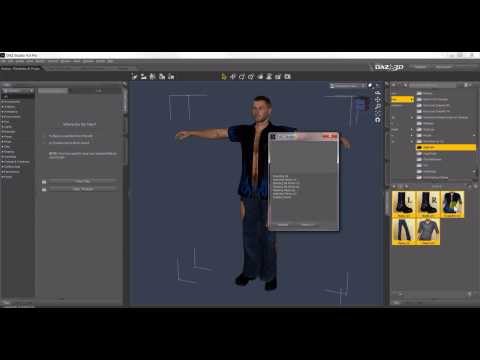
With that, you should have what you need to understand how it's done.
The rest is practice, practice, practice and to help you when you don't know how to properly label something, it's a good idea to looks at a couple of similar products you bought from Daz (a couple because Daz themselves are prone to error or to sometime label the same thing in various ways).
In the end, it's more tedious than hard, and to aleviate the tediousness, I suggest listening to something like music, a podcast, the radio
Golden Palace Vertex issuesIn both pictures the geograft is merged, the difference is in the first picture you didn't transfer morphs aka you didn't fit the geograft, so it doesn't follow and stays rigid. Easy import transfers morphs for you if you choose a genesis preset, that's the easy way. Or you can transfer morphs after from the figure to the geograft.
setup > morphs > transfer shapekeys
Golden Palace Vertex issuesI have been trying to fix this issue for a while now and I guess I did once, by mistake. After I merge geografts my golden palace mesh does not want to move with the rest of the body, so anything requiring the legs to be opened the verts just sit there rendering the graft useless. I have no idea what I am doing wrong but I have been dealing with this issue for months trying to brute force my way into fixing it by changing the way I import and what not. Below is a picture of what my normal imports of the grafts look like along with the one I fixed by mistake but have no idea what I did. Am I doing something wrong or not doing something at all?
List of Products Used - script [Commercial]jjoyner said:
If I load old Daz Studio products into a scene along with newer ones and 3rd-party ones, the newer Daz Studio products show up when I run List of Products. As expected, the old Daz Studio products and 3rd party products do not. Is there anything that I can manually add to the metadata of old Daz Studio products and 3rd-party products so that List of Products will display them when in a scene?
Below is an example. The scene contains
- Cow (SKU 354)
- Grumpy Santa (SKU 106421)
- Bench (SKU 102789)
- Abacus (SKU 21250)
- Dragon (SKU 487)
- Baseball (SKU 32221)
- 14MU Worker (SKU 13537)
- Barrel (SKU 23591)
- Mantle clock (Renderosity).
Prior to saving the scene, List of Products listed the products containing newer Daz3D content - Grumpy Santa, the bench, the abacus, the baseball and 14MU Worker. After saving the scene and reloading it, List of Products only listed the products containing the abacus, the baseball and 14MU Worker.
I don't know anything about setting metadata to products... It is a QA work for us, so I never had the oportunity to work with the metadata set up... Sorry!
Is there a way to convert genesis 8 textures to genesis 9?I woke up today to work on this for a game project I am making in Unity and conveniently had looked it up to see what solutions there were and saw this thread and can't believe someone posted same day about it when I was planning on trying to find a quick solution.
I used an old template, and lining it up perfectly wasn't right...
So, I decided to start from scratch, so anyone can do it in a matter of minutes.
This took about 5 minutes from opening Daz to taking the video showing the results.
I used Blender 2.79, I can't get it to bake properly on newer Blenders.
Daz steps:
1. Load Genesis 9 dev load into scene, set to base, change to show hidden in parameter preferences, search Genesis 8 Female, dial it up to 100
2. Load Genesis 8 Female, set to base
3. Move left thigh -7 and right thigh 7 on side to side on Genesis 9 to line the thighs
Your Genesis 9 will now match your Genesis 8 perfectly and you are done with Daz after export.
Export your two Genesis 8 and Genesis 9 FBX together to Blender with Collect textures
Blender steps:
1. Import FBX with pre/post rotation set to off
2. Select Genesis9.Shape, go to UV editor, deselect all, under materials click Select so it is the only thing selected in blender, you should see the UV editor is blank with the arms to the right of the UV map.
3. Press A in the UV editor and drag the arms, body, head, or legs (whatever currently you need) with G and hold CTRL to snap it into place
4. Click NEW texture in the uv/editor still, set a texture as 4096x4096 name it G9_Arms. "Save as" and save the image <- This is very important! (or you will get circular dependency errors and your texture will not complete)
5. Repeat this for the legs, head, torso.
6. You should have template files now on your HD called G9_Arms, G9_Head, G9_Body, G9_Legs
7. Check your Genesis 8 has materials assigned, you DO NOT NEED UV EDITOR for the Genesis 8.
8. Shift Click the Genesis 8 first and then the Genesis 9 as your active object.
9. Go to the Render settings (The camera icon). Make sure you are in Cycles or you will not see the bake settings. Go to the bake settings. Change it to "Texture" (and not Full Render) Click Bake.
You now have any Genesis 8 texture on Genesis 9 and as long as you can line up any generation this process is the same.
Here is a video of the texture baking from a Genesis 8 to a Genesis 9. I am working on scripts to automate this process in Blender since right now swapping textures to make roughness, specular, normal maps is a lot of clicking and re-saving the template files etc.
NSFW for nudity texture:https://streamable.com/jrmcdf
I'll post more screenshots or a video of the whole process if needed.FBX Mystery solved?FBX is a well defined industry standard of course. Problem is it comes in too many versions and it is extremely flexible aka there's a lot of features to implement, most importers only implement a few features and fail to comply with others. Both daz studio and blender recently improved their support to FBX, as reported in the discussion linked by Crosswind above I was able to import FBX from blender to daz studio, using the standard FBX exporter.
https://www.daz3d.com/forums/discussion/comment/8938351/#Comment_8938351
Daz 3D is part of

Connect
DAZ Productions, Inc.
7533 S Center View Ct #4664
West Jordan, UT 84084Licensing Agreement | Terms of Service | Privacy Policy | EULA
© 2026 Daz Productions Inc. All Rights Reserved.