-
Problems with headshop one click pluginSo no matter what I do I can't get the dang thing to load all the way it has only 1 tab compared to the tutorial video which has 6 or 7 tabs so I can load my picture I can adjust points on it but I can't go any further. I tried reinstalling the plug-in but still no good. Did I install it wrong why is it not working help pleaseG3F all the same faces?
Just seconding the Facegen suggestion. Textures mean a lot to changing faces. Granted, using HD morphs would be even better. But, you can do a lot just by using Facegen to get a more asymetrical and natural looking head shape. Then, using your same reference photo, recreate the texture using merchant resources. Unless of course, you had a very hi res photo reference to begin with.
Facegen is not terribly expensive. And, it's very easy to use. The Gen2 version is $69 and the Gen3 version is $139. I used the G2 version for a couple of months, then turned around and upgraded to the Gen 3 version. You do have to get familiar with how Daz fits the face to the Genesis models. They often look different than what you expect from inside Facegen. But, it's easy to experiment until you get something you like. Unless you specifically want to copy a face from a photo, you'll get a good approximation with some matches being very good. I don't care so much about exactly copying a face as I do getting a similar face to make a new character.
Anyway, give it a shot. I've used Headshop 9 and 10 as well (haven't tried 1Click yet). But, Headshop is very buggy and prone to crashing. I've been much happier with my Facegen results. Plus, Facegen will generate matching body textures for your new face. It's a huge timesaver.
HeadShop OneClick Submitted to DAZ - Best in Class! (Commercial)Looks like today may be the last day HeadShop OneClick enjoys the new item 30% discount (if not today, it must be close). If anyone has been tempted but put the decision on hold, you might want to grab it now.
Face swapping....Hi there, welcome!
I think that there is some software (http://www.daz3d.com/headshop-oneclick-plugin-win) that you could use, but if you didn't want to invest in that you could go down the traditional route of using morphs to create your basic face and body shape (http://www.daz3d.com/genesis-2-female-morphs-bundle) and then taking photos of your subject and creating textures...
The more I come to think about it though, the more attractive the headshop plugin is.
Hope this helps
HeadShop OneClick Submitted to DAZ - Best in Class! (Commercial)Before Head click would start with figure in DAZ,
Because it is difficult to import reference image into Studio would make estimated guess as to face features. nose tip, etc.
Would send to Zbrush for tweaks etc. In Zbrush it is possible to load reference images.
Back to Studio, back to DAZ etc, took about an hour or so depending.
After Head Click is used and sent to zbrush almost no work is needed for positionin, huge time saver
Keeping this in mind, also have no need for 3d printable, hair etc, the two tools interest me.
Would the free hand sculpting be done inside daz studion?
Sorry to be a bother but I would be buying the 10.2 for the tools alone.
Don't mind the time, it is results but anything that can produce both is worth investigating
Can both programs exist at once inside DAZ.
Thank you for your time, realize it has been a busy and frustrating week for you
Last question first: It was actually not a bad week. Believe it or not, only about 1% of the users experienced installation issues or that they did not know where the license key was in daz3d.com. I have provided tech support via skype to about half of them. In many cases DAZ Studio was installed in weird places, such as on the G:drive inside the Bryce folder. The main thing was that once you directed the temp file path to the right folder, it worked fine.
In regard to the two tools: in the past it was deemed that HeadShop was too difficult to use for half of the users. As a result, we invested in the auto-detect technologyand eliminated as many "manual" tools as we could without compromising the quality of the mesh or the texture. Our goal in creating OneClick was a one-click solution.
Using "manual" tweaks has its learning curve. If you are up to it, I think you will get some extra mileage from these tools.
HeadShop OneClick Submitted to DAZ - Best in Class! (Commercial)Further.....
Quote...."HeadShop uses a number of advanced features, such as: a. Automatic „Face-rotation” to rotate tilted portraits into the upright position b. Automatic recognition of eye and mouth features".
Does this eliminate the rotating the head problem I asked about? Can it be done manualy.
All this is your fault, if the oneclick hadn't worked so well......
 HeadShop OneClick Submitted to DAZ - Best in Class! (Commercial)To reiterate a previous post, excellent product, have spent hours with it so far.
To me, it appears Merchant has/is trying to solve problems.
Went to your site and read the advertisement for the 10.2,believe there is sale on.
Now specificaly regarding Face/ head only...don't care about the texture.....what are the benefits of using 10.2
vs One click?
Can they both be used inside the program?
In a previous thread, artist compared the two and the results of 10.2 looked far superior.
The main benefits of using HeadShop 10.2 are the 3D print tools and libraries of 3D-printable hair, accessories,etc. There are also two additional tools in HeadShop 10.2 (line tool and freehand sculpting), but those are for experienced users. In general, the main difference between the two products is that OneClick is very quick/easy to use, while 10.2 is more for artists who want to spend lots of time with sculpting their heads,
HeadShop OneClick Test RunI bought this product frankly for the cheapo Carrara 8.5 upgrade promotion. The same day I purchased Facegen pro based on a forum user's recommendation in the other Headshop Oneclick thread, because I'd read of the difficutlies installing the file, I decided to try FG first. The process with that software reminded me of the earlier version of Headshop which I purchased and ultimately returned, but the results, the results were fantastic (especially on G2) in that a decent texture was generated and the likeness was quite good on the first try. At that point, I decided not to even install and try Oneclick until the results it produces start looking better and the install pains are lessened.
Now, I need to be very care in how I word this. I really wish that QA rules would require a product install and work "no matter what drive" Daz Studio is installed on. It seems like a really, really old school limitation requiring things to be on the C: drive. Know what I mean, Vern?Anyways, I am glad to see Faceshop/Headshop/Oneclick moving forward with another version. I think it's a good price point for a software of this kind and I really hope it grows into it's potential. Yeah, FG works a lot better than the results I've seen here in my experience, but at almost 5 times the cost.
HeadShop OneClick Submitted to DAZ - Best in Class! (Commercial)I'm about to give up completley now with this product, it's almost a week since I bought it and still it will not show up in my DAZ Studio, in fact it's not even showing up in my ' installed plugins' menu either. I've tried every suggestion posted in this thread and still I don't see 'OneClick' anywhere, not even a sign of it. My main DAZ 3D is installed on drive 'C' but my library and storage or on drive 'D' (this is the drive that all my install manager stuff is loaded to), I've tried manually setting up the folders and files suggested here on to my 'C' drive and I've also tried several fresh installs of 'OneClick' and still I am getting absolutley nothing so my next alternative is to get a refund unless someone can suggest what I'm doing wrong ?
Very sad that this still seems to be a thing, it's what made Headshop (7?) unusable for me, because I also have all of my assets on a dedicated drive. Never got it to work, which still makes me sad, when I think about what I've paid for it. :(
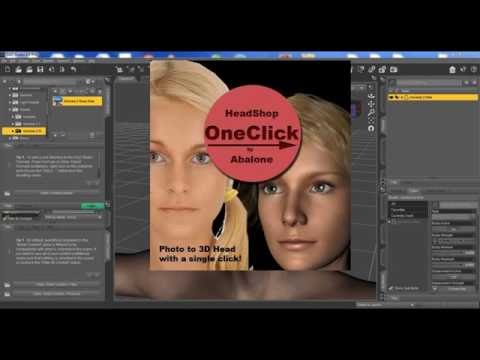
@info_b3470fa520: please look into this, it's a game breaker for a lot of people I'd guess, which frustrates them and you lose follow-up sales - which is a lose-lose situation... I'm still interested in getting a new version of HS, but this needs to be fixed first, otherwise I simply cannot use it. :( Studio knows about the assets paths, so there should be a way to poll Studio for the assets paths and make use of them, no? Thank you. :)I just posted a video on Youtube that shows how you change library settings in the Preferences dialog. My recommendation is that the temp file still should be on the deafult location (see movie).
 HeadShop OneClick Submitted to DAZ - Best in Class! (Commercial)
I was going to gripe that HeadShop will not be built for Mac OS. After what I am reading... eh, maybe not so much.
HeadShop OneClick Submitted to DAZ - Best in Class! (Commercial)I'm about to give up completley now with this product, it's almost a week since I bought it and still it will not show up in my DAZ Studio, in fact it's not even showing up in my ' installed plugins' menu either. I've tried every suggestion posted in this thread and still I don't see 'OneClick' anywhere, not even a sign of it. My main DAZ 3D is installed on drive 'C' but my library and storage or on drive 'D' (this is the drive that all my install manager stuff is loaded to), I've tried manually setting up the folders and files suggested here on to my 'C' drive and I've also tried several fresh installs of 'OneClick' and still I am getting absolutley nothing so my next alternative is to get a refund unless someone can suggest what I'm doing wrong ?
Very sad that this still seems to be a thing, it's what made Headshop (7?) unusable for me, because I also have all of my assets on a dedicated drive. Never got it to work, which still makes me sad, when I think about what I've paid for it. :(
@info_b3470fa520: please look into this, it's a game breaker for a lot of people I'd guess, which frustrates them and you lose follow-up sales - which is a lose-lose situation... I'm still interested in getting a new version of HS, but this needs to be fixed first, otherwise I simply cannot use it. :( Studio knows about the assets paths, so there should be a way to poll Studio for the assets paths and make use of them, no? Thank you. :)Novica & Forum Members Tips & Product Reviews Pt 7I took the plunge and got HeadShop OneClick Plugin. You can find the results of my test run here.
Before I went to look, I guessed Bruce Willis. That does look quite like him!!!
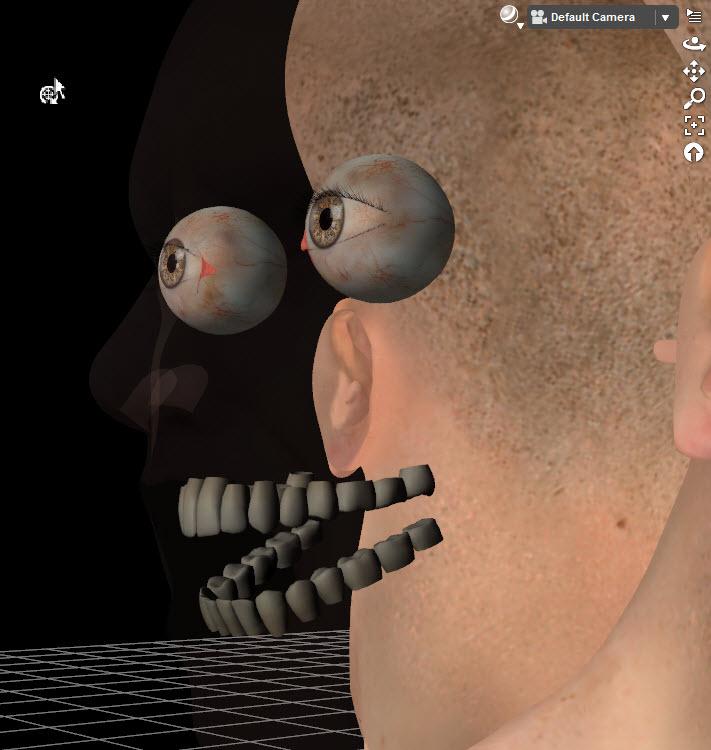
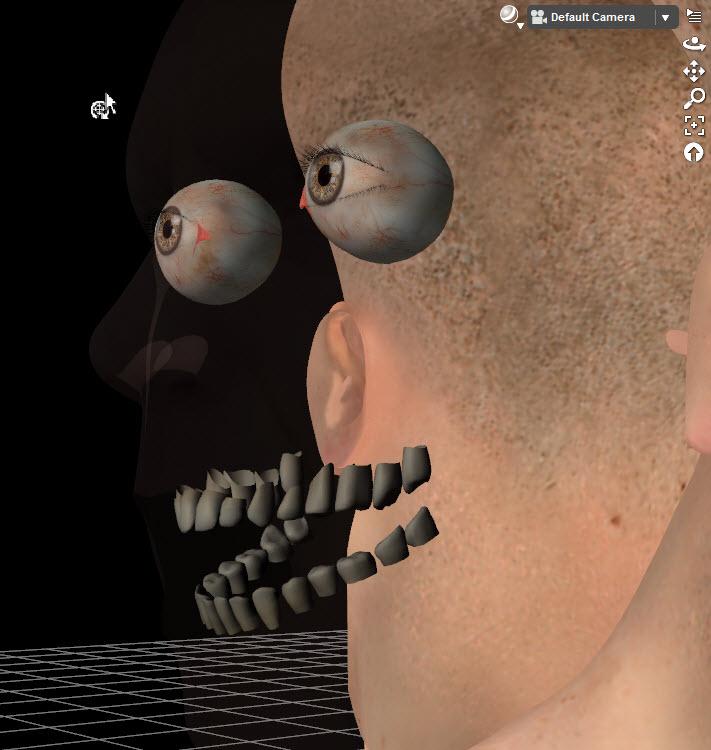
HeadShop OneClick Test RunHere you go. This is with just the front view modified, no profile changes. First image is G3 male base figure before HeadShop. Second image is afterwards. Eyes look fine but you can see the gaps in the teeth I mentioned. I don't have any teeth morphs to see if they can be adjusted back to original.
 HeadShop OneClick Submitted to DAZ - Best in Class! (Commercial)
For those interested, I summarized my test run of HeadShop OneClick here.
Excellent overview. As for the texture, now 2048x2048 is available at no extra cost:
https://www.dropbox.com/s/nhp07axw3e7vpdc/OneClick_Install.zip?dl=0
Your OneClick serial key will work on this
HeadShop OneClick Test RunHow well does HeadShop morph the eyes and teeth?
Do the eyeballs retain their original shape, or are they warped?
I would make the head invisible to get a better look.HeadShop OneClick Submitted to DAZ - Best in Class! (Commercial)For those interested, I summarized my test run of HeadShop OneClick here.
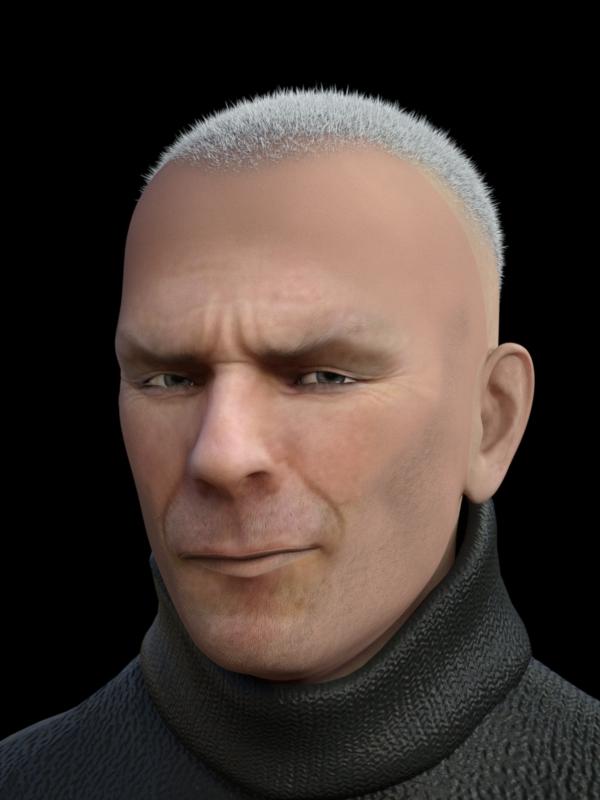
Novica & Forum Members Tips & Product Reviews Pt 7I took the plunge and got HeadShop OneClick Plugin. I was going to post a brief review here but it got too big and I didn't want to impose on Novica's thread. The image is an example of what I got using the plugin and my own morph dial spinning. It's an OK product, I'm liking it better as I've used it so I'm going to keep it, but it's not without some issues in operation and documentation. You can find the results of my test run here.
 HeadShop OneClick Test Run
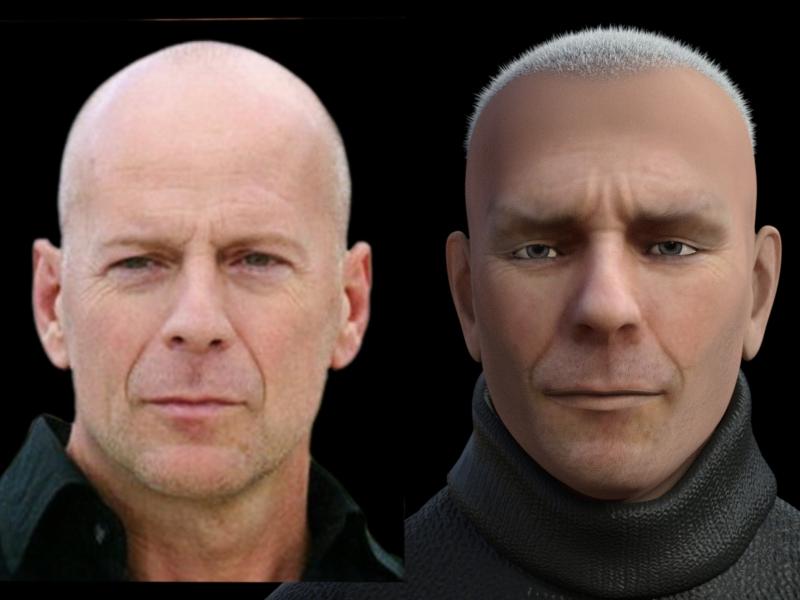
You can of course use various head morphs you own to modify the image to get a closer result. I’ve never tried to macth a person before, but by using the front and profile images on planes and using them in the superimposed and side-by-side mode, I adjusted a number of morphs for the ears, eyes, chin, cheek and forehead. For several, I had to undo the settings limit to get enough movement. I also used some pose controls like squinting and mouth close to adjust for eyes too big and the slightly open mouth. Here’s my results after making these adjustments.
A few final items:
Watch for interaction between morphs. If you have already exported a head for a particular figure and you want to rerun Headshop on that figure, set the first morph to zero (e.g., fs to zero) and be sure to name the new morph something else (like fs1) when you restart the plugin.
When I first started to write this I had more negatives to include, but for many of them, I have found they came about from my lack of experience using the program.
The documentation is scant but sufficient as the basic process is pretty straightforward. There is a more detailed HeadShop 10.2 manual available, but much of that doesn’t apply to this simplified plugin. Some of the icons in the plugin are not explained and I couldn’t get them to do anything at first, but ultimately I figured it out. I do think the creator could provide better documentation and tutorials to ease the learning the curve.
The biggest limitation is the auto-generated texture. It just isn't good enough for realistic renders and would require a lot of hand work to make it useful.
On the other hand, the auto-detection of facial features seems to work very well and the resulting morph a good starting point for your own fine-tuning. Also, if you don't care about a close match, you've at least increased the diversity in your Daz characters.
HeadShop OneClick Test RunI took the plunge and got HeadShop OneClick Plugin. Note this is for Windows only and the author notes there is no plan for a Mac version. My first reactions were mixed, as some things appear very promising and other things seem not quite ready for prime time. But the more I’ve tested it, the better the results I’ve gotten so I’m inclined to keep it at this point.
1. You need to manually install the plugin. It will appear in your DIM but the author says to ignore that option as it will not work (so why is it there?). I had read about this issue before I got the product, so I never gave it a try and just went the manual download route.
2. Many people have reported installation problems if DAZ Studio is not installed on the C drive. The plugin by default expects it there. I have DAZ on my E drive and I chose that drive during the plugin’s installation as you have the option to do so. All worked fine for me. Later discussion seems to track the issue to the location of DAZ Studio’s temp file location which MUST BE on the C drive. Although I have DS on my E drive, the previous version was on C and I still have a directory structure for it on C. That’s probably why I had no installation problem and the plugin runs fine. If you have never put DS on your C drive, you’ll need to follow this discussion to create the right temp file setup.
3. The basic instructions to use OneClick are as follow:
a. Load a Genesis 2 or 3 male/female base figure. In my examples, I’m using a G3 male. If you’ve made any changes to shaping or posing morphs, reset them to zero; otherwise, Headshop will build on top of them and you’ll get distorted results. You may find you can create some interesting creatures if you don’t reset, so it might be something worth exploring in the future.
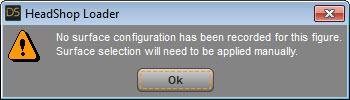
b. Select the figure in the scene tab and from the menu select Edit-Start Headshop. You’ll get a popup message saying “no surface configuration has been recorded”. Click OK. On the next dialog, choose Face and Lips in the Surface Selection box. In the Geometry to Morph box, choose Head. The order differs between G2 and G3 figures but the choices are easy to find. I do not know what any of the other choices do. Also in this dialog, you can give the morph a name, the default is “fs”.
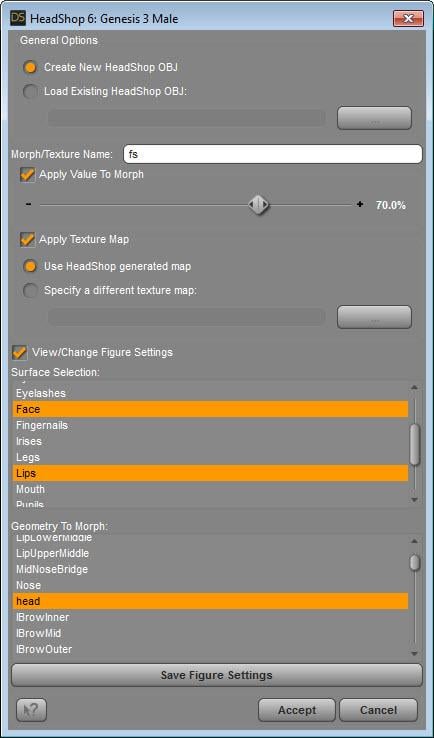
c. A new dialog box will open. Click on the big white space on the left and pick an image with a frontal view. For best results, it should be a dead-on front view. If the face is slightly angled, it seems OK but the farther offset it is (either facing up/down or right/left) you’ll introduce asymmetry into the results. I did my first testing with my own image but for this review I searched Google for front/side view portraits and one of the first was Bruce Willis, who will be familiar to many, so I worked with him.

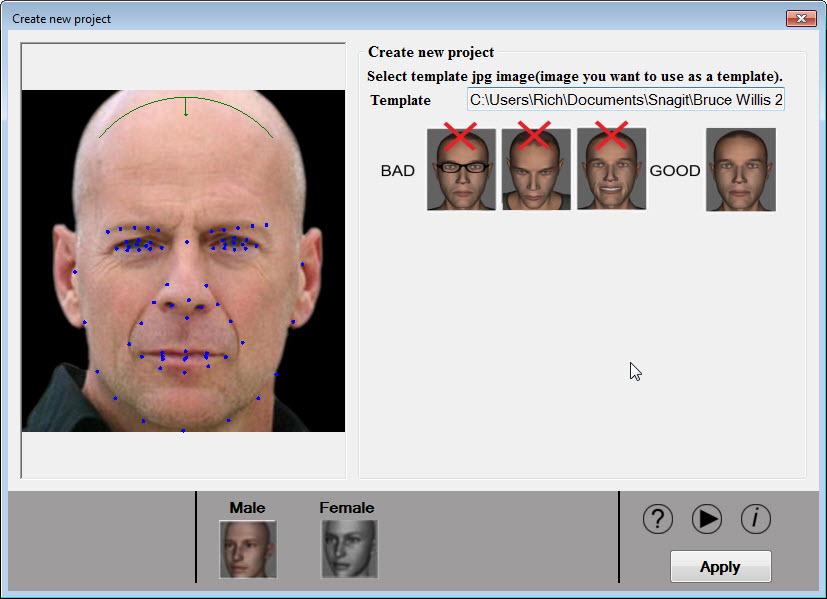
d. The image will appear with automatically placed dots. I find this auto-detection works really well. In the image above, note the upper green curve at the top of the head, short of the top. I’m not sure if that indicates the hairline or the top of the skull. Click on the button Apply to proceed to the next step.
e. A new dialog box will appear showing the image on the left and the morphed head on the right. Click on the Autodots button in the upper left and the dots will appear on both.
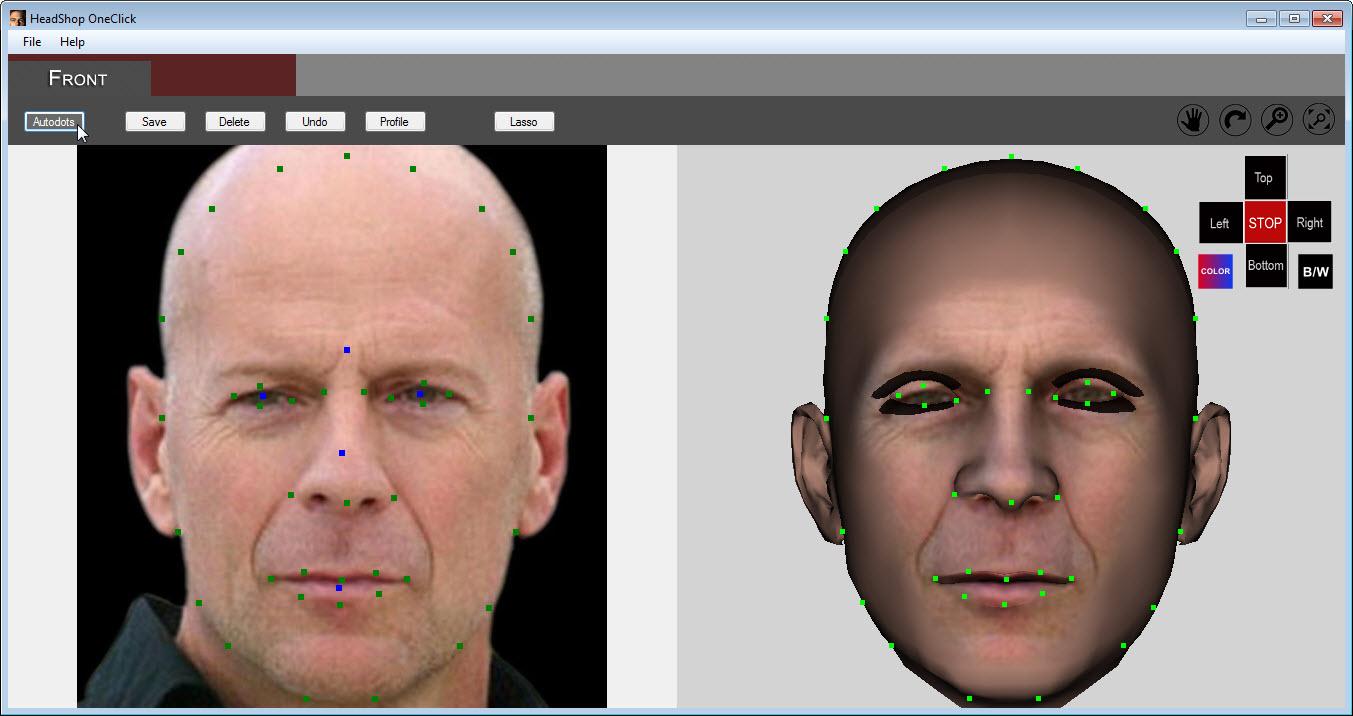
f. You will see 3 blue squares: one for the outer face structure, one for the nose and one for the mouth. You can click on any of these to edit the dot location. Move the cursor over the dot and when it turns into a hand, left-click and the green dots will become red. Hover over any of the red dots, hold down the left mouse button, and you can drag the group of red dots to a new location. If you click on a red dot, you will turn off all but that dot and can drag it to a new position. You’ll see the result on the morphed head at the right. Just to show you what happens, I dragged one dot way off to the side. Use the Undo button to go back if you make changes you don’t like or didn’t mean.
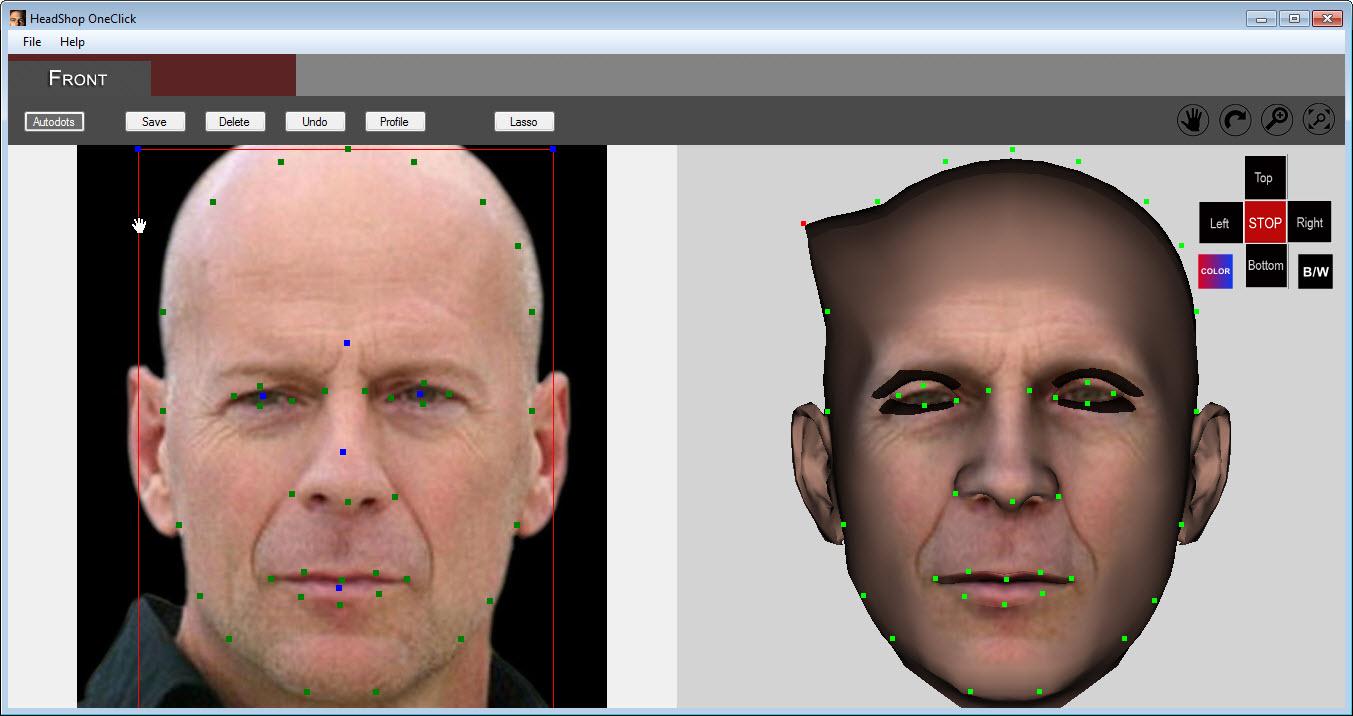
g. That’s it! On the menu, select File-Export and the plugin will close (don’t just click on the X box in the upper right – Headshop will close without exporting the figure.) You’ll return to Daz Studio with the modified morph added to the figure. There is just one morph labeled fs set at 70% (the default value in step b). All the changes are merged into this one morph and I have found changing it from 70% higher leads to distorted features so I leave it at the default value.
The results are shown below. One version has the image superimposed over the figure and the other has them side by side. I scaled the image so the eyes and lips are at the same level. There’s a family resemblance but not a match. I’ve consistently found the eyes, nose and mouth are in the right relationship but the ears are low and the top of the skull is too low. The eyes are too big and I also find the mouth is slightly open and the lips a bit fuller. Most of these can be manually adjusted but not all. For example, the teeth end up with rounded edges and small gaps between them and I don’t own any morphs to set them back to normal.

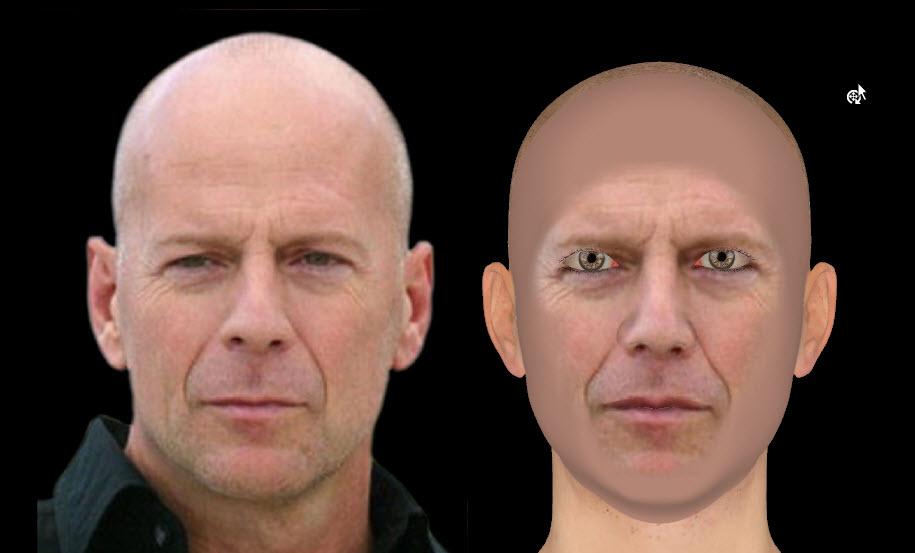
Remember the green line I mentioned in step d? That does appear to be the top of the skull. I redid all these steps, this time adjusting the green dots for the face outline so they enclose the entire skull. Now the result has a head whose size is a better match, the ears are at the right height, while the eyes and lips are only slightly too high. See image below.
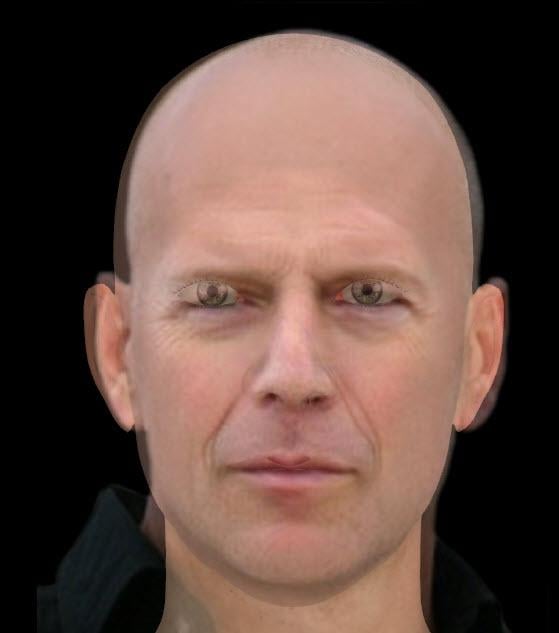
h. The biggest drawback to Headshop is that the generated texture leaves a lot to be desired. The problem is that it grabs from the original photo an oval centered on the eyes, nose and mouth with a bit of forehead, cheeks, and chin. The rest is filled in a with a solid-tone skin color. The result is a mix of reality and an untextured solid color. Even though the photo has more of the forehead, skin and chin textures, they are stripped away. What are we to do with this? Anything other than a straight on view looks ridiculous. The author says you can hide the seams with hair but that’s unrealistic. Someone knowledgeable with Photoshop could probably make something out of this but I don’t have those skills. You’ll probably just want to use a character texture – that’s OK but takes it further away from a model of an actual person. It will also show that the model is less of a match than it first appears. See image below. I purposefully picked a younger-looking character skin to show how important the texture is to the result.
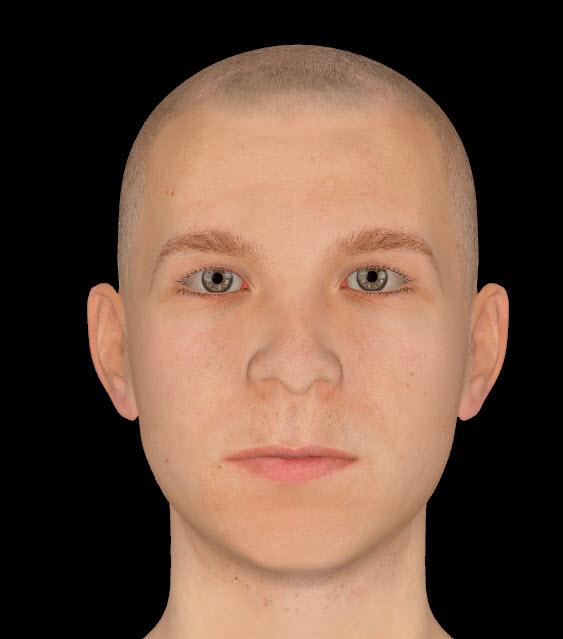
Another issue with using the plugin-generated texture is any facial hair around the mouth, glasses, makeup, shadows, etc. become part of the texture. Not a problem if you can get a photo without any of that.
HeadShop 10.2 is Now in the DAZ Store 30% Off (Commercial)Um...where is HeadShop 10.2 for Windows in the Daz store???
Daz 3D is part of

Connect
DAZ Productions, Inc.
7533 S Center View Ct #4664
West Jordan, UT 84084Licensing Agreement | Terms of Service | Privacy Policy | EULA
© 2026 Daz Productions Inc. All Rights Reserved.