-
RRRR "As the story goes" Render Contest *CLOSED*
Block #2 Pull #2
How Irina Met Sergei
When Sergei showed up in his Remus Rover and strode confidently to the stage, Irina forgot her lines, overwhelmed by his smile and manly shoulders, and the aroma of his roast beef sandwich.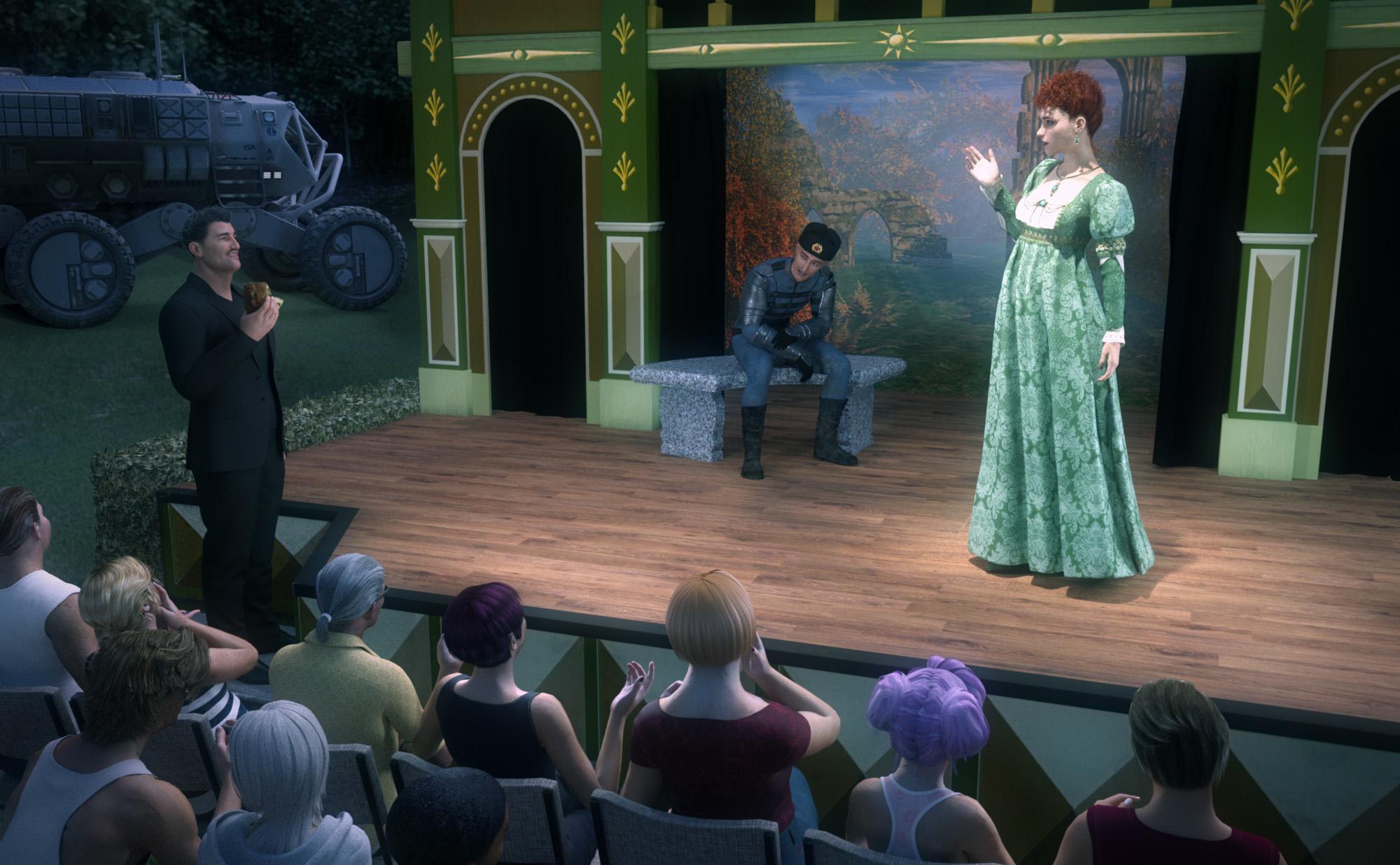
Kept from pull #1:
2937 i13 SandwichesPull #2:
2718 H&C Weekend Casual Suit for Genesis 8 Male
5003 Rustic Theatre
4765 REMUS 02Also Used
Vladimir 8/M3D Igor morph + Edward 8 texture
The Business Hair for Genesis 3 Male and Female (Rendo)
Time Soldier Outfit Textures
Time Soldier Outfit for Genesis 8 Male(s)
Russian Hats for Genesis 3 Male(s)
Infinity Cove 3.0 with All New Morphing Terrain!
Pixel HD for Genesis 8 Female
Bernedette Hair for Genesis 8 Female(s)
Colors for Bernedette Hair
dForce Renaissance Dress for Genesis 8 Female(s) + Renaissance Dress: Milady
Skies of Sylva - 20 Forest Themed 8K HDRIs for Iray
Lawn Ornaments bench
Wagner Ponytail
Char Hair
Pure Hair: Charming
Pure Hair: Bubblegum for Genesis
Reinoa Hair
Pure Hair: Crazy
Pure Hair: Classic
Mathew Hair for Genesis 3 Male(s) and Genesis 2 Male(s)
Eliot Hair for Genesis 3 Male(s) & Female(s)Is it normal for it to be this frustrating?Richard Haseltine said:
You shouldn't need to adjust the rigging for store morphs - they should do all that themselves, and the effects just get stacked. If you can figure out which shapes are causing the problem, and if they come from Daz (or another store) I would report them (to Daz Tech Suport for anything bought here, usually to the artist for other stores).
Morph proction is pretty simple-minded - it just looks at how the adjacent area of the figure has moved and moes thata rea of the fitted figure accordingly. That does mean that enlarging or shrinking the breasts can look poor, especially if the artist had made some attempt to bridge the cleavage since the actual sternum area won't move and so the bridging section will be left behind as the areas over the breasts move. dForms and Push Modifiers can help, as can applying a Smoothing Modifier in Generic mode (the default, base Shape matching, tends to flatten out the effect of the morphs) but ideally you want clothing that has a custom morph to match the morphs you are applying to the figure.
Thank you for the detailed response. Prior to getting Daz in in November I'd wanted to try ditgital art for years but never had a box that could handle it, so I'm walking in clueless and it all kind of looks like magic to me. Can I ask - when you say "custom morph to match the morphs you are applying to the figure" - does this mean you're just using store-bought characters and sliding the percentages (like, 25/25/50% of three different pre-bought characters) works, but sliding the separate body-part adjuster dials invalidates that? (Sorry, I'm still trying to learn the lingo. I'll get there!)
The only shape I used was the Caucasian woman who comes with Daz Studio, all alterations done with the Daz G9 expansion pack (can't remember the name) with all the sliders that was mentioned in the tutorials that came in my welcome email. (Except the ears were mesh grabber, but I don't see why that ought to impact anything else.) She's not *drastically* different in build -- more athletic, scaled to 5' tall, and smaller-breasted (I'd say maybe a B-cup?), with a few other minor tweaks. That 'adjust rigging' trick fixed the hands problem entirely; her arms still don't go the right spots for a few of the poses I've tried (they tend to be tucked unnaturally through her body) but I can compensate for that, even if I'd rather not have to. The hands part was what did me in the most, I think, especially since nothing I did seemed to really fix it (understandably, since her joints were apparently in the wrong places).
I have done it. Female Draenei have been made!I did not make a draenei character for use by others. BUT have the recipie to make them.
1. Genesis 8 character (no other will work)
2. Succubus pack for Genesis 8 (https://www.daz3d.com/succubus-pack-for-genesis-8)
3. Tara for Genesis 8 or any other horn pack
4. Bone shaders (any will do)
5. Skin builder for Genesis 8 (https://www.daz3d.com/skin-builder-8-for-genesis-8-females)
6. EJ Fantasy Races Creator and Morphs for Genesis 8 Female(s) and Male(s) (I cannot find this on the store anymore, the succubus hooves will work, just not as well and not as customizable)
Step 1: Add a Genesis 8 Body, I recommend the plain one, you can morph it later
Step 2: Add the Succubus tail
Step 3: Add horns of your choosing
Step 4: If have have EJ Fantasy Races Creator and Morphs for Genesis 8 Female(s) and Male(s), Morph the legs into hooves shape 1
Step 5: With Geometery Editor, select ONLY the hooves from what is morphed and create a new surface named "Hooves"
Step 6: Apply the Bone shader of your choice (you will color this later to match your asthetic
Step 7: With Skin builder. apply the color skin you would like, (white, blue, purple, etc)
Step 8: Make any adustments you want to the tone before closing Skin builder
Step 9: In the Surfaces tab for your Genesis 8 character, select the pupils, sclara, eye moisture, irises, and cornea.
Step 10: Click the Shaders drop down, locate "Emissive" and apply it
Step 11: Chose your base color and emissive color. You will need to play with the level. I find lm/cm2 and 100 lumens works fairly well for most applications, Also the Tempurature will vary. I find higher for purple eyes, colder for bluer eyes and for yellows whiteish, use around 6000-7000K
Step 12: Select Genesis 8 character, go back to the surfaces tab and select the "Legs" surface
Step 13: Copy the Base color
Step 14: Select the "Legs" subsurface of the "SB Tail G8" surface
Step 15: Paste the Base color you copied from step 13. This will copy over all of the other required settings as well
Step 16: Go into Geometry Editor and delete the tail blade. Fun fact I found... if you doulbe-click a section it will select all the surfaces on that plane. SOO MUCH FASTER.
Step 17: Add hair if desired
Step 18: Select the Shaping tab > Ears section (if you have EJ Fantasy Races Creator and Morphs for Genesis 8 Female(s) and Male(s) or any elf character or similar)
Step 19: Alter the ears to match your asthetic.
Steo 20: Go into "Hands" section and use the "Longer Nails" and other nail morphs as needed to elongate the nails into claws.
Step 21: color the hooves and horns to desired look.
Step 22: (Optional): Go into the facial riggings and play with the nose, cheek and chin, resize them and/or move them as needed for you look. Also make use of the EJ Fantasy Races Creator and Morphs for Genesis 8 Female(s) and Male(s) and other morphs for the head in the settings
Step 23 (Optional): Add Nail, and Makeup materials and shaders as required.
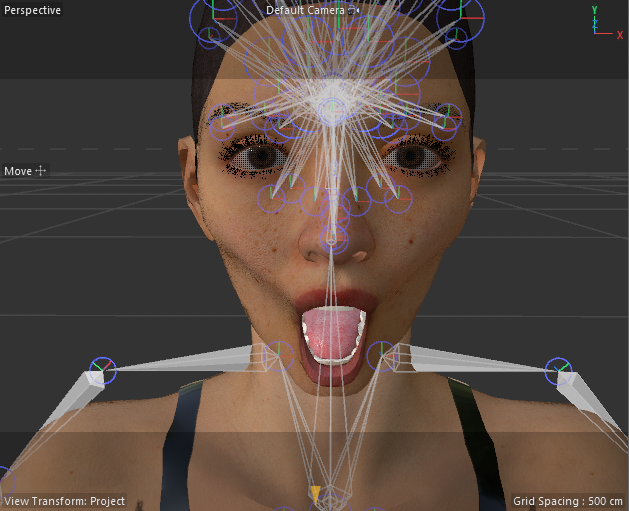
If all goes well you have a Draenei.Daz to Cinema 4D Bridge - the mouth opens askewI hadn't bridged a character in quite a while, so I forgot about this issue. It's still there for me, and installing directly not only doesn't completely solve the problem, but makes some things worse. What makes the biggest difference is disabling the XPresso tag on the morph controller group and just controlling morphs through the pose morph tag on the figure mesh. The culprit appears to be some of the math nodes in the morph controller XPresso soup, because if you disable that XPresso tag and activate, for example, jaw open on the figure's pose morph tag, it works as expected.
Here's the jaw open morph as controlled from the morph controller:
And with the morph controller disabled, driven from the figure's pose morph tag:
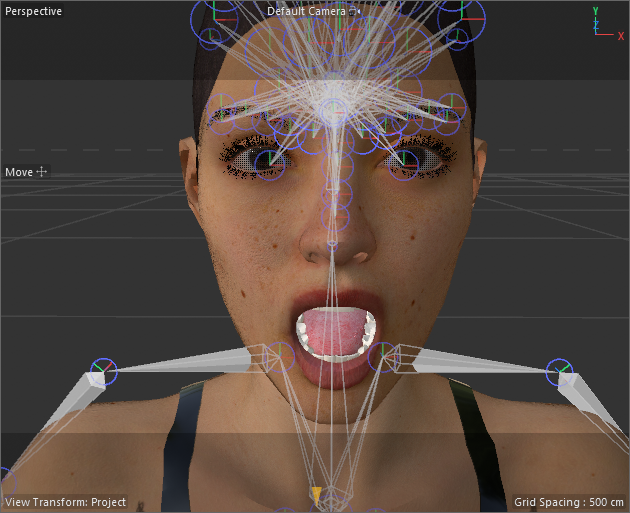
You can also see the skeleton not aligned with the mesh, which is a problem I wasn't having before.
Face Transfer 2Yet another creation made with Face Transfer 2.
 Let's appreciate/discuss today's new releases - ongoing thread
barbult said:
FenixPhoenix said:
barbult said:
ainm.sloinneadh said:
I'm a sucker for characters with their own thing going on, so I like the look of Herlinda's head shape: https://www.daz3d.com/mb-herlinda-hd-for-genesis-9
Going on my wishlist and will probably buy her sooner rather than later. For my own workflow, I've been creating a weight-mapped morph system similar to Meta Mixer, but using existing morphs rather than needing special variants of them. Characters like Herlinda work very well with weight-mapped morphing because you can mix in more of them before reaching a "won't change anything" state. At least, I suspect she'll work well - haven't bought her yet!
Is Magic Brush a new artist? I don't see many products under that name. I picked up Anda recently. I haven't tried her yet, but Herlinda and her appear encouraging.
Here's a render of Herlinda.

I don't own the product, but it almost looks like the normal map involving the button sewing was exported as Direct X rather than Open GL. If that holds, the fix would be to select the area for that and flip the green channel in a 2D Editor.
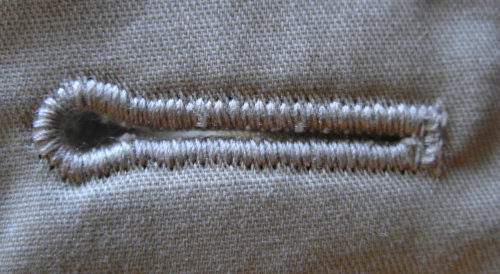
The buttonhole normal on the inside of the lapel digs into the cloth. The buttonhole normal on the outside of the coat cloth protrudes out. I don't think flipping the green channel will be a "fix". That would just make the ones on the lapel protrude and the ones on the coat indent. My main objection to the normal is the diagonal texture that doesn't look anything like keyhole buttonhole thread stitches. This is what a buttonhole looks like.
Normals start from the geometry normal, so if this is a dForce item with only single-sdided mesh you would probably need a double-sided shader so that the back could have the normals inverted.
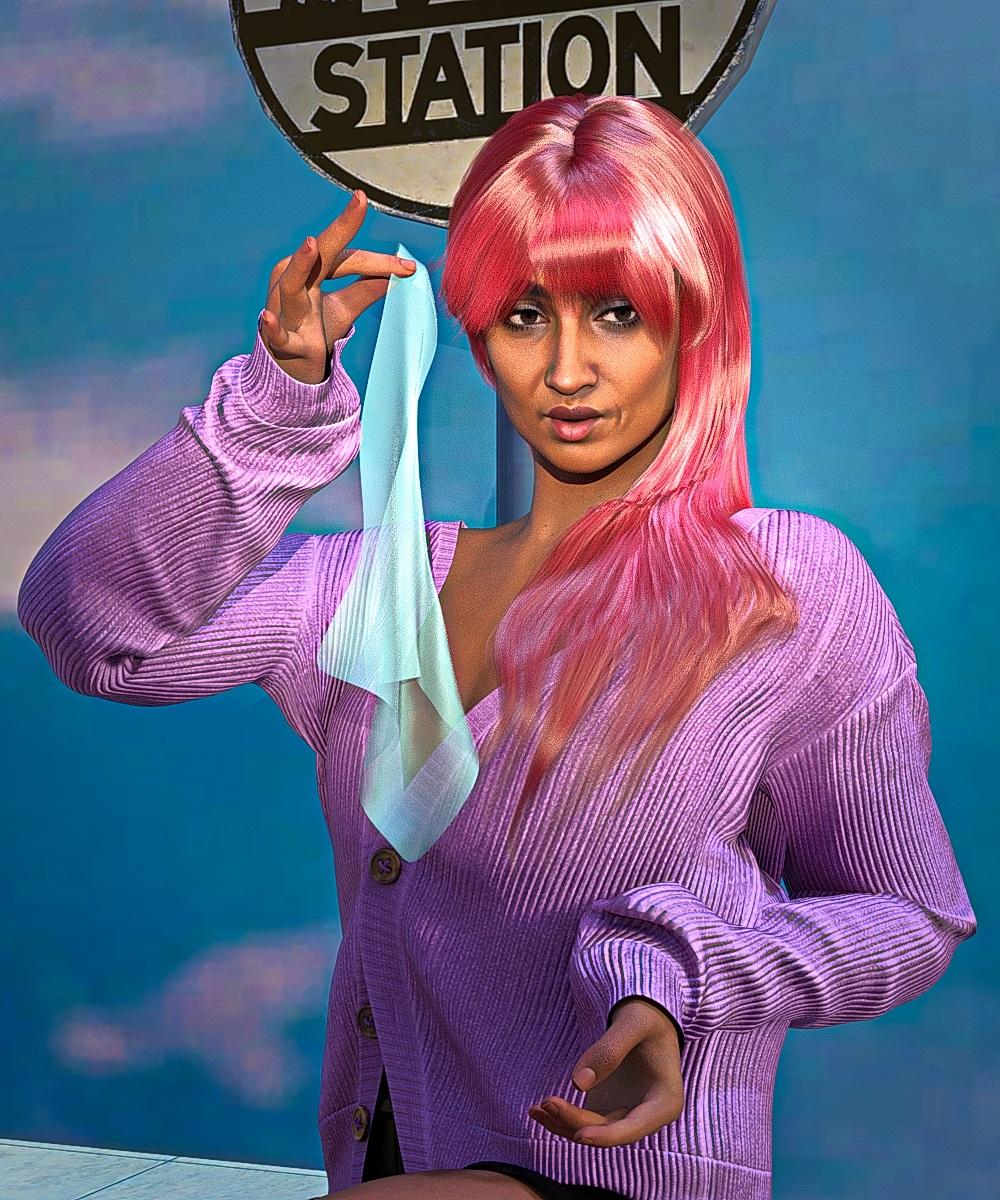
Face Transfer 2Another beauty creation with Face Transfer 2.
 Let's appreciate/discuss today's new releases - ongoing thread
FenixPhoenix said:
barbult said:
ainm.sloinneadh said:
I'm a sucker for characters with their own thing going on, so I like the look of Herlinda's head shape: https://www.daz3d.com/mb-herlinda-hd-for-genesis-9
Going on my wishlist and will probably buy her sooner rather than later. For my own workflow, I've been creating a weight-mapped morph system similar to Meta Mixer, but using existing morphs rather than needing special variants of them. Characters like Herlinda work very well with weight-mapped morphing because you can mix in more of them before reaching a "won't change anything" state. At least, I suspect she'll work well - haven't bought her yet!
Is Magic Brush a new artist? I don't see many products under that name. I picked up Anda recently. I haven't tried her yet, but Herlinda and her appear encouraging.
Here's a render of Herlinda.
I don't own the product, but it almost looks like the normal map involving the button sewing was exported as Direct X rather than Open GL. If that holds, the fix would be to select the area for that and flip the green channel in a 2D Editor.
The buttonhole normal on the inside of the lapel digs into the cloth. The buttonhole normal on the outside of the coat cloth protrudes out. I don't think flipping the green channel will be a "fix". That would just make the ones on the lapel protrude and the ones on the coat indent. My main objection to the normal is the diagonal texture that doesn't look anything like keyhole buttonhole thread stitches. This is what a buttonhole looks like.
G8.1F developer version vs basic version questionHopefully you used Install Manager, as that'll make the removal/replacement process a lot simpler, but if you did do it manually, an overwrite is probably sufficient if this would fix the problem.
It shouldn't affect any of your existing characters unless those characters were somehow reliant on something being wrong (for example, a morph that's permanently on that shouldn't be, but this is unlikely to change that, as it will only overwrite morphs in the starter essentials package).
G8.1F developer version vs basic version questionIt loads without followers such as the eyelashes. (IMO, a dev version probably should load at Base Resolution for morph making, but at least as it's installed on my system, it doesn't seem to).
My first advice here would be to attempt to reinstall the Genesis 8 Starter Essentials, to rule out any file being corrupted.
Copying Bones from Genesis 8 Figure to OBJ importfelis said:
Is this what he is supposed to look like?
I imported as a morph for G8M.

Edit: I realised that your problem is that you imported it in wrong scale.
In morph loader pro, you has to make sure it imports as 10000%. (Blender unit 1 m, Daz Studio unit 1 cm)
Thank you so much! You are a hero!
Copying Bones from Genesis 8 Figure to OBJ importfelis said:
Is this what he is supposed to look like?
I imported as a morph for G8M.
Edit: I realised that your problem is that you imported it in wrong scale.
In morph loader pro, you has to make sure it imports as 10000%. (Blender unit 1 m, Daz Studio unit 1 cm)
HOLY CRAP! That's it exactly. I feel so stupid now. That would explain why the slider only made it bigger or smaller. I really appreciate it.
Let's appreciate/discuss today's new releases - ongoing threadbarbult said:
ainm.sloinneadh said:
I'm a sucker for characters with their own thing going on, so I like the look of Herlinda's head shape: https://www.daz3d.com/mb-herlinda-hd-for-genesis-9
Going on my wishlist and will probably buy her sooner rather than later. For my own workflow, I've been creating a weight-mapped morph system similar to Meta Mixer, but using existing morphs rather than needing special variants of them. Characters like Herlinda work very well with weight-mapped morphing because you can mix in more of them before reaching a "won't change anything" state. At least, I suspect she'll work well - haven't bought her yet!
Is Magic Brush a new artist? I don't see many products under that name. I picked up Anda recently. I haven't tried her yet, but Herlinda and her appear encouraging.
Here's a render of Herlinda.
I don't own the product, but it almost looks like the normal map involving the button sewing was exported as Direct X rather than Open GL. If that holds, the fix would be to select the area for that and flip the green channel in a 2D Editor.
Is it normal for it to be this frustrating?You shouldn't need to adjust the rigging for store morphs - they should do all that themselves, and the effects just get stacked. If you can figure out which shapes are causing the problem, and if they come from Daz (or another store) I would report them (to Daz Tech Suport for anything bought here, usually to the artist for other stores).
Morph proction is pretty simple-minded - it just looks at how the adjacent area of the figure has moved and moes thata rea of the fitted figure accordingly. That does mean that enlarging or shrinking the breasts can look poor, especially if the artist had made some attempt to bridge the cleavage since the actual sternum area won't move and so the bridging section will be left behind as the areas over the breasts move. dForms and Push Modifiers can help, as can applying a Smoothing Modifier in Generic mode (the default, base Shape matching, tends to flatten out the effect of the morphs) but ideally you want clothing that has a custom morph to match the morphs you are applying to the figure.
Live Link blendshapes don't workHey, guys! So I've been wanting to transfer my DAZ character to Unreal via the DazToUnreal Bridge using the coresponding morphs for the Apple Arkit. Even though the "Genesis8.1Arkit" button doesn't add all the necessary morphs, I took my time and added them by hand. Everything transfers well, the textures, materials etc, except for the correct functioning of the morphs and the live link. The only morphs that work are the Jaw Open and Head Rotators (and even these don't work properly concerning the axis on which they rotate).
I want to use this character for vtubing so I really need to figure out how to use live link :)
Has anyone stumbled upon this problem ? Any tips would be highly appreciated!
Face Transfer 2Artini said:
Another creation made with Face Transfer 2 on Genesis 9 rendered in super environment of:
https://www.daz3d.com/pin-up-boxes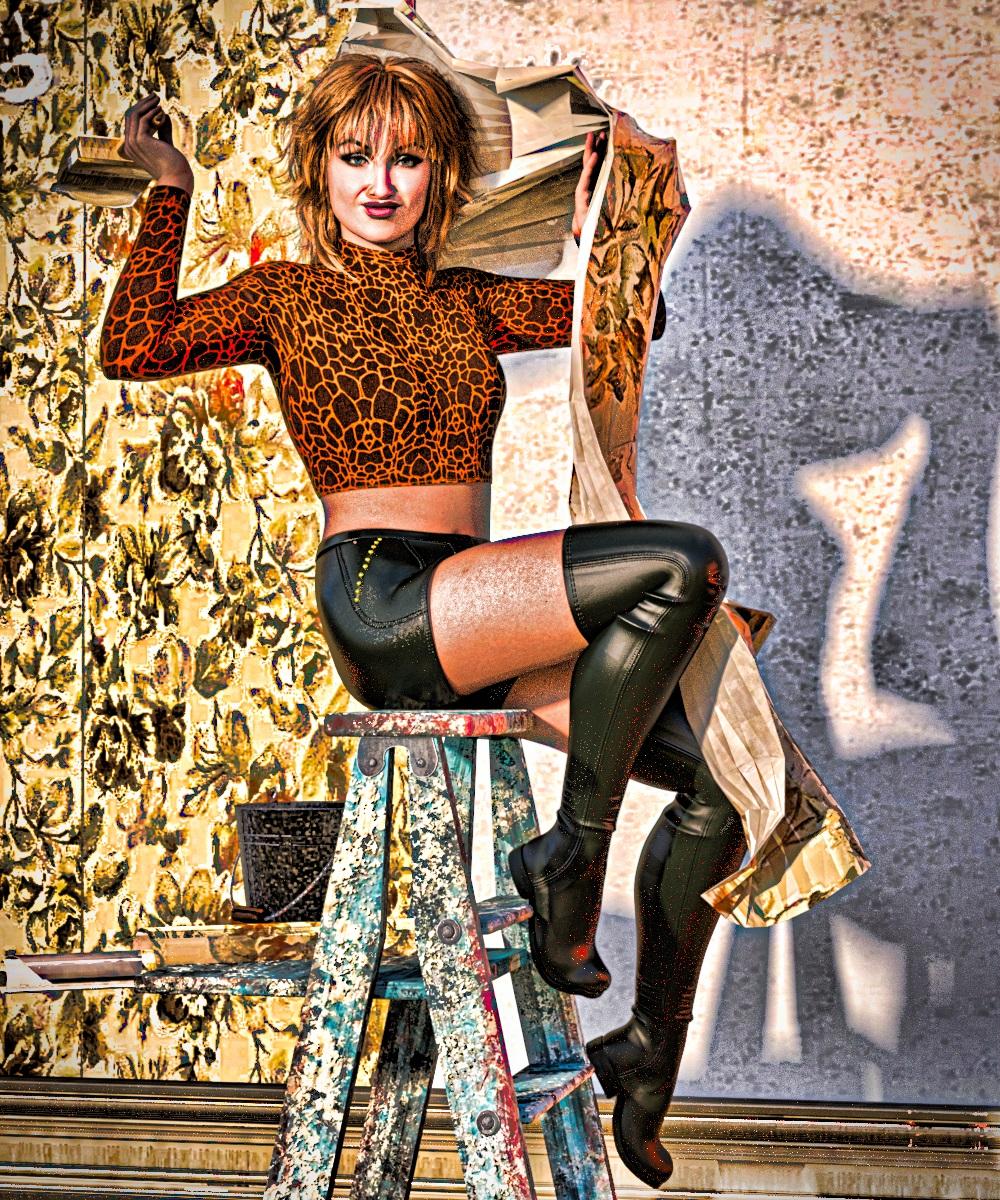
I love the aesthetic you've got going on with your renders. How are you achieving that?
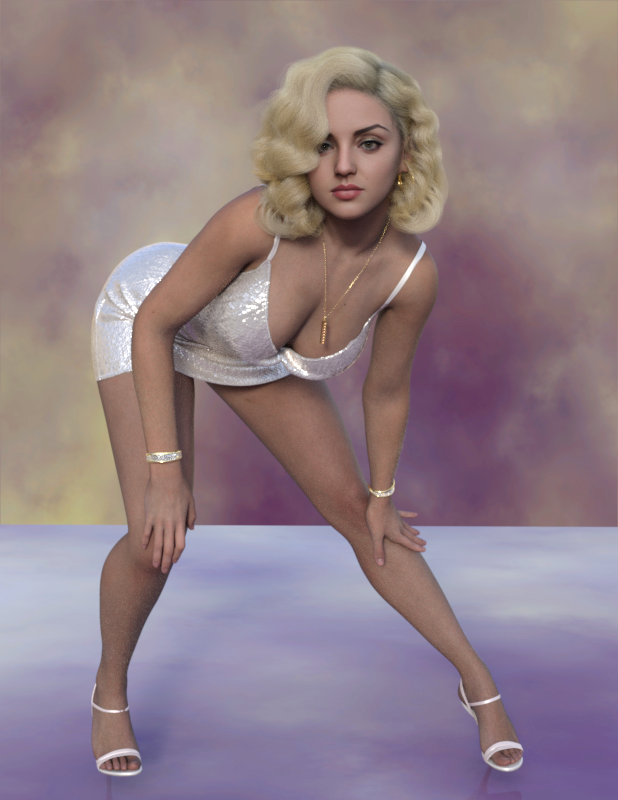
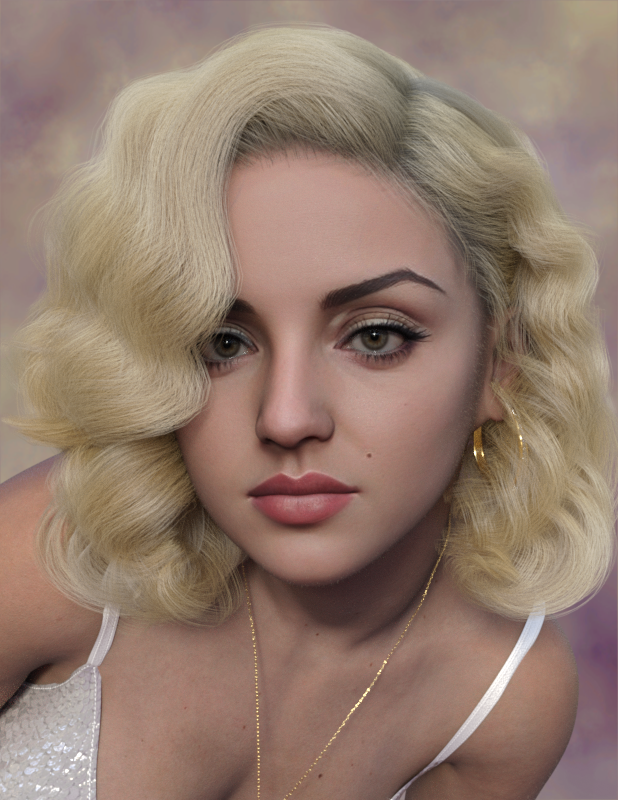
Face Transfer 2Love the postings! This is my attempt at a screen icon. Used the attached AI generated face portrait, tuned other body parameters, exported as a single morph that can be saved, and then even transferred to G8 if desired! More of an exercise using all the tools. Still trying to get a perfectly un-shadowed face out of the AI generator to get the best skin that FT2 can manage so far. Starting to play with some children next. TD
 Copying Bones from Genesis 8 Figure to OBJ import
Is this what he is supposed to look like?
I imported as a morph for G8M.
Edit: I realised that your problem is that you imported it in wrong scale.
In morph loader pro, you has to make sure it imports as 10000%. (Blender unit 1 m, Daz Studio unit 1 cm)
Copying Bones from Genesis 8 Figure to OBJ importMaybe I have this wrong. I don't know. What I really want to create is a morph. I think I must be importing something wrong or the way I exported it from blender was the issue. I purposely used the Gen 8 character but when I create the morph it only succeeds in make the base gen 8 character bigger (scales it up) but doesn't change anything. Here's the .obj file. Does anyone else have any success with it?
Diffeomorphic - Animation not quite the same in Blender and DAZJames said:
Hemmm for what particular reason, the same pose preset
applied to 3 different figures, resulting 3 different posing variants?
Because proper, RELIABLE animation retargeting requires complete rig characterization profiles to be established in the animation application that is doing the retargeting.
Like iclone, Daz studio is a specific character ecosystem that also has various sub sets of specific characters within it G1,2,3,8,9.
I use both Autodesk Maya and Reallusion Iclone.
To RELIABLY transfer animation data from one ecosystem to the other, there is typically a “Characterization” process via manual bone name matching or by loading an existing profile for that character rig.
This,of course excludes the various Daz studio native pose and/or animation conversion” scripts because they are stil essentially working within the Daz Character eco system and only have to account for the differences between the Daz native figure generations.
The free Blender pipeline tool ,from Reallusion, imports FBX figures from Reallusion Character creator into blender , converts them to Blender rigify rigs and has a dedicated retargeter for applying Reallusion ecosystem motion libraries to the rigify rig in blender via constraints & baking.We all love and appreciate the incredible tool set that Diffeo brings to Blender/DS users.

However I am frankly having difficulty seeing how it is possible to get truly complex and accurate animation retargeted to a Daz genesis figure back over in Daz studio, without some manner of bone matching characterization process the way it is done in iclone,or Autodesk Maya/MOBU or even MIXAMO
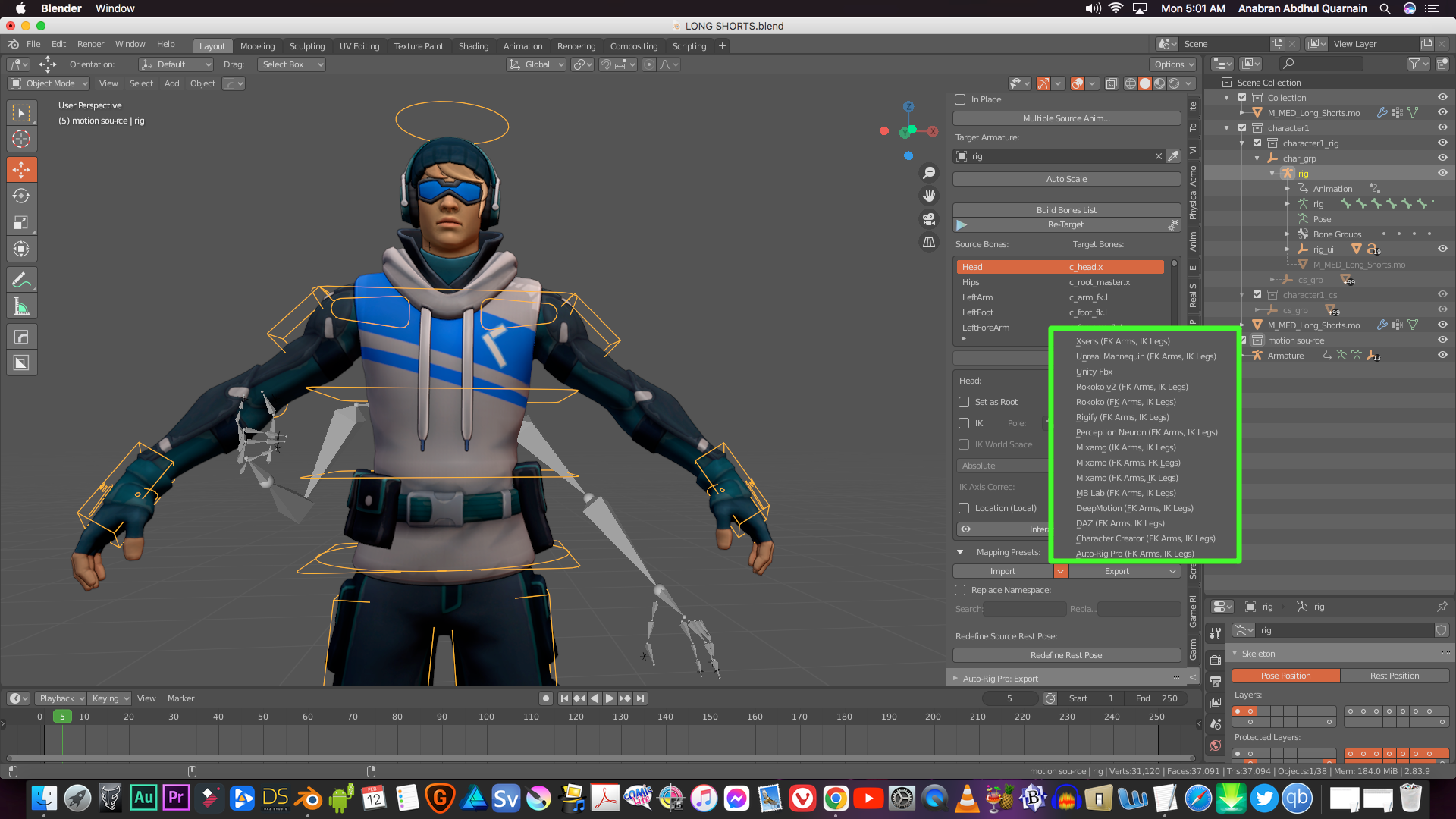
Even the excellent retargeter ,in Blender’s paid Auto rig pro addon ,has built-in profiles
for most of the industry standard rigs ,including Daz Genesis
and any biped, not already in the profile list ,can be manually bone mapped and saved as new profile for that particular rig type.
(See attached pic)And Blender and Maya both have separate dedicated Game engine character animation exporter tools to assure proper fidelity with the Character controller systems of the specific engine such as UE5 or unity.
I would be very curious to see a video sample of some really complex Character animation
(Martial Arts KATA or gymnastics)
created on an MHX or “simple IK “ Diffeo rig in blender and exported back to Daz studio
with the fidelity I get with Iclone or Mixamo to Daz studio after a proper characterization and retarget and export to bespoke BVH or FBX.Video link ..anyone??

Daz 3D is part of

Connect
DAZ Productions, Inc.
7533 S Center View Ct #4664
West Jordan, UT 84084Licensing Agreement | Terms of Service | Privacy Policy | EULA
© 2026 Daz Productions Inc. All Rights Reserved.