-
AIUTO...CHI CONOSCE L’ITALIANO? PARTE DODICI
Mi avete confuso con tutti sti morph incrociati XD XD...cmq si, i bimbi sono proprio brutti....
Ahahah! Scusa Muscleman...

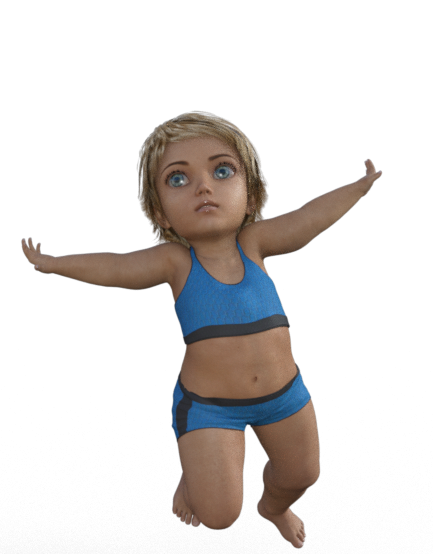
In ogni caso, Lenio, puoi risolvere "piegandoti ma non spezzandoti" ad usare Genesis1. Nello store c'è un morph per farlo diventare un neonato (non costa troppo) e non un coso che nemmeno in "Le colline hanno gli occhi", ma la versione originale non il remake!
Tanto non ti servono chissà quali abiti per il pupetto, il morph è corredato di un pannolino. E se spulci un pò in giro puoi anche trovare una magliettina freebie per Genesis1 (Wilmap ne ha fatti a tonnellate, ma chiedile prima se puoi utilizzarli in contesti per adulti!) e hai completato il tuo pupo.
E quando poi SB completerà il suo script, potrai riversarlo su Genesis8. Ho visto un pò dei suoi test e sono davvero sorpreso della precisione dei transfer di certi morph estremi come Mavka!
Grazie per il suggerimento :)
Non mi importa granché dei bebè, quando e se farò la loro vita dopo il matrimonio ci penserò :)
Alla fine scaricai il file di prima, quindi dovrei testarlo un po', ma non ho proprio tempo in questi giorni
AIUTO...CHI CONOSCE L’ITALIANO? PARTE DODICIMi avete confuso con tutti sti morph incrociati XD XD...cmq si, i bimbi sono proprio brutti....
Ahahah! Scusa Muscleman...
In ogni caso, Lenio, puoi risolvere "piegandoti ma non spezzandoti" ad usare Genesis1. Nello store c'è un morph per farlo diventare un neonato (non costa troppo) e non un coso che nemmeno in "Le colline hanno gli occhi", ma la versione originale non il remake!
Tanto non ti servono chissà quali abiti per il pupetto, il morph è corredato di un pannolino. E se spulci un pò in giro puoi anche trovare una magliettina freebie per Genesis1 (Wilmap ne ha fatti a tonnellate, ma chiedile prima se puoi utilizzarli in contesti per adulti!) e hai completato il tuo pupo.E quando poi SB completerà il suo script, potrai riversarlo su Genesis8. Ho visto un pò dei suoi test e sono davvero sorpreso della precisione dei transfer di certi morph estremi come Mavka!
AIUTO...CHI CONOSCE L’ITALIANO? PARTE DODICIMi avete confuso con tutti sti morph incrociati XD XD...cmq si, i bimbi sono proprio brutti....
AIUTO...CHI CONOSCE L’ITALIANO? PARTE DODICISe vuoi un bambino come si deve, dai un salto su Renderosity. Purtroppo alla DAZ non hanno visto abbastanza bimbi da sapere come sono in realtà...
Ma poi, Lenio... Perchè non dai uno sguardo ad "un certo sito specializzato in materiali di quel tipo"?
Ci trovi di sicuro tutti i pezzi che ti mancano per le tue opere.Io ci ho comprato qualcosina (non hanno solo cose osè, anche prodotti per tutti) e i prodotti acquistati sono legati al tuo account, quindi zero problemi con le licenze.
Grazie per il consiglio :)
In realtà la parte erotica è trascurabile nelle mie storie.
Avevo comprato "dicktator", ma non lo uso perché mi fa abbastanza schifo, troppo spinto. E anche futalicious ecc. non mi servirebbero granché.
A me quello che interesserebbe sarebbe creare il personaggio G8M, quello G8F, e con un unico slider fare una transizione pulita e semplice. Singular Blues mi ha detto che sarà possibile col suo script.
Oggi come oggi mi tocca partire dal G8F finale, e andare a ritroso pian piano a creare il maschio, salvando gli shape preset dei vari step. Puoi applicare gli shape preset anche su figure di genere opposto, a patto che non abbiano altri morph attivi, altrimenti ha un aspetto diverso. Ovviamente hai bisogno dei cloni rigged, c'è un freebie su DA.
Il risultato mi soddisfa abbastanza, però è dispendioso di tempo, ancora di più se non vuoi fare una parte del corpo alla volta ma tutto insieme. Quindi quello script sarà davvero una rivoluzione per me!
Molti colleghi usano GenX su G3, e fanno questa cosa, di creare personaggio iniziale e finale e poi mischiarli così.
Skin Blender invece funziona bene da questo punto di vista, fatta eccezione per la parte delle sopracciglia.
Smoothing shoulders (+ solution for how to export hires fbx)Success!
OK. If you want to export the high res version of a character (one with a higher subdivison level), as an fbx file for Unity3d or other game engines, this is what you do.
- Get you character into daz studio. Set it to the default t-pose.
- Find the parameter SubDivision Level. Lock it at the level you want it to be (in this case 1).
- Export the character as an obj file. Use the daz studio preset.
- Unlock the subdivision level.
- Import the obj character you just exported.
- Open the transfer utility tool. Select your regular character as the source. Select your obj figure as the target. For general options, only have Weight maps selected (if you want to transfer morphs too, select morphs). Have nothing selected in Post Transfer options. Hit accept.
- Voila! Your obj file now has the bones of your character, but with a a high resolution mesh. Export it as fbx, import it into Unity3d (I assume this will work Unreal too if you're using it).
Important note : This works very well with Genesis 2 figures. Genesis 3 figures only about 95% work though. For some reason the shoulders go weird and high up for me.
If anyone who has more experience with the Transfer utility can explain how to fix this, I'd very much appreciate it!
 AIUTO...CHI CONOSCE L’ITALIANO? PARTE DODICI
Mi sono perso qualcosa?
Dici la bambola?
Che bambola?

Io parlo della barra di ricerca dello store, se provi a cercare "girl" e aspetti cha appaiano i suggeriti avrai un assaggio di mondo reale.


Se poi i riferivi agli sconti che chiedevo a Muscleman, sono relativi ad una mancanza nello store, davvero strana, di "esaltatori di emozioni", ti basta leggere qualche post indietro.
Se poi la bambola è qualcosa che sai solo tu... Lo sai solo tu!
Questa bambola inquietante che esce se cerchi girl: https://www.daz3d.com/vyk-dolly-mine-for-caryn-8-and-the-girl-8
Boh, a me i suggeriti non escono, forse è meglio così!
Ho Daz Deals quindi mi sa che li copre, ho provato con un altro browser ma niente, non mi va di fare il login anche là
Se è qualcosa di brutto segnalatelo magari!
Sì ho letto i messaggi di prima.
A me capita spesso che PA vengano a chiedermi di citarli in descrizione in cambio del prodotto gratis, però non uso personaggi anime-like! Anzi, penso sia una pratica molto diffusa. Però immagino lo facciano più per visibilità che per test, in quanto immagino testino già estensivamente i loro prodotti.Certo il G8 bambino fa proprio schifo, sembrano i Nati Ora, o come lo chiamavo a casa mia, il figlio dei Visitors.
Ma esisteva un programma che trasferiva i morph da varie figure a G8? Se si capisco come sono stati fatti alcuni character...
GenX supporta solo fino a G3, e lo sviluppatore purtroppo è deceduto.
SingularBlue sta lavorando alla versione 2. Era già uscita su GitHub, ma ha dovuto tirarla giù, come ha detto Imago. Io faccio storie transgender (se non si capiva dal nome o dal mio DeviantArt), e quel plugin sarebbe davvero una manna dal cielo, anche se dovessi comprarlo a prezzo pieno! Molti colleghi usano GenX, ma io ho tutto per G8. Per trasformare un G8M in G8F e viceversa devo fare tanti passaggi oggi come oggi :/
Guarda avevo fatto qualche tentativo coi bebè perché in una mia storia 2 protagonisti si sposeranno e avranno un figlio, e mi piace quel prodotto di Zev0 Growing Up: https://www.daz3d.com/growing-up-bundle-for-genesis-8-female-s-and-male-s
Se ricordo bene, prendi un personaggio che ti pare e usa il prodotto :)
AIUTO...CHI CONOSCE L’ITALIANO? PARTE DODICICerto il G8 bambino fa proprio schifo, sembrano i Nati Ora, o come lo chiamavo a casa mia, il figlio dei Visitors.
Ma esisteva un programma che trasferiva i morph da varie figure a G8? Se si capisco come sono stati fatti alcuni character...
C'è quello di SingularBlue in arrivo. Il ragazzotto della DAZ aveva trovato alcuni problemi legati al copyright e adesso sta rifacendo tutto daccapo. Però sembra che presto sarà funzionante per tutte le figure Genesis e forse anhe per le generazioni 1/2/3/4/4.2
AIUTO...CHI CONOSCE L’ITALIANO? PARTE DODICICerto il G8 bambino fa proprio schifo, sembrano i Nati Ora, o come lo chiamavo a casa mia, il figlio dei Visitors.
Ma esisteva un programma che trasferiva i morph da varie figure a G8? Se si capisco come sono stati fatti alcuni character...
How to replace the eyes of Genesis 8 ?Geografts need to have a polygon loop in common with the figure they’re grafted on, you can’t just use any mesh.
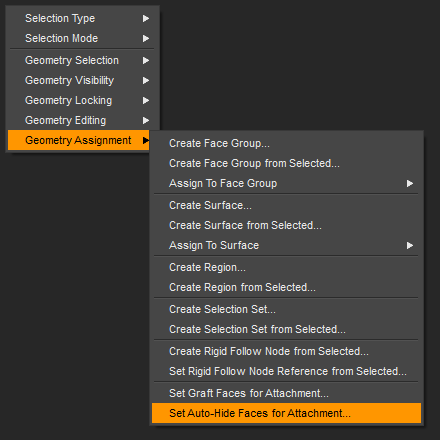
I'm shure you can, just skip that part with Set Graft Faces for Attachment and only Set Auto-Hide Faces for Attachment in the Geometry Editor right-click menu for your conforming clothes, eyes or whatever. In this example with the eyes selected and Set Auto-Hide Faces BTW those faces don't get exported. There where products using this method but as I recall this was not very popular becasue people complained about clothes that if fitted to the figure where hiding figure parts.
I don't know if I did this the right way but it worked as I last tried it with DS 4.10 to hide the hands under some gloves by only using Set Auto-Hide Faces to turn the gloves into something I would call a "fake" GeoGraft.
Maybe Conditional Grafts could also be an option to hide the original genesis figure eyes. But my idea with the Geograft eye replacement is a bit complicated especialy the part of getting them to "conform" to the genesis figure with the Transfer Utility.
Anyway if it works I would prefer a simple solution like wolf359 suggested.
Refereces:[Tutorial] Starting out with Geo-Grafting (repost)
Using conditional grafts to hide geometry : youtube tutorial
Save as Clone assets , Conditional Graft Modifiers guide from daz
Screenshot of the Geometry Editor right-click menu:
 Making morphs with geograft.
So, the way to do this is as follows:
- Export the figure with graft at base resoution as .obj
- Sculpt in Mudbox (or other sculpting program)
- Export the figure from Mudbox as .obj
- Select the figure in Daz
- Edit -> Object -> Morph Loader Pro, select morphed .obj
- Change 'Load Morphs for' to Primary Figure from Graft
- Set Reverse Deformations on and Overwrite Existing to Deltas and ERC links
- Click Accept - this will create a morph property for the main figure
- Select the geograft and do steps 5-7 but also give it a different name property.
Step 9 is important, otherwise you're just loading/updating the base morph again.
Need help making elevator doors open at the same time going separate ways left and rightYou can create a New Property slider as a "controler" and use ERC-Freeze to save the door positions to that new slider. This is something how the pose control properties on the genesis figures work. For example with arms up-down there the rotations are inverted between the both arms but the pose controler will move both sides. I try to explain how to archive what you asked for with a step-by-step and I hope its easy to follow along.
- set your doors to be open
- right-click the Prameters pane and set it to Edit-Mode
- right-click the Prameters pane a second time and in the extended menu choose Create New Property
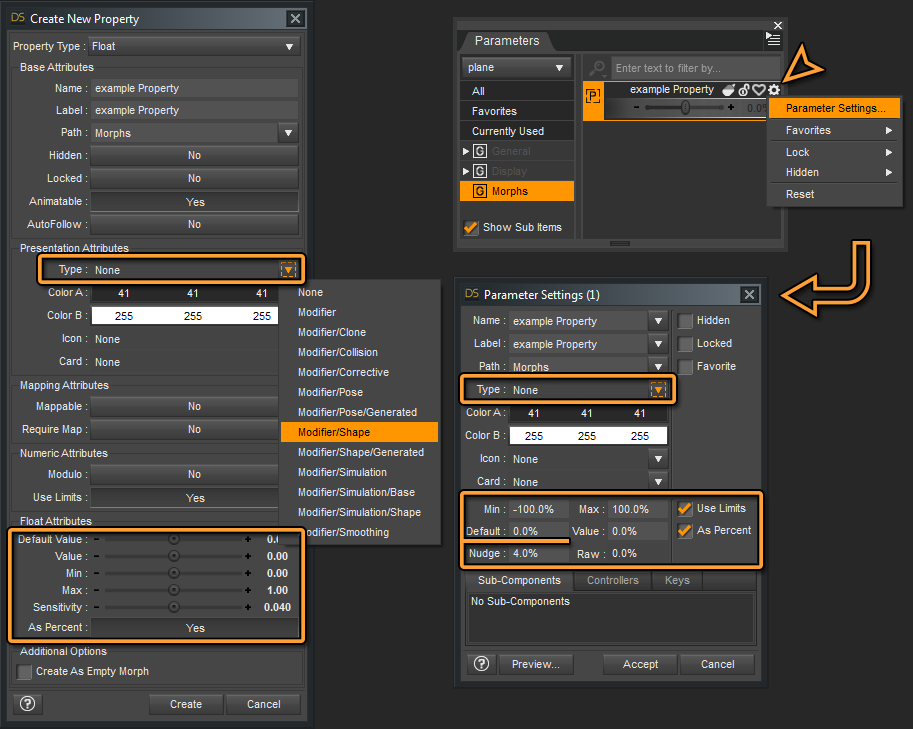
- the Create New Property dialog pops up and you would want to type in a name first, press tab and the label gets filled in with the name (the label is what you will see in the Parameters pane), ignore the bottom part just press Create (you can care about those settings later in the Parameter Settings dialog see step 9)
- right-click your new property in the Paramters pane and choose ERC-Freeze from the menu
- the ERC-Freeze dialog shows a list of everything in the scene that is currently not at default (eg. white instead of default dark grey numbers on the door translate sliders)
- the less other things you have in the scene or everything else is at default the easier it is to select only the left/right door translation values from the ERC-Freeze dialog list
- press Accept in the ERC-feeze dialg and test your new property slider - if everything worked so far both of your doors should move open now
- you can click the gear icon on the slider of your new property to open the Parameter Settings dialog to make adjustments to things like the Min/Max Limits - the range in which the slider will move - also I suggest you to set the Type: Modifier/Pose
- you can save the scene now and you will have that new property slider available within this scene
- if you want to use the elevator with the new property in another scene you could save a scene subset to load it or you could also save a Morph Asset and use the default elevator to load it
Not long ago I posted a how-to in a thread with a simmilar question:
How to save teeth translation/scale
 How to control Eye movement of Genesis 8 as fbx in C4D..?
The fbx is rigged - so you can control the main eye movements directly (open up the bone hierarchy)
Alternatively, there are various eye control morphs you can export, and it will show up under the pose morph tag . (Some tags are duplicated , and you might have to do some editing)
Hi, thanks for your response...
i have various control morphs (close, open etc), but not "movement"...
HD characters questionWell as I said I have not done it in Unreal but FBX is always just base resolution, you add subdivision in your target application and then use the obj as a morph target, blendshape whatever in that.
How to replace the eyes of Genesis 8 ?For an eye replacement inside Daz Studio you could use the GeoGraft method. I'm not familar with how you export genesis 8 to Maya or Cinema 4D but once you replace the eyes with a GeoGraft you could propably export those with the figure.
You would first need to import your custom eyes into Daz Studio maybe with an OBJ file and create a conforming figure with the Transfer Utility. Once this is done you could use the Geometry Editor to Assign the hide group to hide the original genesis eyes if you fit your custom eyes to the figure. If the "conforming" eyes are done right with rigging/weightmap the eyes would move like the original and you could try to export this figure to Maya or Cinema 4D.
How to control Eye movement of Genesis 8 as fbx in C4D..?The fbx is rigged - so you can control the main eye movements directly (open up the bone hierarchy)
Alternatively, there are various eye control morphs you can export, and it will show up under the pose morph tag . (Some tags are duplicated , and you might have to do some editing)
Newb qesttion about supported shapesI'm just trying to figure out can you use items on unsupported shapes if they are the same Genesis? Is there drawbacks to doing so, ect...Many thanks,
Ed
In most cases, yes. I never even look at supported figure as long as it's the same base and not an extreme morph. If you don't get a good enough fit, you can always adjust scaling or add a smoothing modifier with collision to try and get a better fit. If it is a problem you can't fix there is a 30 dat return policy.
Same. When I use a product, I don't even bother to check if the figure I'm using is supported, and to apply the proper shape. I'm yet to have something made for, say, G8, and that won't fit the random G8 figure I'm using at the moment. I expect all G8 clothes, hair, etc... to fit whatever G8 figure I happen to be using. I never check the list of supported figures when I buy a product, either. Not saying that you shouldn't, but it has never been a problem for me so far.
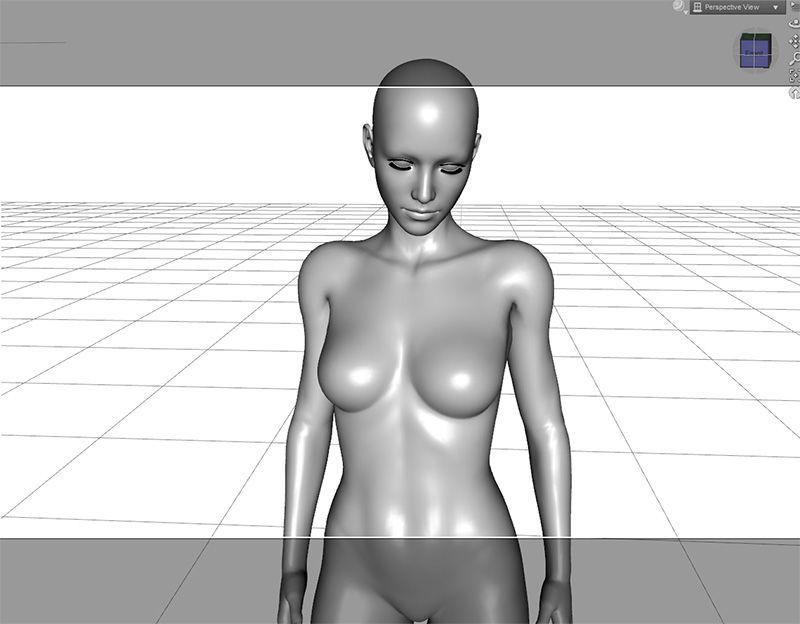
Which G8F Character Is This?I'd say a customised or self-generated; the breasts look impressive, and don't recall seeing the like on released characters.
I assume that every character is customized to a certain extent these days. I mean, what's the point of using something that looks exactly like the same product that everyone else is using? To me, it kind of defeats the entire point of DAZ in the first place, which is to create your own original vision.I have entirely too many characters in my library, and morph sets out the wazoo for all of the generations. I modify the characters I use in my renders maybe 30% of the time. For me, personally, the enjoyment I find is in putting the scene itself together, not in tweaking the character for ever and ever. When I use a character, I just go through my library until I find one has a look that feels right for the image I'm trying to create. Another way to look at it is that it's kind of like hiring a model for a photo shoot.
That's not to say I don't morph my own characters some, I've got several that I have done that with, one of which I'm very proud of. But the time I spend morphing up a new character is time I'm not spending putting the scene together. But that is how I personally create my own original vision. You create yours your way, which is different from mine. And that's awesome. It's one of the best things about art, of any type. There is no right and wrong way to do it, everyone has their own methods and styles.
Shape Splitter - Divide, Combine and Save (The new version is already available. 1.2.1)[Commercial]If you have a character that has a large number of morphs, you should create a new unique morph using the spawn option of X-Morphs (Shape Splitter).
I made a video that uses the character Caryn (Baby), which can not be directly divided with the script, and that's why "Spawn" is used to create a new morph.There you see the necessary steps, when the figure has a different size to the base figure of Genesis.
Any other questions, let me know.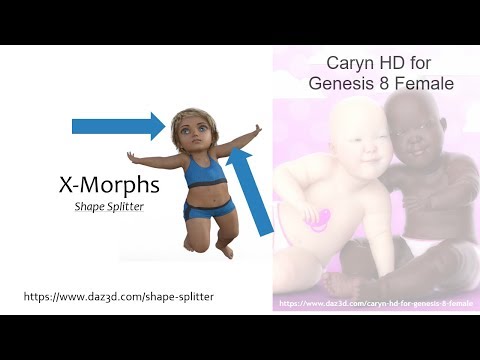
 Error during rendering?
9-06-04 22:05:01.712 *** Scene Cleared ***
2019-06-04 22:05:04.350 C:/Users/niger/Desktop/MyDazLibrary/data/DAZ 3D/Genesis 8/Male/Morphs/Meipex/Stereo Love/SL_Glutes Inflate Bottom Back.dsf (25,4): Syntax Error - expected ',' or ']'
2019-06-04 22:05:04.351 C:/Users/niger/Desktop/MyDazLibrary/data/DAZ 3D/Genesis 8/Male/Morphs/Meipex/Stereo Love/SL_Hips Bend Spandex More.dsf (25,4): Syntax Error - expected ',' or ']'
2019-06-04 22:05:05.455 WARNING: ..\..\..\..\..\src\sdksource\fileinput\dzassetdaz.cpp(5818): Could not find target property for formula: Genesis8Male:/data/DAZ%203D/Genesis%208/Male/Morphs/DAZ%203D/Expressions/eCTRLWink_HD.dsf#eCTRLWink?value in file : /data/DAZ%203D/Genesis%208/Male/Morphs/Zev0/Expression%20Smoother/Wink%20Smoother.dsf
2019-06-04 22:05:05.456 WARNING: ..\..\..\..\..\src\sdksource\fileinput\dzassetdaz.cpp(5818): Could not find target property for formula: Genesis8Male:/data/DAZ%203D/Genesis%208/Male/Morphs/DAZ%203D/Expressions/eCTRLTriumph_HD.dsf#eCTRLTriumph?value in file : /data/DAZ%203D/Genesis%208/Male/Morphs/Zev0/Expression%20Smoother/Triumph%20Smoother.dsf
2019-06-04 22:05:05.456 WARNING: ..\..\..\..\..\src\sdksource\fileinput\dzassetdaz.cpp(5818): Could not find target property for formula: Genesis8Male:/data/DAZ%203D/Genesis%208/Male/Morphs/DAZ%203D/Expressions/eCTRLTired_HD.dsf#eCTRLTired?value in file : /data/DAZ%203D/Genesis%208/Male/Morphs/Zev0/Expression%20Smoother/Tired%20Smoother.dsf
201
9-06-04 22:05:06.184 WARNING: ..\..\..\..\..\src\sdksource\fileinput\dzassetdaz.cpp(5818): Could not find target property for formula: Genesis8Male:/data/DAZ%203D/Genesis%208/Male/Morphs/DAZ%203D/Expressions/eCTRLExcitement_HD.dsf#eCTRLExcitement?value in file : /data/DAZ%203D/Genesis%208/Male/Morphs/Zev0/Expression%20Smoother/EM8%20Excitement%20Smoother.dsf
2019-06-04 22:05:06.185 WARNING: ..\..\..\..\..\src\sdksource\fileinput\dzassetdaz.cpp(5818): Could not find target property for formula: Genesis8Male:/data/DAZ%203D/Genesis%208/Male/Morphs/DAZ%203D/Body/FBMHeavy.dsf#FBMHeavy?value in file : /data/DAZ%203D/Genesis%208/Male/Morphs/Zev0/Body%20Mixer/JCM%20Heavy%20UAbdoback.dsf
2019-06-04 22:05:06.185 WARNING: ..\..\..\..\..\src\sdksource\fileinput\dzassetdaz.cpp(5818): Could not find target property for formula: Genesis8Male:/data/DAZ%203D/Genesis%208/Male/Morphs/DAZ%203D/Body/FBMHeavy.dsf#FBMHeavy?value in file : /data/DAZ%203D/Genesis%208/Male/Morphs/Zev0/Body%20Mixer/JCM%20Heavy%20UAbdoback%20Labdo%20Forward.dsf
2019-06-04 22:05:06.186 WARNING: ..\..\..\..\..\src\sdksource\fileinput\dzassetdaz.cpp(5818): Could not find target property for formula: Genesis8Male:/data/DAZ%203D/Genesis%208/Male/Morphs/DAZ%203D/Body/FBMHeavy.dsf#FBMHeavy?value in file : /data/DAZ%203D/Genesis%208/Male/Morphs/Zev0/Body%20Mixer/Heavy%20Lower%20Details%20Neg.dsf
2019-06-04 22:05:06.207 File loaded in 0 min 4.5 sec.
2019-06-04 22:05:06.207 Loaded file: genesis 8 male dev load.duf
2019-06-04 22:05:06.410 Loaded Morph Deltas in 0 min 0.0 sec.
2019-06-04 22:05:06.410 Loaded file: PHMEyelashesLengthUpper.dsf
2019-06-04 22:05:06.410 Loaded Morph Deltas in 0 min 0.0 sec.
2019-06-04 22:05:06.411 Loaded file: PHMEyelashesLengthLower.dsf
2019-06-04 22:05:06.411 Loaded Morph Deltas in 0 min 0.0 sec.
2019-06-04 22:05:06.411 Loaded file: PHMEyelashesCurl.dsf
2019-06-04 22:05:13.571 Total Rendering Time: 1.57 secondsNewb qesttion about supported shapesI'm just trying to figure out can you use items on unsupported shapes if they are the same Genesis? Is there drawbacks to doing so, ect...Many thanks,
Ed
In most cases, yes. I never even look at supported figure as long as it's the same base and not an extreme morph. If you don't get a good enough fit, you can always adjust scaling or add a smoothing modifier with collision to try and get a better fit. If it is a problem you can't fix there is a 30 dat return policy.
Daz 3D is part of

Connect
DAZ Productions, Inc.
7533 S Center View Ct #4664
West Jordan, UT 84084Licensing Agreement | Terms of Service | Privacy Policy | EULA
© 2026 Daz Productions Inc. All Rights Reserved.