-
Yuzuru head morph on Genesis 8 differs from it on Genesis 8.1
If I load Genesis 8 male and drag the yuzuru head morph to 100%, I get this:
https://www.dropbox.com/s/zpxqi34koz8377m/yuzuru8.0.jpg?dl=0
If I load Genesis 8.1 male and do the same, I get this:
https://www.dropbox.com/s/9xhqqcmh2fyg62a/yuzuru8.1.jpg?dl=0
Only the mouth region differs.
Anyone knows what could be causing the issue? Does it happen with you too? I tested some other character heads and the same problem does not happen.
Kiko 8.1 - cute kitsune, stands on her own without a "seasonal passport" or the likeWow, that Kiko product page is remarkably uninformative.
The ReadMe & documentation page is live here: http://docs.daz3d.com/doku.php/public/read_me/index/80803/start
It does mention Tail & Ear stuff, including a tail prop? Also, anatomical elements textures, if one is so inclined...
I think the Ears are a Morph? Pretty nice job with that.
Again, one of the promos: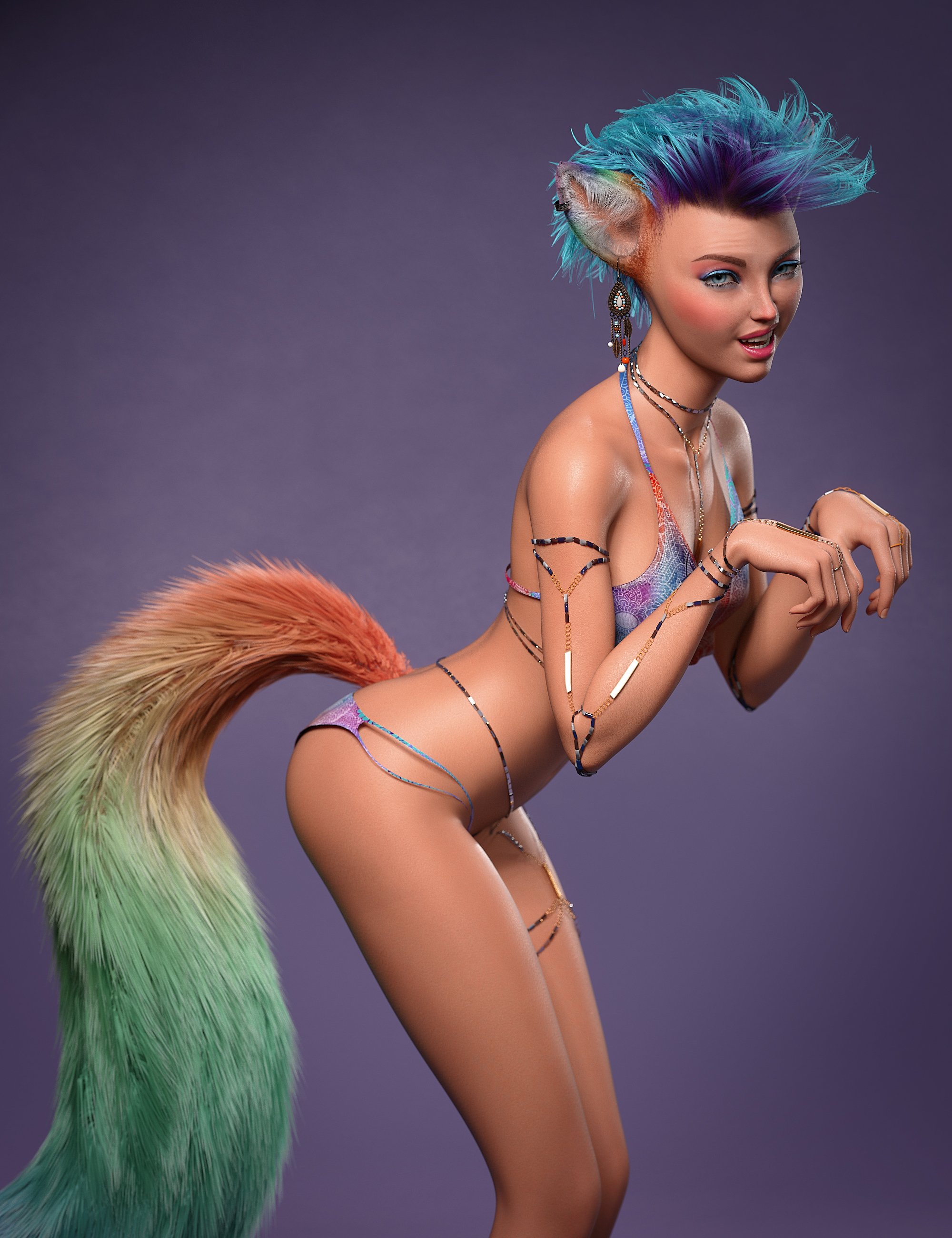 Daz to Cinema 4D Beta: How To Download Release Versions, Manually Install, and Replace Old Installs
DAZ_sam said:
Rezca said:
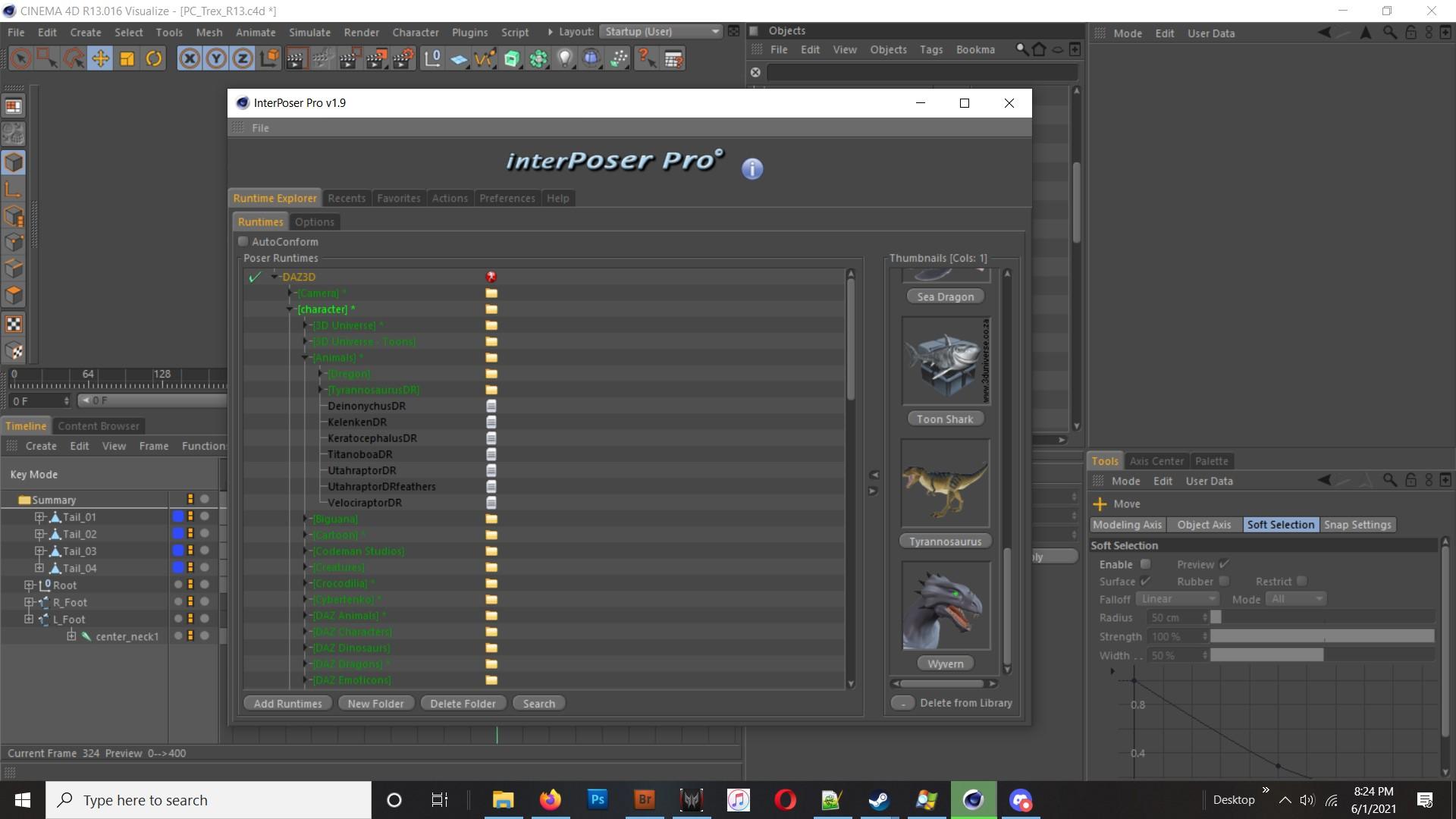
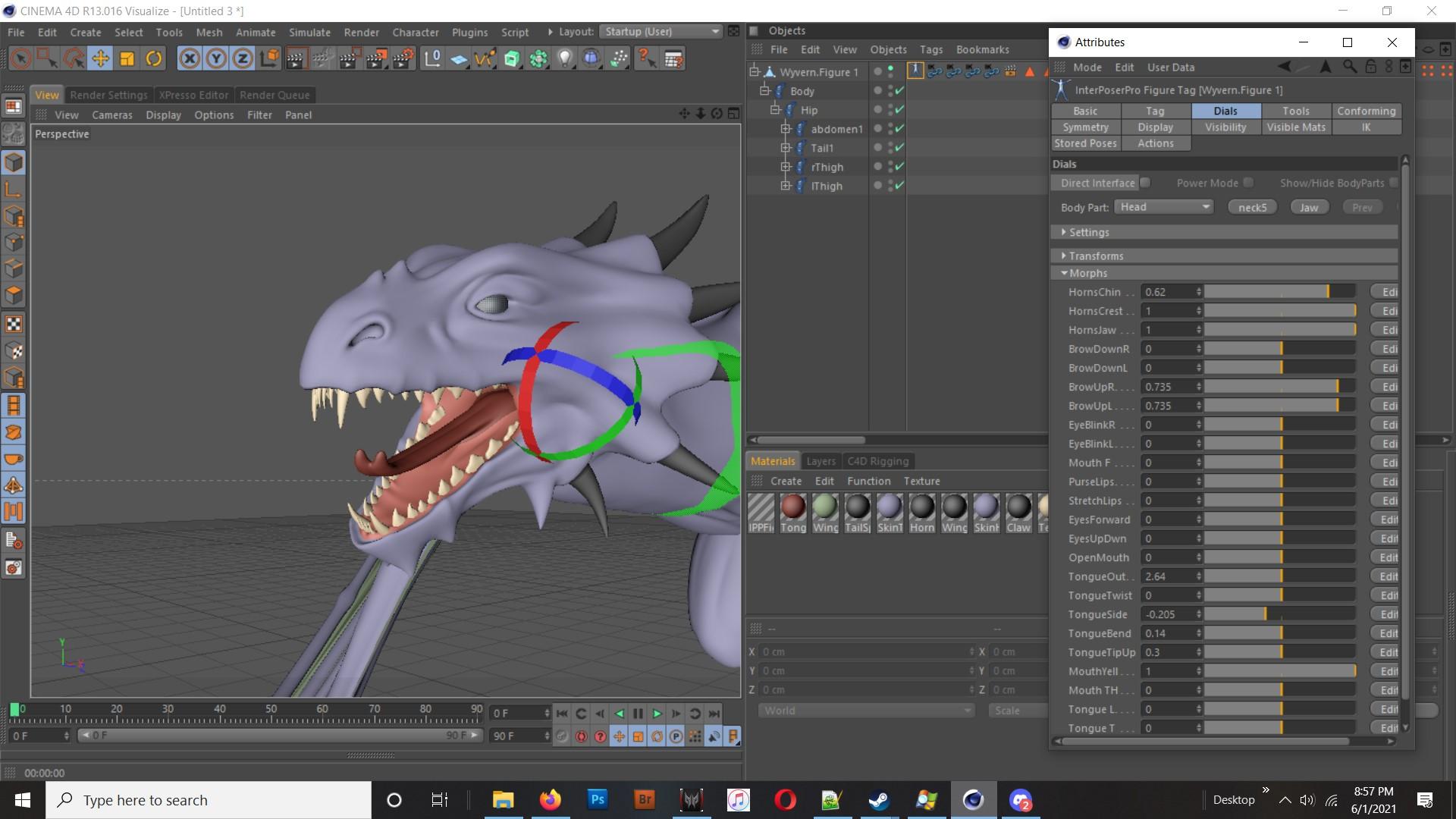
That's an amazing list of changes! It truly pays to be patient, good things come to those who wait. The C4D Bridge just from these last few posts the team's made is already making it look like it'll be on par with the old InterPoser Pro plugin Cinema used to have - but for free. (IPP was like, what.... $100 something? $120? I can't remember, but it was a paid pluggy)
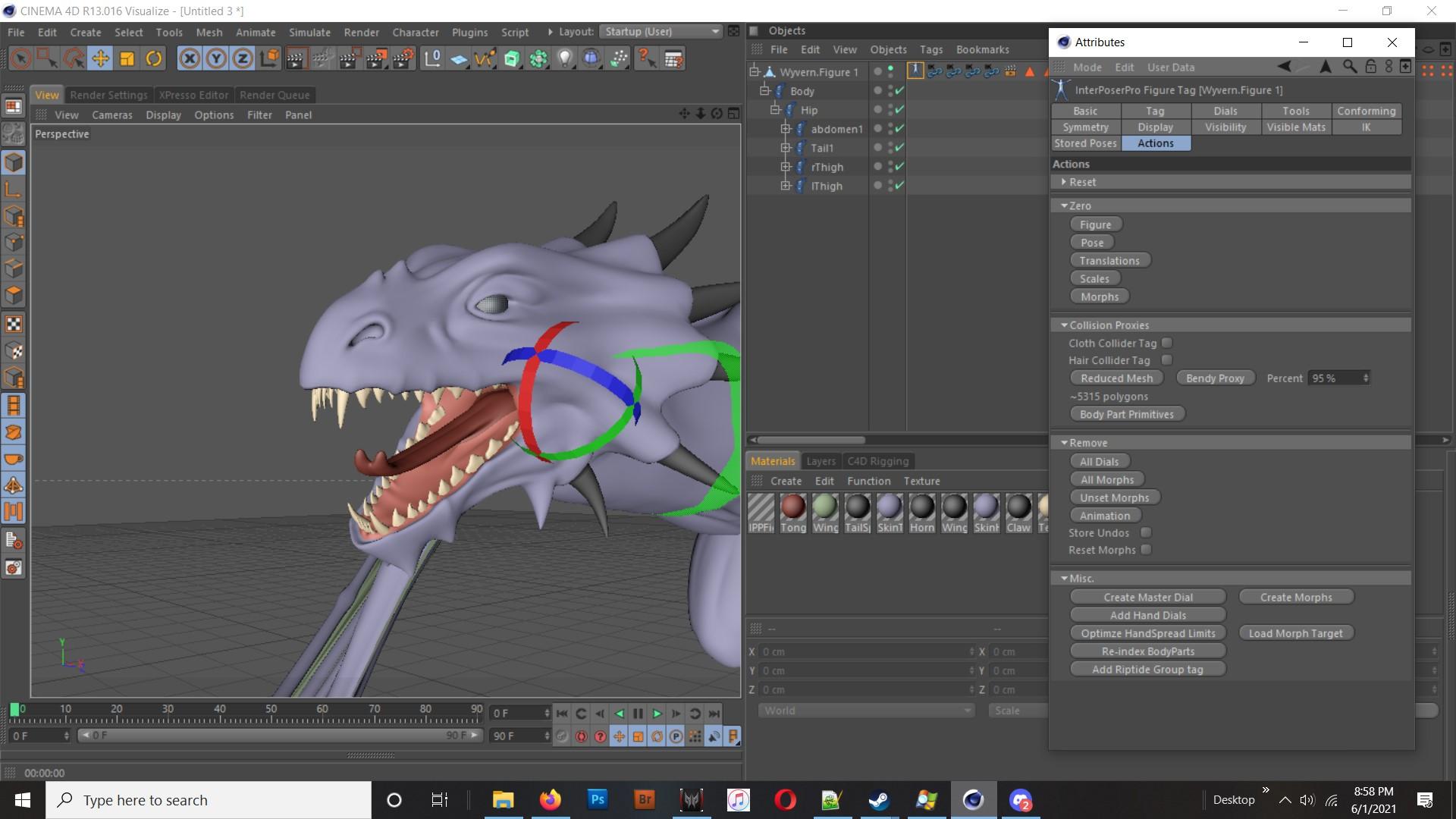
The only things its really lacking now that IPP had is importing entire Poser - or in this case, D|S - scenes with lights & cameras, and the ability to save out/create Morphs & INJ files that Poser/D|S can load. I'd include Poser Cloth too, but that feature sadly never got fully implemented before the developer retired from the programming scene.
Thank you for your kind words and thank you for being patient. I will look into the plugin maybe get some ideas for the bridge itself.
Sadly their site isn't around anymore, and the last version IPP ran on was.... R14, or R15? But you might still be able to find some info about it floating around.
One potential drawback to the plugin though was it was pretty much emulating the Poser rigs and format. So it didn't use Cinema4D's joints or Pose Morph features. Morphs were supported natively without needing copies of the geometry present in the scene (As an owner of Visualize at the time, that was a good thing!) and you could even make and save your own too. Poses could be loaded just like in DS/Poser... All that's a good thing, but it also meant that you couldn't really make use of Cinema's rigging features with it, and the Bake Poser Object feature never got ironed out - it'd convert it into Joints just fine, but the weighting would be absolutely destroyed in the process.
 Morphing ribbon based hair in blender
As the title suggest I wanted to go about posing a ribbon based hair product from Daz3d within blender. However, I'm new to blender and don't know where I should look to get a good idea of how to do it. The product is Ladina hair for Genesis 3 and 8. I'm looking to pose the genesis 8 version into a tied back morph. I'm not looking for a complete guide, but more of suggested methods to go about doing this. Of course if someone knows exactly how to, I would appreciate the help.
Updates - Daz to Cinema 4DDaz To Cinema 4D Version 1.2.0
Morph Updates
-
Morphs Drivers are automatically being set up, this includes JCMs and 8.1 Facs System
-
Set up in an Xpresso tag under the body of the Genesis character
-
Uses Python Node to contain the conversion of Daz ERC properties to Cinema 4D
-
-
Morphs will Be renamed to match the name in Daz
-
Some Morph Optimization has been created; and now delete any morphs that “shouldn’t” be on the children objects. For example, JCMs for the legs appearing on the hair
Material Updates
-
Automated the Standard Materials to create materials that follow a PBR standard
-
This is done automatically from values in Daz and can see the difference from updating in Daz as well
-
-
Given new controls to control the multiplier for the Bump, Normal, and Subsurface Scattering Strength
-
Redshift Fixes:
-
Fixed Normal Map input being incorrect changed to Tangent Space Normal
-
Changed Normal Map level to 0.5
-
New dropdown menu to choose bump type (this is a temporary fix to the code)
-
Rigging Updates
-
Orientation on Joints are now Fixed at Import to match what you see in Daz Studio
-
This will allow you to rotate the joints as if it was still in Daz
-
Does not get applied when Animation or a Pose is exported from Daz
-
-
Auto-IK can be used in the default A-Pose
-
Fixed eye controls not being Visible for single eyes
-
Fixed the orientation on the Control Rig’s joints to match the Daz joints
Other Fixes
-
Changes made to Iterator Classes to fix Python 2 compatibility
-
Add an Environment/Prop Export option this will allow for faster transfer when you do not want to transfer a character
To Be Fixed
-
The New update will leave some issues on original Material Conversions this will be relooked at in future updates
-
A new control rig or IK/FK Switches will be added for a more friendly rig
-
Joint Orientations to be fixed on Daz Character with a pose or animation
-
Reminder: If your run into any issues, please reach out through GitHub at https://github.com/daz3d/DazToC4D/issues
Updates - Daz to BlenderDaz To Blender Version 2.3.7
General Updates
-
New export logic
-
Will check if node found is a character; if not it will export as environment/prop
-
Will also unparent and reparent grouped characters
-
-
Able to export Genesis and Genesis 2 figures as characters
-
Does not support Genesis 1 and 2 skinning method will automatically convert weights
-
-
Fixed offset
-
Some morphs will translate skeletons now it will take that account in fixing skeletons
-
-
Added figure data to DTU
-
Code refactor updates
-
Added several morph presets to simplify export process
-
Added a Refresh Button on dropdown to reload the dropdown menu if character is missing
Morph Updates
-
Fix the ErcMultiply execution in Blender to have it apply correctly
-
Added the option to disable morph links during export
-
Fixes multiple morphs on one controller
-
For example; Surprised morph for Genesis 8.1 is made of multiple morphs, now it will export them separately as the default option
-
-
-
Updates to driver additions to match better with Daz setup
-
Add a new function to bulk remove the morph prefix
-
Choose your asset in the dropdown, and then run
-
Rigify updates
-
Moved rigging to its own panel
-
Fixed error with face not following when morphs are on the import
-
Add an option to collect textures
-
This will include paths of all the external textures in the dtu
-
Bug fixes:
-
Fixed Python error Runtime error (change of figure size) during Iteration
-
Allows the bridge to skip over FBX error; in some cases the script will fix errors in the FBX importer
-
Fixed “TypeError” issue when importing a character with hand and leg JCMs to the Blender
Reminder: If your run into any issues, please reach out through GitHub at https://github.com/daz3d/DazToBlender/issues
Failed to add user alias problemPerttiA said:
Abstract Soul said:
PerttiA said:
If you are not installing the products inside DAZ ("Smart" Content/DAZ Connect), the morph files will be located in;
...\Data\DAZ 3D\Genesis 8\Female\Morphs (For Genesis 8 Female)
...\Data\DAZ 3D\Genesis 8\Female 8_1\Morphs (For Genesis 8.1 Female)
...\Data\DAZ 3D\Genesis 8\Male\Morphs (For Genesis 8 Male)
...\Data\DAZ 3D\Genesis 8\Male 8_1\Morphs (For Genesis 8.1 Male)The "..." being the root folder of your Content Library
The reason, why I don't remove alias-files that are located in "...\Data\...\Morphs\DAZ 3D\" is that some morphs are calling alias morphs located in there instead of the real morph/expression files.
Now that you mention it, some problems started (especially with g8f 8.1) after installing some products with the Daz connect (I wanted to try it out) I didn't quite like it, so I went back to DIM or manual installation.
There really should be a warning in LARGE RED LETTERS against the use of Connect... I know RH will disagree, but in general it just makes a mess out of everything and if you have used it, DS gives priority to files installed in location where Connect installs them, no matter how botched the installation was and refuses to find the correctly installed files in the traditional location - The fix is to uninstall the files (with Connect) that were installed by Connect and use DIM to install them again.
I will disagree - if the files haev incorrect data then they will be broken however they are isntalled, if not and the paths are correct then they will work. Files installed by Connect cannot be moved, but they can be edited to fix issues just as other files can.
The exception is some scripts which are written with the expectation that they will be in a standard content directory.
JoeQuick appreciation - simply the best.JoeQuick said:
ShadowSkillz said:
JoeQuick said:
The Horns are smart props. You will need to move/scale them.
It looks like for some reason the drago morph isn't auto following. Strange. It doesn't make sense that it would in one instance (hatchling) and not another (drago). They are the same wings and morphs.
Strange that I need to move the horns, when I replace them with those from the Torment figure, there is no need for intervention. I agree with your comment that it doesn't make sense, but here we are with the bug.
One is a smart prop the other is a conformer or geograft.
They are different things and behave different ways.
It's like complaining that your motorcycle isn't a car.
Oh I see, thanks for the explanation. So it seems like the wings are the only real bug then.
Failed to add user alias problemPerttiA said:
Abstract Soul said:
PerttiA said:
If you are not installing the products inside DAZ ("Smart" Content/DAZ Connect), the morph files will be located in;
...\Data\DAZ 3D\Genesis 8\Female\Morphs (For Genesis 8 Female)
...\Data\DAZ 3D\Genesis 8\Female 8_1\Morphs (For Genesis 8.1 Female)
...\Data\DAZ 3D\Genesis 8\Male\Morphs (For Genesis 8 Male)
...\Data\DAZ 3D\Genesis 8\Male 8_1\Morphs (For Genesis 8.1 Male)The "..." being the root folder of your Content Library
The reason, why I don't remove alias-files that are located in "...\Data\...\Morphs\DAZ 3D\" is that some morphs are calling alias morphs located in there instead of the real morph/expression files.
Now that you mention it, some problems started (especially with g8f 8.1) after installing some products with the Daz connect (I wanted to try it out) I didn't quite like it, so I went back to DIM or manual installation.
There really should be a warning in LARGE RED LETTERS against the use of Connect... I know RH will disagree, but in general it just makes a mess out of everything and if you have used it, DS gives priority to files installed in location where Connect installs them, no matter how botched the installation was and refuses to find the correctly installed files in the traditional location - The fix is to uninstall the files (with Connect) that were installed by Connect and use DIM to install them again.
Thank you very much, will try that
Failed to add user alias problemAbstract Soul said:
PerttiA said:
If you are not installing the products inside DAZ ("Smart" Content/DAZ Connect), the morph files will be located in;
...\Data\DAZ 3D\Genesis 8\Female\Morphs (For Genesis 8 Female)
...\Data\DAZ 3D\Genesis 8\Female 8_1\Morphs (For Genesis 8.1 Female)
...\Data\DAZ 3D\Genesis 8\Male\Morphs (For Genesis 8 Male)
...\Data\DAZ 3D\Genesis 8\Male 8_1\Morphs (For Genesis 8.1 Male)The "..." being the root folder of your Content Library
The reason, why I don't remove alias-files that are located in "...\Data\...\Morphs\DAZ 3D\" is that some morphs are calling alias morphs located in there instead of the real morph/expression files.
Now that you mention it, some problems started (especially with g8f 8.1) after installing some products with the Daz connect (I wanted to try it out) I didn't quite like it, so I went back to DIM or manual installation.
There really should be a warning in LARGE RED LETTERS against the use of Connect... I know RH will disagree, but in general it just makes a mess out of everything and if you have used it, DS gives priority to files installed in location where Connect installs them, no matter how botched the installation was and refuses to find the correctly installed files in the traditional location - The fix is to uninstall the files (with Connect) that were installed by Connect and use DIM to install them again.
Failed to add user alias problemPerttiA said:
Abstract Soul said:
PerttiA said:
"Failed to add user alias" - These are caused by alias-morphs. Alias-morphs are used to copy for example head-morphs (and expressions) from the main body to the head, so that when the user selects the head, the morph-dials are visible/usable.
Not all morphs/expressions have aliases though and since many aliases are not written correctly, I delete them periodically, leaving only the ones that are located in DAZ 3D morph folders."Chaos Giant" is looking for "ToonGenerations8", do you have that installed?
"Noburo" is looking for "Dasan 8", do you have that installed?
Thank you so much for your response, Reinstalling Dasan did help, toongenerarion8 I didn't even know it was needed for the Cyclops, I do not have that one, not much into toons I guess, do you know where can I find the alias morphs? searched for those in the Liam folder but didn't find them.
If you are not installing the products inside DAZ ("Smart" Content/DAZ Connect), the morph files will be located in;
...\Data\DAZ 3D\Genesis 8\Female\Morphs (For Genesis 8 Female)
...\Data\DAZ 3D\Genesis 8\Female 8_1\Morphs (For Genesis 8.1 Female)
...\Data\DAZ 3D\Genesis 8\Male\Morphs (For Genesis 8 Male)
...\Data\DAZ 3D\Genesis 8\Male 8_1\Morphs (For Genesis 8.1 Male)The "..." being the root folder of your Content Library
The reason, why I don't remove alias-files that are located in "...\Data\...\Morphs\DAZ 3D\" is that some morphs are calling alias morphs located in there instead of the real morph/expression files.
Now that you mention it, some problems started (especially with g8f 8.1) after installing some products with the Daz connect (I wanted to try it out) I didn't quite like it, so I went back to DIM or manual installation.
Failed to add user alias problemAbstract Soul said:
PerttiA said:
"Failed to add user alias" - These are caused by alias-morphs. Alias-morphs are used to copy for example head-morphs (and expressions) from the main body to the head, so that when the user selects the head, the morph-dials are visible/usable.
Not all morphs/expressions have aliases though and since many aliases are not written correctly, I delete them periodically, leaving only the ones that are located in DAZ 3D morph folders."Chaos Giant" is looking for "ToonGenerations8", do you have that installed?
"Noburo" is looking for "Dasan 8", do you have that installed?
Thank you so much for your response, Reinstalling Dasan did help, toongenerarion8 I didn't even know it was needed for the Cyclops, I do not have that one, not much into toons I guess, do you know where can I find the alias morphs? searched for those in the Liam folder but didn't find them.
If you are not installing the products inside DAZ ("Smart" Content/DAZ Connect), the morph files will be located in;
...\Data\DAZ 3D\Genesis 8\Female\Morphs (For Genesis 8 Female)
...\Data\DAZ 3D\Genesis 8\Female 8_1\Morphs (For Genesis 8.1 Female)
...\Data\DAZ 3D\Genesis 8\Male\Morphs (For Genesis 8 Male)
...\Data\DAZ 3D\Genesis 8\Male 8_1\Morphs (For Genesis 8.1 Male)The "..." being the root folder of your Content Library
The reason, why I don't remove alias-files that are located in "...\Data\...\Morphs\DAZ 3D\" is that some morphs are calling alias morphs located in there instead of the real morph/expression files.
JoeQuick appreciation - simply the best.ShadowSkillz said:
JoeQuick said:
The Horns are smart props. You will need to move/scale them.
It looks like for some reason the drago morph isn't auto following. Strange. It doesn't make sense that it would in one instance (hatchling) and not another (drago). They are the same wings and morphs.
Strange that I need to move the horns, when I replace them with those from the Torment figure, there is no need for intervention. I agree with your comment that it doesn't make sense, but here we are with the bug.
One is a smart prop the other is a conformer or geograft.
They are different things and behave different ways.
It's like complaining that your motorcycle isn't a car.
JoeQuick appreciation - simply the best.JoeQuick said:
The Horns are smart props. You will need to move/scale them.
It looks like for some reason the drago morph isn't auto following. Strange. It doesn't make sense that it would in one instance (hatchling) and not another (drago). They are the same wings and morphs.
Strange that I need to move the horns, when I replace them with those from the Torment figure, there is no need for intervention. I agree with your comment that it doesn't make sense, but here we are with the bug.
Someone please create a plugin for this drag & dropI don't want ANY files in the L&F. Period. When I open a product that is in L&F, regardless of whether I'm opening a shortcut to it in another folder or not, the product information says "Lost and Found." This is unacceptable. I DO use a method to move the content using the "Move" function. This is slow and takes a long time, sometimes days (as I've said before). So, back to my request to anyone out there that can make this: Create a simple plugin that allows a fast, easy, compare and transfer, process for those of us that don't want to leave things in the L&F digital junk drawer.
JoeQuick appreciation - simply the best.Someone on the tech forum asked if the mouse had a rat morph. I suggested using the available morphs to try and make one, however it does raise an interesting question about the mouse.
Failed to add user alias problemPerttiA said:
"Failed to add user alias" - These are caused by alias-morphs. Alias-morphs are used to copy for example head-morphs (and expressions) from the main body to the head, so that when the user selects the head, the morph-dials are visible/usable.
Not all morphs/expressions have aliases though and since many aliases are not written correctly, I delete them periodically, leaving only the ones that are located in DAZ 3D morph folders."Chaos Giant" is looking for "ToonGenerations8", do you have that installed?
"Noburo" is looking for "Dasan 8", do you have that installed?
Thank you so much for your response, Reinstalling Dasan did help, toongenerarion8 I didn't even know it was needed for the Cyclops, I do not have that one, not much into toons I guess, do you know where can I find the alias morphs? searched for those in the Liam folder but didn't find them.
Scaling issues between daz studio and blenderLeave Blender as it is and adjust the import settings in DS, then use the Save Preset button in the options dialogueto save those settings for future use - they will be available for import/export and for morph import as well.
How to contact venderTrue, just checked the decriptions morphs list and there is no morph for a rat. Only thing I can suggest is use the available morphs to try and create one. It would depend on how easily the available morphs will work for this though. Other then that Ascania's suggestion is the only other option.
Face Mojo [Commercial]LayLo 3D said:
charles.conyers_5a1dbe4d8c said:
This is a FANTASTIC app-- works exactly as advertised in Daz Studio. I'd LOVE to be able to use it in Unreal Engine, but I am absolutely stumped as to how to make this happen. I tried exporting from Daz, but that only seems to work with animations as keyframes on the timeline. Unreal DOES read blend shapes and morph targets, but I'm not really sure how to get that information into Unreal.
I've also experimented using Live Link Face with Genesis 8 models in Unreal, and I hate it. It's just not as articulate as Face Mojo is, but I simply CANNOT GET IT OUT OF DAZ! I love the results of Face Mojo, and I love the speed and efficiency of Unreal Engine. How the heck can I get these two things to work together?!Hi! Thanks, and thanks for sharing your experience!
I'm not sure of the best way to try and get the best of both worlds, so to speak.
I have this video that shows how to export the Face Mojo animation on a character out of Daz Studio via FBX:
Does that process work to then take to UE for rendering?
Yep-- I watched all of your videos. I even downloaded that FBX export script from your website.
Are you ready for THIS frustration? I actually got the Face Mojo animation to work in Unreal Engine! I managed to do it twice successfully! NOW, however...it doesn't work(!).
From what I have researched, it seems as if UE requires facial mocap data capture imported as FBX2011 (it's how the ROKOKO face mocap works). When I import the animation into UE, more often than not I get ALL of the morph targets, but NONE of the animation (except for head movement, oddly enough). I've made so many attempts that I think I confused my notes a bit, and now I am having a difficult time determining the path that enabled me to play the Face Mojo animation in UE. Luckily, I make new UE files for every experiment, so I will be able to backtrack to see how to make this work consistently!I feel like I am SO CLOSE! If there is ANYONE that has insight into this, it would be GREATLY appreciated!
Daz 3D is part of

Connect
DAZ Productions, Inc.
7533 S Center View Ct #4664
West Jordan, UT 84084Licensing Agreement | Terms of Service | Privacy Policy | EULA
© 2026 Daz Productions Inc. All Rights Reserved.