help please: how do I edit clothing from daz figures in blender?
 Drekkan
Posts: 460
Drekkan
Posts: 460
I asked about this before and am having trouble figuring it out. I never really used blender before so I am just learning the basics and am hoping if someone has some time to kill they could help. Is there anyone familiar with Blender who has perhaps used it to change clothing items whilst characters are wearing them? I have been told how to put a figure wearing an item into blender by making it an obj. file but I am having trouble knowing exactly how to change the clothing item. (in the pics is the figure and her dress I imported from daz into blender and I don't know how to zoom in onto her exactly in Blender)
I am trying to have the woman lower the front of her dress and have tried to do it using D-formers and the normal dress morphs but it comes out looking unnatural like she is not really pulling down on the dress and I was told before it could be done in Blender.
(please don't suggest dynamic clothing in daz as I cannot find one that I want to use for a scene in mind)

Daz 3D is part of 
Connect
DAZ Productions, Inc.
7533 S Center View Ct #4664
West Jordan, UT 84084
Licensing Agreement | Terms of Service | Privacy Policy | EULA
© 2026 Daz Productions Inc. All Rights Reserved.
Comments
Zoom in/out is done using a mouse wheel, usually, like in Daz Studio but I think the direction is reversed in Blender.
Not meaning to discourage, but if you are at that early stage in learning Blender, making changes to models could be a stretch right now, and I would recommend watching some of the numerous excellent beginner video tutorials online.
I'm curious why your model is lying on her back: if I export a figure from DS to .obj file format, using the Daz Studio scale preset and leaving the Axis Conversion options as default, the figure is upright once imported into Blender (though admittedly gigantic because Blender's units are 50cm and DS's are only 1cm).
Because it was probably exported at the Blender preset, which was for a much older version of Blender...that did alter the 'up' axis.
I guess there is no quick tutorial on how to adjust the dress?
Thankyou :) I hope you see what I am trying to do,
First things fist, is there a reason why you're using such an old version of blender? The newier versions are so much more user friendly its not even funny
delete
No I thought it was the latest version I got it from the main website I assumed it was the latest one. I will try get it.
The lastest blender can be found on their offical site. You should see 2.76B download button on the screen. Also Drekkan before we start are you planning to transfer the dress back into Daz to render after it has been corrected in Blender or are you rendering it in Blender?
https://www.blender.org/
Welcome to the wonderful world of Blender use, Drekkan. It should be an easy project for you with mal3imagery's help. Love that you tried to start in 2.49, but yeah, definitely go with the latest for an easier go all around. Good luck with it, and I hope you post your progress here. I want to see your project completion, barring any TOS violations, of course.
mal3imagery: Maybe walk him through morph target creation for end use in DS as well, unless he is only going for a one-off render, but everyone can use those skills when taking on modding creations for their work.
Yes sorry guys I didn't get back sooner. I am ready when you are mal3Imagery
Again sorry for the delay replying. I had a problem trying to get the right one but its ok I was doing something wrong I gottit thanks all.
Ok sure...please give me a few mins on this.
I added a shot of the Blender screen I have so you know. In the second pic is what I am trying to do with the dress (please ignore the little box as I needed to use something to censor the nudity) she is holding down the top straps on each side below her chest area.
mal3Imagery please let me know if you still want to do this.
Sorry Drekkan I was working on a personal project. I already got the tutorial started and will upload it soon.
much appreciated :D
So from the your post you already got your model and clothing piece you want. You want to export it using the Blender preset that Daz already have. Just leave everything as default and export the model to any folder you like in OBJ.
Now open up Blender and delete everything within the scene. Just press the "A" button to select all then press "X" to delete. You should have an empty scene now. Now you want to use the following import option for your OBJ file. Just use these settings that I already define in the image. It will keep your model right side up and looking foward in Blender's viewport with all model attached.
You're model should now be in Blender and should look like this.
Now since we want to edit just the shirt or the dress in your case. We want to seperate the dress mesh from the model. To do that click on the model object by right clicking and then hit the "TAB" button to enter into edit mode. From there you want to press "A" to select all mesh and then clicking "P" to bring up seperate mode and you want to click on "Seperate by Materials". Blender will now remove all the mesh indivually by the materials they are using. It might take Blender a while seperate the meshes depending on how dense the meshes are.
Once Blender finishes seperating the meshes, click on TAB to exit out edit mode again. Now when you click on shirt/dress it should not be hightlighting everything only parts of the dress. This is where you're going to have to combine all the dress meshes again. You want to right click and hold down shift at the sametime to select mulitple parts of the dress. Once you have selected all of the dress pieces you want to merge then together now by holding down "CRTL + J" to join the pieces together. You should now have just the dress by itself. Here is my example once I seperated the mesh shirt from the model.
From here you can edit the shirt/dress mesh to create the pulling the shirt down or whatever you want it, but want to enable proportional edting mode. That will allow you to move surrounding verticles with your initial verticle point that you have chosen. I can't really show how to edit the mesh you're going to have to play around with it a bit to get the desire look you want. I have not played with Daz a lot so I can't really point you how to create morphs for that dress. Someone else is going to have to show you that. This is probably my first tutorial on here and probably not be the clearest, but if you still have questions or are confused, please feel free to ask and I'll try and clear up some of that confusion on certain steps or just feeling completely lost.
Ok I have been playing around with this a fair bit and did fine until got stuck on just after seperating the meshes. In the first pic is the pic of my model just AFTER you said to press tab again to exit out of edit mode which I did. It still has lines on it strangely unlike your figure which leads me to believe something isn't right but I carried on anyway so I did what you said and right right clicked and held down shift at the sametime to select mulitple parts of the dress then hit CRTL+J to merge the parts together but it came up in the top right; "no mesh data to join". (in pic 2)
It should be noted that from the start when I put my figure into Blender with the seemingly correct settings its highlighted with orange could this be a sign of something selected and why things are not working how they should be firther down? or maybe its nothing as I am not used to Blender. (shown in pic 3)
Sorry I am not explaining this very well but please look at this when you have the time. Thanks.
Your import settings in Blender are wrong. Un-check NGons, Lines and Smooth Groups. Switch from Split to Keep Vert Order and check Poly Groups. Ctrl-J is for combining separate objects into the same object, it does not merge or fuses the meshes. For a 'broken' object mesh in Edit mode select all verts and press W then select Remove Doubles from the pop-up.
K are you SURE the import options are correct? there is Jestmart saying they arn't and to select/un-select other things.
Hi, I don't have much time today but in general :
In DAZ : you have to hide everything except the thing you want to export (this is mandatory to keep the vertex order and be able to reimport as a morph). Then export as OBJ, in general, I chose "poser" export preset (what matters is that you reimport with the same preset as export after modifications). YOU HAVE to export object per object meaning you cannot export both your outfit and figure in the same time. When you export, only a single item of your scene must be visible, or the vertex order will be lost, and the morph loading will fail.
In blender, import the outfit with the option "keep vertex order", I also check "polygroups" if I remember well. Normally you should not have the splitting groups related to initial bones. It should be "one piece". Import your reference figure then the same way. when you export you also have to keep vertex order.
Maybe you will see more info in this video I made, this is on another subject but I show import exports on blender (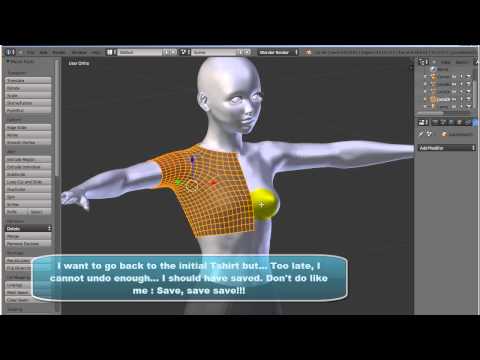 ). I also have a commercial products showing how to make morphs on outfits, but I'm sure you can do it without buying it. This video above does not show how to import as a morph but the morph loader usage is really intuitive. I hope this helps.
Otherwise Blender can join your splitter groups using remove doubles but your vertex order will be lost and any import as a morph will be impossible.
K I am just confused. We got so many people saying to do and select different things here I am not sure who is right. V3Digitimes you seem to know your stuff do you think you could give me a crash course from the beginning when you can? the other guy seems has gone and he stated he wasn't sure about some of the things.
I don't blame him for going I know I am slow lol but its just confusing because I got different people saying to select different things.
Here's another reference for you to look at. ( There are some other good links in that thread, too). Remember, there is always more than one way to do things. That is probably part of your confusion. When in doubt, I suggest following the advice of someone who is a known vender of quality merchandise at the Daz store, like V3Digitimes, SickleYield, etc. Pick one of those and try to do it as that person describes. My personal belief (as an inexperienced non-vendor who is just learning) is to export and import each object separately. Exporting a model with clothing and then trying to separate them sounds like a recipe for disaster to me.
Yes, I can help a bit. What matters for a morph is the softwares keep each number of the vertex in memory, all the time (and the scale). Your object (piece of outfit) has a geometry in which all points in space has its own number. When you will reimport with morph loader, it will simply compare each point initial position with the final position of it, comparing what happens for point number 1, 2, 3 etc, etc. The number of the point in the outfit geometry cannot be kept if you export several object the same time. So export object per object, hiding all the rest each time. Object per object.
Blender will not import objs keeping vertex order by default. You have to check it in the options of objects import . I also check polygroups but I don't remember why. The outfit should come in one single piece. If you don't want to waste your time, you can simply move one point of the mesh only to see if the morph is accepted by Daz.
one other thing is try to do it at low (base) resolution for the outfit. High res changes the vertex number.
other thing try to scale your figure wearing the outfit at 100 %. Otherwise it may induce scale issues (morph will also rescale you will have a double scaling).
other thing when you export from blender check keep vertex order too. And in morph loader choose the same scale as when you exported it.
just give a try this way and let me know what happened.
edit : never add a vertex, remove one, split and jpin in blender, you would loose the vertex order.
Yes there are plenty of references a guess. Keep the vertex order and scale should probably be the Base of all of them.
K I know its been a little while but am trying to go through this all again step by step. If V3Digitimes and anyone else are not busy then maybe you guys could just confirm if I am doing it right in the vid I have here of what I am doing its only a minute long. (yes its a little extreme I know lol) please check it out when you can. It's done with the first original tutorial by mal3Imegery.
Hi, I'm sorry Drekkan I was really sick in the beginning of 2016 and all my time was focus on resting and going on with my projects.
I had a look at your video, the import options are not the right ones. You have to activate "keep vertex order" and "polygroups" (the second one is maybe not necessary, but the first one is fundamental).
Then you must NEVER export/import a dressed figure. First you export/import your figure (you hide all the rest including the outfit), then you export/import your outfit part you want to work on ONLY (hiding all the rest, only one scene node (element) must be visible).
Then you load in blender with "keep vertex order" selected and "polygroups" checked. Normally in blender you should have only two objects : V4 and her outfit.
You must NEVER split the outfit, add a vertex in it, remove a vertex in it, or join it with something else. The vertex order must be kept all through the process, including at export for re-importing as morph in DS.
Let me know if it works better this way!
Please look at the latest vid when you not busy. I MUST be doing something wrong though because now I can't freaking click the tab-A-and P to get the materials option. *tears hair out*
Don't worry I might get this right in a few centuries.