Beautiful Skin for Genesis 2 iRay
 acanthis
Posts: 604
acanthis
Posts: 604
.
Post edited by acanthis on

Daz 3D is part of 
Connect
DAZ Productions, Inc.
7533 S Center View Ct #4664
West Jordan, UT 84084
Licensing Agreement | Terms of Service | Privacy Policy | EULA
© 2026 Daz Productions Inc. All Rights Reserved.
Comments
I'm really struggling with how to use this product. Is there a tutorial for those of us not versed in UV, Normals and other technical aspects of the figures? I bought this and can't for the life of me figure out how to use it.
I haven't gotten a chance to look at this product yet, but there's this: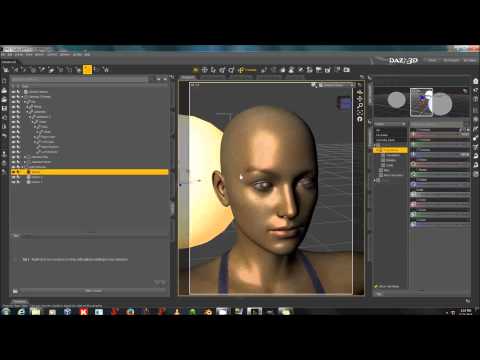
That YouTube vid was very helpful, not just for the product but for setting up a quick lighting base!
Each product description does say what UVs are supported, under "Supported UVs."
"Supported UV Maps:
Supported UV Maps:
These eight UVs comprise a good 80% of the skins that exist for G2. The ones that aren't supported are mostly the DAZ Originals that came explicitly with each figure package (the Gianni skin, the Lilith skin, etc.). I've done a tutorial on adapting skins without a product:
http://sickleyield.deviantart.com/journal/Tutorial-Making-of-Kasper-On-The-Beach-538259868
There's a link to a video on the dA tutorial.
Spiderland has already linked my YouTube tutorial for this specific product, which is also linked from the product pages.
I'm very interested in this product. Do I understand correctly that if I apply this skin it won't change the actual character? I have some custom figures I've created using FaceGen and would like to enhance their skins in IRAY using this product. Would this work ok and not change the characters actual face but just improve the skin settings when I render using IRAY?
It only affects skin, not morphs.
Maybe I didn't explain properly. I know this product doesn't change morphs. It's a shader. What I'm trying to find out is, if I create a skin with a specific face in FaceGen or any other software, will this product cover that up when I apply it or leave all the facial details alone? For example, if the face has freckles will this product cover over them?
I use the RedSpec shaders with Octane Render plugin and when I apply them all the character's skin details are left exactly the same except the skin is now translucent and much better looking in the light. I wondered if this product worked in the same way?
.
I'm assuming this is where the mapless settings come in, if I read it correctly this would just update your existing material to iRay thus keeping the freckles you refer to etc
I think this is where the map less settings come in, iRay settings applied to existing skin, just my understanding though, clarification I'm on the right track may be needed from sickleyield.
Also wondering: since V4/M4 maps are supported for Genesis2, is there any reason why these cannot be applied to actual V4/M4 characters?
Ok thanks! I re-read the product description and I think you're right, that seems to be how it works.
It's not mapless, but it doesn't affect bump or diffuse maps, it only adds its own specular, translucency, and (if you choose that option) normal maps. If your FaceGen textures are on a supported UV it would work without messing up your freckles. (I don't own FaceGen, so I don't really understand how it works.)
For Ostadan: V4 and M4 do not have the same material setup as Genesis 2. Clicking the presets won't do anything if you have M4 or V4 selected. You could achieve a workaround by applying the V4/M4 skin and shaders to a loaded G2, then copying them manually to a loaded V4 or M4 from the Surfaces tab, but that's not what I made the product for and that's certainly not a quick method.
I'm not sure I'm using this properly. At least for the skin I tried (M4 Elite Stratton), it seems to me that, except for the lips, the default "Iray Optimized G2M" gave a richer tone closer to the 3delight result. Here are three. The first is 3delight (with Advanced Distant Light and Ambient light to approximate sun and sky); the second is the default Iray G2M shader; and the third is with Beautiful Skin (M4 UV) base (and lips and eyes) applied. Iray default sun/sky was used for the lighting.
Is it just me, or does the Beautiful Skin one looked kind of washed out? Am I missing a trick here?
(I also found this default material for the hair worked better than Slosh's UHT shader, which seems only capable of mousey browns instead of the golden color, but that's another topic. Just feeling frustrated.).
Your iray lighting seems to be a bit strong, which might explain why the skin isn't looking the way you want. As for the hair shaders, I don't know why you can't get golden color, as I show promos with plenty of colors aside from mousy brown. I know you are frustrated and I'm sure you are not trying to insult either SickleYield or myself, so maybe we can figure out how to get you the results you are looking for.
Slosh and SY, a suggestion: since lights are basically "free," and good hair and skin depends heavily on good lighting, how about including a light set that show off the quality of the product. Maybe the HDR that comes with 4.8, and one or two spots. Doesn't have to be fancy, or taxing on the system if the user only has a CPU for rendering. Setting up a good lighting environment in Iray is a stumbling block for many.
Honestly, and I think SY will agree, I don't like the HDR that comes with 4.8 because I never get flattering light with it.
You really need to play with lighting for a scene. I suggest investing in some really good HDRIs (there are several good sets at DAZ and there are even some free ones around the net that you may find suitable). The better the quality of the HDRI, the better the dynamic range. DimensionTheory, who has some great sets, as does Dumor3D, has a video which explains.
Also, there are some very good lighting sets available now. I have yet to use any lighting that could just be used out of the box. The reason for this is that your scene may differ markedly to the one the lighting creator used when they set up. Your posing may be different, you may have props that will interfere, so many factors that will require you to move lights, change their luminance, color temperature, any number of things including their positions and number or types of lights to make sure your particular scene is lit correctly.
Between choosing the right HDRI and the right lighting, you will be spending a bit of time getting things just as you want them. I used a light set today where the lighting from above and behind was blowing out the top of the hair. I then also remembered that it might be the top coat as I use Slosh's hair shaders, too. Slosh included a preset for removing the top coat and between removing that and lowering the luminance of the light, I got what I found more desirable in the image.
Iray has a learning curve to look good, there is no doubt, so just keep practicing with your set up and tweaking till it looks equal to your vision.
I think it's possible to get good results from the "Ruins" HDR but it takes adding some lights, and rotating it around for best looks. But if not that HDR, it's easy enough to create one that has the light sources for the modeling you want. It doesn't need to be a visual scene.
Though I don't develop products for 3D, I do for educational materials (books, magazines, online guides), and what I've learned over the years is that it's important to reduce the users' avenues of failure. Example: If there's a project that includes some programming, I include all the project files, even if some are superfluous. This helps reduce the chances of mistyping something, or missing steps 7 and 10 of a 19 step process. It's a small thing that amounts to a lot.
To be clear, I'm not saying you and SickleYield are doing it wrong, as I think both of you have outstanding products; definitely a cut above the rest. But do consider ways to minimize user frustration, and remember that addressing the newbie means more sales and higher royalties. If it takes all of your know-how and/or fancy purchased light sets to make your promo shots, then that's a good idication most users will have a hard time duplicating your examples. Users expect to get what they see in the promos. It's unfair, but all of us expect that for the products and services we buy.
Enough rambling...
Well, I just added a tiny bit of pink (and, at that, perhaps a tad too much) to the white skin base color, and I am happier with the result. I suppose that individual skins will have enough variation that steps like that may be needed from time to time.
I do think the default sun/sky lighting is suitable for checking these things out; at least, it provides a consistent basis for comparison when experimenting with the products.
I will plead for help with the hair in the appropriate thread. Actually, the default shader conversion looks pretty good to me, and perhaps I should just be satisfied as it is.
Actually, I don't think expecting to see what is in the promos is the least bit unfair. If you are promoting a product as having 'lovely skin' and you show me an image of it, you are clearly enticing me to buy the product with the implicit claim that with it, I can have lovely skin on my image too. If you secretly did not tell me that I have to buy 3 different light sets, a different render engine, and several other items to get the results you got in the promo, then IMO, that is false advertising.
I'm not saying that promo images shouldn't be done to look their best... but a lot of authors will put either right into the image or into the notes, a list of what they used to make the promos. At least then as an informed user, I can see that wait, I do not have the same light sets as were used, so I will either need to buy them or expect to get different results. It's really not hard to list the items used in the promo shots, and may even lead to additional sales if I just HAVE to have that shot and then go buy the other items.
If I see a commercial with a luxury car driving past a restaurant and down a country road, I don't expect that car purchase to come with a road and a restaurant.
It is completely possible for any user to get the promo results. They do indeed use the default HDR (although I agree with Slosh that you can get better results using DimensionTheory's HDRs, just for one example). That's why I did an entire tutorial to explain the lighting and tone mapping, and why that tutorial is linked from the product pages. Here it is again, in case anyone else missed it.
Photometric lights do not give the best results with skin in my experience. I'm not discounting that some amazing render artist has managed to do so, but it's always been harder for me personally than with mesh lights. I'm preparing two test scenes for people to download that include the recommended lights as we speak.
Okay, test lighting scenes from my deviantart. These have both the mesh lights and the Sunny 16 tone mapping (tone mapping is important!). They require M6 HD, V6 HD and our product. If you don't have the HD versions for the Bjorn and Anna skins you can still apply our shaders to any skin and use these lights.
Here is a demo scene with lights for V6 with the Anna texture.
Here is a demo scene with lights for M6 and the Bjorn texture.
You have to buy the products to use the scenes; but you are free to edit, reuse, repeat or rerelease the mesh lights and render settings as much as you want. Please do, in fact. I'm going to keep yelling my head off about mesh lights and tone mapping on every site I'm on until all the world knows. ;)
I think it's good to show off a product in a stylised way that excentuates its features but I also like to see comparisons made in controlled conditions so that I can really see its advantages caompared to the generic version or another, similar product. In this case, because it's normally quite difficult to discern differences in skin quality except under controlled conditions, I think it would have been useful to have a few images comparing this product to the generic IRAY skin among the product images.
Yes. Mesh lights are good, but they usually take longer to render because of the additional calculations Iray must do. In fact if not carefully done, they can turn a 20 minute render into a 20 hour render.
From a lighting standpoint, there is little difference between a mesh light and a photometric light with a large emitter. They give off the same light and produce soft shadows, but the distribution depends on the shape of the emitter. In the case of the material light, scattering and other properties of the shader affect the light quality. Some of these, carelessly set, can balloon render time enormously. When you're still stuck doing CPU-only renders, you really feel the weight of these.
The nice thing about 3D rendering, including Iray, is that there are multiple ways of achieving similar results. For a render I'm doing now I'm using just the "Ruins" HDR and a glossy white 3x3 reflector off to one side. That's would I would do if I were lighting this scene (it's an outdoor beach scene) and needed side fill. Especially since I never liked toting my Norman's around water, for obvious and shocking reasons! Turns out just the reflector is the perfect look. So actually no scene lights at all in this case.
SY, I'm all for tutorials (written and video), and yours are always great.
Wow, that's never been my experience at all. The mesh lights I used did not take any longer than the 10-photometric rig I was using before I switched (about 5 minutes for a 1000x1300 test render on my two GTX 980's). In general, adding more lights to the scene will make it go faster no matter what kind of lights they are if it's Iray, unless one of them is a mesh light skydome (which will absolutely slow everything down, because Iray doesn't like fully enclosed scenes).
Well, 10 lights is a lot even in real photography!
I'd say Iray likes more *light*, not necessarily more lights. For each light, it has to do separate bidirectional ray calculations, and along the way, any surfaces or volumes encountered. Iray seems to have the most difficulty resolving convergence in underlit and well-overlit areas. I imagine one or two well-designed mesh lights would be better than a large collection of scene lights.
I re-textured DAZ's Conference Room to use (single-sided) meshes for the overhead fluorescents. Took 4 hours just to reach less than 4% convergence. My machine was about to melt. When I took those out and just used parametric lights, everything zipped by (well, "zipped" on my machine is two hours for a scene). Sadly, the look with parametrics isn't right. The scene needs to be lit by those diffuse fluorescents overhead. Currently saving up for a better GPU with more VRAM, and the wait is hard.
This hasn't been my experience. The more lights in my scene the longer it takes. I noticed the same with iRay as I have with LuxRener.
I am in the same boat. I need a GPU badly. This is a test I did with the usual three point light rig (mesh lights with no environment lighting). It took several hours each. I have an AMD quad-core (circa 2009) CPU and 16 GBs of memory.
Note: I am not using Beautiful Skin for Genesis 2 iRay, I was commenting on the time my renders take and how the more lights in my scene the longer it takes to render. The opposite of what I keep hearing about, that more lights in a scene makes it render faster.
In my tests, a single individual mesh light in Iray has the slowest render time for a given scene, all other things being equal, than any other single light source... photometric, light and sky, or HDRI. Now if you start adding lots of lights, then all bets are off... I have not tested under those conditions. But it is absolutely the case that a scene that renders in X minutes with HDRI only, will render in 2X to 4X with a single mesh light of appropriate brightness (i.e., so that the exposure looks roughly the same in both shots).