• Daz 3D
  • Shop
  • 3D Software
    • Daz Studio Premier
    • Daz Studio
    • Install Manager
    • Partnerships
    • AI Training data
    • Exporters
    • Daz to Roblox
    • Daz to Maya
    • Daz to Blender
    • Daz to Unreal
    • Daz to Unity
    • Daz to 3ds Max
    • Daz to Cinema 4D
  • 3D Models
    • Genesis 9
    • Genesis 8.1
    • Free 3D Models
  • Community
    • Gallery
    • Forums
    • Blog
    • Press
    • Help
  • Memberships
    • Daz Premier
    • Daz Plus
    • Daz Base
    • Compare
  • Download Studio
ADVANCED SEARCH
  • Menu
  • Daz 3D
ADVANCED SEARCH
Add image
  • Shop
  • 3d Software
    • Daz Studio Premier
    • Daz Studio
    • Install Manager
    • Partnerships
    • AI Training data
    • Exporters
    • Daz to Roblox
    • Daz to Maya
    • Daz to Blender
    • Daz to Unreal
    • Daz to Unity
    • Daz to 3ds Max
    • Daz to Cinema 4D
  • 3D Models
    • Genesis 9
    • Genesis 8.1
    • Free 3D Models
  • Community
    • Our Community
    • Gallery
    • Forums
    • Blog
    • Press
    • Help
  • Memberships
    • Daz Premier
    • Daz Plus
    • Daz Base
    • Compare

Notifications

You currently have no notifications.

Loading...
    • Categories
    • Recent Discussions
Daz 3D Forums > 3rd Party Software > Blender Discussion

Problem exporting from DAZ to Blender

starkadhstarkadh Posts: 52
May 2020 in Blender Discussion

Hi to everyone... I need help as you read in the title.
I have the need to export a little scene (with no animation) from DAZ to Blender. And this without using the new available plugin "from daz to blender" (with which I can't export poses).
I export in obj (not in fbx because the result is a scene with the figures horribly deformed), and all is ok... except the textures.
see? I export...
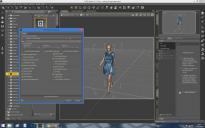
image

And the result, with cycles is a figure totally black, that has some reflexions, but only with a suuuper strong light
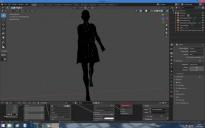
image


What is wrong? How can I fix this thing? How can I correctly export an obj in Blender from DAZ?

Comments

  • TheMysteryIsThePointTheMysteryIsThePoint Posts: 3,216
    May 2020 edited May 2020

    The normals are flipped.

    Click on the overlays button next to the X-Ray button and enable Face Orientation. Everything you imported via OBJ will be red on the oustide, when it should be blue.

    Select everything by pressing a, hit tab to go to edit mode, and then from the menu select Mesh, Normals, Set From Faces. Hit alt-a and tab again to exit edit mode.

    But really, materials from an obj in Cycles? Consider just re-texturing with Blender materials from, say, BlenderKit, Poliigon, or even Megascans. The results will be much more appealing.

    Post edited by TheMysteryIsThePoint on May 2020
  • starkadhstarkadh Posts: 52
    May 2020
    TheMysteryIsThePoint said:

    The normals are flipped.

    Click on the overlays button next to the X-Ray button and enable Face Orientation. Everything you imported via OBJ will be red on the oustide, when it should be blue.

    Select everything by pressing a, hit tab to go to edit mode, and then from the menu select Mesh, Normals, Set From Faces. Hit alt-a and tab again to exit edit mode.

    But really, materials from an obj in Cycles? Consider just re-texturing with Blender materials from, say, BlenderKit, Poliigon, or even Megascans. The results will be much more appealing.

    Yeah, I know, but I'm doing practice with material in blender and I want to try to reach the same result of DAZ at the best of my skills (low, for now)

    Thank you


  • gradynelsongradynelson Posts: 3
    February 2022

    Hey this is all about DAZ writing messed up normal data to the mesh so you just need to go 'Object Data Properties' and hit 'Clear Custom Split Normals Data' under the 'Geometry Data'.

  • skidrow.drdskidrow.drd Posts: 0
    September 2023

    TheMysteryIsThePoint said:

    The normals are flipped.

    Click on the overlays button next to the X-Ray button and enable Face Orientation. Everything you imported via OBJ will be red on the oustide, when it should be blue.

    Select everything by pressing a, hit tab to go to edit mode, and then from the menu select Mesh, Normals, Set From Faces. Hit alt-a and tab again to exit edit mode.

    But really, materials from an obj in Cycles? Consider just re-texturing with Blender materials from, say, BlenderKit, Poliigon, or even Megascans. The results will be much more appealing.

    I know it's been like 3 years since your post but if you're still here I just wanna thank you a lot for this. You saved me so much frustration. I'm learning blender and I kept messing around with clearing custom split normals which would mess up my models making them more jagged.

Sign In or Register to comment.
Adding to Cart…

Daz 3D is part of Tafi

Connect

DAZ Productions, Inc.
7533 S Center View Ct #4664
West Jordan, UT 84084

HELP

Contact Us

Tutorials

Help Center

Sell Your 3D Content

Affiliate Program

Documentation Center

Open Source

Consent Preferences

JOIN DAZ

Memberships

Blog

About Us

Press

Careers

Bridges

Community

In the Studio

Gallery

Forum

DAZ STORE

Shop

Freebies

Published Artists

Licensing Agreement | Terms of Service | Privacy Policy | EULA

© 2025 Daz Productions Inc. All Rights Reserved.
