• Daz 3D
  • Shop
  • 3D Software
    • Daz Studio Premier
    • Daz Studio
    • Install Manager
    • Partnerships
    • AI Training data
    • Exporters
    • Daz to Roblox
    • Daz to Maya
    • Daz to Blender
    • Daz to Unreal
    • Daz to Unity
    • Daz to 3ds Max
    • Daz to Cinema 4D
  • 3D Models
    • Genesis 9
    • Genesis 8.1
    • Free 3D Models
  • Community
    • Gallery
    • Forums
    • Blog
    • Press
    • Help
  • Memberships
    • Daz Premier
    • Daz Plus
    • Daz Base
    • Compare
  • Download Studio
ADVANCED SEARCH
  • Menu
  • Daz 3D
ADVANCED SEARCH
Add image
  • Shop
  • 3d Software
    • Daz Studio Premier
    • Daz Studio
    • Install Manager
    • Partnerships
    • AI Training data
    • Exporters
    • Daz to Roblox
    • Daz to Maya
    • Daz to Blender
    • Daz to Unreal
    • Daz to Unity
    • Daz to 3ds Max
    • Daz to Cinema 4D
  • 3D Models
    • Genesis 9
    • Genesis 8.1
    • Free 3D Models
  • Community
    • Our Community
    • Gallery
    • Forums
    • Blog
    • Press
    • Help
  • Memberships
    • Daz Premier
    • Daz Plus
    • Daz Base
    • Compare

Notifications

You currently have no notifications.

Loading...
    • Categories
    • Recent Discussions
Daz 3D Forums > 3rd Party Software > Blender Discussion

Importing Poses and Posing in Blender Using Diffeomorphic - Fewest Steps Possible

Krys KryngleKrys Kryngle Posts: 311
August 2020 edited August 2020 in Blender Discussion

Trying to keep this simple so I wanted to share how I pose in Blender with the fewest steps possible.  I'm using Blender 2.83.0 and Diffeomorphic 1.5.

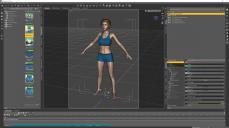
Set up character in DAZ for export, nothing special here, G8 base, base clothing and hair.
image

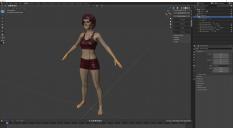
Import base character into Blender using Diffeomorphic.  When I try to select the main rig it only selects part of it -
image

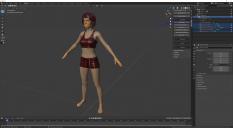
Select all rigs in the Outliner panel in the top right (ctrl + click), then click 'Merge Rigs' in the Diffeo panel.
image

Click 'Import Standard JCMs' to import the corrective morphs so the joints look natural when posing.

image

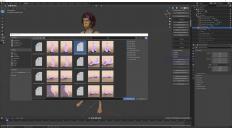
Import a pose from wherever your poses are saved.  I just used the Daz directory in this case.  You can find this directory if you go back into daz, right click on the pose thumbnail, and click 'browse to directory'.
image

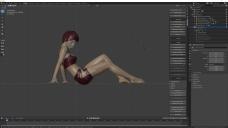
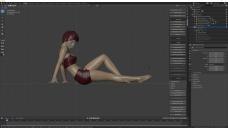
To pose the figure after import, select the armature, go into pose mode in the top left, and select the bone you want to pose.

Move your camera perpendicular to the direction you want to rotate, hit 'r' on the keyboard to rotate, and move the mouse to pose the bone.

In this case I hit 'ctrl + 3' to switch into side view, 'r', move mouse to rotate thigh bone and then did the same for the shin bone.
 

image

image

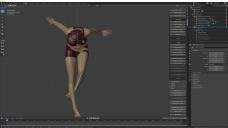
Then '7' for top view, 'r', move mouse to rotate the other shin.
image


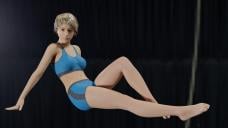
Rotate the head up a little, add an HDRI, shrinkwrap the cloths, and render in cycles.  No extra material edits.  
 

image


Post edited by Krys Kryngle on August 2020

Comments

  • marblemarble Posts: 7,500
    August 2020

    Thank you. Much appreciated - I will try out your workflow soon.

  • brainmuffinbrainmuffin Posts: 1,267
    August 2020

    Thanks quite a bunch. I may try this in one of my long, boring meetings today. I'll no doubt have to translate the keyboard shortcuts to Mac and Linux. I'm also not sure what "shrinkwrap the clothes" means. Have you tried any animations yet?

  • Krys KryngleKrys Kryngle Posts: 311
    August 2020

    Nope, started watching some tutorials on animation.  Figured I'd start with posing and slowly move into making things move.  Baby steps.

  • TheKDTheKD Posts: 2,711
    August 2020
    brainmuffin said:

    Thanks quite a bunch. I may try this in one of my long, boring meetings today. I'll no doubt have to translate the keyboard shortcuts to Mac and Linux. I'm also not sure what "shrinkwrap the clothes" means. Have you tried any animations yet?

    Shrinkwrap is a modifier, should be in the deform part of the list I think.

  • xikarikaturistxikarikaturist Posts: 3
    August 2020

    Thanks for the tutorial! I got stuck at the step "import a pose"... how do you actually import the DUF pose file into Blender?

  • xikarikaturistxikarikaturist Posts: 3
    August 2020

    Oh sorry, I see it now! I was so stupid, didn't know I can scroll down! cheeky 

  • brainmuffinbrainmuffin Posts: 1,267
    August 2020

    Got a chance to try this today and the character poses right out of her clothes. This is becoming a real frustration.

  • Krys KryngleKrys Kryngle Posts: 311
    August 2020
    brainmuffin said:

    Got a chance to try this today and the character poses right out of her clothes. This is becoming a real frustration.

    You have to merge the rigs first.  Select all of the clothing rigs, then select the character rig last, and click 'merge rigs' in Diffeomorphic. 

  • brainmuffinbrainmuffin Posts: 1,267
    August 2020

    That seems to have worked. Now to get the materials to be more correct.


    Screen Shot 2020-08-28 at 12.51.38 PM.png
    233 x 617 - 166K
  • nicsttnicstt Posts: 11,715
    August 2020

    Shrinkwrapping the clothes makes them look like they have been painted on.

    It's fixable; add offset in the shrinkwrap settings, and perhaps more importantly then shrinkwrap, add a Solidify Modifier and reduce the amount to cloth-like thickness.

  • nicsttnicstt Posts: 11,715
    August 2020

    Fewest steps possible:

    1) Export the character using Diffeo in the required pose.

    • note you'll no longer be able to import poses that work, and it will be time-consuming trying to change it; better to import in Studio's A/T pose.

    2) (Once character has been setup); Import pose, find it apply it. That really is it.

    • If you want to tweak it, well that adds to the steps, and can be done in studio and saved or done in Blender and also saved.

    NOTE: poses saved in Blender can be Appended to new characters.

Sign In or Register to comment.
Adding to Cart…

Daz 3D is part of Tafi

Connect

DAZ Productions, Inc.
7533 S Center View Ct #4664
West Jordan, UT 84084

HELP

Contact Us

Tutorials

Help Center

Sell Your 3D Content

Affiliate Program

Documentation Center

Open Source

Consent Preferences

JOIN DAZ

Memberships

Blog

About Us

Press

Careers

Bridges

Community

In the Studio

Gallery

Forum

DAZ STORE

Shop

Freebies

Published Artists

Licensing Agreement | Terms of Service | Privacy Policy | EULA

© 2025 Daz Productions Inc. All Rights Reserved.

