How the heck do you make an opacity mask for the surfaces tab?
 dracorn
Posts: 2,363
dracorn
Posts: 2,363
I see them used for hair strands, makeup overlays, etc. This is the white mask with a black background and the mask perfectly fits the design.
For example, I managed to get the V4 brows from Steam Queens to work on a geoshell to fit to G8F, using a mask the artist created.
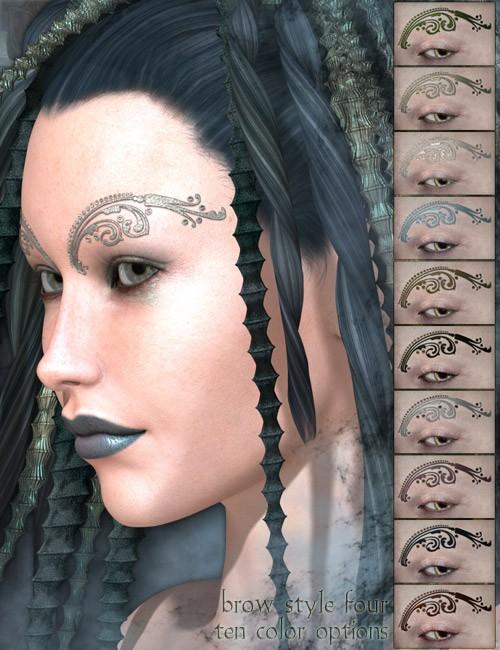
Finished conversion to G8F:

So how do you start with a design in Photoshop, then make a white mask on a black background that perfectly fits the shape of that design? I've looked through lots of Photoshop tutorials, and they either involve me physically painting with a brush (too much work and not accurate), or using the Quck Selection, Magic Wand, etc. tools which don't give the results I want without lots of refinement.
There has got to be a quick and easy way to do this.

Daz 3D is part of 
Connect
DAZ Productions, Inc.
7533 S Center View Ct #4664
West Jordan, UT 84084
Licensing Agreement | Terms of Service | Privacy Policy | EULA
© 2026 Daz Productions Inc. All Rights Reserved.
Comments
I often use levels tool for that. Two layers, background and the design with transparency. I crank design layer's "output levels' " black handle to the max. It makes everything on that layer max white. then paint the background black if it isn't already.
The easiest way would be to use a toolset specifically designed for this, like the paint function in Blacksmith 3d (sold at renderosity). That said, I often create them directly in photoshop using just an existing texture, the UV seam map, and an incredibly useful free script from mcasual called tailor'schalk (thread here) which lets you create guidelines for placement of perfectly straight and curved by intersecting the figure with planes and primatives, so with a little careful planning, you can get a pretty good guide as to where everything needs to go. For your eyebrow-mask example, I'd start by creating guidelines with tailorschalk, create basic product "flat" using the tailorschalk lines and uv map as a guide for placement, save that and then, in a seperate document, open an existing surface texture for the figure I'm working on, steal the outside boarders by using one of the select tools, and then pull in the flat version from the first document and fit it to shape using Photoshop's puppet warp tool (some might use liquify, but I find puppet warp to be much more forgiving since you can keep moving points non-destructively) until I get something that looks okay, fill the surrounding area with black and then pull the opacity map from that using one of the select tools again.(And, of course, if the item you're creating is perfectly symetrical, I'd only do the above for half of the item up to the final steps, when I'd replace the un-fitted side with a flipped version of the fitted one so that both sides match exactly.)
If you have the color design on a separate layer you have the mask already built in, you can use that layer and apply a layer style to make it white, change the background to black and export it as an opacity mask.
If you don't have it on a separate layer you will have to fiddle with levels or similar adjustment tools, auto-selections or whatever. Sometimes it means to go over the mask pixel by pixel to clean it up.
And yes, it can be very time-consuming. Thoughts like "too much work" or "quick and easy" won't get you very far if you want to create quality content
This is what I would do... In Photoshop open any face image file (or other body part you wanted to create a tattoo or whatever on) then create a second layer and fill with black. Lower the opacity of the black layer so you can see the layer below it. Create a third layer and with a white brush paint on your design on the top layer where you want it on the face or other body part. If you're not good at painting, purchase various pre-made design brushes here or elsewhere or get free ones Then delete the bottom face or body part texture layer, put the black layer up to full opacity then merge with the white painted layer, save as jpg and plug into opacity slot in DS.
Just a reminder that it's actually hard to do the stuff PAs do. ;)
That's gold, thank you
This is actually a case where it would be easier for a PA to do something than the it would be for the general public, because they have access to the original files. I’m sure things like makeup, tattoos, eyebrows and the like aren’t painted onto the skin itself, but are separate layers. That would make creating an opacity mask trivially easy, whereas the end user would have to resort to other methods.
As far as makeup and so on, those are actually pretty easy to acquire in layer form as "merchant resources" sold both here and at Renderosity. In a worst case scenario, if you have two versions of a face, one with makeup and the other without, you can separate the two elements using layers and the "difference" blend mode, and then transfer the result to another figure's texture, to LIE or a geoshell. Ultimately, the biggest difference in quality will be in the knowledge and skill base of the artists themselves, which in this business are usually quite formidable, and in the tools being used to create the item, since the average consumer has far less incentive to spend the oodles of cash needed for programs like Zbrush, Backsmith3D Pro, Substance Painter, etc..
No problem. mcasual has so many amazing scripts for DAZ that have solved problems that I didn't even know I had, so I'm always happy to point out some of the more ecletic ones.
Thanks for all the tips!
What I was attempting to do was use the eyemakeup from a G2 skin and apply it to G8F. The blue color comes from Fantasy Skins, but that colored the makeup too. That's why I was trying to create an opacity map so I could add the makeup onto a Diffuse Overlay layer to bring the original color back in.
This I did using the Layers method to blast out the white, then some tedious cleanup because the edges weren't clean to begin with. That Difference method is something I haven't tried before. Of course, I think I'm about ready to paint my own makeup - it would probably be less work than borrowing from another character.
This is still a work in progress. I'm still trying to find the right shade of blue. But the eye makeup looks pretty good.
OK, I really like this method, since I started with a transparency. That was very quick. Whoo Hoo! Thanks!
Looks like a pretty good start!.
I should have sent this link before, but got caught up in the part about creating opacity maps rather than stealing makeup. This thread describes the entire process using difference and subtract, as well as a few other fun tricks - https://www.daz3d.com/forums/discussion/42056/how-to-steal-makeup-a-tutorial
Oooh! Thanks @Cybersox! There's great ideas in that thread. I've seen lots of makeup in Pinterest that I would love to put on my gals. Plus tattoos and other really kewel stuff!
Fixed that for you :)
Knowledge of How to use a Graphics Program helps with a lot of things. Even some stuff that PA usually do.
The difinitive words were "high rez". Unfortuantely, while there's some really lovely makeup examples on Pinterest, they're all too small/low rez to work.
Just means I really need to learn to do it myself in Photoshop.
You can often "resample" them to increase the resolution from medium to hi-res.