How can I split a character in half?
 Super cheese sandwich
Posts: 633
Super cheese sandwich
Posts: 633
in The Commons
Using Daz or zbrush
I want to split the character in two like the white figure but I need to see the inside like the figure with shorts.
pd. There is any guts product?
thanks!
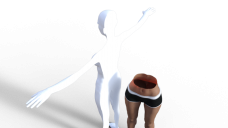
DAZ243443.png
900 x 506 - 318K

Daz 3D is part of 
Connect
DAZ Productions, Inc.
7533 S Center View Ct #4664
West Jordan, UT 84084
Licensing Agreement | Terms of Service | Privacy Policy | EULA
© 2026 Daz Productions Inc. All Rights Reserved.
Comments
Spliting a character like the white figure. Hope you can understand my english sucks
My apoligies. Let me know If you need more information
Here's an M4 with guts, skeleton and muscles cut in half with an iray section plane node.
Anatomy Starter Bundle http://www.daz3d.com/anatomy-starter-bundle
or Male Anatomy Starter Bundle has the Muscle Maps http://www.daz3d.com/male-anatomy-bundle
They're not solid so you may have to move the Section Plane around. (Create Menu > New Iray Sec tion Plane Node). It's hard to see.
Thanks Marc! There is any option to see a preview of the iray section plane node while I'm using it?
It's possible make a precise cut like the image attached with a default daz tool?
forgot the image
You can turn polygons invisible with the Geometry tool. Select them, create a surface from the ones selected, and then turn that surface off in the surfaces tab.
You see the corners on the section plane, but there is no shader associated with it. you could turn on bounding box preview but that isn't really helpful.
Here is the muscle map version.
(There's this: http://www.daz3d.com/wood-chopping-kit but it's probably not what you had in mind. )
)
For just an opening, I would use an opacity layer, mapped to the skin in the area.
LOL ati hahah I wish it were that simple!
Marc can you explain me how to do that? Please! Please! Please! I'm a beginer in this
Create an iRay Section Plane Node. Rotate X by 90 degrees and move it where you want. Make sure to not target the character because I think it's broken when you do that. This will clip your entire scene. If you only want to clip the character, you'll have to figure out how to make the "target" option work. I couldn't do it. I'll add a ticket.
I'd be very curious about any response, Alien!
Sure thing.
I'll assume your asking about the hole in the chest.
1) in paint or photoshop or gimp create a slash black on a white (jpg) or transparent (png) background, doesn't have to be real large. (the one I used is down below) Save it where you can find it.
2) in Studio go to the Surfaces tab and select the area you want the gash. (try not to get too close to a join)
3) look at the picture in the Diffuse Channel to get a general idea of where your slash is going.
4) in the Opacity Strength setting click on the little picture and select "Layered Image Editor"
5) click on the little plus (+) sign below the layers box twice (creating two layers)
6) the lower layer resource none, color white
7) the upper layer use the slash you created as the resource. Resize and move around to approximately the right spot. You have to accept to see the result on the screen. (Click the Zoom to Fit so you get an idea of where to arrange the slash). Repeat this step until it's where you want it.
7A) Actually save yourself some trouble by temporarily putting the Diffuse color map as a layer and arranging the slash in the right place, then hiding or throwinbg away that layer. (Don't drive yourself crazy, but it took me forever to realize this) I have included a screen grab. The second layer is the skin, just uncheck it to hide.
I appreciate it very much Marc but I don't understand... I'm watching some photoshop tutorials but there isn't any daz tutorial about that :/
I skip to step two and got stuck looking how to select the area I want the gash
If you know any tutorial let me know! Thanks again!
I found it!!! Many thanks! c: I did it! I made the effect I want Thanks!