A way to save just one body part as a morph?
 grinch2901
Posts: 1,247
grinch2901
Posts: 1,247
I tried to transfer some morphs from G2F to G3F using the "Now With Clones!" thread technique of saving out G3F as obj, fitting to G2F and then dialing in the morph and saving that as an OBJ. Worked pretty good, had to be tweaked. I only wanted a head morph but that technique saves out a whole body morph. Fine but when I combine a couple to get the face I wanted (mixed with other G3F specific tweaks) the body got distorted beyond the ability of Adjust Rigging to Shape to fix. I'd like to just save the head out as a morph by itself, including the portions of the full body morph that affected the head but nothing else. Is it possible to isolate a FBM to a single body part to save it as a morph asset?

Daz 3D is part of 
Connect
DAZ Productions, Inc.
7533 S Center View Ct #4664
West Jordan, UT 84084
Licensing Agreement | Terms of Service | Privacy Policy | EULA
© 2026 Daz Productions Inc. All Rights Reserved.
Comments
Not within DAZ Studio (at least, not without writing a script or plug-in). It would need to be done in an external modelling or sculpting application.
If you use ZBrush, here's how http://www.daz3d.com/forums/discussion/64071/export-only-part-of-a-morph
Just started learning to create morphs in Blender, but was wondering if it would be possible to do what Grinch wanted in there. I have older head morphs that I have transferred to G3F and G3M using the cloning technique. Sometimes though it can still affect other parts of the body.
Is it possible to create shape keys using two imported objects with the same basic mesh.
eg 1. Import base mesh,
2. Lock vertices on everything except the head.
3.Import morphed mesh to use as a shape key?
If it is possible then only the head on the base mesh would be morphed.
Are you looking to do only head morphs? If you are using Genesis 3 Male base (or female), make sure you turn off the MouthRealismHD and Navel and resolution is set to base and export to Obj.
Import Base to Blender
Options for Keep vertex order and polygroups enabled.
In object mode, select the base and create a shape key for Basis.
Create a new key. Let's do a nose, so name it Nose01 and set the value to 1.0.
Go into sculpt with X symmetry on, low strength and shape the nose (you could use the draw brush). http://prntscr.com/aro00e
Go back to object mode.
Lower the nose shape key to zero; it should revert to the base shape to test it and then return to value of 1.0.
Export this shape key/morph via Obj export.
As long as the morph does not affect anything but the head, the morph will not/should not change anything else.
Back in Studio, the base figure should be EXACTLY as you exported. Use MLP. If using the Genesis 3 Male or Female, you do not need reverse deformation. For purposes of testing, I let it place it in the default which makes a cateogory of Morphs under parameters.
Find the dial and test it, it should work. http://prntscr.com/aro09w
I don't know now if it's related with your problem http://www.daz3d.com/forums/discussion/29665/tips-sculpt-genesis-head-morph-by-blender-mult-resolution-modifier
We do morphs at base resolution. I wouldn't use the multiresolution modifier.
Hi Cris,
I know about using the base mesh and zeroing mouth and navel etc. What I have are head morphs that I created for previous Daz figures. Without a Genesis 3 compatible version of GenX available yet, I have been using the cloning technique to transfer my morphs from the older figure to the newer one. Even using clones, sometimes the body can be affected when dialling in the head morph. There are a few tutorials about temporarily deleting geometry then restoring from a backup once the morph has been created for example on the hands.
I know that shape keys in blender can be created so that you can morph between the original and sculpting etc that you are doing on that object.
What I wandered was, is it possible to import a base mesh obj (so I can lock the body vertices) , then somehow import an existing clone generated morph obj of that same mesh (for the head) as the "after" shape key setting.
I know that vetices in blender can be locked so that only the unlocked ones are affected by the shape key.
Actually I may have found the solution to the problem here http://bbug.be/?topic=shape-key-from-two-objects using this a locking vertices on the body but leaving the head may work.
Let us know if it works. :)
Thanks everybody, I posted this and then had to leave town for work for a few days so I haven't been able to check on the solutions suggested here. I'll try some stuff out and report back.
tunggul, that video by EZ you linked to did the trick! Thanks, I'm all set now!
You can transfer part of a full body morph in Blender using Shape Keys and the following is a tutorial on how it can be done. It's fairly long but I'm partly putting it here so I don't forget it myelf. As is often the case with written tutorials it's not as complicated as it looks. I hope it's useful for others.
Load your base figure into Blender as you would when creating your own morph. This will be your target object.
Export the figure (zero pose and base resolution) with the FBM you want to transfer from applied and import this into Blender, too. This will be your source object (and you can move it to the side in Object mode so the two figures aren't occupying the same space, although it doesn't matter). Don't move your target figure, though.
Select your source figure (right click) and then select your target figure (shift right click). The source will have a red outline and the target a yellow outline. The yellow outlined object is the active object and it must be your target.
Click the Object Data icon (its the inverted triangle icon) in the Properties Panel, which is on the far right of Blender. In that tab you will see the Vertex Groups and Shape Keys sub panels. You will need both of these.
Under Shape Keys you will see an empty area with a plus and minus on the right under which is a small black triangle icon on a dark grey button. This is the "specials" menu. From here click "Join as shapes". This creates two keys "Basis" (this represents the unmodified shape) and a key that has the name of the source object, and this holds all the differences between the target and the source (in terms of vertex positions). You target figure will show no apparent change, but if you select that second key and use the Value slider underneath the list of shape keys and slide it towards a value of 1.000 you will see the morph applied. Return it to zero for now.
So far this isn't much use as you now have the whole FMB as a shape key in your base figure. This is where Vertex Groups come in. If you exported with Write Groups checked you will have a whole bunch of vertex groups, but we need to make a new one which contains all the vertices we want the morph to affect.
Tab into Edit mode and press A to deselect all (assuming all vertices are selected, which they will be by default). Now what you need to re-select will depend on the morph (it may require trial and error and some cleanup morphing of your own where the morphed parts meet the unmorphed parts). I won't go into details and methods of selecting, but you essential need to select everything you want the morph to affect.
With these selected, go to the vertex groups panel and press the plus icon. A new group called Group will be created (you can rename it if you want). With the new group selected press Assign and all your selected vertices will be added to it. You can test by clicking the Deselect and then the Select buttons and the selection should go on and off.
Now down to Shape Keys again. Under the Value slider you see a title "Blend" under which is an icon of 7 dots in a hex shape. Click that and you will see a list of the vertex groups. They are in alphabetica order unlike the main list so it's not too hard to find your new group. Select it and your group name will appear next to the hex icon.
Now go back to Object mode and dial the Value back to 1.000 again. Now only your selected vertices (those in your vertex group) will be morphed.
Just a word about exporting your result. As far as I know if you export with shape keys only either the changes (the shape key itself) or the Basis (the unmorphed object) will be exported, depending on which key is selected. There is a way to "apply" the shape key(s) though:
Go back to Shape Keys sub-panel, click that Specials menu icon again, but this time select New Shape from Mix. Another key is created (probably called Key 2). You do not need to dial it. What you do next seems counterintuitive to me (but hey, it's Blender!), but you delete Basis and the key you created (plus any other keys you may have made) and finally (and you must do this last) delete "Key 2" or whatever the key created by New Shape from Mix created for you. There should now be no shape keys left, yet the morph is still there! Now you can export it.
For fun I tested this using Ogora the Orc, which is a full body morph (for good reason) and transferred the head only. I needed to do a lot of clean up work to make the head blend with the G2M body, but you can see the results below (with the Gianni 6 body).
I've gone back through this thread and can't find a link to the video solution. Does anyone still have it? I'm trying to just get the head morphs of a g2f character. I have genx for genesis 2 and tried to use it to save the morphs for just the head but it did not get them all.
http://www.daz3d.com/forums/discussion/64071/export-only-part-of-a-morph
About halfway down thread, two videos embedded. Requires zbrush though. Since DAX Studio 4.9 I think there is capability in DAZ to do it direclty in the geometry editor. You have to add the figure or body parts or something to favorites first for some reason (in paramaters, click the little heart icon) and then select the vertices you want to remove morphs from, right click and pick something like "remove slected deltas" or something like that. Let me see if I can find a tutorial video.
EDIT: Found it: https://www.youtube.com/watch?v=9jQeF94aqZs Using this technique you can isolate whatever portion of the morph you want to keep and get rid of the rest.
SECOND EDIT: Another way is to mask the body part you want morphed so it only affects that part when you import from an OBJ using morph loader pro. You may need to dial up your morph, export as OBJ, set up your mask (by weight map or face group) and then re-import using this technique, overwriting the "bad" morph. https://www.youtube.com/watch?v=inPel_gbd4s
Thanks. Just saw your reply. Will try this.
since then attenuate been added to morphloader
can use surface, Weight or DForm to isolate a part
The X-Morphs product can save just the head morph too, I believe.
yeah true but attenuation is free
Here's another tutorial for the same thing.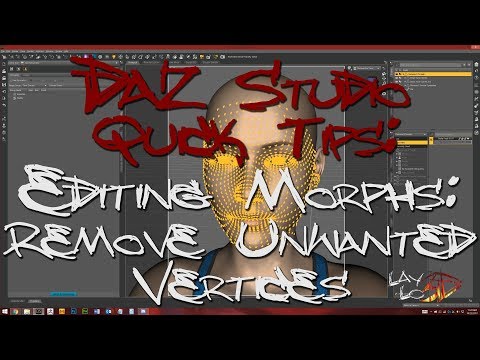 This is the one that's helped me do that.
Oh cool! I actually already own this.
Thanks for the video. I'll look at it later. Good to learn this stuff even if I have a product that does it.
I'm not sure what attenuate is but will look it up.
Here I have a few recources of info on this Attenuate feature:
How do I make monster hands?
A morph mask field / moving morph