How can I achieve this look

Hi I'm looking for a way to achieve a special look.

1. would it be possible to achieve the look with the face behind the veil with dForce? If yes, how. What settings do I need? I'm not very used to dForce.

2. is there another way to get something like in the promo of SimTenero Shape Reprojectors promo?
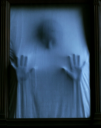
Screenshot 2026-09-14 114834.png
397 x 502 - 250K
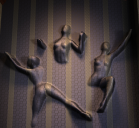
Screenshot 2026-09-14 115405.png
522 x 481 - 407K

Comments

  • When I try to do it with a plane and dForce, I don't get a good result. Is it because I'm setting the divisions too low, or are there other reasons?

    Screenshot 2026-09-14 132233.png
    629 x 422 - 209K
    Screenshot 2026-09-14 132337.png
    784 x 847 - 429K
  • felisfelis Posts: 6,525

    For the first one use animated simulation. Start with the character slightly behind a plane with fairly high mesh density (to be able to follow the contours of the hands).

    Then at frame 20-30 have the final pose where the character unsimulated will penetrate the plane.

    Also add some translucency and properly also a bit refraction to the plane to give the right effect.

    For the second, a quick and dirty method is to just place the characters, and then have a plane cut through them. Here you could use a simple shader on everything.

    But it would not work for the pattern there are across all object. For that, I think, I would take it into blender, combine to one object and UV project from view (same as intended camera position). Then you can use one shader across all.

  • Would it be easier to rotate your character and veil 90 degrees so they are flat, lay the veil slightly above the character, add a temporary floor where you want the veil to stop and then simulate? Once simulated, rotate back to upright and delete the temporary floor.

  • felis said:

    For the first one use animated simulation. Start with the character slightly behind a plane with fairly high mesh density (to be able to follow the contours of the hands).

    Then at frame 20-30 have the final pose where the character unsimulated will penetrate the plane.

    Also add some translucency and properly also a bit refraction to the plane to give the right effect.

    For the second, a quick and dirty method is to just place the characters, and then have a plane cut through them. Here you could use a simple shader on everything.

    But it would not work for the pattern there are across all object. For that, I think, I would take it into blender, combine to one object and UV project from view (same as intended camera position). Then you can use one shader across all.

    Thank you, but I don't use Blender.  

  • garrett_3d said:

    Would it be easier to rotate your character and veil 90 degrees so they are flat, lay the veil slightly above the character, add a temporary floor where you want the veil to stop and then simulate? Once simulated, rotate back to upright and delete the temporary floor.

    Yes, that's what I did, but I always get these little flaps on the nose and fingers. I tried different settings, but that doesn't change it. 

  • felisfelis Posts: 6,525

    FantastArt said:

    felis said:

    For the first one use animated simulation. Start with the character slightly behind a plane with fairly high mesh density (to be able to follow the contours of the hands).

    Then at frame 20-30 have the final pose where the character unsimulated will penetrate the plane.

    Also add some translucency and properly also a bit refraction to the plane to give the right effect.

    For the second, a quick and dirty method is to just place the characters, and then have a plane cut through them. Here you could use a simple shader on everything.

    But it would not work for the pattern there are across all object. For that, I think, I would take it into blender, combine to one object and UV project from view (same as intended camera position). Then you can use one shader across all.

    Thank you, but I don't use Blender.  

    That was why I gave you the quick and dirty version first. As long as you are using simple shaders it can work. 

  • crosswindcrosswind Posts: 10,281
    edited September 14

    For the 1stly image, the trick is to tweak the settings on dynamic surfaces. (screenshot 1) I attached the scene file that you may refer to.

    For the 2nd image, a simple way is to :
    1) Pose the figures you need then add a primitive plane acrossing them;
    2) Export to OBJ file and import OBJ as a single object;
    3) Add an Iray Decal Node with UVW clip mode and apply a Shader you need ~ (screenshot 2)

    SNAG-2026-9-14 0000.png
    2560 x 1392 - 589K
    duf
    duf
    00.duf
    2M
    SNAG-2026-9-14 0001.png
    2560 x 1392 - 2M
    Post edited by crosswind on
  • FantastArtFantastArt Posts: 419

    crosswind said:

    For the 1stly image, the trick is to tweak the settings on dynamic surfaces. (screenshot 1) I attached the scene file that you may refer to.

    For the 2nd image, a simple way is to :
    1) Pose the figures you need then add a primitive plane acrossing them;
    2) Export to OBJ file and import OBJ as a single object;
    3) Add an Iray Decal Node with UVW clip mode and apply a Shader you need ~ (screenshot 2)

    Thank you very much! I will try it later the day :) 

  • FantastArtFantastArt Posts: 419

    felis said:

    FantastArt said:

    felis said:

    For the first one use animated simulation. Start with the character slightly behind a plane with fairly high mesh density (to be able to follow the contours of the hands).

    Then at frame 20-30 have the final pose where the character unsimulated will penetrate the plane.

    Also add some translucency and properly also a bit refraction to the plane to give the right effect.

    For the second, a quick and dirty method is to just place the characters, and then have a plane cut through them. Here you could use a simple shader on everything.

    But it would not work for the pattern there are across all object. For that, I think, I would take it into blender, combine to one object and UV project from view (same as intended camera position). Then you can use one shader across all.

    Thank you, but I don't use Blender.  

    That was why I gave you the quick and dirty version first. As long as you are using simple shaders it can work. 

    Thank you I'll try it  

Sign In or Register to comment.
