Changing the size of a products hover image.
 Alric
Posts: 224
Alric
Posts: 224
I'm trying to increase the size of some of the product's hover images. I'm not talking about the images of the various files in each product but the overall store type image. See tha attached images for a couple of examples.
I think I found the images located in the directory:
MyDaz\Applications\Data\DAZ 3D\My DAZ 3D Library\Runtime\Support
But when I change the image size nothing happens, even after restarting DAZ.
Is there a way to change the image sizes?
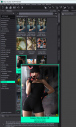
Screenshot 2026-07-12 152804.png
715 x 1197 - 489K

Screenshot 2026-07-12 152827.png
591 x 931 - 384K
Post edited by Alric on

Daz 3D is part of 
Connect
DAZ Productions, Inc.
7533 S Center View Ct #4664
West Jordan, UT 84084
Licensing Agreement | Terms of Service | Privacy Policy | EULA
© 2026 Daz Productions Inc. All Rights Reserved.
Comments
Nope, apparently you have metadata updated via Daz Connect, now the product thumbnail images locate in Daz Connect folder (in different product folders IIRC...). You have to modify the images there
Then never update metadata again otherwise the bigger image files will be replaced.
Edit: Anyway, suggest you never tick Update Metadata option when log in Daz Connect.
I'm mostly worried about 3rd party files that I have installed. I can update the individual product thumbnails no problem. It's just that main image under smart content that I can't get to change.
The action of Update Metadata doesn't touch 3rd-party products you installed with Content Wizard other than the products from this Daz3D store ~~
You can freely modify the product images in runtime\support folder no matter where the products come from... as long as you don't Update Metadata.
Yes, but modifying the files in runtime/support has no effect.I made the image files larger but the result when I hovered over the product in smart content (see the images in the first post) didn't get any larger.
The 1st image you posted already shows a pretty larger thumbnail... for that product coming from Rendo. It seems you installed it with Content Wizard.
Anyway, if you want to make it a even much larger image, 1stly locate where its metadata file really locate (right-click on the product , Edit Metadata > Support, then browse to its support files).
In the support folder, you'll find its product image, replace it with a larger image by using the same file name. Go back to Smart Content, Refresh ! You'll see the much larger one.
I do this from time to time. It always works.
Tried that and there was no change. I even scribbled over the image and then shut down my computer but t he image didn't change. So it has to be coming from somewhere else. I'm totaly stumped on where though.
Ah, I thought you meant the 1st screenshot image that you posted above... You meant the 2nd screenshot ~~ That is the product you bought from Daz3D store, installed via DIM but its metadata was updated via Daz Connect...
As I said before, you ever did "Update Metadata" when Login to Daz Connect ... Have you noticed that there's a white icon "circle with an arrow" in the upper right corner of its product thumbnail ? That means "Has Cloud Metadata"
You have to modify the prodoct image in Daz Connect folder, i.e. "Cloud Folder":
1) Press F2 in DS (Preferences...), go to Content tab > Content Directory Manager. Expand Daz Connect Data, you'll find the cloud folder.
2) Open File Browser, go to the cloud folder, see if you can find a sub-folder: meta. In this folder, there must be a product image file: 1_102420.jpg Replace it with a larger image.
3) Go back to Smart Content, Refresh ! You should be able to see the larger image.
I was wondering what the icon meant. I just had more pressing issues to deal with.
There we go, that worked! Mystery solved.
Thank you very much.
One final question (for now). I noticed that the DAZ connect data is being stored on my OneDrive. I don't have that much space on my one drive so I would like to move the connect data. I see that I can edit the path but will moving this directory now cause problems?
No problem !
I don't think there'll be any problem if you move the cloud folder from OneDrive to another folder... though I've never used OneDrive. No harm to test:
1) Create a new folder on one of your disk, e.g. D:\Daz 3D\Studio\My Daz Connect Library
2) Copy the whole data folder (the top level folder in your current connect library) from your OneDrive to D:\Daz 3D\Studio\My Daz Connect Library
3) Configure this new path in Content Directory Manager. Then test if it works.