Rendering trouble - everything is too bright and washed out!

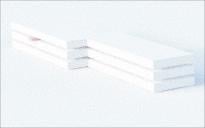
Subject says all. I am having trouble rendering a scene of a building, made with primitive cubes in DS 4.1
So far I have used 6 flattened and stretched cubes, 2 for each "floor". The little pink object is a spacer.
This is supposed to represent a three-storey building. If you are thinking "industrial park" architecture that would be ok. I am planning to add more "floors" to represent a residential, high-rise apartment building. It's for a suggestion for a revised emergency planning handbook.
Normally I can render stuff without it being so bright. Where did I go wrong?
This is so frustrating! 



Daz 3D is part of 
Connect
DAZ Productions, Inc.
7533 S Center View Ct #4664
West Jordan, UT 84084
Licensing Agreement | Terms of Service | Privacy Policy | EULA
© 2026 Daz Productions Inc. All Rights Reserved.
Comments
Just ran that off. I changed the base colour, toned it down from bright white to a slight grey. All other environment settings are default.
I don't have these in my library but it loaded just like yours did in the viewport so I don't think it made any difference.
/Runtime/Geometries/maclean/Everyday/EvP1_terrain.obj
/Runtime/Libraries/Props/Maclean/Everyday/Morphing Primitives/terrain.pp2
Oh, it's an iRay render by the way.
the problem is the tone mapper, as standard the burn is 100%/1. no clue why. ACES2 would fix that problem in general but DAZ does not support it (yet?)
I believe your headlamp is on.
************************************************
Like
Dislike
To turn off the headlamp in Daz 3D, ensure you are using the correct camera and access the camera settings to disable the headlamp feature.
Steps to Turn Off the Headlamp
Important Notes
By following these steps, you should be able to effectively turn off the headlamp in Daz 3D and manage your scene lighting as desired.
Problems Caused by the DAZ 3D Headlamp
The headlamp in DAZ Studio is a built‑in light that simulates a camera flash or video light, but it has several known issues and limitations that can cause problems in renders and previews.
1. Unrealistic lighting behavior
The headlamp does not behave like a real camera flash. It often fails to illuminate objects as expected — even with high intensity, objects can remain dark, especially if they are farther from the camera or in shadow Daz 3D. This is partly due to DAZ Studio’s lighting engine not simulating real‑world light falloff accurately.
2. Intermittent or inconsistent results
The headlamp can work fine in one render and then stop lighting objects in the same scene without any changes. This can be frustrating, especially when trying to get consistent lighting for a project Daz 3D.
3. Position and obstruction issues
The headlamp is stationary and does not follow your camera’s position like a real flashlight. If the camera or objects are rotated or moved, the light direction changes, and objects may not be lit unless they are in the correct orientation Daz 3D. Walls or other objects can block the light, and sometimes you need to hide or reposition them to see the effect Daz 3D.
4. Limited light count and preview constraints
DAZ Studio has a limit on the number of lights it can preview (often 8), and the headlamp reserves the first slot. This can cause it to fail to activate when adding new cameras or lights, especially if the scene already has many lights Daz 3D.
5. Environment mode and scene lighting conflicts
If the Environment Mode is set to “Dome and Scene” or “Scene Only” incorrectly, the headlamp may not work as intended. The dome light can overpower or compete with the headlamp, making it hard to see the effect RenderGuide.com+1.
6. Interior lighting challenges
In dark interiors, the headlamp may not be strong enough. Using low‑opacity mesh lights (around 0.1) can help fill in interiors and make the headlamp’s effect more visible Daz 3D.
7. Final render vs. preview differences
The headlamp is designed for viewport previews, not final renders. In some cases, turning it off in render settings can produce better results, especially if you want more control over lighting YouTube.
Summary:
The headlamp is useful for quick previews, but it can cause dark renders, inconsistent lighting, obstruction issues, and conflicts with other lights or environment settings. For professional or detailed renders, it’s often better to use custom lights or adjust environment settings rather than relying on the headlamp.