Renderocity purchase not showing up in Daz
 jukingeo
Posts: 761
jukingeo
Posts: 761
Hello All!
Tonight I had decided to sign on to Renderocity as I there was an item on sale that I just HAD to have.
It is a Genesis 8 character called Alatariel:
[link removed]
Upon purchase, the items were a bunch of zip files. The instructions that came with it didn't really make too much sense as it pointed to a folder that didn't exist. Instead, I followed the path for every single item and unzipped the content and put it in the individual directories they supposed to go. In many instances a new folder by the artist's name, Sangriart, was created.
After over 20 minutes of making sure that the content was where it supposed to be, I opened up Daz Studio (I have version 4.24).
I looked under Smart Content and it didn't show up. Now, I know this happens at time with manually downloaded content. So, I looked into the Content Library and much to my dismay, it isn't there either.
So, despite my best efforts of being VERY careful of where I put everything, I can't find my new content.
Some assistance would be appreciated.
Thank you,
Geo

Daz 3D is part of 
Connect
DAZ Productions, Inc.
7533 S Center View Ct #4664
West Jordan, UT 84084
Licensing Agreement | Terms of Service | Privacy Policy | EULA
© 2026 Daz Productions Inc. All Rights Reserved.
Comments
You must unzip the pack and merge it with the existing structure, so the Data folder comes part of the existing Data folder and the same for the Runtime folder.
If you search for one of the files from the product on your drive, what is then the full path to that file.
I suggest creating a new library to access other stores content, to let DIM alone in managing your main library. And if you have problem with a product, another advice would be to create a library just for it, at least until everything is working as intended, then you can move the content to the library created for other stores content.
Having said that, what kind of computer do you have ?
On a Windows machine, it should be painless, just extract the four zip files and move the content of each of them inside a library (you need to move the Data, People and Runtime folders and their content at least).
If you have a Mac, it can be a bit trickier but the easiest way to solve the situation is to extract the four zip files, then copy the content of one, paste it in your library and if Finder ask what you want to do, you ask it to 'Merge' (not anything else, otherwise it'll erase anything already present in the folder you're pasting files... hence the suggestion to not use the library managed by DIM).
In both cases, once you have all the content where it should, you should find the figure you just bough in the library you moved everything in this folder:
'People\Genesis 8 Female\Characters\Sangriart\Alatariel\'
AFAIK not much from Renderosity has smart content, you need to use a tool to add it
I cannot help as Smart Content no longer works for me
I think it is this one https://www.daz3d.com/content-wizard
I do have a Windows machine. I have unzipped the content and placed it where, I believe, it was supposed to go. Many folders were common except when it came to the artist, which was Sangriart. However, that folder was placed where it should be, with the other artists. So, I was surprised it wasn't recognized. As for using the DIM, I don't know how to load content other than stuff from Daz with that.
I am not sure I fully understand. What do you mean by merge it? If you mean laying it on top of it, I tried that and it created another data folder with the contents for the new product within that. I knew that wasn't right, so I deleted it.
Thanks,
Geo
Here's the steps I take on my PC. I open a folder and navigate to the content folder where I want to install the content. The folder should be the one with data folder and runtime folder in it. Then I open the zip folder in a second window so it shows all the main folders like the data folder and the runtime folder. Once they are both open and side by side, I select all the folders in the content zip and drag them into my content folder with the matching folder names (don't accidentally drop them into one of the individual folders. Just drop them in the empty space around them. The folders with the matching names will merge together, and depending on the file names inside, you might get a warning about duplicate files. I always check them, but they are usually just duplicates of the end-user license agreements (EULAs). Some vendors also provide the same files for setting colors or applying shaders with all their products, so they give duplicate warnings too. Once the files have all been transferred, they should show in Studio. However, most products from outside the DAZ store won't have smart content, so you'll have to look or do a search in the content library tab. The folder directories in the zips can also help guide you to where to look in your library. A clothing item, for example, might be in People>Genesis 8>clothes>"creator's name">"clothing's name".
I like to keep products from different stores in their own content directories, but if you create different directories, you also have to add them in the Daz Studio settings in order to see them. I get it if you'd rather keep things simpler, though, and just use the main directory.
Hello All,
Okay, after doing some digging, I found I am missing the main character file. Here, let me explain: In copying the files over, I had noticed something different about the People/Character Path when comparing to an existing character. See Attached file "Alatariel DSON File Missing."
Scrolling down in the characters folder is a list of the loaded character presets and you will see that if you look at the files, which are in alphabetical order, the Alatariel file should be after the Alawa file. As you see it is, indeed, missing...along with the PNG file, but that is just a picture.
Now, scrolling back up to where the folders are (second attachement) you will see that the Alatariel folder is present where it should be. Opening this folder does reveal a list of presets, of which I didn't see these presets in the Alawa folder (again using this, known working, character as an example). The main character file isn't in the list, but I have noticed one labled !!Full Preset. So I figured that if I moved that file down to where the file list is below this folder, I should be golden, right? Well, just as a test, I did double click on that file and Daz Studio DID open, but I was greeted with an error message.
Looking at the log file, I get this:
2025-07-06 21:17:14.613 [INFO] :: Begin asset load (open): /People/Genesis 8 Female/Characters/Alatariel/!!Full Preset.duf
2025-07-06 21:17:14.614 [INFO] :: Clearing the scene...
2025-07-06 21:17:14.624 [INFO] :: *** Scene Cleared ***
2025-07-06 21:17:14.625 [INFO] :: Determining missing assets...
2025-07-06 21:17:14.626 [WARNING] :: Invalid node selection for "preset_shape" type.
2025-07-06 21:17:14.626 [WARNING] :: Error loading asset: I:/DazStudio/My DAZ 3D Library/People/Genesis 8 Female/Characters/Alatariel/!!Full Preset.duf
Operation failed
2025-07-06 21:17:14.662 [INFO] :: Unlocking viewport redraw...
2025-07-06 21:17:14.662 [INFO] :: Viewport redraw unlocked.
So, I don't know what gives here. Given that the !!Full Preset file was among shape files, perhaps that it is just that, a shape file and that caused the error message. So that has me now thinking that where is the main character file? It doesn't seem like it is in any of the downloaded .zip files. Perhaps someone could shed some light on the scene before I create a big stink over at Renderocity in that I been dupped with a product that doesn't work. The weird thing that this product has been on their page for a while now...I mean years and if it was bad, it would have been taken down, right?
I had looked in the other folders and they just contain textures for the Runtime folder.
Thank you,
Geo
It is not all Renderosity PAs that make a character preset, but only shapes.
So if you want a character preset, you must load a base character, apply the shapes and the materials and can then save a character preset.
I've often found issues with products which I bought a long time (sometimes years) ago, but never used before. In that case my guess is that either:
1. no one else but me have bought the product yet.
2. others have bought it too, but like me, not used it yet.
3. others have bought it too, and discovered the issue, but have fixed it themselves without reporting it.
4. others have bought it too, and discovered the issue, but haven't bothered to report it.
5. the issue has been reported, but hasn't been fixed (yet). This sometimes can take a long time.
6. ?
I don't think none of these is the case with your product though, more likely it's what @felis says.
I can provide screen shots when I get home later, if still needed, but I install stuff from R-osity, R-hub and other places quite often. There are tools here at DAZ that can greatly help you install your files, even selecting multiple zips in one go, (manually) assigning metadata and installing at the click of a button - super quick and handy. The https://www.daz3d.com/content-wizard that WendyLuvsCatz mentioned is AMAZING!
Here's my manual process:
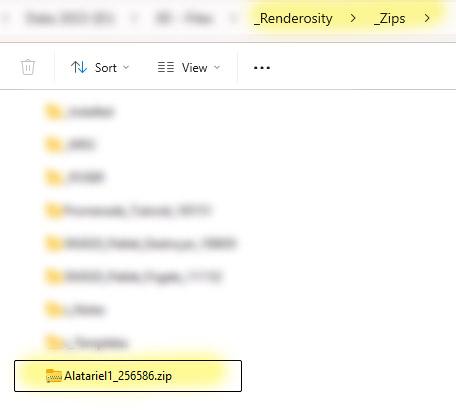
1. Download zip file.
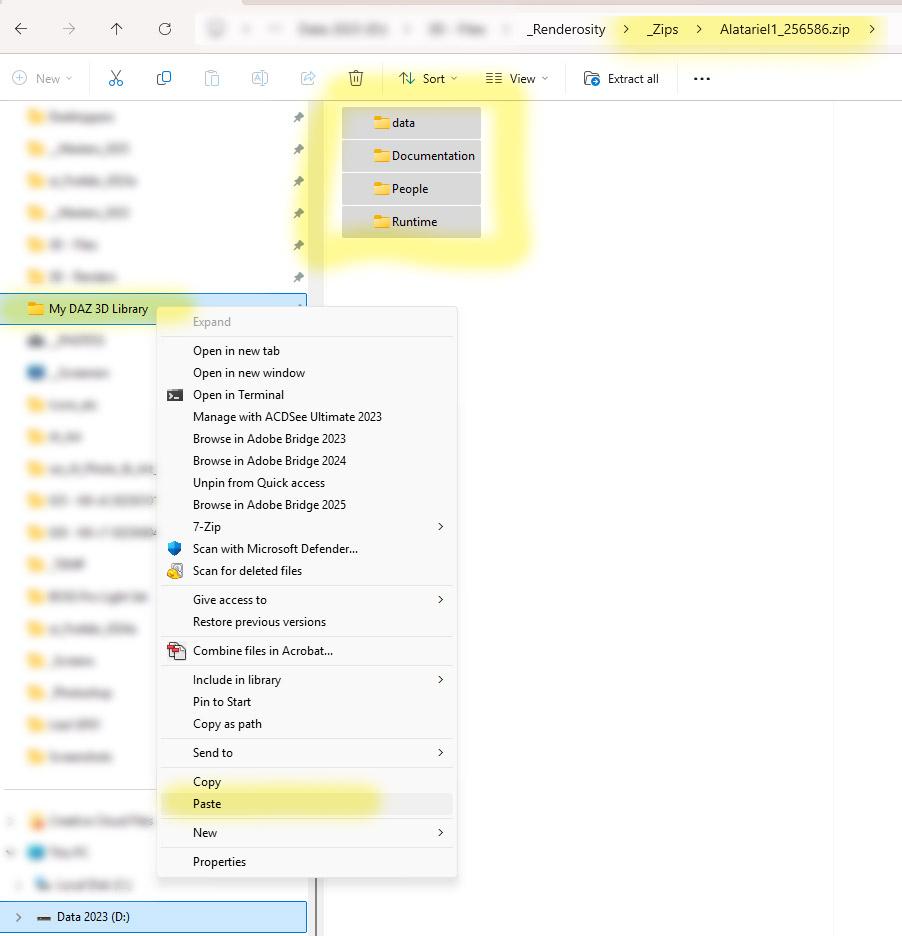
2. Double click zip file in File Manager to "look inside" - no need to unzip unless it is a zip file within a zip file. Highlight all the relevant folders (sometimes there are promo images, or other stuff that is not required) and COPY, then in the same, or another file manager go to the folder where your DAZ content is installed, typically something like:
C:\Users\<YourUsername>\Documents\DAZ 3D\Studio\My LibraryGet to one level ABOVE "My Library" and then right mouse click on "My Library" and choose 'PASTE'. The files will be automatically extracted from the zip and installed properly, into all the correct folders (providing the PA created the proper structure - some don't. OOF!).
4. If DAZ Studio was open, go to the top of your Content Library within DAZ Studio and right mouse click on the parent folder, and choose "REFRESH" (you can also go to the parent of your file, in this case, \People\Genesis 8 Female and choose that folder to REFRESH, or just restart DAZ Studio). You'll need to load the base Genesis 8 Female Actor, then go to the Sangriart\Alatariel folder to apply her figure to that.
5. I, personally, only ever use Content Library (not Smart Content) and just navigate to it by obvious indicators, or via where the read me file says it is. In this case, Alatrial SHOULD show up as an icon of the character under the "Characters" folder for Genesis 8 Female, or else as a folder under G8F Characters \Sangriart\Alatariel. Don't panic if the character icon doesn't show up, not everyone provides them, but also some PAs use some part of their name, so if Alatariel isn't there, look under S (something) Alatariel.
I have some Sangriart characters and don't recall ever having any issues with them - always nice work! I'm pretty sure I have this character and can check if there is a character icon, if there are any issues loading, etc. after I get home later tonight.
I have been using this method for over a decade and it always works for me.
Good Luck!
<sometime later...>
No Character icon, but certainly in the Content Library under (This is my exact path - yours may vary)
D:\My DAZ 3D Library\People\Genesis 8 Female\Characters\Sangriart\Alatariel
You could try this, it can install/uninstall any zip file, using the default paths in the zip. Works fine for Renderosity content, as long as the file structure is matching the DS standards.
https://www.3dcontentmanagers.com/freeware/continst/
But don't use it for DAZ installers, use DIM for these if you want automated install/uninstall.
Hello All,
I know it has been a while since I responded to this, but I managed to fix the problem. The key was in Gogger's response above
"Refresh" was the key and loading up the base female character, then applying the textures. The results are attached!
Thanks all for the help!
Geo