[Released] Car Paint Pro Iray Shaders [Commercial]
 Silas3D
Posts: 835
Silas3D
Posts: 835
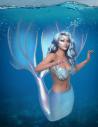
Love car paint shaders but wish they were more versatile?
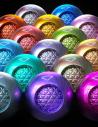
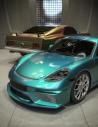
Car Paint Pro builds upon the Car Paint - Orange Peel 3 Layer Iray shader included with Default Resources (required), adding multiple extra properties:
-
Base Bump
-
Normal Map
-
Cutout Opacity
-
Displacement Strength
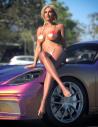
This massively extends it's capabilities - clothing/fabric, hair and body paint to name but a few!
When a Car Paint Pro preset is applied to a prop/figure using Iray Uber, the maps and values for properties above will be transferred automatically.
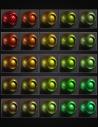
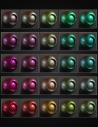
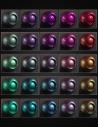
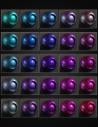
100 presets included to get you started 
Store link: https://www.daz3d.com/car-paint-pro-iray-shaders



Daz 3D is part of 
Connect
DAZ Productions, Inc.
7533 S Center View Ct #4664
West Jordan, UT 84084
Licensing Agreement | Terms of Service | Privacy Policy | EULA
© 2026 Daz Productions Inc. All Rights Reserved.
Comments
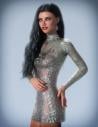
Here's another example of shader applied to clothing, jewellery and nails - open attachment for full size
Good day,
I'm having trouble locating a file and could use a bit of guidance. I’ve confirmed that the default resources are installed and that the folder structure appears correct, but I’m not seeing a file titled “Car Paint - Orange Peel 3 Layer.”
Any insight you can provide would be greatly appreciated.
Best regards,
Ken
Hi @fibyken (Ken)!
Are you getting a specific error message when trying to apply Car Paint Pro? Sorry to hear you're having trouble :(
You should find the shaders in Smart Content > Shaders > Iray > Car Paint
Hi there! I'm a bit confused about how to apply this product to a surface. Am I supposed to first add the car paint orange peel layer manually (and if so, how exactly?), or do I simply use one of the presets included with your product?
Apologies if I'm missing something obvious—I just don’t quite understand how the orange peel file relates to the shaders you've created. Any clarification would be greatly appreciated!
You can just apply one of the 100 presets included with the product. The relevance of the orange peel file is that it forms the foundation of my Car Paint Pro shader, ie my shader extends it by adding multiple extra properties.
As an example, if you applied the regular Orange Peel 3-layer shader to a piece of clothing, all if its detail would be lost because there's no support for bump, normal or opacity maps.
The Orange Peel 3-layer shader must be installed for mine to work, but it comes free with Daz Studio Default Resources. You don't need to apply that one first.
Something else to bear in mind is that the icon presets shown in Smart Content/Content Library have a solid black base color, which maximises the vibrance/intensity of the colors. If your 3D model/prop/figure you apply my shader to is white or fairly light, the car paint effect will be more subtle.
For this scenario I've included five base tone presets which just changes the base color. You can of course change this manually and experimentation is encouraged - you can get some really cool mixing effects by having different combinations of base color and the two flake layers!
I hope this helps :)
Thank you!