LOCAL USER Problem
 BigMac
Posts: 97
BigMac
Posts: 97
I moved all my DAZ files from my old computer to a new hard drive. Everything worked fine until my "LOCAL USER" files. All my work isn't in the LOCAL USER window (see images). What should I do? I'm using a Mac.
I appreciate any help.
BigMac.

Bildschirmfoto 2025-05-12 um 08.58.29.png
1546 x 1384 - 1004K
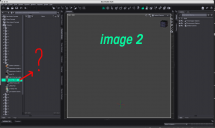
Bildschirmfoto 2025-05-12 um 08.03.02.png
1785 x 1062 - 237K

Daz 3D is part of 
Connect
DAZ Productions, Inc.
7533 S Center View Ct #4664
West Jordan, UT 84084
Licensing Agreement | Terms of Service | Privacy Policy | EULA
© 2026 Daz Productions Inc. All Rights Reserved.
Comments
Local user is a product, not a file location, so it depends on the database. Have you exportred user data on the old system and imported it on the new, or just copied the database across (with no applications that use it open)? If not then none of the database driven views will show anything, though the files will still be available through other panes or by direct loading from disc.
Hello Mr. Haseltine,
i'm really glad you answered me. I'll try to describe what I did. I bought a new Mac Pro 2023. I connected a hard drive to my old computer and copied all my DAZ files onto it. I connected the hard drive to my new computer and then opened DAZIM and tried to somehow assign the data to the correct location. I don't know if I did it correctly. I installed about 10 files with 540 files. It took a very long time until I could now work with DAZ on my new computers, but not properly yet. I didn't export the local user files, but simply copied them and placed them on the new computer under User, Shared, My 3D Library (Figure 1). I don't know how or where the local user data needs to go. I haven't been able to find a proper tutorial for a year on how to properly migrate my data on my Mac to other hard drives. You've helped me many times. Please help me further, whether with a tutorial, drawings, or writing. I haven't worked with DAZ 3D for a year and haven't been able to buy it.
I wish you all the best,
BigMac
There is no Local User folder, it isn't that kind of thing. Only the entries under Daz Studio Formats, Poser formats, Other Import Formats are real folders (except for the Daz Connect folder, which is database-driven and aggregates the eral product folders in /data/cloud/). Yoou need to copy the database over, and tell DIM/DS where it is, or you need to export user data on the old system (Content Library Option menu>Content DB Maintenance), copy the files it places in /Runtime/Support/ from the old machine to the new, and reimport the user data using the same Content DB Maintenance dialogue on the new machine (at which point you can also reimport the emtadata for the products for which you copied the files across).
Dear Mr. Haseltine,
thank you very much for your letter. I tried to do everything as you described, but unfortunately I couldn't find the menu (Content Library Options Menu > Content DB Maintenance). Perhaps it's because I'm using a Mac, and there's a different name for it. I don't know what the problem is. Could you please be so kind and show me where the menu is (Content Library Options Menu > Content DB Maintenance), I would be very grateful.
Thank you, and I wish you all the best.
BigMac
Richard means go to the Content Library pane and click the "hamburger" menu button (that little square with horizontal lines and a triangle arrow in the upper left corner). Then the "Options Menu" will open. In that popup menu, you will find Content DB Maintenance. When you select Content DB Maintenance, a dialog will open with many options. Be careful in there!. Follow the rest of Richard's instructions to import your previously exported User Data. Don't import all product data, because you said that is already working for you.