IRAY Displacement Issues
 jdavison67
Posts: 690
jdavison67
Posts: 690
Is there a trick to getting clean displacements in IRAY?
I used some displacement maps in 3Delight which work well but in IRAY they don't seem to work well at all.
I moved them to the bump location instead but I see lots of artifacts as shown in example 1.
See the 3Delight version in example 2.
Thanks!
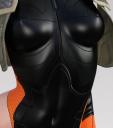
Displacement_Issues1.jpg
917 x 1040 - 172K
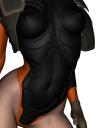
Displacement_Issues2.jpg
1098 x 1465 - 224K
Post edited by jdavison67 on

Daz 3D is part of 
Connect
DAZ Productions, Inc.
7533 S Center View Ct #4664
West Jordan, UT 84084
Licensing Agreement | Terms of Service | Privacy Policy | EULA
© 2026 Daz Productions Inc. All Rights Reserved.
Comments
The only thing I can do is ask if that's a JPG map, or a lossless map... o.O
Is there a normal map assigned as well? Can cause issues.
I get better results with really high sub-d levels on the surface.The sub-d on the surface pane, not the one on the parameters pane,,of course this means really high memory use though.
Around 3 or 4 will start to look ok.,,Looks fantatstic at 12.
it can run you out of ram fast so go in small steps
This is a limitation of Iray - unlike 3delight it won't generate finer details on the fly, as icecrmn says you have to (judiciously) apply explicit SubD levels.
This is a second skin, not a clothing item, so are you saying I need to conver the skin to sub-d? Do you do that by adding a smooth modifier to the skin and boosting it or doing a conversion on the figure itself?
A smoothing modifier will ,,,well ,,smooth it out to a flat surface.
On the "Surface" pane there will a setting for a Displacement map.Under that will be a setting for sub-d just for that surface.
If your second skin is for 3Delight you will need to convert it to iray.
Apply 2nd skin to your character,,then,,,
Using the "Surface Selection" tool , select the bodypart with the second skin.Then hold the control button down on the keyboard and double click the iray uber base shader.In the popup window, select "Ignore" on the images.
This will convert it to iray.
On the Surface pane scroll down to the "Displacement Strength" setting.This is where your displacement map goes for your 2nd skin.
Set "Displacement Strength" to 1.0
Set the "Minimum Displacement" to 0.0
Set "Maximum Displacement" to 1.0
Set "SubD Displacement Level" to 3
The MIN/MAX numbers will need to be adjusted to your liking.
A negative number in MIN will make the low parts lower. Zero means flat, or no downward push.
A large number in MAX will make the high parts higher.
"SubD Displacement Level" is where the magic happens, this divides the surface into smaller squares so it can be lifted or pushed down by the min/max settings.The higher the number, the more geometry it has to work with, and the more accurate and cleaner the edges of the lift/drop will be.A setting of 3 and you should start to see some effects.This will eat up ram very quickly, so be careful of how high you set this.
These numbers should get you started, but will most likely need to be adjusted to get the desired look of the 2nd skin.
Thanks!
I get it!
I'll play with this and see.
Much Better!
yes,,much better,,Well Done :)
You're welcome
Thanks a bunch!