Real Lights for DazStudio Iray. All Hail.
 The Brig
Posts: 89
The Brig
Posts: 89
Since we can't post reviews on a product's page, I'm doing one here. As I encounter something useful that makes my work easier or something that's flat-out phenomenal (at least in my beady little eyes) I'll be giving a shout here in The Commons to shower effusive praise and sycophantic adulation upon the product and its maker. Allow me now to wax poetic and craft verbiage most lyrical in re my first victim subject.
I've been having a stink of a time with Iray's emissives shader. All the settings and tips I've gotten from well-meaning artists came up blank. I got to the point I was going to say a few choice and unprofessional words about Iray and stick with 3Delight (which I still like) and forego all the wonderful things people claimed I could do with Iray because for whatever reason, I couldn't get them to work.
Then came Real Lights. I saw it in the shop and spent some time eyeballing it before deciding to take the chance on it. It said it could turn any mesh into an emissive, and while I was doubtful, I thought I'd give it a shot. It was only $20 and I've blown more money on dumber and crazier things. Why not?
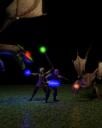
Man alive, was I surprised at how well and how easily it works. Select your surface via the Surface tab, hit it with the Iray Uber base shader, then select the emissive you want from Real Lights' menu. Tweak the intensity and luminance factors to your taste and done. Properly configured, I was able to get any number of surfaces to emit a glow that reflected off nearby surfaces, something I couldn't make Iray do on my own. Whatever settings I was missing or bungling during my experimentation, Real Lights fixed them for me. So far, I've gotten sword blades and random spheres for spell effects to glow. (Next step is finding effects packages to make energy waves, lightning bolts, and stuff like that.) Check the work in progress below. Eyes and swords courtesy of Real Lights.
Another use I've found was one that the author, DzFire, probably didn't envision. With all apologies to Design Anvil's Glowing Eyes, I find I prefer to use this to get a glowing effect on a subject's eyes. DA's product--which I still find use for, never fear!--messes up the MATs for the model's face to a degree I can't compensate for. Perhaps more seasoned users can, but I ain't one of 'em! Depending on the model, I can get sclera, irises, pupils, corneas, or whatever else I want to glow whatever color I need without losing the surface shading. And yes, I mean "anything else." Sword blades, staffs, headlights, trim on certain wardrobe items, anything. Haven't got the nerve to try anything from Renderotica yet, though. (If I ever get the urge to do hentai, I'm sure this will come in useful somehow...maybe in a reenactment of the cockfighting scene from "Skin Deep?")
To make a long story even longer, if you haven't picked up Real Lights, do it. It works wonders for noobs like me and if I can make it work to light up some of my earliest and clumsiest efforts, imagine what it will do for me after I get better, or in the hands of a skilled artist like you right now. Just go get it. You won't regret it.

Daz 3D is part of 
Connect
DAZ Productions, Inc.
7533 S Center View Ct #4664
West Jordan, UT 84084
Licensing Agreement | Terms of Service | Privacy Policy | EULA
© 2026 Daz Productions Inc. All Rights Reserved.
Comments
Fellow noob here. Couldn't agree more, Real Lights is amazing and requires almost zero effort.
Haven't had as much luck as you have with eyes. however. DA Glowing Eyes works very well for 3delight, but the Iray renderer seems to ignore its emissive properties -- no glow -- so I bought Real Lights and tried to apply the shaders to eye surfaces. Think I used red neon with default settings, and the final render wound up with a pretty bad red speckle effect around the eyes, not at all photorealistic. This was fairly easy to smooth out in Photoshop, but avoiding post work would be better. Just tried increasing resolution, no luck so far, but any suggestions are welcome.
The sparkles in the eyes are fireflies, which are an anomoly of physically-based renderers. In the case of eyes, it's usually because of incompatible material types.
You might try applying the standard Iray Optimized Mat (not the straight Iray Uber) surface to just the major eye parts (assuming G2F here) -- eye reflection, sclera, pupil, and irises. That sets their base materials to be compatible with Iray in general, and with with one another due to their overlapping nature. For example, the eye surface has virtually no gemoetry, so it's important that it use the thin-wall setting.
To make eyes that glow red at the iris, select the Irises surface, and apply the emissive shader to that. Be sure to hold down the Ctrl key, and choose Ignore -- you don't want to replace textures. Dial in the color and light you want.
For a greater effect, put the eye texture into the Emission Color node input. Click on the down-arrow beside Emission Color , and pick a texture for the eye iris. You;'ll probably need to really crank up the Luminance to get a bright color. Don't be afraid of ridiculously high numbers.
You won't get "glow" with just this. Glow is a volumetric property, and you need a volume -- like fog -- to disperse the light and produce the glow. perhaps the easiest workaround is to use the Bloom Filter, one of the options in the Render tab. This chart provides a nice overview of the settings. But be careful: the bloom effects everything in the scene. Adjust it so the bloom affects the eyes, but little else.
http://docs.daz3d.com/lib/exe/fetch.php/public/software/dazstudio/4/new_features/4_8/bloomsettings2.png
I missed cornea. So many surfaces -- damn those eyes!
@Tobor -- I'd only applied Real Lights to pupil and iris initially, but after changing the mats on the surfaces you indicated then reapplying Real Lights red neon, the fireflies are gone. Needed to adjust color temperature a bit, next stop will be playing with the bloom filter. Thanks, the advice was much appreciated!