Toon rendering: Getting an outline on the edge of a surface inside an object
 gibrril_fa945a6cee
Posts: 550
gibrril_fa945a6cee
Posts: 550
Hi all,
I'm experimenting with toon rendering using PW Toon and crescents cel shaders.
I'm getting very close to what I want, the only thing missing is outlines on the edges of surfaces.
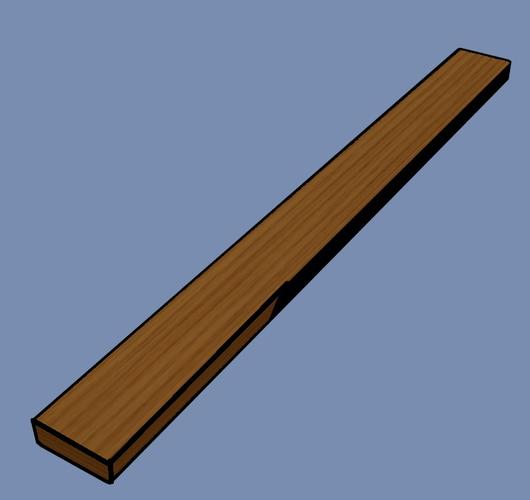
As you can see in the first pic below, the outline of my wooden block appears very nicely on all external edges, yet there is no outline on the inside:
there are three sides shown, but none of them are sperated by an outline...
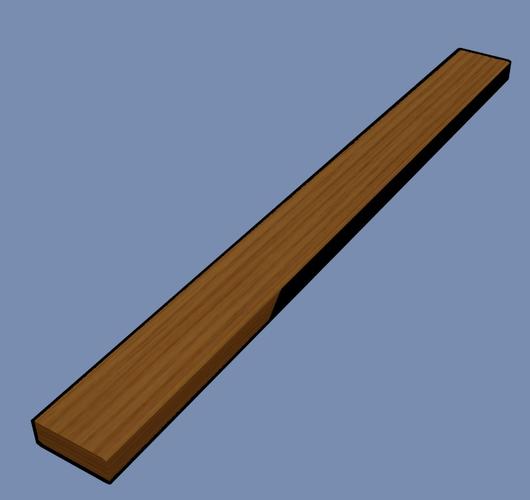
How do I get an outline to appear between my surfaces so it looks like the second pic (I added some lines using paint, but for more complex shapes, I'd like the outline to appear on the render without "postwork" )
Thanks a lot,
Me

Daz 3D is part of 
Connect
DAZ Productions, Inc.
7533 S Center View Ct #4664
West Jordan, UT 84084
Licensing Agreement | Terms of Service | Privacy Policy | EULA
© 2026 Daz Productions Inc. All Rights Reserved.
Comments
Not sure why PWToon does not draw it.
However, after experimenting for quite a while, I recommend making a test with the Outline available in the Advanced Render Settings options.
Under "Render Engine", switch to Scripted 3Delight and select Outline. I've found this was often more reliable than the PWToon ones, even if it means having to add both layers in a separate tool.
Hopefully this will help, or at least offer an alternative.
Thanks for the reply!
I still don't get the outline though....
I feel the result PwToon gives me is still to good to leave behind, after all, it's only the inner outline that's missing...
Is there any tutorials or manuals available on that product?
Does anybody know what the "angle" slider is for? Or does anybody know why there is no option called "Interior Line Width"?
There is an option to toggle "Draw Interior Line" on and of, but I don't realy know what all of these optiosn do exactly... I'm playing around to find out, but if there were a manual, that would be nice...
Please keep me posted if any one finds a solution to this,
thanks a lot,
Me
Well the only manual I know is there.
The interior line is quickly very strong, which is why it's set up as grey originally.
To clarify on Outline, I do use PWToon, I simply add the outline from the Render settings on top of it instead of the PWToon outline - so basically I use PWToon shadows mainly. Here's a pic as a result. Not trying to convince you, just telling you what I experienced :]
Good luck.
That does look quite awesome!
Could you give a bit more detail on how you did that?
You use PWtoon and the outline from the scripted render (outline or outline compositor?)
Any specifics I need to do with the camera?
Do you use the PW toon shader only, or a specific version (classic cartoon, architectural outline eg)?
How do I define the outline camera it asks for when rendering this way?
Guess I'm sold on your workflow :)
Thanks a lot,
Me
Yes, it looks very nice and I would like to know more details, too.
Well, the basic thing as I said is to render 2 pictures:
- 1 with the PWToon settings you want (the manual posted above helps a lot, but it's mostly tweaking around until you are satisfied)
- 1 with the Outline which you get through Render Settings
You then compose the final images using something like the free Gimp or - I personally use Photoshop Elements, and there you go.
Two other examples, one with extra effects for a more grainy, hand drawn look.
Although I like those (the posture of the main white guy is a bit weird!), I would not recommend this for a large Comic project. Discrepancies are huge between props (things that can be better cheated with a good common lightning) and it's a lot of work per image.
Thanks a lot,
Could you perhaps upload a render of the image you get when you render using the outline script only?
When using PwToon and the outline script, do you set the render to default or to cartoon?
Also how do you add the two together exactly?
Thanks a thousand,
Me
Render is default. If you render through Cartoon, it will bypass the PWToon shaders and use the Cartoon setup, as far as I know. I'm sure more experienced Daz users can confirm this or explain it better than me.
You add the two together simply by "layering" them together. Obviously the outline has to be saved in a format that keeps transparency. You open your editing tool and you simply put the Outline in a layer above the PWToon render and finished. There is half a million tutorials on how to use layers in Gimp, Google is your friend there :]
Attached is an outline result.
Edit: a format that keeps transparency is PNG for instance.
Thank you so very much!
This has learned me a lot!
Me
I would love to get that black outline file but my files keep rendering with white lines instead of black lines and I can figure out why. Even when I try changing the line color in Scripted 3Delight >Outlines > Normal Line Color the lines in the output files are still white on transparent background.
I'm also having the same problem of white on transparent background. Is there any solution to this?
Pretty much any program you import your layer too should have the option to "invert" your image, so if you have a white outline output, inverting it should give you the black outlines you are looking for. This is more of a workaround than a solution though.
You may want to check out the NPR thread, as there are many talented artists into this sort of thing. In particular, djigneo posted in the thread (and may have a product):
http://www.daz3d.com/forums/discussion/comment/998699/#Comment_998699
Hope this helps.
- Greg