• Daz 3D
  • Shop
  • 3D Software
    • Daz Studio Premier
    • Daz Studio
    • Install Manager
    • Partnerships
    • AI Training data
    • Exporters
    • Daz to Roblox
    • Daz to Maya
    • Daz to Blender
    • Daz to Unreal
    • Daz to Unity
    • Daz to 3ds Max
    • Daz to Cinema 4D
  • 3D Models
    • Genesis 9
    • Genesis 8.1
    • Free 3D Models
  • Community
    • Gallery
    • Forums
    • Blog
    • Press
    • Help
  • Memberships
    • Daz Premier
    • Daz Plus
    • Daz Base
    • Compare
  • Download Studio
ADVANCED SEARCH
  • Menu
  • Daz 3D
ADVANCED SEARCH
Add image
  • Shop
  • 3d Software
    • Daz Studio Premier
    • Daz Studio
    • Install Manager
    • Partnerships
    • AI Training data
    • Exporters
    • Daz to Roblox
    • Daz to Maya
    • Daz to Blender
    • Daz to Unreal
    • Daz to Unity
    • Daz to 3ds Max
    • Daz to Cinema 4D
  • 3D Models
    • Genesis 9
    • Genesis 8.1
    • Free 3D Models
  • Community
    • Our Community
    • Gallery
    • Forums
    • Blog
    • Press
    • Help
  • Memberships
    • Daz Premier
    • Daz Plus
    • Daz Base
    • Compare

Notifications

You currently have no notifications.

Loading...
    • Categories
    • Recent Discussions
Daz 3D Forums > 3rd Party Software > Maya Discussion

Daz to Maya [Teeth Problem and FIX - Bridge or Manual]
moreffector_3290526moreffector_3290526 Posts: 55
November 2020 edited November 2020 in Maya Discussion

Hi everyone. If you tried to export Daz characters to Maya, maybe you see this weird result.
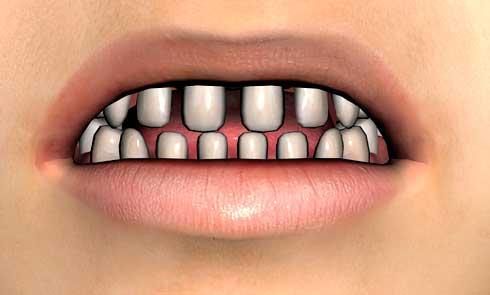
teeth problem with justin - Daz 3D Forums


How to Fix ?

Open Daz and import a character into your scene.
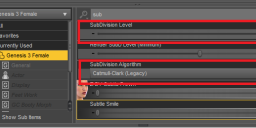
Go to Parameters tab from the right side. Search "Subdivision" word.


And enter Subdivision Level : 2 AND Subdivision Algorythm : Catmull - Clark (Legacy)
And last, search "Mouth Realism" . Right Click it > Edit Mode > Right Click Again > Delete Selected Property (Deleting just for this scene. Not from library.)


Now you have to do some little steps for Maya (You have to know a basic Maya skills. I added some photos.)

Import your character. (I strongly recommend Daz to Maya Bridge Importing)
Open character's mouth and look at the teeth.

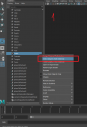
Select Teeth material from Outliner window. Right click material and choose "Select objects with Material" (Image 1)
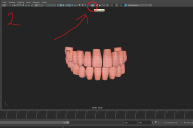
Press F and focus teeth part. And Isolate Selection. For only see teeth. (Image 2)
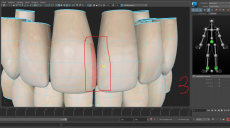
Press F11 for face selection and Press W for move tool. Select faces like photo below and adjust it very near the teeth. Do a practice 1 - 2 times for that. (Image 3)

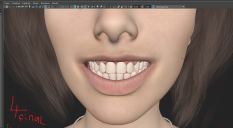
This is a little bit long but effective way. I am doing this and my character's teeth looking very good now. 
I hope it helps to you.
 

daz_teeth.png
668 x 259 - 29K
daz_teeth_maya_step1.png
598 x 876 - 60K
daz_teeth_maya_step3.png
1577 x 876 - 880K
daz_teeth_maya_step2.png
1287 x 853 - 163K
daz_teeth_maya_step4_final.png
1286 x 705 - 955K
Post edited by moreffector_3290526 on November 2020

Comments

  • AsariAsari Posts: 703
    January 2021
    I have to admit I tackled this issue by hiding the original teeth that came with the figure and re-import the teeth as a separate mesh. But this is neat, thank you!
Sign In or Register to comment.
Adding to Cart…

Daz 3D is part of Tafi

Connect

DAZ Productions, Inc.
7533 S Center View Ct #4664
West Jordan, UT 84084

HELP

Contact Us

Tutorials

Help Center

Sell Your 3D Content

Affiliate Program

Documentation Center

Open Source

Consent Preferences

JOIN DAZ

Memberships

Blog

About Us

Press

Careers

Bridges

Community

In the Studio

Gallery

Forum

DAZ STORE

Shop

Freebies

Published Artists

Licensing Agreement | Terms of Service | Privacy Policy | EULA

© 2025 Daz Productions Inc. All Rights Reserved.