Issue with importing .obj files from Hexagon to DAZ Studio
 pcw_fantasy2002
Posts: 19
pcw_fantasy2002
Posts: 19
A while back, I tried creating a 3D letter sign in Hexagon and saved it in .obj format, like this:

But when I imported it to DAZ Studio, I ended up seeing some kind of film across the front and back of most of the letters (which remained visible when I tried to render the letters), like this:
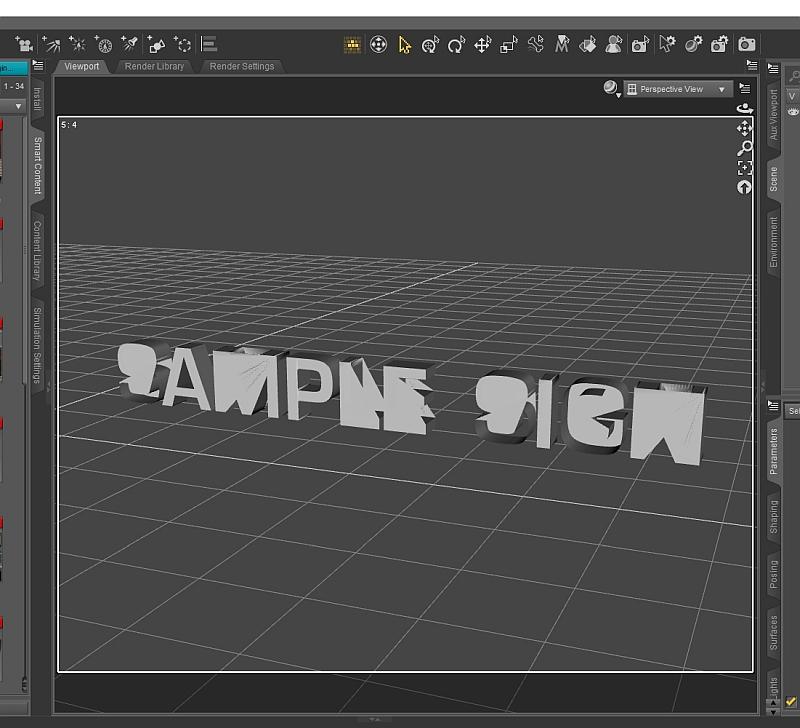
What can I do to prevent the film from appearing on the letters (like in the example above) so they can appear clearly when I import from Hexagon to DAZ Studio?

Sample sign in Hexagon-2.jpg
800 x 434 - 132K

Sample sign in DAZ Studio 4.10-2.jpg
800 x 728 - 205K
Post edited by pcw_fantasy2002 on

Daz 3D is part of 
Connect
DAZ Productions, Inc.
7533 S Center View Ct #4664
West Jordan, UT 84084
Licensing Agreement | Terms of Service | Privacy Policy | EULA
© 2026 Daz Productions Inc. All Rights Reserved.
Comments
The problem is that the front of each letter is a single polygon, when those are triangulated for rendering the result is often that kind of infilling. For DS you want to have triangles or quadrangle (and the quads should be convex - if you imagine an elastic band around the outside it shoudl touch all of the vertices, theer should not be one indented). You can triangulte in DS, but that will also triangulate the quads around the edges - better to select the face polygons in Hexagon and either triangulate them there or break them down into quadrangles.
Though Daz can handle poly-face shapes (n-gons), Hexagon is "triangulating", based on the settings which you may not have any control over, which many programs seem to have a problem doing when shapes have inner-cuts. (The old OBJ standard only allowed for triangles. That is no longer a limit of the format, but it may not be a format that they are using, for OBJ. You could try a more advanced export format.)
Try exporting it without triangulation. If that doesn't work, try manually making cuts in the letters faces, before exporting, so triangulation has to be done within a specific zone of faces that don't span an inner-cut. (Or you can manually triangulate every individual surface, for complete control.)
P.S. Isn't there a hexagon-bridge for Daz? (So no exporting is need.)
As far as I am aware OBJ has always supported multi-vertex polygons. .3ds is/was triangles only.
In any event, the issue is triangulation in DS not Hexagon, as I explained above - look at the mesh in a wireframe mode inside DS to see that it isn't triangulated as loaded.
We used to use another free utility to make a different type of file for alphabet 'cause Hexagon makes non-manifold [unusable] alphabets. Basically a shaped plane with sides to another shaped plane, but nothing is connected properly. It is a lot of work to fix them in Hexagon ... and I suspect most of us gave up and some vendors got clever and started providing solutions. Life is too short, enjoy the easier paths lol ...
Quick search netted these:
https://www.daz3d.com/alphabet-and-number-props-with-lights-for-iray
https://www.daz3d.com/rw-letters-and-more
https://www.daz3d.com/multi-letter-system
for text "Font to Mesh Express Converter" no longer sold by Daz? couldn't get link to product page. But I first saw it on the net anyway.
but will import any tt font (not symbol encoded -- I think) but almost every other font into mesh objects you can import without many problems.
attached picture is screen shot of an Italian Ornament Mosiac set I converted and read into daz.
---
each one is a separate object I just put them in one place for ease of seeing them
---
adding textures and scaled some on Z for more depth.
I'm quite surprised that "A" and "P" work fine in your example. While "L" doesn't. This means there's some support for n-gons in daz studio, but within limits. Probably you need to split the front side of the letters into convex shapes, that is, add edges in hexagon before exporting.
Of course triangulating everything in hexagon should also work fine as already suggested.
Carrara text exports OK
After you created the letters, you need to manually clean up the mesh. This will take longer then just letting Hex do it but it will greatly save on the poly count.
To clean them, align all the letters at zero (as Hex tends to offset a few letters, moving them forward or backwards)
For each letter, Cut a line down the middle at zero so you can remove the back half of the letters.
Using the Edge Selector (the lines) remove the ones you dont need. For straight letters like M, N or I, you can greatly reduce their poly count doing this. For letters like G or S you will still be able to trim them down a bit but it will be up to you as to how much you can remove and still maintain the shape needed.
After you have cleaned out the edges you dont need, use the Vertex selector and play connect the dots, cutting edges between them to create 4 sided polys as much as possible. Doing all triangles will only result in a higher poly count.
Once you are done, if you need the letter to have the back half as well, just select the letters and tell Hex to mirror the back half (I dont use Hex anymore so I dont recall its axis order) then you can remove the edge thats dividing the letters in half and reduce the poly count one more.
If you plan on doing a lot of signs in 3D, I recommend you create a master file per font you want to use. Spell out the entire alphabet in the master file and clean up the letters and numbers as described above. Then if you want to make a new sign, make a dup of the master file and create the new sign in it just by spelling it out. Then start making duplicates of the letters you need from the master and copy the XYZ cordinate fo the ones in the sign over to the dups so that you are not cleaning up the mesh of the letters a thousand times per sign. You can still use this technique when doing a 3D sign if it has multiple of the same letters.
TBH DS has never has a problem with n-gons, it's problem is with concave poly, but that also depends on the winding order of the mesh. All 3D programs calculate the mesh as tri internally, they then add the rest of the data to them when they are ready to display it for us. Sometimes the winding order will allow DS to triangulate a concave poly properly, other times you get this effect or the dreaded "black poly" where DS has broken the normals.
Convert to SubD usually fixes the "black poly" without having to edit the mesh, so there is a good chance it will "fix" this as well.