A "Fix" for Black Spots
 IceScribe
Posts: 694
IceScribe
Posts: 694
Hi all. I recently purchased a new character which when rendered default with no make up, or with makeup, showed terrible speckling. With spotlight, white speckling also rendered. I searched for render problems with black dots for some characters. In one or more Daz forum posts, it was suggested the black dots were actually translucent. Several fixes suggested turning on "draw dome", which worked for me. But I didn't want a bleary nor a realistic hdri.
This made me think, if there is a background that somehow prevents the translucent areas from rendering, perhaps just adding a color backdrop from the Environment tab might work. It does. I chose a backdrop color that will easily be deleted in photo editing. Normally, I render as a transparent png so I can layer in different background pictures. I still rendered as png, but with the "backdrop" color, and no white specks or black dots appeared.
Now, I am impatient, and saw there were other suggestions that required rendering multiple layers, compiling and editing, and perhaps changing some Surface properties. I know nothing about the SSS properties, or shaders. I found a very helpful page from Sickleyield that explains the Iray Surface panel properties, in case one wants to try modifiying the skin and perhaps reduce materal specks and spots through the Surface properties [https://www.deviantart.com/sickleyield/journal/Iray-Surfaces-And-What-They-Mean-519346747]
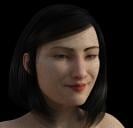
The first attachment was rendered as a jpeg, [because I can't post png here] so the transparency defaulted to black. However, it shows the speckling when the default figure materials are rendered with a transparent backrop.
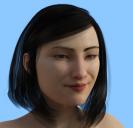
The second attachement was also rendered as a jpeg but with the "Backdrop" option in the Environement tab. I find this satisfactory for my purposes.

Daz 3D is part of 
Connect
DAZ Productions, Inc.
7533 S Center View Ct #4664
West Jordan, UT 84084
Licensing Agreement | Terms of Service | Privacy Policy | EULA
© 2026 Daz Productions Inc. All Rights Reserved.
Comments
There was a known issue with Iray that caused that effect. In earlier versions of Daz Studio, you could stop it by turning Draw Dome to On. But you could also stop it by changing the "SSS Mode" from Chromatic to Mono. The SSS Mode is one of the parameters that are hidden unless the "Thin Walled" parameter is set to Off.
That issue was resolved, last I heard, so I'm wondering what version of Daz Studio you're using…?
Hi L'Adair,
thank you for commenting. My current version is DAZ 10.0. I'm in no hurry to update. The character I purchased a couple days ago is QX Xia Ming for Genesis 8 Female by Quixotry. This is the first Genesis 8 character, or any character generation that I have had the black spots render.
As I mentioned, I searched for tips on how to render without them, and found the same suggestion, "turn Draw Dome On". That is unsatisfactory to me, as I do not want a hdri image to be my background for my work, but yes, it does remove the black spots.
Setting the SSS Mode to Mono made a very ugly reddish tinge around the lips in both Draw Dome On and with Backdrop. (I only set the face to Mono, the lips are the default material)
see examples, 1 is Draw Dome On, SSS Mode Mono selected. 2 is Backdrop color blue, SSS Mode Mono selected. 3. is simply default material settings for SSS Mode=Chromatic, Backdrop color blue.
I figure there are folks with earlier DAZ versions who don't understand SSS settings either, so I offered my "quick fix" which so far has worked for me in various lighting situations.
Since the black dots are apparently translucent, I find the Backdrop provides whatever it is the render engine needs to render the materials with no spots, and without altering surface settings or adding unwanted imagery, and provide an easily "deleteable" backdrop in postwork.
I circled the mouth area to show where the ugly redding tinge is. I also noted the fingernails looked odd, since I didn't add "nailpolish" to this character, but those are lilac in all of the modes.
@IceScribe, If you change the SSS Mode to Mono on one skin material zone, you really need to do the same on the others, as well. In the Surfaces > Editor, if you select the "Skin-Lips-Nails" group at the top of the left column, it will highlight all of the material zones that should have the same SSS Mode. The same can be said for a number of other parameters as well.
The reason you're getting the reddish tinge around the lips is because they use a different SSS Mode than the face skin surrounding the lips.
(I didn't update from 4.9 until the 4.12 beta was released. I understand not wanting to mess with success.)
A very quick way to create a mask of your figure to use in post work is to set the Backdrop to White, and remove all the light from the scene. (Hide lights in the scene tab by clicking on the "eye" icon on the left. If using lighting from the Render-Settings>Environment, one way to turn it off is to set Environment Intensity to 0.00.) Then render. This will silhouette the figure in black on the white background. Just make sure nothing is pixelated and then stop the render and save. Plug the inverted image into the layer mask of your graphics program for the perfect mask.
ETA: I don't have the figure, so I can't look or test the fingernails. However, the product page mentions a Geometry shell for the fingernails, for adding glitter to the nail polish. If you can find a geometry shell, you can either delete it, or go into the shell's parameters and turn it off. Because I don't have the figure, I can't say if there is one shell for all the glitter options, or one shell for each glitter option. If the shell is visible for nails but without any materials applied, that might be causing the "lilac" polish look…
@L'Adair
I changed the Skin-Lips-Nails group to Mono, and rendered with a backdrop. No spots, color was as expected of the character basic materials, including the nails. I also tried your silhouette render and successfully used in in my photo editor as a mask layer. Much better than just selecting the backdrop, as the pixels on the edge of the character were not obvious, and didn't require tweaking feathering. I have learned new tools from your suggestions!
Thank you so much!