Weird "Pink" Face in Viewport on New 2080 TI Build
 asdf123
Posts: 167
asdf123
Posts: 167
Totally stumped. Just testing out my new dual 2080 TI / Ryzen 3900X build and I'm seeing some very strange artifacts on the face of a previously saved scene. If I render the scene, the artifacts don't appear. I do have Auto Face Enhancer installed -- I mention it because it looks to be the area that is affected, but I tried turning it off with no change. As you can see, the clothes and render fine (as does everything below the neck)
Any ideas?
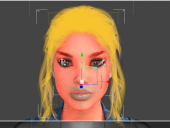
Capture.PNG
511 x 385 - 205K
Post edited by asdf123 on

Daz 3D is part of 
Connect
DAZ Productions, Inc.
7533 S Center View Ct #4664
West Jordan, UT 84084
Licensing Agreement | Terms of Service | Privacy Policy | EULA
© 2026 Daz Productions Inc. All Rights Reserved.
Comments
This is the Iray preview mode? It may be related to something in Draw Settings, which controls the preview (rather than Render Settings).
What's the best way to revert all settings back to stock, then?
Turing Interactive back to Photoreal in Drawing settings fixed it. Thanks!
A little off topic for the thread but how are you liking the Ryzen? It's on my short list for a new build.
I'll get back to you. So far, I've only really pushed the GPUs
Hi Guys,
Totally stumped. New build with 3900X + Dual 2080 TI (EVGA XC Ultras) + 64 GB RAM. Whenever I use Interactive Mode, I end up with crazy Pink hues all over the face of my characters...
I'd really like to use Interactive, for obviously reasons (speed things up), but the color makes it unusable.
Any ideas how to solve?
Interestingly, this is happening when I use one of the 2080 TI, both of the 2080 TI, AND if I just use the CPU... Hoping someone has any idea how to solve
It could just be interactive having an issue. With Dual 2080ti's nothing should take all that long so why bother with interactive at all?
I was going to say there was another thread where someone was seeing that, but it was your own thread. Merged.
Ya, sorry. Thought the Tech subforum might be better and I figured out a few more clues -- that it happens in Interactive. Still no progress solving. Any recommendations on how to troubleshoot? It seems to occur anytime I use Interactive rendering + the Sherry Hair. if I turn off the hair, the problem goes away...
You can move your thread by editing the first post and selecting a different forum.
I don't know why it would do this, especially if it's only in one product combination. Do you have other hair from the same vendor? How about if you take a different hair model and apply the materails (by saving a Shader preset) from the problem hair?
I have other hair from the same vendor. No issues. Could you walk me through saving a Shader Preset for the hair? It's telling me I need to select "one object... and one surface" despite having the air selected in the Scene Tab and I've tried selecting random things, including "All Hair" and "Californian" in the Surfaces tab
Try clicking on the hair with the Surface Selection Tool, save the preset, then select the other hair, hold down the cmd(Mac)/ctrl(Win) key, and double click the preset - in the dialogue choose the option to apply to all surfaces, instead of the default selected surfaces.
Doing that results in the same thing problem...
OK, so now we're on to something. After confirming the transferring the Sherry Hair IRAY materials to another hair product from the same vendor transfers the problem to that other previously working hair, I did the inverse. I copied an IRAY Material from one of the vendor's other hair products and applied it to the Sherry Hair. The problem went away... But interestingly, if I just apply the IRAY Material from the Product itself, without saving my own preset, it doesn't solve the problem
Thoughts?
Try selecting the two hair models, with their original materials, then in the Editor tab of Surfaces pane select a single surface of each on the left and scroll through looking for properties showing a value of <?> - those have different values on the two surfaces, one of them is probably the cause of the issue.