How do I add full size images to a post?
 Those Things
Posts: 1,175
Those Things
Posts: 1,175
in The Commons
I've seen several posts in these forums that include full-size images. How is this done? When I use "attach a file", I can attach an image, but the reader only sees a thumbnail, and has to click it to see the full-size image. And if I use the "Image" button in the rich text editor, it needs a URL for the image. Do I need to host the image somewhere to accomplish having a post with a full-size image?

Daz 3D is part of 
Connect
DAZ Productions, Inc.
7533 S Center View Ct #4664
West Jordan, UT 84084
Licensing Agreement | Terms of Service | Privacy Policy | EULA
© 2026 Daz Productions Inc. All Rights Reserved.
Comments
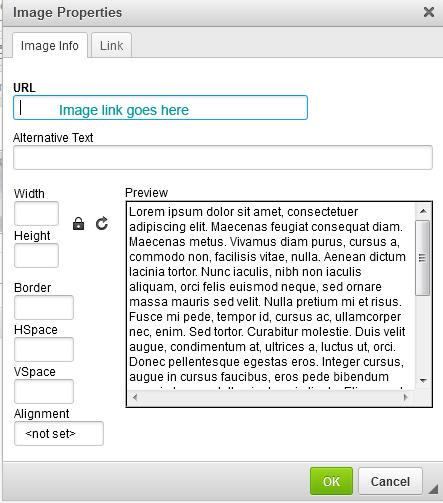
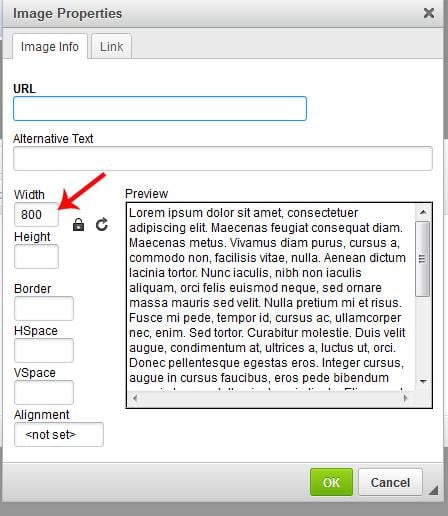
Click on the thumbnail to open it, highlight and copy the URL and paste that into the image button. Also set the dimension to 800 while there. That wont affect the original image only the one in the post, it is so it fits in the forum, clicking on that opens the full image as posted by you.
Attach the file and make the post.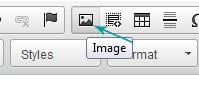
click on the attachment to bring the image up to full size
Right click om the image
Click on "Copy image location
Go to the image tool
Add the URL as Sandy said.
use % instead of 800 it will size with the media viewing your art I set my at 70% so for PC screens viewing my content it will be 70% of the screen or on Mobil phone it will auto size to fit the phone. hard PX settings can leave your image un-view-able
when building websites its the standard to make web pages Mobil device friendly this is how to do it I'll use a image from my gallery that is 2500 x 2500 dpi reduce to 300KB using fireworks
step 1 follows choholes instructions But step 2 in the size box change to % and remove the bottom number setting this will auto adjust the image to fit the viewing media
its very helpful to viewers if you can reduce the image weight using Google px exchange or adobe fireworks ,Photoshop etc. most out of the box renders from daz usually about 4MB or more which really slows down the forums waiting for those huge images to load. here is example
this image is 2500x 2500 at 375kb the original render was 2500 x 2500 @ 5.8 mb reduced with adobe fireworks
this image resized using %... Now reduce your browser size to test it
this image is sized using 800px
Thanks, everyone! Just what I was looking for. :)
I was under the impression that the forum image can't be wider than 800 pixels. Ivy's post would seem to contradict that assumption.
The HTML coding for "Image Properties" shown upthread allows you to specify image height and width, no matter the physical size of the actual image file. It's the same thing as the little thumbnails shown below posts, just with a different set size. Click on either one, and you get the full-size image.
@SpottedKitty "d allows you to specify image height and width, no matter the physical size of the actual image file"
Thanks for the info. I typically resize before including in the message. This will be less tedious.
It's a lot less tedious. All I usually need to do is place the link to the full-size image in the Image Properties dialog and put 800 into the Width box. You don't need to calculate the reduced height, if you leave this blank it gets automagically calculated when you hit the OK button to return to editing your post.
Note that this has to be done as a two-step process — I upload the image while composing the post, click the blue button to post it, get the image link from the thumbnail by right-click, then edit the post and use the Image tool in the toolbar to get the Image Properties dialog.