quick noobie question
 Drekkan
Posts: 460
Drekkan
Posts: 460
in The Commons
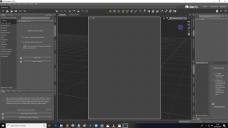
(look at pic pls) I don't know what I did but how do I get out of this type of view mode please of the general Daz screen? I just wanted it so I am viewing the normal Daz workbox without the rectangle.
example.jpg
1920 x 1080 - 265K

Daz 3D is part of 
Connect
DAZ Productions, Inc.
7533 S Center View Ct #4664
West Jordan, UT 84084
Licensing Agreement | Terms of Service | Privacy Policy | EULA
© 2026 Daz Productions Inc. All Rights Reserved.
Comments
Click on the little triangle in the upper right corner of the viewport, uncheck "show aspect frame".
nice thanks :)
This aspect frame is something I also struggled with as a beginner. I want to give you a detailed aswer how to change and manage this.
The rectangel you see is the Aspect Frame currently set to 1:14142 in the Render Settings pane. The Aspect Frame shows the part of the viewport that currently gets rendered in iRay preview mode. This is why you see no foor grid and another backround color inside the Aspect Frame. Turn it off in the Viewport Options Menu in the upper right corner of the viewport and uncheck Show Aspect Frame.
Next you will see no white border anymore but the viewport preview mode is set to iRay and will still render only that Render Dimension 1:14142 that is currently set to be the default (global) in the Render Settings pane in the Editor tab. I would change the Dimension Preset (Global) to Active Viewport to have all viewport rendered without having a fixed aspect frame.
You could aslo change the preview mode back to the default Texture Shaded mode with the little selection icon in th upper rtight corner left beside Perspective View. With this you will see the floor grid in the Aspect Frame but the actual frame will still be visible depending on the color settings and the viewport Backround color that maybe is set in the Environment pane that I would also check.
You can manage different Aspect Frames to render your scene with adding cameras that can have individual Render Dimension set in the Parameters pane Use Local Dimensions. There are a few default Presets in the Dimension Preset list but I think downloaded some presets fom ShareCG and added my own Render Dimensions with a fixed resolution. To use the same settings in different scenes you could also save Render Presets of the current settings into the Content Library or save the Cameras as Camera Presets or SubSets including the lights for example.