Lighting Advice
 kksmith6515
Posts: 201
kksmith6515
Posts: 201
in The Commons
Hey everyone,
Got another question. On the top of the image, there are some fluorescent lights. They look as though they are turned off. I know there's a way of making them look lite by changing the shader settings using DAZ default resources but I can't quite recall the process. Can anyone here please advise?
Thanks!
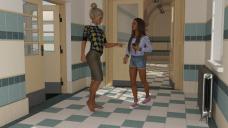
teacher dark haired girl rough draft 2.jpg
1920 x 1080 - 2M

Daz 3D is part of 
Connect
DAZ Productions, Inc.
7533 S Center View Ct #4664
West Jordan, UT 84084
Licensing Agreement | Terms of Service | Privacy Policy | EULA
© 2026 Daz Productions Inc. All Rights Reserved.
Comments
Find the florescent lights in the surfaces tab or use the Surface Selection tool to select them in the scene (Tools >> Surface Selection) then when you have the florescent lights selected go to the Surfaces Tab and scroll down to the Emission Color slot and change it from black to white. Then you can change the Luminance until you get the look that you want.
I suggest checking out the info on this link for RGB colors of natural and artificial light sources.
http://planetpixelemporium.com/tutorialpages/light.html
Thanks, that's useful! :D
Thanks everyone for the wonderful advise. Actually, it seems to be easier just to delete them. Although, I will say this...I think it would be good to find a different shader for the radiator. This is just one I slapped on from Daz Studio default resources menu. I purchased the Iray Ghost Light Kit 2 a while back but never really used much up till now. I think it does a pretty good job filling in the back room.
I know this is an older set but it's just so reminiscent of what my old middle school used to look like, that's why I like it.
Thanks again.
What set is that? Some vendors make it easy for you and have a way to turn them on. Doing it the way @Divamakeup says works well and is really quick and easy. No shader needed as it's built into Iray which it looks like you're rendering in.
If you make the lights emissive using the Emission tab under surfaces you are basically turning them into ghost lights. You can also make your own using primitives.
That's basically what I did with the flourescent lamps here, though I had to apply the Iray emissive shader first as it's a 3DL set :
https://www.daz3d.com/forums/discussion/comment/3677596/#Comment_3677596
You can hide and show (often) parts, such as walls and ceilings that are not in view; this can also help with light; doing that can also make the light behave differently ( reflection-wise) than it should though.
Isn't there a way to make a hidden or transparent surface reflective?
Use the Matte Function in Iray.
I used it in this image, which is one of my pictures as a background, to get the reflection of the faery on the ice.
Click on image for full size.
Thanks for the advice, but first of all...there is no florescent lights in the surfaces tab. In this set, it's referred to as the PHGH_strp_lght or something like that. Second, I've tried applying the Iray uber base then the emissive shader and nothing changes!! I know all of you understand a whole lot more about this kind of stuff then I do and that's what makes this all seem so totally frustrating because it's like trying to read a foreign language and I just don't get any of it!!
I didn't mean to look for the words "fluorescent lights", I meant to look for where the fluorescent lights are located in the surfaces tab. Use the Surface Selection tool (It's at the top of Daz Studio - click on "Tools" then "Surface Selection".) Once you have the Surface Selection tool just click on the fluorescent lights in your scene, then go to the Surfaces Tab and the fluorescent light surface should be selected. It might be called "bulb" or something in the surfaces tab (most of the model artists name things their own way, so it could be named anything, but with luck the PA labelled things so that you can find the bulb in the surfaces tab).
Once you have the bulb selected change the Emission Color from black to white and then I recommend changing the "Luminance Units" to "W" and change the "Luminous Efficacy" to the brightness you prefer. Make sure you're looking at it with the Iray Draw setting - other draw settings often don't show Iray setting changes.
I made a quick Iray Light Shader that you can use if you want. :)
It's a Shader, so that means to apply it you need to have the Light selected in both the Scene Tab as well as in the Surface Tab.
To add the Light Shader to your Daz Library just Unzip it, Open the "Iray Light Shader" folder and then drop the "Shader Presets" folder into your Daz Library. You should then be able to find the light shader in Daz Studio under Shader Presets >> Light Shader Iray.
It's settings are pretty bright, so if you want to adjust the brightness just adjust the "Luminous Efficacy" slider in the surfaces tab.
@Divamakeup
That isn't how Efficacy works.
https://en.wikipedia.org/wiki/Luminous_efficacy
You set the Wattage to the desired level, for fluorescent lights that would be 65 or 85 for a 5 foot light or 125 for an 8 foot light, and then set the Efficacy for a fluorescent light which can be as low as 46 and up to 100. The Efficacy of 15 which is the default is for a 60 watt incandescent bulb.
I'm not sure what you mean by "that's not how Efficacy works", adjusting the Luminous Efficacy changes the brightness of the light output:
Luminous Efficacy 1:
Luminous Efficacy 1000:
If you mean "That's not how it works in the real world" - rendering in Daz Studio or Poser isn't the real world. It's just pixels and polygons and how your computer and graphics card reads and displays the input. If something works, why not do it? To try and adhere to something that governs only how actual electricity works in the actual world... when you're "lighting" a PIXEL and POLYGON world... lol Come on...
That's fine if that's how you want to do it, but, personally, I just do that which works. :) If it's getting the look I want, who cares if it's how it works in "the real world". lol
I'm not sure what that has to do with using watts and efficacy. You would just as well use lumen as that is what you are doing anyway so why use a real world setting if you don't think you need to?
If that is a 60 watt bulb then the efficacy of 1 has set the lumen at 60. By increasing the efficacy to 1000 you have increased the lumen from that 60 watt bulb to 6000 lumen. So why not forget using watts and just set the lumen to the output you feel is desirable? A 60 watt bulb at an efficacy of 15 sets the real world lumen for that bulb at 900 then use Tone Mapping to compensate, as in the real world. If that isn't what you want then just use lumen and brighten the light output to non-real world values.
I do things the way that works easiest for me in getting the look I'm after. Again, feel free to do what works best for you. :)
Flourescent bulbs are very easy to handle. The process for making them emmissive is as described, there is no need to apply the emissive shader just turn on the surfaces emmission setting. However rather than fiddling around with the other settings for a light, which can result in undesirable outcomes, I use IES profiles, which are freely available online, to get exactly the real world illumination of almost any bulb you can find.
Here is the actual product: https://www.daz3d.com/east-park-high-hallways
As you can see in the promo images, the lights do in fact look lite. It doesn't say but I'm assuming it was designed for Iray. I rendered it in Iray. In any case, I still don't understand why my renders don't match up with the promo images.
Almost certainly not designed for iray. Can you check the surface tab to confirm they do not load with the default iray shader? You would need to render in 3delight to match promos, I am not sure if the set came with a light preset but I don't believe it did.
*It looks like the base product used to come with a light preset, but it doesn't appear to be included anymore (looking at the installed files list, which matches what I've got installed, there is a thumbnail for the light preset, but no light preset).
Ok, I kind have figured it out. I somehow selected just the bulb or strip_light_tube as it's referred to in the surfaces tab. Then with that area selected, I simply applied the Emissive shader in the DAZ Studio default recources directory. I made no other changes.
As you can see, the light bulbs look different. I wouldn't say correct but at least it's moving in the right direction. I guess the question would be how to make it appear more like a fluorescent light bulb?
Thanks for all the great advice!! You guys are awesome!!!!!!
Divamakeup you are billiant!!
Ok so following your adivice. Yes, I see everything you are saying and it does in fact work. hmmmmmmmmm, my only question is..the lights look a little "intense" is there a way to tone them down a little?