Iray Render Weirdness...
 McGyver
Posts: 7,103
McGyver
Posts: 7,103
Anyone know how to fix this or what is going on here?
I was making a test render of a model I made and I noticed some weird “pixelization” around certain parts of the graphics... this does not occur in 3Delight nor does it occur in Poser’s Superfly (I only mention it because it’s also PBR)...
I included a picture below so you could compare and see what I mean... I’m using DS 4.8, and the default Iray render settings at “viewport” size... I tried a mucking about with different render setting based on a few forum discussions I goggled up, but nothing changes this.
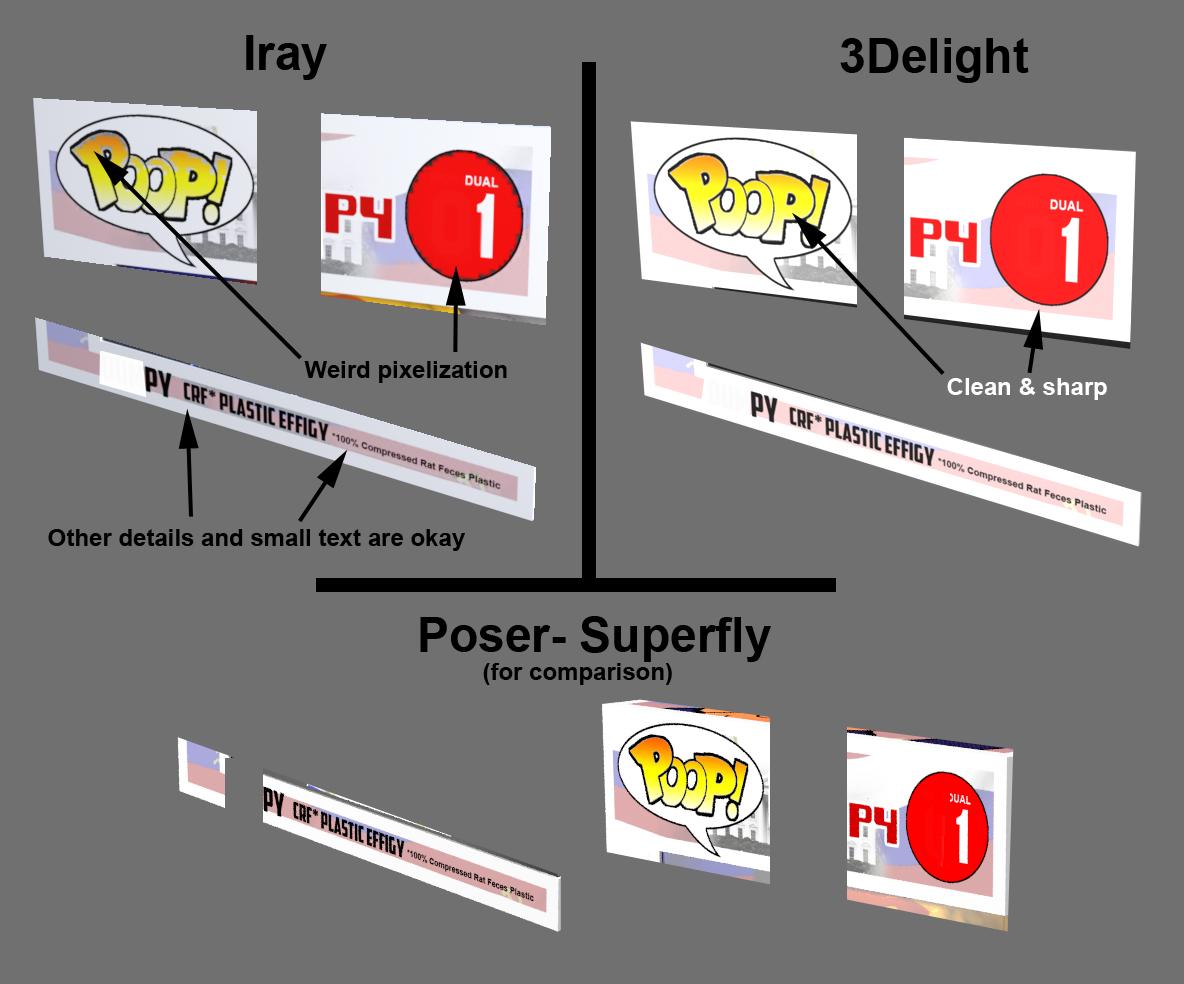
Sorry to not show the entire image, but I cut it up because the model is of a “POP!” Type bobble head figure and it is poking fun at a controversial figure that probably would violate the political aspects of TOS if I showed the entire image.
Thanks in advance for any help or suggestions.

Daz 3D is part of 
Connect
DAZ Productions, Inc.
7533 S Center View Ct #4664
West Jordan, UT 84084
Licensing Agreement | Terms of Service | Privacy Policy | EULA
© 2026 Daz Productions Inc. All Rights Reserved.
Comments
If you click on advanced on the render settings, what is the Texture Compression settings set at?
I’m outside right now, I’ll check when I get back in a little while.... thank you, I didn’t see that option so I probably missed it before.
Jaggedness of straight lines can be caused by having the Pixel Filter Radius in the "Filtering" part of the Render Settings set at too low a value. 1.5 is the default. Lower values will give sharper looking images, with better definition, but also cause straight lines to look jagged, particularly for values below 1.0.
The texture compression is... Medium threshold: 512 and High threshold:1024
I'm guessing that is a default...?
EDITED TO ADD...
I tried a few different settings... I looked up some discussions and people seemed to say high was better... I tried 512/2048 and 1024/2048 ... 768/2304... 256/1536... 2048/3328... 512/3328... nothing changes....
Okay... I just noticed a difference at 512/4095...
Try 2048/4096.
Do note that this will increase your VRAM useage so remember to adjust it back when you are no longer rendering textures that artifact like that.
The filter radius was left at 1.5... I tried messing with different values but nothing changed... well at least in regards to the area in question.
Yes, hopefully my stupid brain remembers... currently I’m trying a render at 512 / 4864... it looks almost as sharp as the Superfly render.
Edited to add... I didn’t notice the suggested settings...that does look good.
I’m curious... are there specific ratios? Or is it whatever seems to work best?... sometimes it seems in CGI it’s very easy to counteract beneficial effects by not knowing what you are doing... I’m frickin’ clueless.
I believe what the settings mean is, if the image size is smaller than the Medium threshold, it will not compress it. So if you have a 512x512 image and Medium is set to 1024, no compression. If it is higher than Medium and lower than High, there will be a medium compression algorithm applied to the texture in the VRAM. If an image is larger than High, it will apply a more agressive high compression algorithm to the texture.
Yes, I'm pretty sure this is correct.
By the way, thanks everyone for the help!
One more question...
I looked up some discussions on texture compression and it seems that artifacts and weird pixelated textures can sometimes occur or at least become more noticeable when the render is of something close up... I’m assuming this is because the UV map textures are what are getting compressed, so the texture compression figures should be more in line with the size of the UV map of the subject that the close up is of... which is why in my case with the image being a close up of a small box and having a map size of 4096 x 4096, no significant improvement was noticeable until I exceeded that higher number... am I getting that right? Or should the numbers be reflective of the render size?
You don't want to compress textures, especially at high, if you can help it but beyond that I'm not sure.