Need Help Importing OBJ from Blender
 Inkubo
Posts: 745
Inkubo
Posts: 745
I have a large scene with furniture in Blender. Now I'm trying to export the pieces one-by-one to DS.
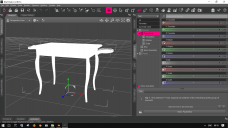
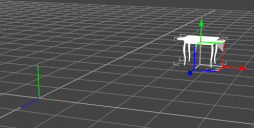
In this case I have used the File > Import process to load a table into DS. As expected, it does not appear at world center (0,0,0) because it wasn't located there in the Blender scene I exported from. I can "find" it in DS by using the Frame button, and when I do I see the widget sitting at the object's origin, which is on the floor between the table legs.
The thing I didn't expect, though, is that the Parameters tab indicates that the object is at 0,0,0. If the object is at 0,0,0, why is the transformation widget somewhere else?
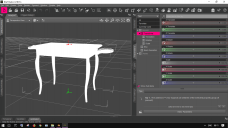
I thought I understood you could change an object's origin in DS by moving one of the control points that shows up in the Joint Editor, but again, the control point shows up between the table's legs. There seems to be nothing at 0,0,0 for me to move or adjust.
I've attached some screenshots showing what my screen looks like when the object has been framed and when zoomed out to show the world center, and showing what I see when I activate the Joint Editor.
What I want to know is: Is there any way to fix this situation inside of DS, so I don't have to break my Blender scene up into many separate BLEND files with each object moved to 0,0,0 before export?

Daz 3D is part of 
Connect
DAZ Productions, Inc.
7533 S Center View Ct #4664
West Jordan, UT 84084
Licensing Agreement | Terms of Service | Privacy Policy | EULA
© 2026 Daz Productions Inc. All Rights Reserved.
Comments
Move the item to the centre of the scene, export as OBJ, reimport the OBJ.
Well, that wasn't the answer I was hoping for, but thank you, Richard. :-)
Oh how I long for a Blender to Daz product like this: https://www.daz3d.com/daz-to-maya ;
I would buy it so quick.
You could aovid splitting into numerous blend files; move each object to the centre in Blender; export just that object, move it back where it came from; repeat for each ojbect. Which sounds like a thing to do using Python scripting, specially if you expect to do it with other scenes.
As for why Daz can position the object where you expect but then not set the values in the Parameters correctly, I can't say. It obviously could set them. A foible.
Deleted - misunderstood the question.