How to actually use Iray Super Shaders Patriotic Patterns?
 ebonartgallery
Posts: 273
ebonartgallery
Posts: 273
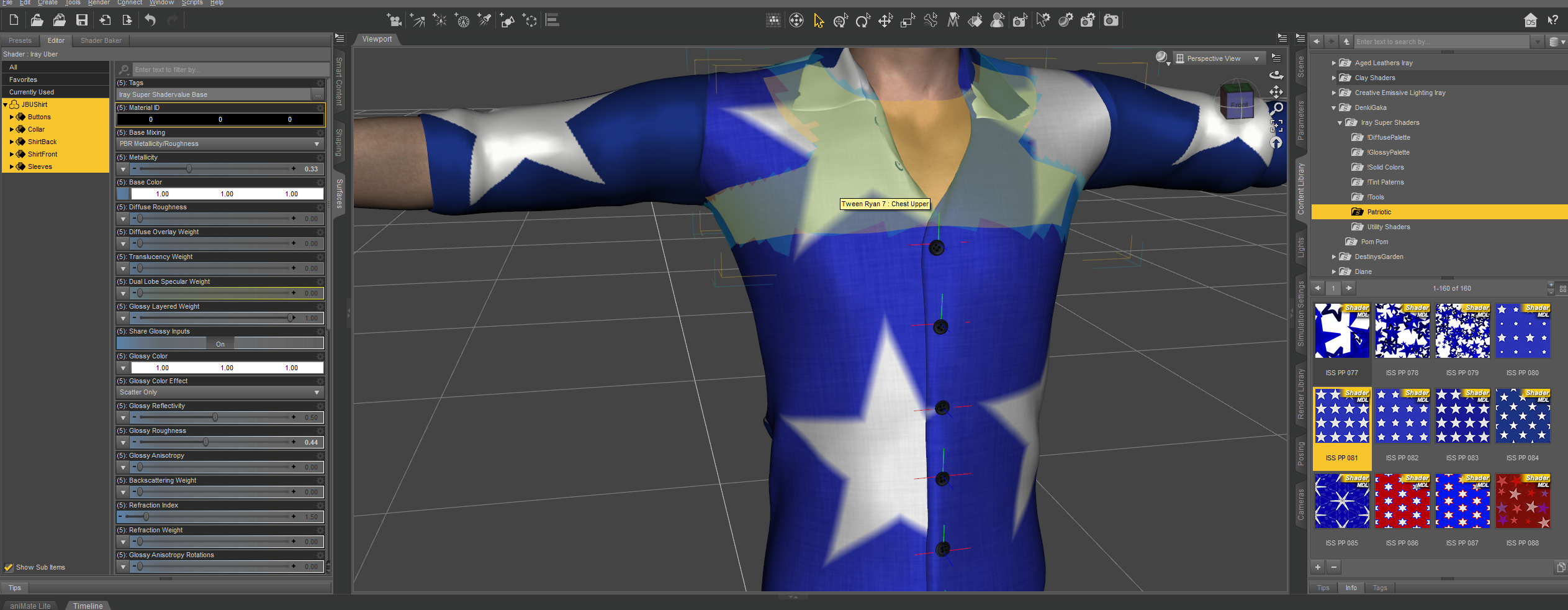
I tried this on a friend's machine to see if it was something I wanted, and can't seem to make it do, well, anything. In the example pic, I'm trying to apply a series of small stars to the shirt; no matter what tiling I choose, it still is just big blurry images. Of course, there's no way to tell what I'm doing at all.
So, is there any sort of help on how to actually use this resource? It looks like exactly the sort of thing I want and need, but there's zero help on how to actually apply this stuff. No examples, only one 'use this first' bit of help.
Honestly, I need a detailed text on how to use all the variations and permutations with a resource like this (or any of the several other similar things to this one).
I need something on the level of 'to get X effect', do these steps in order.

Daz 3D is part of 
Connect
DAZ Productions, Inc.
7533 S Center View Ct #4664
West Jordan, UT 84084
Licensing Agreement | Terms of Service | Privacy Policy | EULA
© 2026 Daz Productions Inc. All Rights Reserved.
Comments
How does it look when rendered? If the tiling was set up using Image Editor instance tiling, it is going to show large in the preview viewport, but it should render correctly.
Sorry, what you said there makes zero sense to me. 'Preview viewport'? You mean 'spot render tool'? Useless - takes as long as a normal render to show anything.
The tiling is whatever the app provides. Like, I want lots of little stars, so I'm choosing some of the things saying 'tiling pattern x number', but nothing happens. Renders just like it looks in the attach above.
The only tiling I see is what the product has. I'm expecting to click on one of those and see smaller stars on the various segments of the shirt.
are you rendering with iray?
preview is what you see prior to rendering
The preview viewport is what you are showing us in your screen shot. What happens when you click the little camera icon to render the picture? A normal render is what I would like to see if you could please.
Or switch to nVidia Iray preview mode by clicking the sphere icon to the elft of the button labelled Perspective View.
By blind trial and error I can sometimes produce what I want but it involvres multiple clicking on various icons at random since you never see what you're actually going to get until you render it.
So I'm having to click on the base shader, a dabric type, then maybe a tile and/or bump - then the pattern I want - THEN AGAIN at least once a tile and/or bump to make it actually tile. But with the huge number of choice I have no idea the order or the actual effect each is having. Like in the illo above, what 'Tiling-bump'. 'Tiling-normal' and 'Tiling-pattern' has. No explanation, no help guide, nothing. Apparently I'm just suppossed to divine it out of the air I guess.
Those would be ndependent settings for tiling on bump, normal, and pattern maps - I assume pattern is a mask controling the blend of base and pattern colour, or maybe it's just the base colour pattern image. With shader sets it's often best to view in the Daz Studio Formats list in the Content Library pane, the maker will probably have grouped them in folders named for what they do and maybe numbered to show the order in which they should apply, and perhaps with some pop-up tool-tips: if you are currently in Smart Content right-click on one of the files and select Show In>Mapped Directory or Show In>Virtual folder to see the actual on-disc arrangement of the files.
Same problem. But when I edit some Horizontal Tiles and Vertical Tiles. It's work!!! Hope it helps.