OT: How do I see what's on the computer "I" drive? (Solved)
 Wahil
Posts: 308
Wahil
Posts: 308
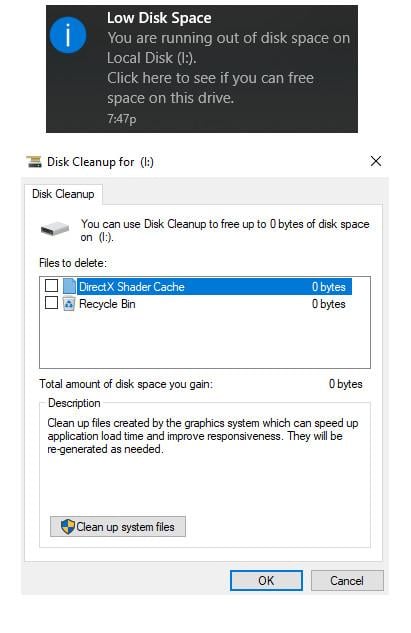
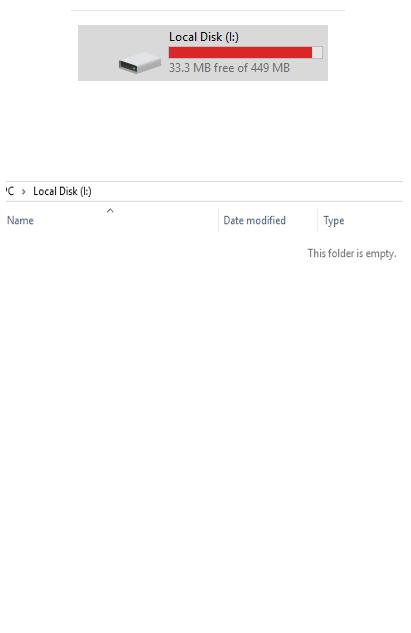
I keep getting a pop up message that my "I" drive is getting full. Only 33 MB left out of 449 MB. But opening it shows nothing there, or at least what's in there is not immediately accessable.
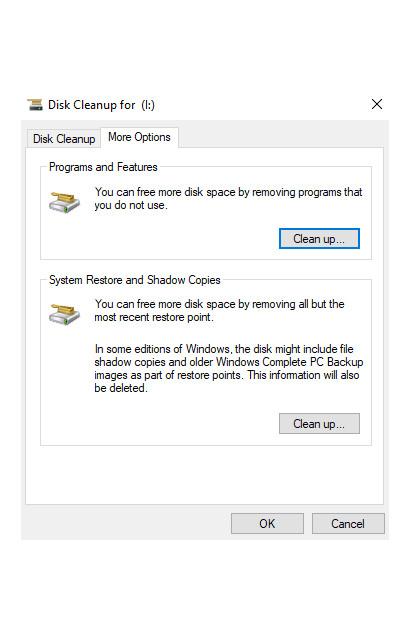
Clicking "Clean up system files" open up a More Options tab. There are only a few programs installed on this computer. Clicked [Clean up ...] to "remove all but the most recent restore point", but it did nothing for the fullness of the "I" drive.
1.jpg
411 x 633 - 61K
2.jpg
411 x 633 - 24K
3.jpg
411 x 633 - 54K
Post edited by Wahil on

Daz 3D is part of 
Connect
DAZ Productions, Inc.
7533 S Center View Ct #4664
West Jordan, UT 84084
Licensing Agreement | Terms of Service | Privacy Policy | EULA
© 2026 Daz Productions Inc. All Rights Reserved.
Comments
Looks like windows, so the l drive should be in "my computer"
If not, you could try openeing start menu, then type hard drive, and choose create and format hard drive partitions. You should be able to see it there at least. It could be like a partition where your factory image resides.
That tiny partition looks suspiciously like a system partition that may hold your recovery partition or some other non-user factory original stuff. The question is why did it get noticed by the system? If you don't recognize the "I:" drive as one of your own then that's probably the case. If so, then it probably originally came with just barely more than 10% unused space so that it wouldn't be noticed as full. Had you accidentally tried to store something into it, causing it to become "full"? My suggestion for the moment is ignore it unless you notice problems or are terminally annoyed by it. Playing with it could compound the issue.
Which brand, type, model and age computer? Which operating system?
I'd agree with LeatherGryphon, apart from it being the I: drive. I'd have expected it to be D; for a recovery partition, but the manufacturere may have made it I; to keep it 'out the way'. Have you attached external drives at some time? Do you have a 3/4G dongle that you use for connecting? If you look at your 'top-level' of Explorer do you see this I: drive shown?
It could also possibly be memory on a peripherial like a sophisticated printer that has slots for camera memory cards. Although, on second thought, if it's called a "Local Drive" then it's probably not a removable drive. I'm still going with a "recovery drive" or other "hidden" system area of the disk.
Can you browse that drive? Don't change or remove anything or even try to read (or, heaven forbid, execute) the files. But can you actually see file names or are you prevented from seeing anything?
How about trying Space Sniffer ? http://www.uderzo.it/main_products/space_sniffer/features.html
Other options :- https://www.lifewire.com/free-disk-space-analyzer-tools-3986870
Personally, I would want to know:
What it is, and why has it 'just appeared'? (It may be a symptom of something else, you're treating it as the problem. Causing you a problem doesn't mean it is the problem.)
What it is used for?
What stores information there?
What is that information, and who has access to it?
Apologies for not providing more details in the opening post. I just assumed everyone had an "I" drive.
The computer is a Dell XPS 3700 (2014 model) originally with Windows 8.1 64-bit. Updated to Windows 10 (not a clean install).
I have my Daz contents on a Western Digital external hard drive which connects with an USB 3.0 cable as the "K" drive, but its not connected to the computer right now.
Computer is 4 years old, but I don't save much to the internal hard drive. Instead, I save to DVDs on the DVD Drive "D". Only thing saved to the "C" drive are a few programs, 5 working Daz files (DSON) which I rotate through deleting what's in the scene when I start a new project, and 1 3D object file. All totalling 41 MB. I have 774 GB left on the "C" drive.
No scanner, printer, or camera has ever been connected to this computer.
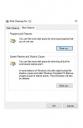
I'm pretty sure I have never tried to save to the "I" drive, but I did double click on it to see what was on it since it was showing as near full. When I openned it, it says, "This folder is empty" (2nd uploaded jpg in the opening post).
Here's a more complete screen shot. I think the "I" drive may have always shown up under "This PC", but the red bar wasn't as long and I wasn't getting the message that I was running out of space.
It's showing as "Local Disk"which means that your computer now considers it a regular hard drive on your system. Either you changed something or a program changed something or Windows 10 changed something, because recovery partitions don't show up under devices and drives. If you can see the files on the drive (don't try to run any of them, just look at what's there): is there a Windows.old or a folder similar to that? If you didn't do a clean install of Windows 10, your old Windows 8.1 install has been stashed somewhere. If it's not on C, maybe it's on the I drive. Either way, you may have lost your recovery partition.
Laurie
Nothing shows up when I look in the "I" drive. (Uploaded a more complete screen shot below than what I did in the opening post.)
Looking in my "C" drive, there's Windows, Windows.old, and Windows10Upgrade
Ok, then I don't know what to tell you. I don't think any of us can because we weren't there and didn't see what was done before your problem started. Might be something that happened when you installed Windows 10...maybe you hit a checkbox you shouldn't have or missed one that you should have, but any of that would just be a guess. Sorry.
Laurie
If your login account is not an administrative account you may not be permitted to see the contents of the drive.
I don't have windows 8 anymore so I can't verify this on Win8 but there has always been a way to see a little more information about the drive via the "Administrative Tools"-->"Computer Management"-->Storage"-->"DiskManagement" dialog. But you can't see that information unless you're logged in as an administrative account.
Hang on, I'll be back in a few minutes with further info on what it is you can see in the "DiskManagement" dialog (I have to login in as an administrator on my Win7 or one of my Win10 machines) ...
OK, I'm back. The image below is a sample of the DiskManagement dialog from my Win7 machine. You can probably find it easiest by searching for "Administrative Tools" and then following the path I outlined above. Or you can go to the "ControlPanel" and find it somewhere in there.
The dialog shows how each physical drive is partitioned into logical drives, their sizes, their types, etc. On my Win7 machine I have two special partitions, the 100MB one named "SYSTEM" at the front which doesn't have a drive letter assigned to it. And the 12GB partition at the end of that same physical disk called "HP Recovery" which is assigned as drive "D:". It's been a long time since I worried myself with the contents of those mysterious tiny partitions at the front of a drive but I suspect they do not contain standard Windows filesystems but do contain other special information about the disk or computer manufacturer "secret" information and any good hacker could probably spend hours explaining them but it isn't stuff you're interested in.
I suspect that your mysterious "I:" partition is like my "SYSTEM" partition but has somehow been assigned a drive letter but has no information readable by standard Windows drivers, whether you are an administrator or not.
If you are able to find your "DiskManagement" dialog that might give you a clue. But don't be tempted to use the DiskManagement dialog to change anything. Very easy to shoot yourself in the foot.
From what I can see, everything is labeled as Healthy.
Disk 1 to 4 are labeled as E to H. No "I" in Disk Management.
I think I'll call the manufacturer in the morning and see if they can shed some light on this.
Thanks everyone for your imput.
I'll let you know what I find out.
Hmmm..., Is this possibly a malware phishing attempt? (i.e. There's something wrong with your computer, click here and we'll scam you out of your money.)?
Have you tried showing hidden files and folders, and unhiding the system files? "View" tab > "Options"; in he Folder Options dialogue, "View" tab, select "Show hidden files, folders and drives" then uncheck "Hide protected operating system files (Recommended)". Click on "Apply to Folders". This should allow you to see any hidden folders or files on the "empty" drive.
I called the manufacturer. Even though I didn't expect them to fix it since my computer was purchased 4 years ago, I was hoping to get some insight from them. But tech service just wanted me to buy a 1 year warrenty for $260.
The issue seemed to have auto-corrected itself. I'm no longer getting the Low Disk Space message, and the "I" drive no longer shows up in Devices and Drives.
Before it disappeared, I did go into View>Options>"Show hidden files, folders and drives", and uncheched "Hide protected operating system files". The hidden files that showed up were "Recovery" and "System Volume Information". Then I re-selected everything to its original setting, clicked Apply, turned off my computer, and restarted it the next day. Maybe unhiding and re-hiding toggled everything back to where they're suppose to be.
I'd say that is the important part here.
Seems Dell set up Your PC to use an "I:" partition as the place where Windows stores it's recovery data.
With a lot of installing and de-installing there will be many recovery points set, which, sooner or later, take up a great mass of MB. Not sure if windows is doing it wth Your "rotating of working DAZ files", but I can't really think of another reason.
Just unhide the drive and system files on it and check how many recovery point files are there, from when they are and how big they are. That should give you an estimate when You will run out of disk space again.
I would guess (!) that sooner or later after installing stuff (or "rotating files") that "not enough disk space" message will reappear.
Solutions would be to either adjust the size of the "I:" partition as an administrator to a GB or so or to delete some of the oldest restore points. The second option might be considered risky, if there is important data on the PC that can't be recovered by any other means.
I was going to say Windows will auto-delete old restore points and maybe that's why the error went away
However, Windows doesn't use the recovery drive for restore points. The recovery drive is to reset the entire PC back to factory and so holds the packaging to reinstall the original windows that came with the PC and any default software.
Hmmm... The partition is only 500 MB. For a modern machine that's just a couple of big pictures. Yes, perhaps it holds the Factory Original operating system "Factory Recovery Image" that can be recovered to set the machine back to time zero as defined by the machine manufacturer as it came from the factory. But I wouldn't expect that it would hold the "Restore Point" files that accumulate system changes over time. Those are a standard Microsoft thing kept in standard Microsoft filesystem locations.
I could be wrong, it's happened once before, but I wouldn't recommend deleting anything from that partition on an experimental basis. Changing the size of the partition would also fix the warning issue but unless you're familiar with changing partition sizes especially the "special" partitions near the front of the drive I'd leave that to qualified personel. In any case, I wouldn't do it without complete proper backups of EVERYTHING!
It's apparently a partition that was originally very close to the "Full" point and perhaps with operating system upgrades and new software there was just enough change in how it calculates the tipping point, that the system has now tipped to calling it "full". But if it still has approximately 10% space left in that partition then you're probably OK. If you notice the space getting smaller over time, worry about it then.
Sometimes it's just better to not fix things that aren't broken.
PS: In fact, in the back of my mind I think I've had this same issue on one of my machines. One day I just noticed that a small system or special partition was showing as red in the "My Computer" folder. I ignored it and was never bothered by it.