SOLUTION INSIDE: Using G3F skins on G8F - Xparent Pixels
 xyer0
Posts: 6,507
xyer0
Posts: 6,507
nicstt gave me his solution, which I have copied and pasted here for other wayward travelers:
Load the G3 character I have saved with the texture set on it.
Save a shader preset (I select the torso).
Save the material preset (excluding eyelashes)
Save the material preset (eyelashes and moisture only)
Apply them to G8
I also have a default G8 character saved without textures and shaders setup to be close to what I start with.
Here is my original post: I read somewhere on the forum about the black speck phenomenon occurring using a user-made dual lobe script, but evidently there is more to using G3F skins on G8F than simply applying them. I've been reading so much forum stuff in the last two weeks that I cannot remember where/what/how this is done.
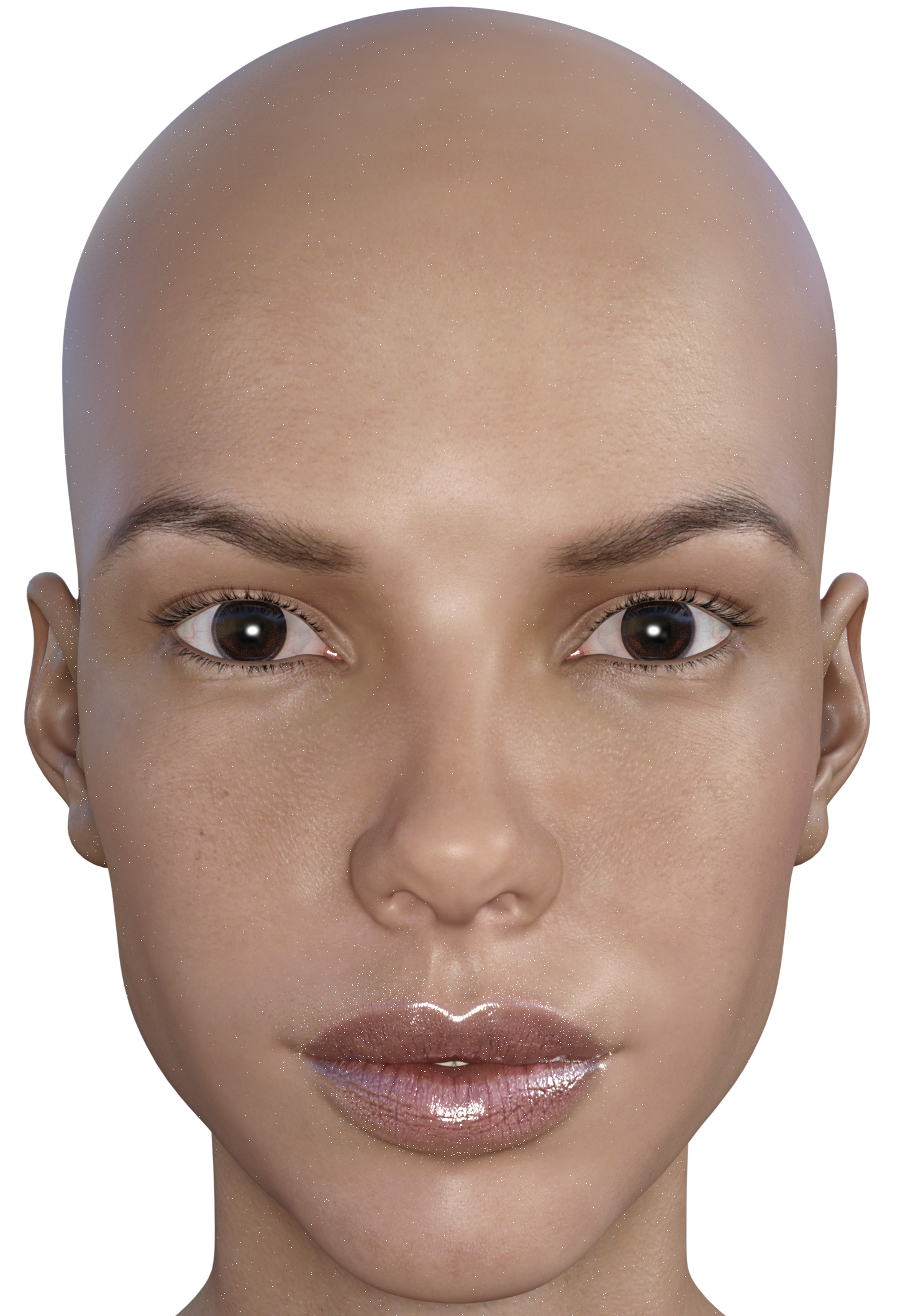
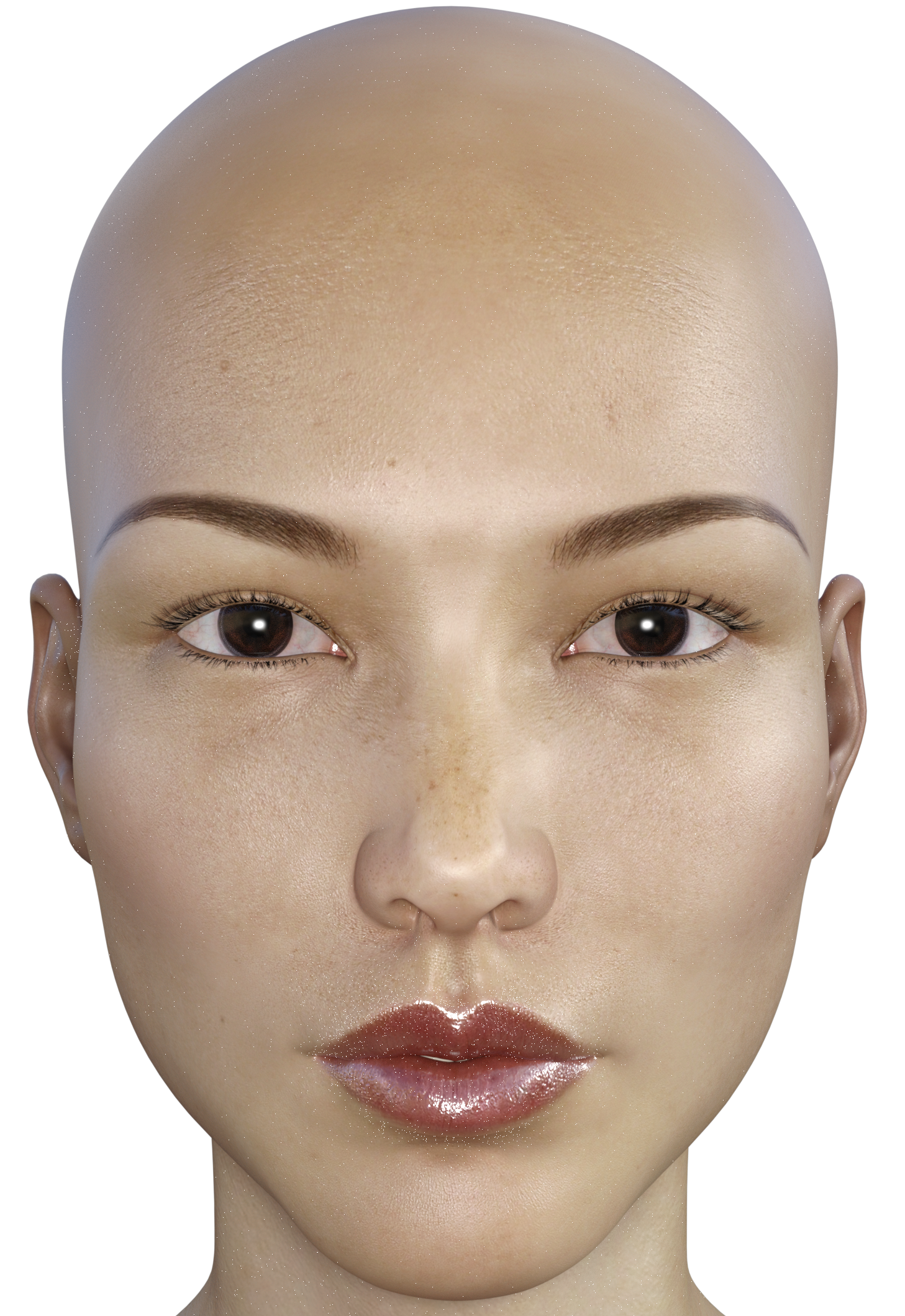
Specifically, I was applying Raiya's G3F skins to G8F to mimic her promo settings so I would have a quick access default render for comparisons. But I get tiny black specks around the mouth most noticeably, but elsewhere as well. The black specks appear white on the included images. Any tips, detailed instructions would be much appreciated.

Daz 3D is part of 
Connect
DAZ Productions, Inc.
7533 S Center View Ct #4664
West Jordan, UT 84084
Licensing Agreement | Terms of Service | Privacy Policy | EULA
© 2026 Daz Productions Inc. All Rights Reserved.
Comments
Good question. I've been wondering that myself.
Darn! I started to just direct message you because I was sure you knew how to do it.
I have no idea how to solve the problem, but I do know those "black" specs are individual transparent pixels. The (current) background for images on the forum is white, and that's why the specks are white when you post the images. Pull your png image into any photoeditor, add a layer underneath and apply color. Whatever color you apply to the lower layer will show through. I read about this somewhere on the forum, not sure where, (maybe the V8 thread?) and I'm just passing on the info. (Though I did verify it first!)
Thanks, L'Adair. I figured as much because the default background for .png's is black on my desktop, but the checkerboard transparency shows on the forum. Funny, I saw tons of G8F renders with G3F skins on the forums, but I didn't notice the see-through pixels. I guess some enterprising person will have to sell a convertor. However, this has effectively stalled my G8F progress until Raiya or Saiyaness release a character.
There has to be some way to fix it in the settings. It's really weird and I don't know the cause of it.
Maybe the solution is found in hidden properties, say, income generator opacity.
LOL... That's seriously funny
Okay... I went looking for the thread where I read about the specks, It's not the V8 thread, but this one: (Script)Apply dual lobe features to pre lobe G3 skins. It's currently only three pages long. Maybe you can find something in there that will help...? (Fingers crossed.)
Yes, thanks again, L'Adair. That's the one I mentioned in my OP, but I could not find an answer there. I'm going to work on constructing sets and wait for the Genesis 3 Power Pose template while I put G8F through her paces.
I think the problem lies in DS 4.9.4 - just upgraded to be able to test out G8, and some older G3M with Zev's growing up mats show the same 1-pixel size "holes"
Her new script seems to fix the issue: https://www.daz3d.com/forums/discussion/comment/2571456/#Comment_2571456
Not by much.
I've been copying textures over; but then, I never just apply them when I'm using them on G3.
My process is:
Load the G3 character I have saved with the texture set on it.
Save a shader preset (I select the torso).
Save the material preset (excluding eyelashes)
Save the material preset (eyelashes and moisture only)
Apply them to G8
I also have a default G8 character saved without textures and shaders setup to be close to what I start with.
- I'll just load the appropriate textures here, but it is a little more work than just clicking.
This is one I just finished transferring.
An older Teen Josie7 textures, which are great textures; they need converting to base female first.
Next post contains three images of one I transferred by saving and loading as described above
You'll notice the eyebrows are off, which is due to me not adjusting the ones I use to the correct shape (They have lots of custom morphs unlike the ones provided for G8).
And I tweaked the shader 'colour' in the final image.
First image G3, next two are both on G8.
Thanks @nicstt for listing your process. I will put this to work immediately. Have you posted this elsewhere? Is this common knowledge amongst the Dazophiles?
The easiest way to change the textures and settings from G3F to G8F is to save the G3F textures/settings as a Material Preset (select the G3F then go to File >> Save As >> Material Preset and name it whatever you want). You can then add those mats and settings to G8F by highlighting your G8F then double clicking on the newly made Material Preset (found in your library under Presets >> Materials and whatever you named it).
Yup. That's what I did. Thanks. Now I'm rendering so I can see if I have see-through pixels.
Whoomp! There it is! Thanks everyone and @nicstt for your help! (The eyes are jacked up because I was doing a parallel experiment with EYEdeas 5 which has not yet revealed itself).
Wow! That skin looks great! :D
You're so sweet. Thanks, but it's all due to Raiya, the queen. I've found that the less I do, the better I like the results.
Hah, I managed gradual disappearing act.
lol Freaky. That might make for cool settings for a ghost type character.
Glad it helped.
I have posted elsewhere, and I have seen one or two others post too, but no idea if common knowledge.
I've seen some posts by some apopleptic newbies who would really appreciate if Daz pinned this info, if they haven't burned their Daz cards, that is.
There is another way too.
It is quicker, providing the shaders match on the source and destination figures.
I use NGS Agenessis2 for most of my skins. I said above I have a textureless character.
So providing they match, it is possible to copy and paste between them; just highlight the appropriate material zones, and copy; then onto G8 and highlight the same material zones and paste. It is - incidentally - possible to copy from G8 to G3 too.
(In both cases just remember that the eyelashes are separate and that both main character and eyelashes both have the moisture zone.)
If they don't match shader-wise, there may (or may not) be issues.
@nicstt, Thanks, that is a useful tip. I will be using that as much as possible. Since you use NGS2, do you know of a solution for the orange peel nose tip? Even with the low Pores utility, I get that on some older skins.
Aren't you getting white seams on her back, between torso and arm surfaces?
Edit: Nevermind; only G3F UVs work, of course.
Works like a charm, thank you very much!