Need Help with the Viewport
 FeralFey
Posts: 3,948
FeralFey
Posts: 3,948
Hey All,
So I have a problem. Well, I have several problems, one being a cat - a cat who loves to jump on my keyboard. Shortly after I got my new laptop and I installed DS, he jumped on the keyboard and did something that changed how my viewport behaves. I can no longer see the entire area inside the white box - which is a real pain the patoot when it comes to rendering my thumbnails, WIPS, and other promo art. But I managed to adjust by lining things up in the Auxiliary Viewport.
This was a passable situation until yesterday when I started working on an animation sequence. When pulling up the timeline/animate/keymate/etc tabs, it cuts further into my viewport space and it makes it very difficult to see and adjust my figures. I either have to rely entirely on the Aux Viewport, which is too small to catch the details I need to, or I have to close down the animation tabs - but even then I'm not able to see the entire scene because of the previous blocked view issue.
So, I come to you all, asking, nay, begging for help. How do I get my auto-scaling viewport back. Or at least get it so that the entire viewport is visible at any given time?
I'm enclosing a screenshot, which should hopefully illustrate the situation better. I apologize that I'm not able to embed the larger image in this post, as I'm not exactly certain how I do that. (Tips on that would also be appreciated.)
Thanks in advance for any assistance you can give me.
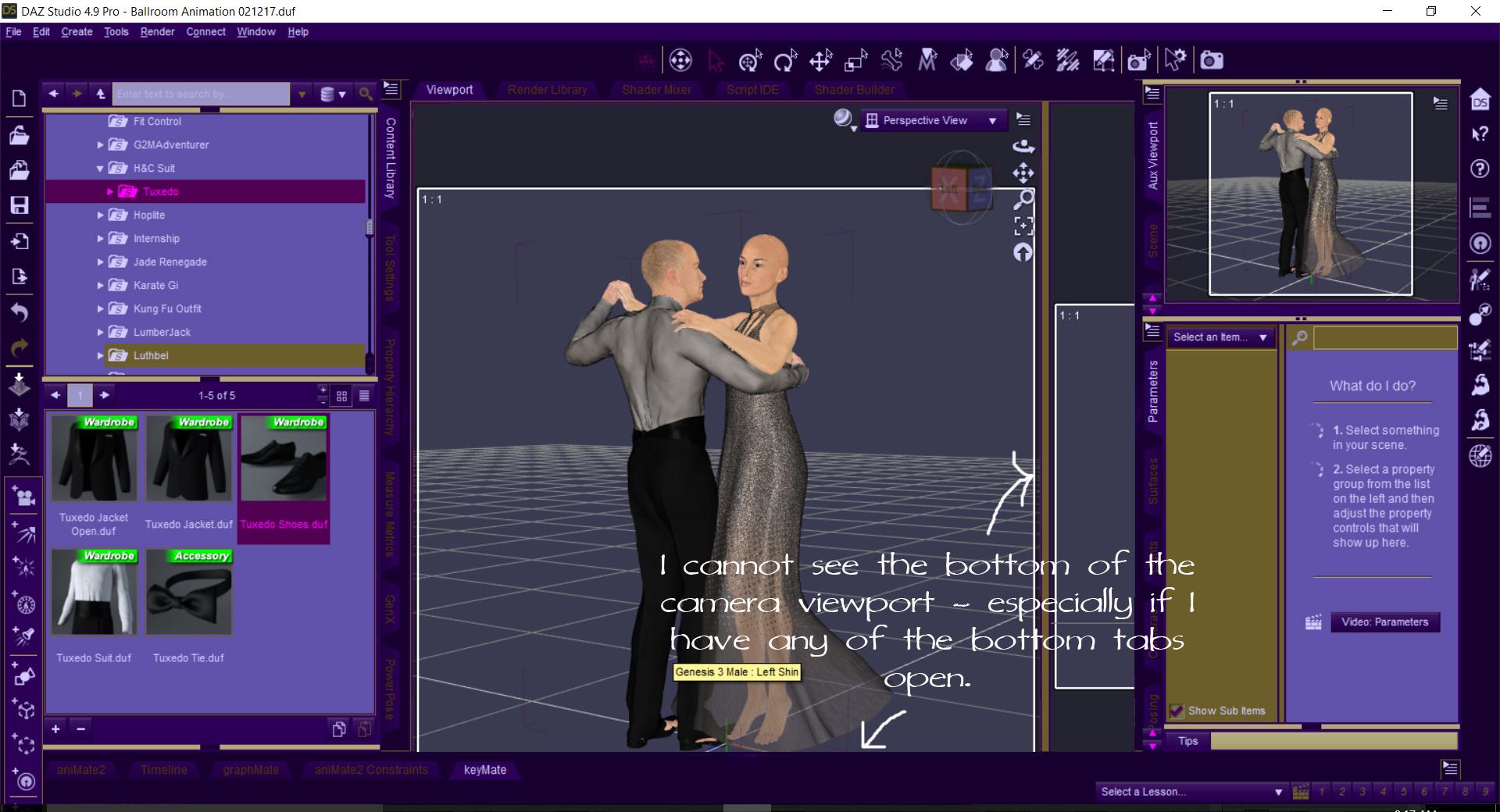
Edited to add: Thanks for the advice on how to add my attachment inside the post. Awesome!!

Daz 3D is part of 
Connect
DAZ Productions, Inc.
7533 S Center View Ct #4664
West Jordan, UT 84084
Licensing Agreement | Terms of Service | Privacy Policy | EULA
© 2026 Daz Productions Inc. All Rights Reserved.
Comments
My suggestion would be to reload your workspace layout. Window>Workspace>Select Layout. If you previously customized your layout, I hope you saved it with Window>Workspace>Save Layout As...
Here's a tutorial on embedding an image into your post. In addition to the information in this tutorial, I recommend that on the last page, you Click on target and choose to display the image in a New Window (Blank).
Close the Shader... panes that are docked with the viewport - this is a known issue and probably not the cat's fault (on this occasion).
Can you drag the dock area divider (the line on the right your arrow points at) to the left just a little bit, to make the entire 1:1 viewport box slightly smaller, which will pull the bottom of it upwards a little bit?
To embed an image in a post, click on your tiny image and copy the address bar location in your web browser. Edit your original post by click the gear icon to the right of your post that appears when you hover over it. Click the Image icon from the toolbar to add an image, paste the copied image location into the URL field. Change the width to whatever the maxium is for the forum (I forget, but think maybe 600?) so that your image if larger than that doesn't get distorted (the forum reduces one dimension without adjusting the other dimension to match.). You may then want to drag your image down past your text and hit enter after the end of your text too.
Bless you, Richard. That did the trick. However on first try, I accidentally clicked on the main tab bar (not the individual tab for the Shader Mixer) and the whole viewport et al came undocked and I don't know how to redock it. It doesn't give me that option. *puts on extreme frowny face*
How would I get it back, docked in place now? Aside from reloading a layout (and no, barbut, I had not saved my layout. Mainly because I was convinced that the cat had done something and I didn't want to save Pippin's error. Sigh... But once I get things back in order, I promise to do like you suggested and SAVE my layout.)
I also want to thank you all for coming to my rescue. I've been spending a bit of time in the new users forum, helping others of late. And it was nice to know that you all were here to help me. This is one of the reasons why I love this community so much. You guys rock!
If you drag by the top frame of the pane it should show a line of the highlight colour when at the top of the empty space, drop it then.
Whew! Glad I'm not the only one who ran into this problem. I did a Google search for "daz studio auto viewport" and it lead me here. I'm not sure how it knew but thanks for the information Richard!
This has been reported? I also noticed that once I moved the tabs out of the view area, I couldn't redock the toolbars anymore when I tried to move them. I had to reload the layout, move the toolbars first and then move the tabs again.
Docking is pretty much non-functional after version 4.8, it won't be fixed as far as I can see due to it not being a priority issue...It was introduced when they re-did the UI to adapt to scaling for 4K monitors, and just like the micro-font, this issue is here to stay...I only say this as a motivation for the developers to prove me wrong, which I sincerely hope they do!
EDIT: Thanks for proving me wrong!
Docking is working normally for me - however, if you make a floating pane or group non-dockable (to give a window you can drag out of the application) you do need to close and reopen to get the normal behaviour back; however, as long as your pane/group has the usualy thinner border and top bar it should be dockable as link as docking isn't locked in Window>Workspace.
Thanks for that bit of info, I'll give it a go! It's always great being proven wrong concerning negative circumstances!
Suggetion: Kill the cat.
Now what did I do?
DS 4.10.x.x has chnaged some aspects of this - see under General User Interface in the opening post of https://www.daz3d.com/forums/discussion/203076/daz-studio-pro-beta-version-4-10-0-101-updated/p1#top
Thanks again, just gave it a go and it works magnificently! Danm it's good to be proven wrong!
Yea this behaviour of the pane/tab groups getting undocked tricked me once but never more.
Also as you see on my ScreenShoot ShaderMixer/Builder is beside the Viewport pane group and the 1:1 aspect Render Frame dosnt resize with them in the same group - today im wiser - I wonder why this is still the default City Limit Workspace Layout in actual DS?
I had that same issue as I tryed to place the timline pane at the bottom. What did the trick for me was that I grabbed the top edge not the pane/tab title for the next drag&drop to dock the pane/tab group again.
See my post @ How to dock the timeline at the bottom ?
Once everything is in place you can lock the drag&drop of the Workspace elements @Window>Workspace>Lock Dockin/Undocking Ctrl+U. And take care of your cat - maybe just needs more attention.
Let me see if I understand what is suggested concerning undocking all panes and then docking each to the Viewport window. Before I do. I wish to esxplain how I had it set up before my problem arose.
My Viewport window is the main window were all content that is loaded can be viewed. (I'm sure you know this, but I include this info just in case someone doesn't understand.) On the Left side of the Viewport Window I have four tabs docked: Smart Content, Surfaces, Shaping, Posing. On the right side of the Viewport Window I have four other tabs docked; Scene, Content Library, Parameters, Tool Settings. Each of these side tabs open different windows for performing specific types of tasks.The top of the interface has the 8 main menu headings; File, Edit, Create, Tools, Render, Connect, Window, Help. Right beneath that, but still across the top, are the main tabs; Actors Wardrobe and Props, Pose and Animate, Lights and Cameras, Render; in the left part of that particular bar. In the right side of that same bar is The DAZ 3D Logo, Home, My Account ,My Gallery. In the next bar just under the one I just described is the Special Tool Icons that can be clicked for particular tasks. So there are three bars across the top of the interface. In addition is a single bar across the bottom of the interface, with just the Select a Lesson Dropdown menu bar, and a tiny window with squares next to it numbered from 1 to 9. I'm sure most here know about how all of this works. I have enough room on the vertical Tab Bars to add up to 2 more tabs each, should I have the need for them. This is the way my DAZ Studio has been arranged for about 15 years.
So, from what I have read here, I need to make sure my Viewport becomes the central area of my interface, and the way to do it so that the viewport window auto scales as I open a tab from either side, is to have all the other windows undocked, and then dock each one to the side of the Viewport window I want them docked to. Like for instance, I should first dock the Smart Content tab to the left side of the Viewport Window, and then do the same for each of the tabs I want on that side, which are Surfaces, Shaping, and Posing. Next Do the same again for the right side of the Viewport Window, docking each of the following one by one; Scene, Content Library, Parameters, and Tool Settings.
So my next question is now this: Do I have to dock the bars across the top and bottom in the same manner? Or do those bars remain in place? I do know that the best place for the Animation related tabs is the bottom of the Viewport Window; but as I don't normally do animations, I don't really need that in a permanently docked position. So If I want to use those features, I only have them docked for the duration of the work I am doing along those lines. The same is true for the other side tabs I rarely use. That however is going to change soon, as I have some of my own models that I wish to rig for use in DAZ Studio, and I want them to have moving parts! To be successful at that, I am in need of a more complete explanation of rigging a product, and getting DAZ Studio to permanently Memorize the rig, so that they can be offered up for sale.
One of those products at least will be something many folks wouild love to have! All I'm going to say about it is that it will be an attachment made to be attached to human, and other figures, and I plan to adapt it to fit multiple figures. All the work from Modeling, UV Malpping, Making Textures, Rigging, and making Pose Presets will be done by me. I know exactly how I want it all to work. I already have the model made, and the UV mapping done. I just have to get the rest of the work completed, and then begin adapting the model to the different figures. I will even adapt it to certain animals, plus fantasy creatures of nonhumanoid form. You want to know what it is? That shall be a secret until I can get it released for at least four different figures, two male figures, and two female figures!
The Activity bar (the tabs for different rooms) is enabled/disabled at the bottom of the right-hand side of Window>Workspace>Customise, with the Activities tab active - you don't need to use it at all, if you don't switch it is redundant and if you switch only occasionally you could just save each activity tab as a separate layoutand load them through Window>Workspace>Select layout. The Activities tab of the Customise dialogue also lists, under each activity, al the toolbars and you can togle them on and off from there. You can also show/hide toolbars and the status bar (the thing with the lessons button, a mini-progress bar for background tasks, and the hints for menus and buttons you hover over) from a right-click on any toolbar or the status bar in the main application.