How to avoid Geograft seams showing?
 3DthiSS
Posts: 146
3DthiSS
Posts: 146
in The Commons
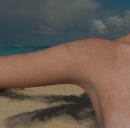
been using the legacy uv's for GF 3 and have a problem with the geograft seams showing....this example is the V5 Valerie skin but this happens with the V4 and GF 2 textures as well....I really like the idea of using the older textures on the GF 3 figures and am hoping to solve this issue....any ideas?
thanx
V5 Val.png
712 x 700 - 538K

Daz 3D is part of 
Connect
DAZ Productions, Inc.
7533 S Center View Ct #4664
West Jordan, UT 84084
Licensing Agreement | Terms of Service | Privacy Policy | EULA
© 2026 Daz Productions Inc. All Rights Reserved.
Comments
It might just be UV settings on the surface. Make sure all the UV Sets are the same on all the skin surfaces on both G3F and the geografts.
The problem could also be bump map, normal map or displacement settings. Double check those as well. Make sure the all have the appropriate maps and the same settings.
Sometimes a difference in normal and Bump Maps can cause that issue. Try turning those off to see if that is the cause.
thanks for the replies
have trippled checked the uv settings and have made sure the settings in Reality are the exact same for the geografts and the GF 3 ....have tried turning off bump as well and the seams are still showing.
Also check displacement.
the textures I've been using don't employ displacement.
Could be a Reality issue then. I don't have that.
One thing that I know affected AoA's shader and also some LuxRender materials, via Luxus in my case, was the displacement settings, even if you don't have displacement maps. Make sure the min and max on displacement are set to zero, even if you don't have a map.
As I said, I don't have Reality. If it isn't something mentioned here, Reality *might* be having an issue with those Geografts.
also check the gamma settings on your greyscale data maps( image editor in Daz Studio). all your greyscale maps should be set to 0.00 gamma( Normal maps should be set to '1.00 Gamma' ( huge thanks to a great person 'Elliandra' for that little tip, she saved me from going bald over seam issues on a product, lol! )
I believe earlier versions of Reality had problems with geografts, but apparently from version 4.0.7.61 these have been fixed. I only have an older version of Reality so I could reproduce the issue, but I cannot myself confirm the effectiveness of the fix. However, 3dLux has posted an image using the geografts in Reality 4.1.
Are all images the same size? I've had occasional issues when they are not. I mean the diffuse is 4096 for example, and bump might be 3000.
Also go into surfaces, and open the image editor; Image Gamma is often the cause of issues. You need to compare it will all the other slots; they should all be the same - usually what the image below shows, but make sure if you find different.
The image you post suggests it's other than something like Gamma though.
You might want to ask this over at the reality forums, Paolo is usually pretty quick to answer but theres also a community there that is generally quite helpful. http://preta3d.com/forums/index.php
This fixed my seams issue. Thank you (and many thanks to Elliandra too)!