A broken neck texture... (poser pro 2014)
 Upirium
Posts: 730
Upirium
Posts: 730
This is a bizarre occurence I can't quite figure out.
I have sort of corrupted one of my figures lately (he crashes everytime I use him with clothes, so I'm moving everything to the fresh G2M)
I'm using Male Model texture that I've edited to suit the figure.
On one side it works
on the other, it doesn't...
Same texture, same morphs active on both of them
but there's this weird white seam in the neck on the second one.
I even zeroed out the only really bizarre morph I have (it's from GenX, thought it might be a problem) but the white was stil there
Aditionally I even loaded the skin by itself from the library but the white seam was still there.
Why is this happening?
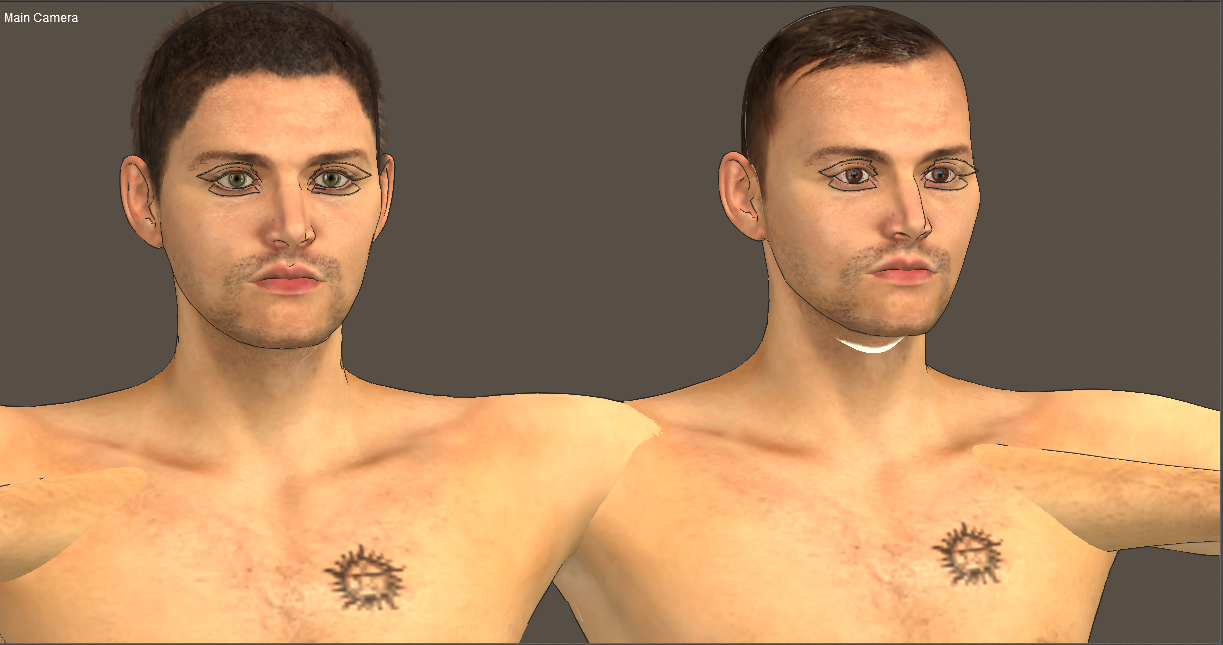
Update:
To test things, I loaded him again, rendered him, found the white area still there. I put another skin on him. No white spot.
I put the skin back on him; the base skin, the one that I haven't edited. The white spot returns.
I started a new file, I loaded G2M, I applied the skin, the white spot is there again.
Someone please explain to me why this has happened.
Why this skin worked a few months ago but has now somehow broken
I've done nothing to the file itself. There's no reason for it to be like this.

Daz 3D is part of 
Connect
DAZ Productions, Inc.
7533 S Center View Ct #4664
West Jordan, UT 84084
Licensing Agreement | Terms of Service | Privacy Policy | EULA
© 2026 Daz Productions Inc. All Rights Reserved.
Comments
I have no idea how to show UVs visible in DAZ Studio but if it's possible to reveal the UV outlines in DAZ Studio then that might tell you the problem.
That's a Poser shot...
Oh, so it is...
That looks like a preview rather than a render. I occasionally get a problem where the texture looks bad in preview but renders correctly. I haven't figured it out either, though looking at the mesh in the preview is something I hadn't thought of.
I see wierdness in the daz preview for iray. An outfit might look fitted just right in the preview, but it will have poke thru in the render. Not always, im sure there is some characteristic of the outfits that trigger the issue, but...
It could be displacement on the figure texture or HD morphs.
Have you checked that its using the correct UV?
I would double check the UV it's using, and I've notied in Poser that at times you will get white lines in the preview on certain models/UV Maps. Best thing is to render it and see if it's still there. 9 times out of 10, it won't be when it renders. If it is, check the map against the UV map in a program like Gimp or Photosop and see if copying the texture a little further down the neck area will fix the issue.
it's using the EXACT same texture as the other one though. I can't figure out why it would even be doing this.
How is it that it works on one model, but not the other, even though they're the same?
Have you checked that it's using the correct UV's? The recent figures have multiple UV's that you can choose between, to minimize stretching on extreme characters.
The Genesis models can have alternate UVs, as others have asked, are sure the two models are using the same UV sets?
Using the same texture doesn't necessarily mean it's using the same UVs on each figure.
I can't imagine what the difference would be? I simply loaded G2M and applied the skin.
Granted I did copy and paste from the other character from the material room because it's easier than loading all the pics again into material room as I usually do, but they are still using the same skin...
But I know for a fact that I did the same here. I loaded the G2M skin onto him.
He USED to have an M4 skin, but doesn't anymore.
Shouldn't a G2M skin work on G2M, even though it's been altered slightly?
Now even the skin itself alone has issues with this character. It doesn't make any sense.
and alas, it is NOT a preview issue
In any rate, is there a way I can check if they have the right UVs? And is there a way to reset them without starting a new copy of G2M?
I spend literally all day working with this one. I do not want to do it twice.
Under the Figure Menu, at the top, change the "Figure Skinning" and see if you get a different result.
If this is a "traditionally grouped" figure, and I don't really know, since I haven't used G2, then Poser will sort of "anchor" the vertices of bounded groups to prevent seam-splitting between groups. (It sort of dupes verts to do that in fully welded, yet grouped, objects.)
What can happen when certain sort of morphs are applied is that, depending on the Skinning Method, you can end up with an extra set of verts during some morphs. It all depends on the morphs, really. Try different skinning methods and, if this doesn't correct the issue, use the Morph Tool to bring that geometry back down to where it should be. (It's probably using the base "Diffuse Color" for those faces and not the padding area or background color of the actual texture.) If you find it is using the background color of the base texture, then you need to add some padding area around the texture region, itself. (ie: Using Photoshop or Gimp, clone-brush around the edges of the face texture to extend them a bit to cover faces that they are not covering.)
You may have better results if you apply a ready-made texture pose for that texture instead of cut/paste. (It may help compensate, but I don't know that it will.) Also be sure that both the U and V scale are set to 1 in the Image Map box for the texture in the Material Room.
PS - And, another thing :) - Check to be sure that the seams between the neck and head group in G2 aren't truly split in the original model. I can't check because I don't have it. Just load the base original figure from your library and apply the "Smooth" brush action with the Morph tool to that region at a high setting. If a split seam developes, then the geometry was likely split to begin with and it might be causing issues. Rigging deformers/joint settings could be contributing to the issue because of this.