-
Proposed workflow for V4 -> G8F migration
Having been at this since 2010, I have tons of V4 characters and texture sets that would be nice to use on G8F, including some heavily dial spun OCs. This would also work on G2F. (Not doing much with G3F ATM.) I have the following in the toolbox:
https://www.daz3d.com/rssy-3delight-to-iray-converter and https://www.daz3d.com/iray-converter-for-generation-4 also some freebie Iray converters
https://www.daz3d.com/legacy-uvs-for-genesis-8-victoria-4 and https://www.daz3d.com/victoria-4-for-genesis-2-female
https://www.daz3d.com/headshop-oneclick2
Here's the proposed work flow:
1. Go back to the original V4 character
2. Convert texture set to Iray (already done in several cases)
3. Render a head shot in a zero pose with no hair, then close V4 scene
4. Load up G8F (or G2F)
5. Apply V4 Iray texture using appropriate UVs
6. Use HeadShop OneClick2 to create a head morph for G8F (or G2F) using the rendered head shot of V4.
7. Dial the body to a close match for the V4 model.
I spent a ton of time dial spinning the heads on some of my OCs. The body shape tends to take a lot less time. If I can migrate the heads using HS, then just apply the Iray MATs, the rest is cake. Comments? Suggestions? I know there are limitations with HS, and a few bugs, but with proper care and feeding, it can produce results. I also have a couple of V3 texture sets already migrated to V4 using the old Texture Converter 2 product no longer in the store. I actually use those on G2F now. I think this flow opens up a lot of possibilities.
The return of Genesis 1?Way back in time, Stephanie was a morph of Michael, if I'm remembering correctly. And there was the Vittorio male morph of Victoria.Stephanie (1) was the Michael mesh, but not a morph - it was shaped and rigged to match Victoria.
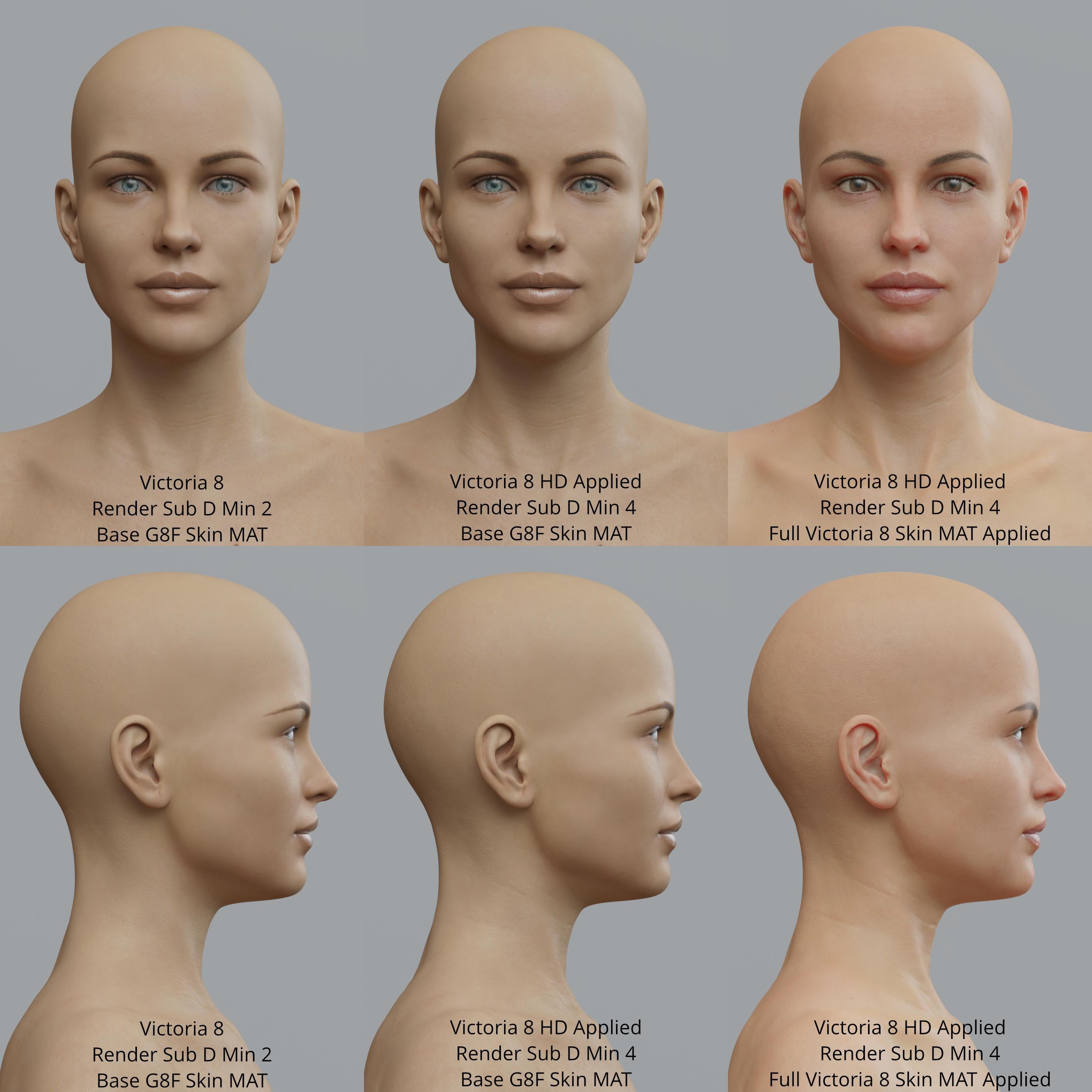
Genesis 8 Female example and improvement discussionHere is Victoria 8 and Victoria 8 HD.
 The return of Genesis 1?
The problem with the G1 series is not the figure itself, but how it was supported.
In the end, it is not the quality of a figure that makes it a success or not, it is the amount of support that it gets that makes it a success. You can see that with the plethera of new figures that came out for poser over the years. The figures may have been decent enough (which I am sure many would argue), but the point is that they never got the supporting products like you get for figures here. That si why the genesis lines are successful.
But with Genesis 1, the problem was with things like clothing. You woudl make male clothing, and then people would demand that it also work on the female version, and then vice versa. Which really didnt work out so well, and we ended up with boring designs that were geneder nutral and had limited appeal.
A single base figure sounds good in theory...and was good for a creature maker like me, but like vhs and beta, the end of the line economics of it showed it being a flawed idea.
The one big plus for Genesis 1, was once you were able to port morphs over from Victoria 4/Micheal 4 you were set, as it was difficult to tell the difference between the Genesis 1 version and the Victoria 4 original.. Also the best part of Genesis 1 was complete compatability with Victoria 4/Michael 4 textures.. No need to jump through multiple hoops, buying extra plugins to be able to use the textures..
DELETEI've had an HTC Vive since 2016, before that I had the Oculus devkits (both 1 and 2) and I'm planning on getting the Valve Index next year. I actually got into DAZ after seeing someone's VR project using Victoria 6. When I first got my Vive I tried a few experiments with importing figures into Unreal engine, but the workflow was pretty complicated and I couldn't get it to work too well at the time. Might be worth trying again with VR Model Viewer, hmmmm...
i have VR model viewer and it's fairly simple..I installed both Unity and Unreal for the same purposes, to use the DAZ figures in VR and agree about the workflow being a pain. what exactly do you want to do with the DAZ figures?
I used VirtAMate and did this animation in 15 minutes https://mega.nz/#!pt52iKqJ!vXg1qsbvWymmcS8Mu0PLuPz7AAJtwHICbMFfSW9Hf50
DELETEI've had an HTC Vive since 2016, before that I had the Oculus devkits (both 1 and 2) and I'm planning on getting the Valve Index next year. I actually got into DAZ after seeing someone's VR project using Victoria 6. When I first got my Vive I tried a few experiments with importing figures into Unreal engine, but the workflow was pretty complicated and I couldn't get it to work too well at the time. Might be worth trying again with VR Model Viewer, hmmmm...
The return of Genesis 1?Way back in time, Stephanie was a morph of Michael, if I'm remembering correctly. And there was the Vittorio male morph of Victoria.Yes, and the first Aiko (who also had a male morph, dubbed "Mako" by Xena) was a morph of Stephanie. Good times.

-- Walt Sterdan
The return of Genesis 1?Way back in time, Stephanie was a morph of Michael, if I'm remembering correctly. And there was the Vittorio male morph of Victoria.Backward CompatibilityIt means every Genesis 8 figure can use the Autofit function to wear garments and hair made for Genesis, Genesis 2 male and female, and Genesis 3 male and female.
There are some limitations though:
- Heeled shoes will not autofit correctly. (Here's a tutorial on how to make G3 heeled shoes work for G8.)
- Flowy robes, capes, and long skirts may not autofit correctly. (You may be able to make such items work using dForce.)
- Long hair will not autfit well (but it's very easy to make them work without the Autofit function, so no worries there.)Items made for Michael 4 and Victoria 4 will not autofit to Genesis 8.
However you can autofit them to a Genesis figure first, then autofit from Genesis to Genesis 8.You will be able to use G3 skins on G8, except the skins of G3 base figures (Michael 7, Victoria 7, Aiko 7... basically every figure that has a "7" in their name.)
Also, G3 eyes don't work properly on G8 (although again there are work arounds here as well.)Genesis 8 Female example and improvement discussionThese are Emrys characters for Genesis 8 female
Joss HD for Genesis 8
Julieta HD for Gabriela 8
Kassandra HD for Genesis 8
Katya HD for Genesis 8
Maarah HD for Babina 8
Makayla HD for Genesis 8
Matilda HD for Genesis 8
Melinda HD for Sydney 8
Neiva HD for Victoria 8
Nicolette HD for Genesis 8
Rana HD for Kala 8
Sabrina HD for Victoria 8See the full resolution on DA: http://fav.me/ddmysn1
Working With Victoria 4 in StudioV4 should work fine in DS, what kind of problem do you have exactly? Could it be a problem with limits, for example?
Body parts shoot all over the place. The limbs look like they're twisting inside out. I tried just the base V4.2 figure and it brought up a "power loader" menu, which my old Poser-built figures did not. So, it looks like I'll need to recreate my characters from the ground up. Which isn't all that horrible as I know most of them like the back of my hands.
Victoria 3 figures seem to work out of the box, so I'll just have to fight with IRay on those.
5'10" is really tall.I use the Scale slider extensively.
That being said, it scales EVERYTHING under the character. When you're dealing with Props that should be of a static scale (like a gun, cell phone, purse, sword, etc), then it gets slightly more complicated. Your big105% scale Christian 8 figure with have a prop at 105% scale, and your 90% scale Victoria 8 will have a prop that is 90% scale... even though they might otherwise be the exact same standard-size prop, like an assault rifle or an iPhone. (When you hand your iPhone to another person, it doesn't change in scale in real life.)
That's where you need to do some math to figure out what you need to scale your props to in order to overcom your base figure's scale. It's kind of a pain, but you figure it out.
Why there is no good looking Genesis 8 Female?I really like some Genesis 3 characters, but not as many Genesis 8. But, as another poster mentioned, G8 has more expressive features for the face. Overall, I would say she was "healthy" looking, but not a "beauty", not even pretty. Her jaw is overwhelming. But look at celebrities, well I date myself here, but say highly favored beauties like Grace Kelly and Elizabeth Taylor and Marilyn Monroe. They were all extremely different-looking women. With all the Genesis and Victoria models, I don't expect out-of-the-box beauty. I think it takes some time and skill to make a 3d virtual model with those subtlties that are the foundation of living "beauty". That's the challenge and the fun, for me.
XTransfer Module 1- Genesis 3 to Genesis 8 Morph Converter (Commercial)Hi Zev0,
I need your help. I purchased your X Transfer program and it keeps crashing. It worked on a couple of G3 figures (Victoria 7 and Bethany 7) but now it keeps crashing DazStudio everytime I use it.
Now I can't seem to add a 'Genesis 8 female character' onto the scene and it crashes DazStudio too.What do I do?
Working With Victoria 4 in StudioI'm putting this in new users as it should be something I already know, but...
Anyway, I just recently migrated from Poser to Studio. While I enjoy working with Genesis 3 and 8, many of my more popular characters are V4 based (well, Girl 4 based). Anyway, I can load a V4 character, but if I try to apply a pose all kinds of evil things happen to her. When I built my V4 library I was exlusively using Poser. Do I need to intsall support files in Studio? And if so, which? (Converting their textures to IRay is outside this thread and I think I already have the tools to accomplish that part of it.)
Thank you.
5'10" is really tall.Greetings,
I love Lyoness' characters more than almost any other provider of Genesis people. So many of them have great character, and are unique in ways that a lot of times I find lacking elsewhere, and Lyoness has one of my favorite characters of all time, Moxie Sparks. The latest bundle, Sterling's Nightwear, is great and includes some really useful clothes, along with good textures for it.
Like almost all DAZ characters, however, the main character is 5'10" tall. I don't mean to call out Lyoness...it's just a pattern across ALL characters that frustrates me. That's a half foot taller than the average US adult woman, and 7" more than what I can find of the average worldwide adult woman. Shrinking isn't just a matter of scaling down, as humans aren't...that simple to scale down. This results in 'petite' characters that are average height, or worse, much less Eva 7 who is advertised as 'petite' and is 5'11" tall. Even Teen Josie 8 is taller than an average adult.
Again, some characters who call themselves petite are at least a lot smaller, but even those are still just USA average height. There are some good characters (with great character!) who are a tiny bit shorter, but not many. And outside of explicitly 'youth' characters (4'9"), few if any are shorter than 5'3" tall, the worldwide average.
It's worth noting that Michael 8 and (randomly picked, Elios 8) are 6'2" tall, which is 5" taller than the average US adult man. Still proportionally less difference, but Victoria 8 is 6'0"! Diego 8 is only 5'10", the same height as most G8F characters, and only a sconce taller than an average guy.
I'm sure this is because DAZ's default G8F characters are 5'10"-ish, which is why almost every character creator goes with it, because making morphs that shrink the height is probably difficult. I'm guessing it compresses the texture wherever you decide to take height off, which can look wrong, especially because there was a backlash against custom UV sets.
I don't have a solution, other than using stuff like Growing Up which I know has proportional body scaling based on age/limb/torso length tables (but also has the tendency to de-age them slightly, at the same time, unfortunately), and I definitely don't want folks to go the route of not putting height in their character descriptions. I'd really like it if it were...easier to make average people, or even shorter than average adult people.
I'm going to go buy Sterling's Nightwear bundle, because it looks really cool, and has lots of utility clothing pieces, and don't take this as discouraging that at all.
I just want to encourage folks to make more average height or even shorter (since average means around half of folks are shorter!) characters, to capture the entire range of humanity, and if DAZ could find ways to encourage or help them do that.
-- Morgan
Genesis 8 Female example and improvement discussionThese are Emrys characters for Genesis 8 female
Aleena HD for Teen Jane 8
Amaris HD for Victoria 8
Caitlyn HD for Eva 8
Charlie HD for Genesis 8
Jennifer HD for Genesis 8
See the full resolution on DA: http://fav.me/ddmwi3d
[Released] Character Converter from Genesis 3 Female to Genesis 8 Female(Now Conv JCMs) [Commercial]Hello,
Are folks having success with this tool? All my g3 to g8 converts end up with bad eye distortion. After churning the manual and the entirety of this thread... I've tried all the {hide eyes, legacy, tolerance value tweaking, etc} numerous times and combinations. The results end up generally the same if I'm doing in scene convert, or character file convert scripts, which is squished eyeballs.
Is that the accepted result standard? I see people have posted some 'success' pictures to this thread, but mostly they are distance views, and maybe had some post work done.
I'm just trying to use it with general G3 female realistic human characters, no stylized, no creatures, etc.
Anyone have any suggestions or tips to resolve this? I just need to be able to have a normal g8 eyeball, and don't care about the g3 texture either. Or some manual steps I could do afterward to put in a proper eyeball?
I've attached some example results. If people say it works for them without eye squish, please give some character names from the catalog I could try.
Thanks for your help
It definitely works better on some characters than others, and some will work with a lot of experimentation. For example, Victoria 7 and Olympia 7 both converted with default settings no problem. Ophelia 7 took a lot lot lot of tweaking and what eventually worked was using the legacy method with 'hide eyes' unchecked and a tolerance of .0004. I've had the same problems as you with both females and males and I still cannot get Darius 7 to convert without that distortion no matter what combination of settings I use. My guess is that some characters just won't go.
Thanks for the help @melissastjames!
 [Released] Character Converter from Genesis 3 Female to Genesis 8 Female(Now Conv JCMs) [Commercial]
Hello,
Are folks having success with this tool? All my g3 to g8 converts end up with bad eye distortion. After churning the manual and the entirety of this thread... I've tried all the {hide eyes, legacy, tolerance value tweaking, etc} numerous times and combinations. The results end up generally the same if I'm doing in scene convert, or character file convert scripts, which is squished eyeballs.
Is that the accepted result standard? I see people have posted some 'success' pictures to this thread, but mostly they are distance views, and maybe had some post work done.
I'm just trying to use it with general G3 female realistic human characters, no stylized, no creatures, etc.
Anyone have any suggestions or tips to resolve this? I just need to be able to have a normal g8 eyeball, and don't care about the g3 texture either. Or some manual steps I could do afterward to put in a proper eyeball?
I've attached some example results. If people say it works for them without eye squish, please give some character names from the catalog I could try.
Thanks for your help
It definitely works better on some characters than others, and some will work with a lot of experimentation. For example, Victoria 7 and Olympia 7 both converted with default settings no problem. Ophelia 7 took a lot lot lot of tweaking and what eventually worked was using the legacy method with 'hide eyes' unchecked and a tolerance of .0004. I've had the same problems as you with both females and males and I still cannot get Darius 7 to convert without that distortion no matter what combination of settings I use. My guess is that some characters just won't go.
500 Pages in Content Library - Am I the first to hit this landmark?The next question is ... who has the lowest order number? My earliest order dates from 6 July 2000, and has order number 1844. I'm pretty sure someone here should be able to beat that.
I think there is something fishy with the order numbers. My first recorded order is in 2003 and includes Victoria 3 as a product. I know that I bought the millenium woman and man when they came out (Victoria 1 and Michael 1), and they are in my product library. Either I bought them elsewhere through some Daz partnership, and are in my product library due to a later merger, or whatever, or orders have been reorganized in some way.
I have a couple of orders which have no content actually listed, just a total spent, really early orders. and look at the order numbers, and both with the same date.
114664 5/25/01 $34.95 Complete View Order 29989 5/25/01 $28.45 Complete View Order The first order that actually has a note of what I bought is for the V2 Fantasy wrap, and I have the same order twice, same date, different orders numbers
86350 6/9/01 $8.37 Complete View Order 21632 6/9/01 $8.37 Complete View Order So there really is something screwy going on with those first orders. I know I had bought stuff before I bought V2, I had a load of stuff for the old Posette and I know I bought the original song bird, but that never appeared in my purchase history when I needed to redownload it, and I had to buy it again. Luckily it was one of the products that was moved into the PC to start that off, so it only cost me $1.99 to buy it again, which was a lot less than it cost first time round. Does anyone remember the old Costume shop CD. I still have the CD, but no record of buying it. I do know I had orders dating from the last century. Victoria was born in 1999.
Funnily enough the first order that shows on my account is the Costume CD, order number 1764 5th July 2000. I don't know where the CD is now. Not sure about the gift certificate, was that maybe some reward for joining the website ??? ( that I immediately spent in the CD no doubt ).
I think the first content i bought was the old 'Parts and props' CD , but that was from Zygote.
Items Ordered
Product Name Manual Download Install Manager Ready* SKU Price Subtotal $49.95 Discount -$15.00 Grand Total $34.95 Gift Certificate Redemption ($0.00 remaining) 0 $0.00 Shipping 0 $0.00 Costume Shop CD 218 $49.95 Daz 3D is part of

Connect
DAZ Productions, Inc.
7533 S Center View Ct #4664
West Jordan, UT 84084Licensing Agreement | Terms of Service | Privacy Policy | EULA
© 2026 Daz Productions Inc. All Rights Reserved.