-
blender 4.0.2. to Daz obj?
Does anyone know the settings for exporting morphs back to Daz from Blender 4 obj export (not lagacy obj export)? I finally upgraded to Blender 4.0.2 and it doesnt have the lagacy obj exporter that I've been using. Now I keep getting geometry doesn't match in Daz Morph Loader Pro, even if I dont touch the mesh at all. I've tried tons of different settings in Blender export, no luck. This pic shows nothing selected in Blender export because I even tried that.
G9 morphs problem (with DAZ morphs !?)Those "....propotion...." morphs must've been automatically dialed by controlling morphs from a certain character. You should identify that character first. In Parameters pane, Show Hidden Properties... select Currently Used and carefully check the dialed properties.
There might be a character's morph with 100% value, and probably in grey color...
Problem with Transfer Utilty and V4The right way should be:
- Inject Head and Body morphs on V4, export V4 to OBJ. Remove Head and Body morphs.
- Convert V4 to TriAx or General Weight. Import OBJ to V4 as a Character Morph.
- Import V4 Clone for G9 and rig it on V4 with Transfer Utility.
- Dial Character Morph on V4, V4 Clone for G9 will follow.Then export V4 Clone to OBJ, import it to G9 with Morph Loader Pro + G9 HeadSplit dFormer...to create Head and Body morph separately.
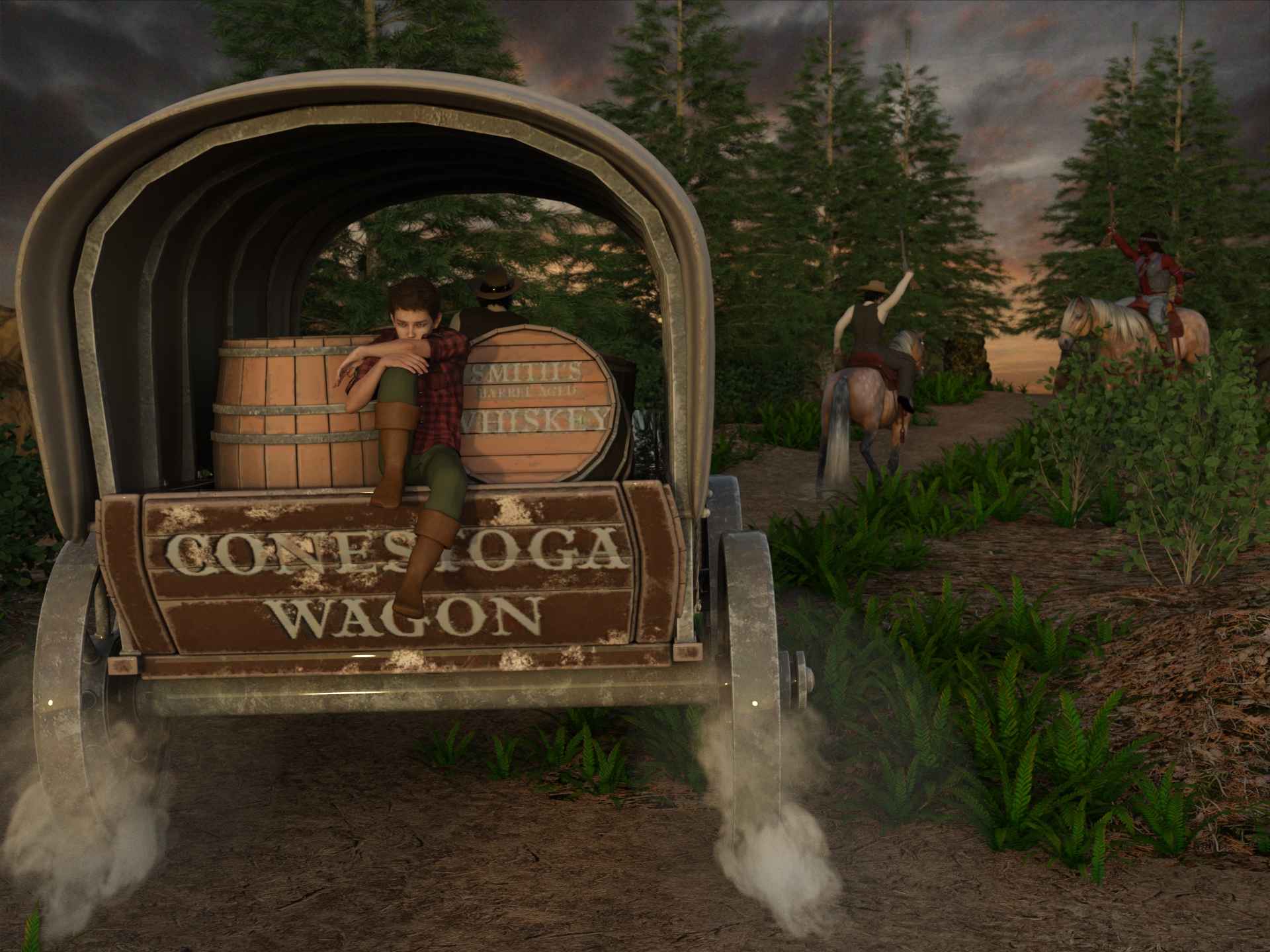
Freebie Challenge December 2023 - January 2024 - "Driving home for ..." - Main ThreadThe way home
Freebies
"Conestoga Wagon" (https://skfb.ly/oBrPt) by Ursei is licensed under Creative Commons Attribution (http://creativecommons.org/licenses/by/4.0/).
https://sketchfab.com/3d-models/conestoga-wagon-2bfd8f4232054fd982b29e4df0f367d1Dropbox - FreebieMilHorseHalter.zip
https://community.hivewire3d.com/threads/free-milhorse-halter.1801/Horseseat V2 Modello 3D
https://free3d.com/3d-model/horseseat-v2--510500.htmlBush Walking Track
https://www.renderhub.com/shredder/bush-walking-track-for-dazNight Wolf for G8M
https://www.deviantart.com/shinteo/art/Night-Wolf-for-G8M-847515481
https://www.patreon.com/posts/night-wolf-for-38912644"STRONG" for G8M Character Morph & Pose by Mar3D
https://www.renderosity.com/freestuff/items/82833/strong-for-g8m-character-morph-amp-poseV Devil May Cry 5 Hair Prop for G8M
https://sharecg.com/v/93558/browse/21/DAZ-Studio/UPDATE-V-Devil-May-Cry-5-Hair-Prop-for-G8MG8M Walther 2.0
https://sharecg.com/v/97276/browse/21/DAZ-Studio/G8M-Walther-2.0Walther 2.0 simple hair for G8M
https://sharecg.com/v/97283/browse/21/DAZ-Studio/Walther-2.0-simple-hair-for-G8MEight Hats for Genesis 8 Male by Soulcatcher
https://www.renderosity.com/freestuff/items/94093/eight-hats-for-genesis-8-male1940's inspired suit for G8M - high res version by perlk
https://www.renderosity.com/freestuff/items/95281/1940s-inspired-suit-for-g8m-high-res-versionG8M Adventurer - dforce clothes by perlk
https://www.renderosity.com/freestuff/items/93843/updated-g8m-adventurer-dforce-clothesDforce Walther 2.0 shirt & shorts for G8M
https://sharecg.com/v/97280/browse/21/DAZ-Studio/Dforce-Walther-2.0-shirt-shorts-for-G8MFour Men on a Couch: G8M Poses by ruslan809
https://www.renderosity.com/freestuff/items/80168/four-men-on-a-couch-g8m-posesHorse Back Pose (sample) For G8F
https://www.renderhub.com/lstowe/horse-back-pose-sample-for-g8fNo count
Rifle: No longer available (temporary free Renderosity Christmas 2020 included in "NA Warrior Props")Paid items
DAZ Horse 2
https://www.daz3d.com/daz-horse-2How to bring v4 character inj into Daz StudioHow did you install the V4.2 base? DIM or a Bitrock installer will perform the initialization of the morph channels when installing, if you install manually you need to run the initialization yourself. The inj files should show up under Poser Formats > [name of content folder] > Pose
Blender - How to align 2 faces perpendicular?I may not extrude it.
Cos I have to reimport back as morph.
So no new faces/edges.I have to fix/realign the faces/edges in the image
Problem with Transfer Utilty and V4If you open the Parameter Settings for the morph (from the gear icon on the slider) is Auto Follow enabled?
Diomede's Notepad, Sketchpad, and Chilling PadImportant video illustrating using utilities in the G9 clothing setup process
Mada added the following comment - "The weightmap is for quick and fast poke through fixes, especially after layers in dforce or extreme poses. If you want to use the fix in multiple scenes then its better to export a morph and import that into your clothing." and "You misunderstood yes :) The weightmaps are primarly for dforce poke throughs after draping or posing and not meant for animations. It can be used to fix poke through in character morphs as well, and in that case it would be better to export the fix as a morph. That way it will load in the clothing everytime you apply the character morph." and "You export the template as an obj and import it into MD as an avatar, then drape against it. Then export the garment as an obj to bring into DS and use transfer utility as before. If you're draping against the male or female morph dialed up in the template then you will use the same method as in the video to get the base shape (using G9 of course, not the template)."
Select Morph Verts
Put parameters window into edit mode, select a morph and then run the script - it will select all the vertices used in that morphClear Morph Verts
Dial up the morph, select it and then use clear morph deltas and it will delete those vertices from the morphClear HD Morphs
N/A for usersRemove empty morphs
If you have empty morphs that came across from templates you can select them in the parameter window and run the script. It will remove all empty morphs.
Resave with a new folder name so DS create a new data folder without those morphs included. If you simply resave in the same folder those morphs are already in there and will simply reload next time.Get Morph Delta Info
Select a figure/clothing/prop and click the button - If you have no morph selected it gives you a list of everything. If you select any amount of morphs it limits it to the selectionTexture Convert : Single UDIM to Multiple
The script is for texture artists...it was easier for our texture artists to work on a single 16k or 8k image so they would export G9 with the single UDIM, texture it, then once they are done they run this script on their images and it breaks them back out into multiple images for use with the multi UDIM UVAdjust Eye Rigging
If your head morph moves the eyes somehow you dial up the morph and select it on G9 with the eyes loaded, then run this script and it will adjust the eye bone position to fit the shapeSet G9 to Shape
Select G9, run script and then select the shape you want for base.
Create follower
Quickly set up a follower from obj
Update Follower Base shape
Select base and run script to change base shapeSave current pane info
Saves the position and size of the floating pane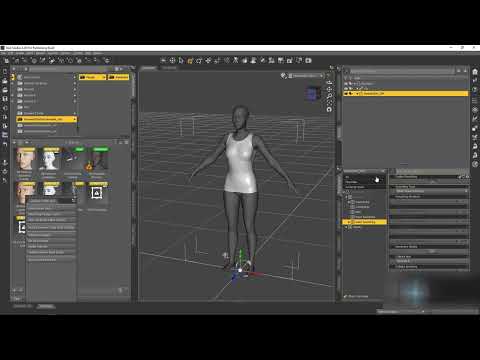 Problem with Transfer Utilty and V4
Hiello DAZ users,
I am trying to covert V4 morphs to G9 (for this I created V4 clone for G9).
I am loading V4 to scene and convert it to weight mapping, then importing the V4 clone to scene. After using the transfer utility they are both fitted in scene.
When I scale the V4 from parameters tab, they are both scaled. Bat when I inject morph on V4, the morph effects only V4 and not the clone.
Help appreciated.Daz Studio BETA - version 4.23.0.4! (*UPDATED*)Richard Haseltine said:
Very odd, yes - it sounds like some highly system-specific quirk, though that isn't much comfort when it is the system you want to use that has the quirk. I am not sure what that .dll is for - it isn't in the plugins folder, where I would expect most add-on (and even core elements) to reside though it does sound related to Face Transfer. Are any of the core elements of the machine customised by/for Fujitsu, as far as you can tell?
Report after the busy weekend... SSD formatted, Fujitsu desktop Workstation, 16GB RAM, XEON W3580, Windows 10 pro 64bit installed, activated, all drivers updated, RTX3060 has Studio driver 546.33. newest DIM installed. all necessary essentials and 4.22.0.15 downloadad via DIM and DIM installed to the locations, which the software has selected... No failures, no warnings, no problems with the softwre and hardware on log.file... A female biometric face downloaded... With a genesis 8 naked body from essentials the facetransfer is running and the result is acceptable, BUT... Genesis 9 genderless, hairless body from essentials is still crashing when facetransfer is invoked... I think, currently my knowledge with computer related steps is exhausted. (There is also another Fujitsu but with a little slower processor and I will beg (!) the user to let me install 4.22 and check with it soon... ) Else, from time to time, I will check driver updates and await the next public release (as current beta's behaive similar...) and G9 essentials update and report the results... Most probably G9 structure invokes a crash due to hardware addressing on memory or processor... Very strange problem without logical solution... :) :) BTW... As I said before, everything is working fantastic on a Fujitsu laptop workstation without any issues... Have a nice time...
Diffeomorphic - get missing morph for cloth into Blender with driver?I've managed to get the morph with "import custom morphs"... honestly... Diffeomorphic is just amazing (and daz and blender)
THANK YOU!
Help transfer the scene from blenderPlease help me transfer the scene from blender. Every time I move the scene the textures disappear (link to scene https://open3dlab.com/project/37446/).
Diffeomorphic - get missing morph for cloth into Blender with driver?Unfortunately the morph system in daz studio is very complex, that is, a PA can do morphs driving other morphs and/or mix figures, plus there's alias. This is terrible for blender and that's why we bake the figure to dbz then import to blender only the morphs necessary for animation. The easy way to do this is to use "daz favorites" in easy import, you can mark "left shoulder bend 90" as favorite to get it into blender.
https://bitbucket.org/Diffeomorphic/import_daz/wiki/Import/Easy Import DAZ
Otherwise you can always import any custom morph by hand with "import custom morphs", but that's more complicated to use.
https://bitbucket.org/Diffeomorphic/import_daz/wiki/Setup/Morphs
Diffeomorphic: body morph "fist" not working after rig is coverted to rigifyhm, yes... after thinking about this it makes sense that the hand fist is not created with a body morph when you use a rig.
Apart from being able to use these body morphs for posing... are there any advantages of the MHX? I thought it would be good to use rigify as it is very common within Blender
Parented Jewellery ProblemsI re-exported to zero them, but once parented their coords changed, manually bending the joint works, grasping works, but when I select hand and children to zero them the rings move, if I lock their coords, they move properly.
I think I've worked it out, when I exported the rings to zero them, it was on a custom character with a height morph as well. Which is why the coords changed once parented, once I repeated the process on a vanilla G8 figure first and then applied my character morph, it now works without a rigid node follower, without having to lock the coords.
I'm a Poser user from way back, I can't remember parenting items being that complicated in Poser, once something was parented it was glued, it didn't matter if the character was morphed or vanilla.
Can I get the cloth specific JCM morphs into blender with diffeomorphic?Thank you for this hint, I didn't see this checkbox and yes it's actually working.
But I still have an issue with a clothing and I think I figured out what it is - but I have no idea how to solve it. I put this into a new thread: https://www.daz3d.com/forums/discussion/669776/diffeomorphic-get-missing-morph-for-cloth-into-blender-with-driver
Diffeomorphic - get missing morph for cloth into Blender with driver?I found an issue with one cloth item when I pose my figure in Blender: the sweater looks different in Blender from how it looks in Daz when I rise the arm of the figure. First I thought it might be related to pJCM for the cloth that might not be imported to Blender but I checked the cloth and the shape keys in Blender and actually the correct pJCM is used in Blender just like in Daz. But there is another morph for this cloth item which is not used - I think this might be related to the fact that this morph is not defined as a pJCM? In the attached screenshot I marked this morph which avoids this hanging sweater under the arms in Daz and which is missing in Blender.
Just to clarify: I already know how to create a morph for a cloth simply overriding existing pJCMs like pJCMShldrUp_90_L but I don't know how to create a complete custom morph and add a driver in Daz to make this morph applied whenever a bone is rotated or something like this. I am sure it has to do with this: the missing morph "Left Shoulder Bend 90" is somehow created in another way. As this morph is stored in \data\H&C\2018 Knit sweater Outfit for g3m\KSO Knit\Morphs\H&C\Base it looks to me that the vendor re-used this morph from a G3M version of this cloth, maybe the naming conventions for those morphs changed from G3M to G8M (for which the current cloth is made)? It's this product: https://www.daz3d.com/hc-knit-sweater-outfit-for-genesis-8-males
So the question for me: can someone tell me if there is any way to get morphs like this into Blender incuding the drivers? Or would I need to do this manually somehow?
Can someone figure this out for me?If I'm not mistaken, that icon means that it's Poser format. The files are all labeled as "G2F", which would have been meaningless for a gen2 figure, as those would all have been for V2 or so on, so I have to imagine that they are indeed for Genesis 2 despite the product page's ambiguity. Try rescaling/repositioning the suit so that it fits the G2F, then export as OBJ, reimport the suit and do the Transfer Utility dance on that.
Can someone figure this out for me?So I bought this ....https://www.renderosity.com/marketplace/products/129693/hazardous-materials-clothing-set-for-g2-males-females ; thinking it was for GENESIS 2, but when I tried to fit it to a GENESIS 2 figure, it did not fit (see PIC 1), so I tried to transfer the rigging, convert from prop to figure, tried to weightmap it, and nothing, Also what does this symbol mean circled in red (see PIC 2), this is how it loads before trying to fit it to the figure, as it does not do it automatically.
If someone can explain how to get this to fit a GENESIS figure, does not matter which type, as I can then change things to a GENESIS 8 figure. Cheers.
Ps I have messaged to creator over at renderosity, but nothing yet, so I thought I would hit the forums. Cheers Again.
ISO Newfie Dog FigureWendyLuvsCatz said:
Faeryl Womyn said:
Where do I find this plugin that converts Carrara hair?
Also I have the Mil Dog and a Pupply LE which I believe is part of the Mil Dog. I have Dog 8, with the Dachshund, French Bulldog and Great Dane. I have no problem using Hexagon or Blender to morph either versions if I have to. And recently got Mesh Grabber bundle so that might do some morphs as well once I learn to use it.
the link in my post ^
I'm claiming temporary blindness lol completely missed the link lol
Daz 3D is part of

Connect
DAZ Productions, Inc.
7533 S Center View Ct #4664
West Jordan, UT 84084Licensing Agreement | Terms of Service | Privacy Policy | EULA
© 2026 Daz Productions Inc. All Rights Reserved.