-
Content Package Assist Thumbnail Issues
To get the Thumbnails in Smart Content to show, they need to follow a very specific naming convention. Without any supplied metadata support files, a default metadata file is generated from the contents when installed with DIM and is imported into the database. If you want to add a thumbnail file, its name must be exactly the same as the generated file, with the .jpg extension. You can drop it into the Runtime\Support folder with all the others and refresh the view (I believe, never done it that way myself).
In Studio, you can add to the metadata if you like (that's a whole other story), export it and add it, the .dsa script and the thumbnail file (the three metadata support files) back into the CPA build and make a fresh copy with all the metadata support built-in, in case you ever need to re-install.
Creating morph for the figure and geo-graft together@Catherine3678ab
@crosswind
Just testing right now.The test graft:
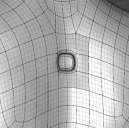
I plan multiple modifications to the figure and a set of full body morphs, so I want to have them all on when I work in blender:
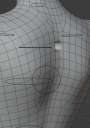
I apply a morph for testing made on the whole model with graft in blender, it moves a region of the back.. back:
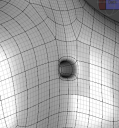
Everyhthing works as desired except the spot with where the graft is does not try to conform to the graft and the vertices there are at default positions when I remove the graft:
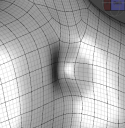
I don't even think that it should "work" and conform figure morph to the graft vertices morph on morph import.. but it sure would be nice as an option and actually makes sense in many cases.
Not the best demo of what and why I need and how it looks, but there it is. I might just start modeliong the figure changes separately from the graft changes. I think it is fine and I can think of additional reasons to do so. If I ever see a bad transition then I can export both and import the morph for both. In most cases it might be fine. Just wanted to see everything together and work on it together and still be able to disable or swap grafts.
Creating morph for the figure and geo-graft togetherillinarv said:
crosswind said:
I'm still not so clear about what you've done... But in general, if you import modified obj as a morph that already exists, you have to use Delta. Reverse Deformations applies for the case that some other morphs have been already dialed on the figure. If it's not the case, there'll be no difference by setting Yes or No...
For 'projection' issue, if I understand correctly, the morph you make on the figure normally should be triggered on the geograft by Auto Follow... as the attached screenshots...
Now I see what Reverse Deformations does. Thanks for the clarification. However.. when I use Reverse Deformations, it deforms the entire body sometimes as if changing the pose, and the pose seems to be zero, so are all the morphs. Not sure why that would happen, I'll be trying more things later with more morphs.
I need figure to follow the morph with attachment, not the other way around. Because I make the morph by exporting WITH attachment so that I have full control.
I might end up doing figure separately if that will produce good enough reslts. From my experience the transition between figure and attachment is bad sometimes if their morphs are made separately.
I'm a little confused... maybe you can post some screenshots... The graft fits to the figure and hides the relevant figure's geometry. So just like a wearable, the graft can auto follows the morphs dialed on the figure but the same could not be done the other way around as far as I know.
The only way may be that you still have to make a morph on the figure and set the morph on the graft as its controller. When you dial the graft's morph, the figure's morph could be automatically triggered...
Creating morph for the figure and geo-graft togethercrosswind said:
I'm still not so clear about what you've done... But in general, if you import modified obj as a morph that already exists, you have to use Delta. Reverse Deformations applies for the case that some other morphs have been already dialed on the figure. If it's not the case, there'll be no difference by setting Yes or No...
For 'projection' issue, if I understand correctly, the morph you make on the figure normally should be triggered on the geograft by Auto Follow... as the attached screenshots...
Now I see what Reverse Deformations does. Thanks for the clarification. However.. when I use Reverse Deformations, it deforms the entire body sometimes as if changing the pose, and the pose seems to be zero, so are all the morphs. Not sure why that would happen, I'll be trying more things later with more morphs.
I need figure to follow the morph with attachment, not the other way around. Because I make the morph by exporting WITH attachment so that I have full control.
I might end up doing figure separately if that will produce good enough reslts. From my experience the transition between figure and attachment is bad sometimes if their morphs are made separately.
Creating morph for the figure and geo-graft togetherI'm still not so clear about what you've done... But in general, if you import modified obj as a morph that already exists, you have to use Delta. Reverse Deformations applies for the case that some other morphs have been already dialed on the figure. If it's not the case, there'll be no difference by setting Yes or No...
For 'projection' issue, if I understand correctly, the morph you make on the figure normally should be triggered on the geograft by Auto Follow... as the attached screenshots...
Daz to Unreal Master Class TutorialsI'm a n00b who's barely broken the seal on UE5. My background is traditional animation software, Poser, and a bit of DS. I hope to end up with a workflow where I can keyframe DAZ figures. I've given up on expecting DAZ to ever solidify these tools in Studio, so I'm stepping into the waters of UE holding the hand of the masterclass series, and I'm floundering at chapter 1.
Video 1_1 seems to skip over the first steps. UE appears already downloaded and installed, as does the bridge and a fair collection of assets. Youtube and the forums helped me get the software working and my first G8 figure across the bridge, just not very well. Now the masterclass video starts by touring the useful bits in the user interface. So far so good. I still have questions, like "...add and import, I do use these quite often" ...for what? I shall keep watching in hope.
Then it demonstrates how to open a layer, a lighted stage that looks like the shrink chamber from Fantastic Voyage with some flyaround cameras. Well, no such layer appears when I search the Open Layer folder tree. In fact, my tree looks nothing like the one in the video; no layer assets of any kind appear in any of my folders. Is that layer a freebie I have to find in the marketplace and purchase and download and install before I'm on the right masterclass page? I'm not going to learn much by following along if this keeps happening.
It might be UE that messed me up a little. It offered an update to 5.1.1, which I received. Now when I request a new project, the only option is the blank one with the checkerboard floor slab and cloudy sky. All the first person, third person, automobile, virtual set choices are vanished. I had to reinstall the bridge as well. Maybe a basic content package got wiped out, too. If that's the case, how many "open this and do that" exercises in the masterclass require default assets I may not have? Am I stalled until Epic restores what seems to be an incomplete downloadable? Or have I just missed something obvious? Thanks for reading.
[edit=1] I still have my last install of 5.0.3, which does have project templates for games and VR and architecture etc., but it can't find any installed layers to open either. Did my 5.1.1 update destroy a single shared library of basic content? Bad news for me. I'll look for a downgrade path... a desperate move, I admit. Assistance appreciated.[/edit]
[edit=2] I sit corrected. 5.0.3 has found and loaded a sparse handful of files. StarterMap and Advanced_Lighting look interesting, but they identify as maps and not levels. I don't know the difference, and am still unable to follow that step in the masterclass. I shall press on, but still eager to hear someone tell me what's going on. Thank you. [/edit]
[edit=3] Looking back at the product description, I guess the fault is mine for assuming that a "getting started" chapter would be included when none was promised. Still, the bundle seems to contain tons of information I do want, so I'm determined to falter my way through and hope I catch on. So here's a customer request. I think some kind of map would be useful, with links to products and resources used in the demonstrations, to basic tutorials for UE beginners, downloadable exercise sample files, stuff like that.
But I still think my 5.1.1 install isn't acting right. Help solving that is appreciated. Thanks. [/edit]
Hallelujah!
DiscipleGeografts won't weldPadone said:
Just to explain it. In daz studio subd zero and base resolution are not the same thing. That is, subd zero will smooth the vertices, while base resolution doesn't.
When working with morphs and geografts be sure to be at base resolution and do not change the vertex order for import/export. That means you can't delete or add vertices but only move them. Most obj exporters/importers provide a option to don't change the vertex order.
Yes, thank you for the explanation. I'm not sure I fully understand the second part thoug. We can add vertices to geografts that's their whole point. Maybe you mean we can't delete and replace the edge vertices? I added some vertices in the middle and it eventually worked.
To me it's all a bit strange that it needs to rely on any of those things. I'm sure I just don't know some good reasons for it. But as a dev it's hard for me to imagine a reason to need any compatibility between meshes and I would just weld by proximity.
easier way to add texture to imported obj asset?This a very common issue with most of the user base, using "File > Import" means you are looking outside of the mapped content directories, as a result DS has no idea where anything is. DS will load any matching MTL along with the OBJ, but it has no point of reference when it comes to the textures.
As a result the pathways in the MTL need to be the full pathway, including the drive letter, of where those textures are located on your system.
EDIT
Image one shows a typical setup, some times all the files unpack into one folder, other times you get the OBJ and MTL and a sub folder called "maps" which has all of the textures.
As you can from the opened MTL on the left, the pathways are just the texture names, like this "File > Import" has no idea where to start looking for those textures.If you look at image two, that's my Content Library tab, under "Other Import Formats" I've added a base directory called "Wavefront", that Gazebo folder is the same one that you see in image one. Like this DS will look for the textures from the location of the MTL, and in this case loads them without issue.
Geografts won't weldJust to explain it. In daz studio subd zero and base resolution are not the same thing. That is, subd zero will smooth the vertices, while base resolution doesn't.
When working with morphs and geografts be sure to be at base resolution and do not change the vertex order for import/export. That means you can't delete or add vertices but only move them. Most obj exporters/importers provide a option to don't change the vertex order.
easier way to add texture to imported obj asset?WendyLuvsCatz said:
one thing to try is putting the obj and mtl file in the same folder as the textures
D|S likes quotation marks around texture paths so won't find them without
this doesn't always work as it won't even look for textures with some mtl files either
Thanks for your reply, I always do that, but I don't think Daz has the script to auto load texture to different mat maps like blenders or UE4
Edit: I was able to get better result by 1st load obj asset into blender format and then use Daz to import again, textures now all in tact, but words write on the cloth were missing, so it's still not perfect.
Geografts won't weldRichard Haseltine said:
illinarv said:
Just noticed that when I delete all the poligon around a groups of polygons in daz, the vertices of the remaining polygons move. Exported, edited, imported. The import matches the DAZ model that was exported, but does not match the full intact DAZ model.
That means there is SubD active, you have not set the figure to Base resolution.
Yeah, at first actually I thought that subdiv slider 0 is the base resolution, then I'm convinced that I did it again at actual Base and it didn't work, but now it works.
Mission accomplished, thank you, everyone.Can't get rid of Morph Loader FolderThis here. I rig in Poser then import figures to DS. It didn't import with the Loader folder but it keeps saving with it. I changed the folder settings, saved figure and when I load it the Loader folder is still there. I've tried deleting the data - no luck,
Geografts won't weldillinarv said:
Just noticed that when I delete all the poligon around a groups of polygons in daz, the vertices of the remaining polygons move. Exported, edited, imported. The import matches the DAZ model that was exported, but does not match the full intact DAZ model.
That means there is SubD active, you have not set the figure to Base resolution.
Also about some issues along the way. For a long time couldn't import. When I import fbx and run transfer utility it disappears. So I have to import obj.
Geografts won't weldOkay.... So, the only way I can get the vertices to match is by exporting the entire mesh. I can only do it via bridge otherwise the import back is messed up.
The only workflow that can possibly work for me is this, please tell me if something is not right there:
- Create a new 8.1 figure.
- Set resolution to base.
- Send it to Blender via bridge.
- Import it in blender.
- Delete all the polygons except those that are mpart of the graft.
- Extrude some polygons in the middle to see the effect when sending back.
- Make sure to not affect any outer vertices and even polygons in this case.
- Export the mesh as obj default parameters except check "Keep vertex order" and "Selection only"
- Import it in DAZ with default parameters.
- Create a new 8.1 figure in DAZ.
- Transfer utility with default parameters. Genessis > graft.
- Use geometry tool to set attachment faces and autohide faces.
- Exit geo tool just in case..
- Unfit and refit the graft.
- It works, it replaces the polygons.
- But there are SEAMS again.
This forum engine is ancient, I can't @ people. More quote posts then.
Geografts won't weldJust noticed that when I delete all the poligon around a groups of polygons in daz, the vertices of the remaining polygons move. Exported, edited, imported. The import matches the DAZ model that was exported, but does not match the full intact DAZ model.
Also about some issues along the way. For a long time couldn't import. When I import fbx and run transfer utility it disappears. So I have to import obj.
Geografts won't weldillinarv said:
Catherine3678ab said:
Geograft is imported into D/S. Figure is at base resolution. Geograft is made into "clothing" ... then one starts the procedures for making the geograft.
Now, after you have selected the faces to be hidden when the item is "fit to" the figure - you then have to "unfit" the item, then "refit" to figure and it shouldto refit properly {pointer tool selected, not the geograft tool}.
n.b. that the loop of the figure's mesh must be in precisely the correct place. If it was moved during the creating of the geograft, the seams cannot match. To save a lot of time, in the modeler {I use Hexagon}, make a few "spare copies" of the figure's mesh so that in the event that a seam line gets moved, you can simply swap in a replacement mesh. {and then redo the uvmaps, etc.}
I did everything always at base resolution and always unfitted and refitted the graft. I run the transfer utility with default settings.
Basically the grafting works every time, it gets "inserted" into mesh, gets rigged. But does not get welded and thus subdivided when I increase resolution so there are seams and has normal seams.
The outer vertices are never moved. HOWEVER. Here is a little idea about what might be going wrong.. I think the vertices are transformed a couple of times during export/import loop due to different space orientations. That can change their position by a tiny floating point math error value. But I doubt I'm the first one exporting and importing with Blender. However I'm very surprized DAZ has no tolerance for movement, seems like it could just weld by distance optionally at least.
Which area of the body are you trying to put a geograft to? I haven't done many geografts for 8.1 but have noticed at times on various models that sometimes there's an area of mesh where the modeller does not "see" the faces as all single and welded to begin with. One I recall was in the region of the belly button/waistline. Solutions for that were to either grab loop mesh from another section OR, start over and get another copy of said figure into the modeller. Seems the "communication" between D/S and modeller can vary even with the very same actions being done.
In Blender there is somewhere an option to check or uncheck to keep the vertex order.
Geografts won't weldCatherine3678ab said:
Geograft is imported into D/S. Figure is at base resolution. Geograft is made into "clothing" ... then one starts the procedures for making the geograft.
Now, after you have selected the faces to be hidden when the item is "fit to" the figure - you then have to "unfit" the item, then "refit" to figure and it shouldto refit properly {pointer tool selected, not the geograft tool}.
n.b. that the loop of the figure's mesh must be in precisely the correct place. If it was moved during the creating of the geograft, the seams cannot match. To save a lot of time, in the modeler {I use Hexagon}, make a few "spare copies" of the figure's mesh so that in the event that a seam line gets moved, you can simply swap in a replacement mesh. {and then redo the uvmaps, etc.}
I did everything always at base resolution and always unfitted and refitted the graft. I run the transfer utility with default settings.
Basically the grafting works every time, it gets "inserted" into mesh, gets rigged. But does not get welded and thus subdivided when I increase resolution so there are seams and has normal seams.
The outer vertices are never moved. HOWEVER. Here is a little idea about what might be going wrong.. I think the vertices are transformed a couple of times during export/import loop due to different space orientations. That can change their position by a tiny floating point math error value. But I doubt I'm the first one exporting and importing with Blender. However I'm very surprized DAZ has no tolerance for movement, seems like it could just weld by distance optionally at least.
OBJ export/import settings?The blender export settings below work fine to import in daz studio a 100% scale with default axes. That means blender does the conversion and daz studio does nothing. The absolute path means you can share textures and move the object around in a project folder, that's what you usually do when working with a asset library.
To export materials you have to use the principled node in blender. The conversion is limited to basic attributes as diffuse and specularity.
Be sure that everything you export is uv mapped because daz studio can't import geometry without a uv map.
Products not showing up...Sounds like a metadata (specifically, compatibility) issue - which should be reported to Daz if it's a store item (Daz Studio is the application, not the site and store in general).
OBJ export/import settings?Find a combo that works and then use the Save Preset button - you can then use the saem options, correctly inverted, for Import/Export/Morph Loader just by selecting the preset.
Daz 3D is part of

Connect
DAZ Productions, Inc.
7533 S Center View Ct #4664
West Jordan, UT 84084Licensing Agreement | Terms of Service | Privacy Policy | EULA
© 2026 Daz Productions Inc. All Rights Reserved.