-
Messed up geometry after converting from Genesis 3 to Genesis 8
Did you use G8.1 instead of G8 as the recieving character by chance? I ask because G8.1 figure is not symmetrical like G8, as the left/right half of the character does not match, unlike with G8... A nightmare if you want to create limb morphs, so using DS's mirror morph import feature is useless!
Carrara Challenge #66 - Jumping Off a Browser Scene Go Splat !DaVinci Resolve makes no sense to me whatsoever with it's nodes
seems even a simple import and export of media needs some linked up voodoo
even Blender in general isn't that complicated
Diffeomorphic DAZ Importer version 1.7.0 releasedAlso daz favorites is new. Both baked correctives and daz favorites work with easy import too. So now it is very easy to import a full featured figure with custom morphs.
https://bitbucket.org/Diffeomorphic/import_daz/wiki/Setup/Morphs/Import DAZ Favorites
Diffeomorphic DAZ Importer version 1.7.0 releasedI haven't poked around in Diffeomorphic for a while so I apologize if this has already been discussed, but this is pretty awesome:
https://bitbucket.org/Diffeomorphic/import_daz/wiki/Setup/Morphs/Import Baked Correctives
Some DAZ content artists go the extra mile and add corrective morphs to their characters but they can easily get lost transferring from DAZ to Blender, and it's a shame. Diffeo now allows us to easily import those corrective morphs for custom characters. Wow...
Adding Dual Quaternion support to UnrealEngine4 (Images inside)An Epic staff member on the UE forums was finally able to reproduce the bug(s) I was experincing. A friend confirmed it. It took a lot of work to narrow down how to cause it. Still don't know why it's happening. In UE5, they replaced the import modules for 3d meshes, textures and other things. I think they may have gotten some of the configuration wrong, but that's just a guess at this point. You couldn't use Class references in the main character's properties if you used top down, first person or third person templates when setting up your project. Only the empty project works as of now. If you tried to use class references, your textures would no longer be able to be reimported and your materials would suddenly have nodes disappear. Yeah, it was pretty bad.
Anyhow, hopefully they'll fix it soon and we can move beyond this. I lost a LOT of time on this, so I'll be happy when it's fixed.
Here's the thread in case anyone is interested.
Diffeomorphic DAZ Importer version 1.7.0 releasedPadone said:
@benniewoodell I looked at your animation. It seems you falled into some sort of gimbal lock so the animation doesn't bake fine. I see you import the daz limits and don't use quaternions that's not good for animation. That is, when you animate with FK then you can keep the daz limits and use euler that's how animation works (or rather doesn't work) in daz studio. But when you animate with IK you need quaternions for the IK chains to be stable and avoid IK flipping, also IK may exceed the daz limits.
I had to bake your animation then polish it deleting the flipping keyframes that were gimbal locked. File attached. For the future I advise you to import without limits and with quaternions.
You may also find the following report useful.
Awesome, thanks so much for checking it and that link, @Padone. I was looking for that page the other day when I posted here because I had it saved before and was following it on a previous iteration of diffeo and my animations were exporting out to Daz perfectly, that's why I thought something might have changed as I did the importing and exporting the same way. Sadly your file still has the feet sliding on my character in Daz, but it's a little less which is much better. I'll look into the quaternions, I've never heard of that before. It's just so frustrating because originally I had as long as I needed to do the project, so I was doing everything in Blender and didn't have any worries, but that changed the other week as I need everything done by September now. I have 30 minutes still to animate and render. So now I'm trying to do the rendering in Daz since iray is quicker than cycles and it's the only way I have a chance at getting this done in time. Whenever I try to be done dealing with animating in Daz, something pulls me back in lol.
But as always, thank you so much for your time, help, and patience, it's very much appreciated.
DazToHue 1.0 is out now!yes, thanks! that worked!
mrpdean_7efbae9610 said:
playbox1671 said:
This is really great work! I've been trying this out recently, and I've had problems with the 'Additional Animations' option. When the additional animations pass through and are exported from the 'DazToHueExport' node, they don't match, and in some cases, the arms and neck of the daz characters are severely deformed. Although I first noticed this Unreal, I checked the fbx file in Houdini, and the skeleton has the same problems before the Unreal import. I'm using the Genesis 8.1 female base character.
Has anyone else seen this? Is there a best practice for this process?
Oh darn it! Apologies playbox167 and everyone else. I left out a critical piece of information in the tutorials regarding additional information.
That is, the first frame of the animation must be the default Daz figure pose, otherwise what you describe happens.
So, I always start my animations in Daz on frame 1, leaving frame 0 as the default figure pose. Then inside Unreal engine I just trim off the first frame of the animation.
Sorry about missing that critical step in the tutorials.
Please let me know if that solves it for you.
Making a BadgeIf you're using a version of PhotoShop that allows you to create 3D objects, you can either import an Illustartor file or trace your badge in Photoshop and extrude it, then export an .obj file for import into DAZ Studio. There are a number of different tutorials online, like this one:
https://www.youtube.com/watch?v=72FGUJBOoUAIt's how I made these buckles/badges for my crew; I grouped different inserts with the round buckle and back and can turn off one departmetn and on another, as well as change materials for each.
 -- Walt Sterdanhelp with Coral 8.1
1. You should've used A-pose to export Coral 8.1's tail graft only (unfit it first) from Daz to Blender to 'remove' the gills and import it back to Ds as a 'delta morph' on the tail. Now you only have a 'single mesh' of Coral 8.1... how could you pose her, and texturize her... build a brand new UV?
2. As to exporting texture maps to blender, it's doable. You just need to check 'Write Material Libray' when exporting to obj file (but roughness / bump / normal maps could not be exported). Better use Diffeomorphic Daz Importer and install a blender plugin named 'Super Solid Mode', then you may have at least all Diffuse texture maps visible in Blender - solid mode...help with Coral 8.1thanks for your help everyone! the gills were surprisingly easy to remove in blender - just used the smooth brush :)
but now I have another problem... I had seen some ppl before complain that you can't import textures from daz back to blender and that's exactly what's happening to me. Note that I am not using the daz to blender bridge because it completely messes with my model's pose for some reason and I don't need any mre problems...
now when I import it's completely and, although very pretty and marble like, it's very much not what I need.attached are pics from blender and daz with import/export settings :)
EDIT it also saved and mtl file and I read that it contains the textures and need to be in the same folder and daz will automatically import everything together but that didn't happen...
Question about Metadata and Compatibility Bases for converted assets.ShelLuser said:
Whiskeyjack said:
Oh yeah, I'm extremely careful when it comes to editing metadata these days. I learned my lesson the hard way a few years ago, so I regularly export my metadata and back it up somewhere safe at least once a month! XD
See, that's just the thing: If you use "Export user data" then hover your mouse over the option. I'll quote: "export all meta-data that has NOT been installed by a product". Ergo: if you add your local assets to new or existing products they won't be included in your backups anymore. BE CAREFUL!
You can export product fdata, however, which will create a .dsx file for the product in the same Runtime/Support folder as the userdata files. That is in the right-click menu for the product container, and has additional options if cmd(Mac)/ctrl(Win) is held while selecting the command. of course a non-unique product will, as far as I know, be overwritten by a product update.
XI Dune BuggyYou can get the scale factor from the OBJ export dialogue, then type 100*that number in the scale box for the prop - though I think I was mis-remembering, so it wasn't Poser scale import and was pure chance that it worked.
Anyone knows toon figires (monslty the hair) that resmebles the (Toon) Afton family from FNAF?I have never explicitly looked for any, so don't know if there are any available. However, I know where I would look for similar hair pieces to get a reasonable chance of finding some. Shinteo on Patreon does a number of game rips to G8F/M and G9, and after a month or so, most of them become free to download. Many of the older games had prop hair models like the ones you show, so they could be used.
Another option is to use the models you have found if it's not prevented by the license agreement with the model. If the models download as STL's, convert to obj with an online convertor or my windows freebie program http://www.chestnutpens.co.uk/misc/stltoobj.html and then import the model into DS and hide all surfaces except the hair. Then parent the hair to the character's head and ignore the fact there's a mostly hidden figure in DS.
Regards,
Richard.
Carrara Challenge #66 - Jumping Off a Browser Scene Go Splat !UnifiedBrain said:
I have Powerdirector 14. It is pretty old. Still, I remember that it was more functional than previous versions. I think that 14 was the first version that outputted mp4.
I also watched a video about importing sequenced files in Blender. It looks fairly easy. But the "framerate" issue is still foggy. The author found that his sequence was laggy, and couldn't adjust the framerate, so he went to an effects tab and doubled the speed. It appears that you cannot adjust the framerate of the sequence in Blender with any fps precision.
The way I see it (probably wrong) is that if the frame rate is 25 fps, then each frame has to be .04 seconds long. And yet, I haven't seen those numbers work in an editor yet.
I may still be missing something important, so I am staying humble during this search. :)
Blender I just import sequence with all selected whatever fps is set that's what it is
if its 24 then it renders that many
I choose
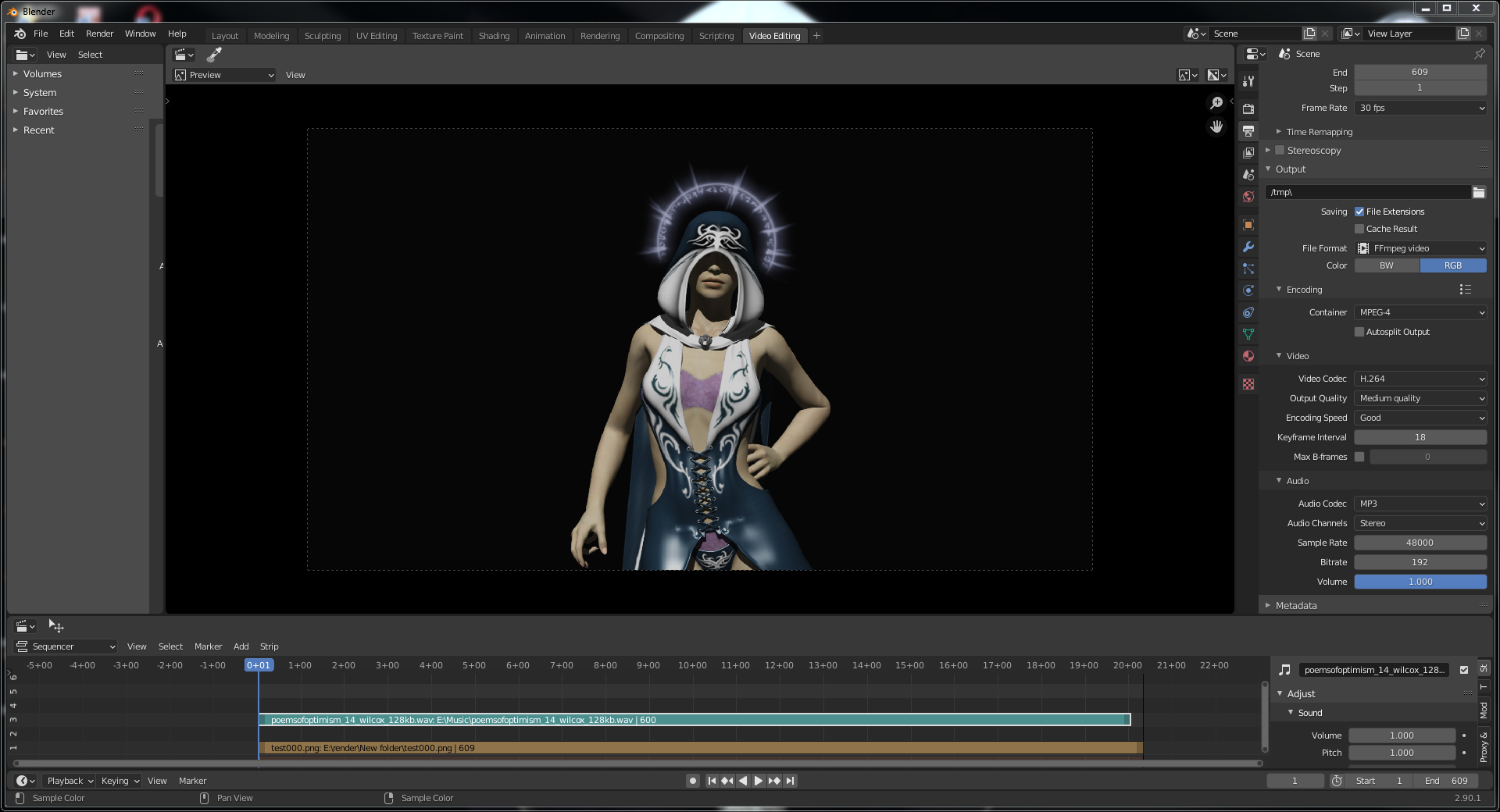
my setup
30fps for this one
I use FFmpeg container MPEG4 with audio codec mp3
then top left
render
render animation
by default saves in C: tmp
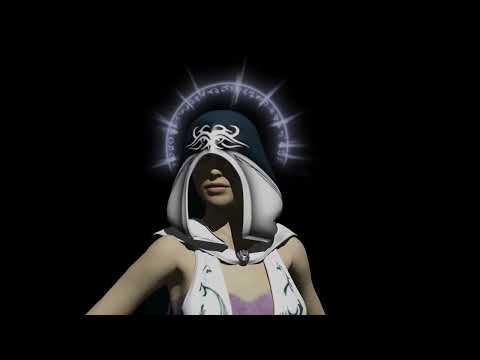
Blender video
Question about Metadata and Compatibility Bases for converted assets.ShelLuser said:
Whiskeyjack said:
But the compatabilities and metadata that I've added to those local assets (ie, the converted hairs) will be maintained, right? They just won't appear in the product folder of the original hair, and I'll need to manually add them back into the product folders?
They will be maintained, but will probably not be part anymore of your backup ("export user data"?). So either make sure to keep a full backup of your entire database folder (by default => "%appdata%\DAZ 3D\cms\ContentCluster") or back up product data as well using "Export product meta-data". Though I have no idea how you can restore any of that.
My take on this matter...
Near the bottom: full database backup. That should keep you safe'ish (you still need your actual contents of course).
That's fine, it's all the manually-added metadata and custom catagories I'm most concerned about. Even if the converted hairs are removed from the products, it'll only take me a half an hour some evenig to add them all back in.
But thanks for the advice and the link, I'll definitely have a look through that!
Question about Metadata and Compatibility Bases for converted assets.Whiskeyjack said:
But the compatabilities and metadata that I've added to those local assets (ie, the converted hairs) will be maintained, right? They just won't appear in the product folder of the original hair, and I'll need to manually add them back into the product folders?
They will be maintained, but will probably not be part anymore of your backup ("export user data"?). So either make sure to keep a full backup of your entire database folder (by default => "%appdata%\DAZ 3D\cms\ContentCluster") or back up product data as well using "Export product meta-data". Though I have no idea how you can restore any of that.
My take on this matter...
Near the bottom: full database backup. That should keep you safe'ish (you still need your actual contents of course).
Question about Metadata and Compatibility Bases for converted assets.ShelLuser said:
Whiskeyjack said:
Oh yeah, I'm extremely careful when it comes to editing metadata these days. I learned my lesson the hard way a few years ago, so I regularly export my metadata and back it up somewhere safe at least once a month! XD
See, that's just the thing: If you use "Export user data" then hover your mouse over the option. I'll quote: "export all meta-data that has NOT been installed by a product". Ergo: if you add your local assets to new or existing products they won't be included in your backups anymore. BE CAREFUL!
But the compatabilities and metadata that I've added to those local assets (ie, the converted hairs) will be maintained, right? They just won't appear in the product folder of the original hair, and I'll need to manually add them back into the product folders?
Question about Metadata and Compatibility Bases for converted assets.Whiskeyjack said:
Oh yeah, I'm extremely careful when it comes to editing metadata these days. I learned my lesson the hard way a few years ago, so I regularly export my metadata and back it up somewhere safe at least once a month! XD
See, that's just the thing: If you use "Export user data" then hover your mouse over the option. I'll quote: "export all meta-data that has NOT been installed by a product". Ergo: if you add your local assets to new or existing products they won't be included in your backups anymore. BE CAREFUL!
Question about Metadata and Compatibility Bases for converted assets.Oh yeah, I'm extremely careful when it comes to editing metadata these days. I learned my lesson the hard way a few years ago, so I regularly export my metadata and back it up somewhere safe at least once a month! XD
Question about Metadata and Compatibility Bases for converted assets.First things first... be careful there with them products. Because if you add your customizations to a registered product (other than the default 'LOCAL USER') then you won't be able to easily back all of this up with the "Export user data" option (Content DB maintenance and all?). Figured I'd mention it because you're putting yourself at risk here, and that's bad because people spend a lot of time & effort onto CMS / "Smart contents" customizations and backups are important.
(of course this doesn't apply if you make regular backups of your entire database folder).
Alas, this is somewhat easier than it seems, but still somewhat complex. It all revolves around the CMS database (powered by PostgreSQL) where you have "base objects" and "support objects" (this is just how I call it). When you select a "base object" in your scene (like a hair product or a piece of clothing) then Daz Studio's smart contents pane will filter out everything else except for the related support objects (like material settings, optional poses, etc, etc.).
Unrelated to this issue but I still want to mention this: bear in mind that there's a grey line here: "support objects" can easily be their own "base objects" as well. In other words: any object can have "support assets" assigned to them. Example: a hat compatible with Genesis one (!), pardon the theatrics ;). So when I add Genesis to my scene and select it this hat will show up in my wardrobe category. It's a support asset. But... when I select the hat itself all of a sudden I now get to see several material settings to change its appearance.
So the thing you need to do is to register your 3rd party object / asset as a so called "root object" within the CMS database. This is a separate step apart from adding it to the database which you already seem to have covered (careful with using products!).
- Add your 3rd party mesh to your scene / viewport.
- Make sure it's selected in the Scene pane!
- Right click on the scene pane, hover over 'Edit' and select: "Set default compatibility base(s)".
- Click the "..." button to get a complete overview of your database.
Now, I'm going to assume that you're doing this for the first time and are to do this more often... because once I found out I never stopped ;) (this is so extremely powerful.. and that for a free piece of software?!!).
- Editorial => Every entry in this database is the same BUT you can 'nest' entries and I strongly suggest you do so to keep things managable!
- Right click and then use: "Create new root compatibility base". Name this: "Local assets" (or something similar, but make sure you can find it later!).
- Now you created an entry which is going to be your root "folder" => click on it to select.
- Now click "Accept".
- Your new "root folder" should be shown here. IF your node consists of multiple sub-nodes make sure to enable "selected nodes only" (this would apply for figures such as Genesis 8 which consist of Genesis 8 + Eyelashes and a Tear object).
- When sure click "Accept" again.
Now, double check that things worked out: repeat the above steps (not all!) and this time only make sure you actually have a "sub entry" in your local assets "folder". I'll provide a screenshot example below. So now keep using "Cancel" to back out of the whole thing (it's better to verify now than to discover that it didn't work later).
This should set the stage for what you already discovered on your own: compatibility bases. Edit the metadata of your hair asset, select the entry in the section above, open the Compatibilities tab, right click on the entry in the lower section and then use: "Add compatibilities to selected files". Guess what you'll be looking for? ;)
I'll add a 2nd example, unrelated to the first but I hope you get the idea.
After that everything should work out nicely for you.
Hope this could help!
Daz 3D is part of

Connect
DAZ Productions, Inc.
7533 S Center View Ct #4664
West Jordan, UT 84084Licensing Agreement | Terms of Service | Privacy Policy | EULA
© 2026 Daz Productions Inc. All Rights Reserved.