-
AWE Shading Kit for DAZ Studio and 3delight
OK. I think I found out what the deal is with Genesis 8 eyes. I was troubleshooting RAMWolff's Gino when I noticed I couldn't get any type of reflection/specular highlights, no mtater what I do. The only way I can get any sort of highlights is by turning on opacity. Once that's done, I tried re-enabling transmission and of course, the black spots shows up. No matter what settings I used, they simply won't go away.
So I sent the model to Hexagon and tried pulling out the eyes out of the head to see if something in the head was messing around with the render. Didn't help, but I forgot to turn on subdivision again and then I noticed the dark spots changed shape. OK. Then i guess it must be a geometry issue, since subD changes geometry. I sent the model to Hexagon again, selected the eyesurface and pull it out slightly so it slightly bulges outward. Re-render things in DS and the black spots are gone.
It does look like the cornea and eye moisture polygons of Genesis 8 are placed too close together for the default bias used by 3delight. The easiest workaround would be a morph to slightly bulges them outward, though I don't know how this would behave with closed eyelids (at the moment).
Edit:
OK. Worked out a possible solution in the shader, by adding a 0 (zero) bias to transmission. Hey, would that make AWE Surface "unbiased" ?

Is that my Gino skin? Looks like a really nice reflection. Funny, in my set up, which seems weird to all that's looking over Gino right now, most of what works for me doens't work for them... LOL I must be really weird in how I have my set up going or something is amiss in my DAZ Studio! LMAO
Looking forward to your updates for AWE wowie! Thanks for your help so far. Oh and by the way there are maps for SSS in the folder for Gino but I probably don't have them created properly to have the dark and light where they would give more of a translucency to ears and what not..
G8 Male Anatomical Elements.How do we know if our files are compressed. WHen I do
Did you all know that you can easily have all your G3M anatomical element addons also for G8M - simply copy the morph data folders to G8M (same folder structure) and search/replace with notepad G3M and Genesis 3 Male with G8M and Genesis 8 Male for the non compressed files. Compressed files need to be decompressed first of course to be editable. Geometry for G3M AE and G8M AE are exactly the same. And did you know that we once named the AE "penis"? - man those past times....
Hey @jepe Thanks very much for this suggestion. I'm not very advanced at this, so I hope you'll help me with a question? I need just a little more detail. You say "search/replace with notepad G3M and Genesis 3 Male with G8M and Genesis 8 Male for the non compressed files. Compressed files need to be decompressed first of course to be editable."
Would you mind explaining this a little bit further? What files should I be opening to then do the search/replace on? What text am I searching and replacing? This whole sentence, unfortunately, goes clean over my head.
I really appreciate any and all help!Notepad++, do Find in Files, make your directory the G8M Male Genitalia morphs folder.
Replace "/data/Daz%203D/Genesis%203/Male%20Genitalia" with "/data/Daz%203D/Genesis%208/Male%20Genitalia"
Replace "G3MGenitalia.dsf" with "G8MGenitalia.dsf"
If you replace "G3M" with "G8M" you can break folder structures, don't do this.
How do we know if our files are compressed. WHen I do the search you suggest, it comes up with nothing in the folder.
How Do You "Bake" Character Morphs?If you simply want to combine morphs into one morph...you dial up all the morphs you want..
Right click on the parameters tab and go into edit mode...
Right click on "actor" and select "create new property.....fill out the pop-up with the name you want to give the dial, and where you want the dial to appear...then press "create"
After creating this new property, right click on the new dial you made and click "ERC Freeze"..make sure all the elements you want are selected and press"accept".
Then your new dial will dial in all those other dials.
You can save this as any other new morph,...save as/morph assets
Very helpful.
Getting Gino set up but previously I had set up a shaping file (INJ) and a remove file (REM) and while I can get the INJ file working as expected the REM file removed just Gino's face but the rest of the body remains engaged and I've tried every trick I can think of to get the REM file to work correctly. So I'm stuck with that little puzzle. I thought it would be as easy as saving out a Shaping preset with NOTHING selected. NOPE, the body stays! So there may be some connection to my newly made body dial slaving all the morphs I used to make up Gino's body shape (using the DAZ3D in house body shaping morphs).
Help?
Thank you
Richard
Noob questions on making a morphYou think that's a nube question? Hell, I don't even know what a morph is. I think I win.
 Tutorial For Installing Freebies?
Hi Richard, no, I don't yet really understand what a morph is.
However, I just came across some other clothes which did work correctly when the figure's pose is adjusted. So maybe it was those other clothing items that were the issue. Or maybe I didn't know how to fix those items, or maybe the 3D realm is an immature industry where every other file doesn't work.
I obviously have no idea.However, the fact that you don't have an answer yet suggests that there may be something wrong with those particular clothing objects. If I was doing something wrong you'd likely be able to point to what that is, but obviously you can't be expert on every clothing item I might download from somewhere.
So far, all my clothing etc are free items, so perhaps that's the problem. Maybe it's a "get what you pay for" operation. I'll keep experimenting and will report any new information I can develop.
Thanks as always, you're a big help.
Tutorial For Installing Freebies?Are you using a custom morph on the figure?
Modelling Software - Overview?Things you may want to look for, though to an extent they are supported to soem degree in most of the applications:
- Support for morphs (blend shapes, morph maps) so that you don't need a separate file for each shape (assuming morphs are something you do)
- UDIM support (for the mapping on the recent daz figures, for example)
- Ability to edit mesh without losing UVs, morphs etc.
- Ability to edit a mesh shape without breaking vertex count or order (for morph creation)
- Ability to regroup without breaking morphs, UVs, etc.
- Ability to bake maps from one mesh to another of similar shape
- Retopology tools (auto and manual) for reworking mesh produced elsewhere
- Ability to selectively apply morphs (useful for splitting them, or for corecting things like deformed eyes from a sculpting session)
- Mesh sculpting (to deform shapes with brush like tools)
Looking for scene or wall with horizontal windowDo the windows open in that? The pics are sorta small and I can’t see them that well.
Yes the sash style windows all have opening morphs, foe each individual window, ie the wall with three windows in has a morph to open the left, right and centre window separately.
Rigidity groups and keeping hard surfaces hard... not working!You can see this happening with any DS primitives.
Create -> New Primitive -> Sphere.
Load Genesis 8 base female.
Assets -> Transfer Utility -> Genesis 8 female (source), Sphere (target).
After the sphere is fitted, use any morph that changes the character's height, and the perfect sphere gets crushed.
Assign the sphere's vertices to a rigidity group, and the sphere still gets deformed.
So I come to conclusion, why use rigidity groups at all?
Free Graphic ToolsHere's a web tool which creates a 3D face from a single photo.
http://cvl-demos.cs.nott.ac.uk/vrn/
It seems interesting, but of pretty limited use perhaps. You can export an object file which can be imported in to DAZ. However, due to my very limited skills I don't know how to get the colors of the object. Perhaps one of you can solve that one.
well it has no UV mapping but both Meshlab and Zbrush see the vertex colours sadly Zbrush UV master errors out trying to unwrap it and my other apps destroy the vertex colours
so another UV mapped mesh with it in Meshlab and sampling filter vertex attribute transfer might work,
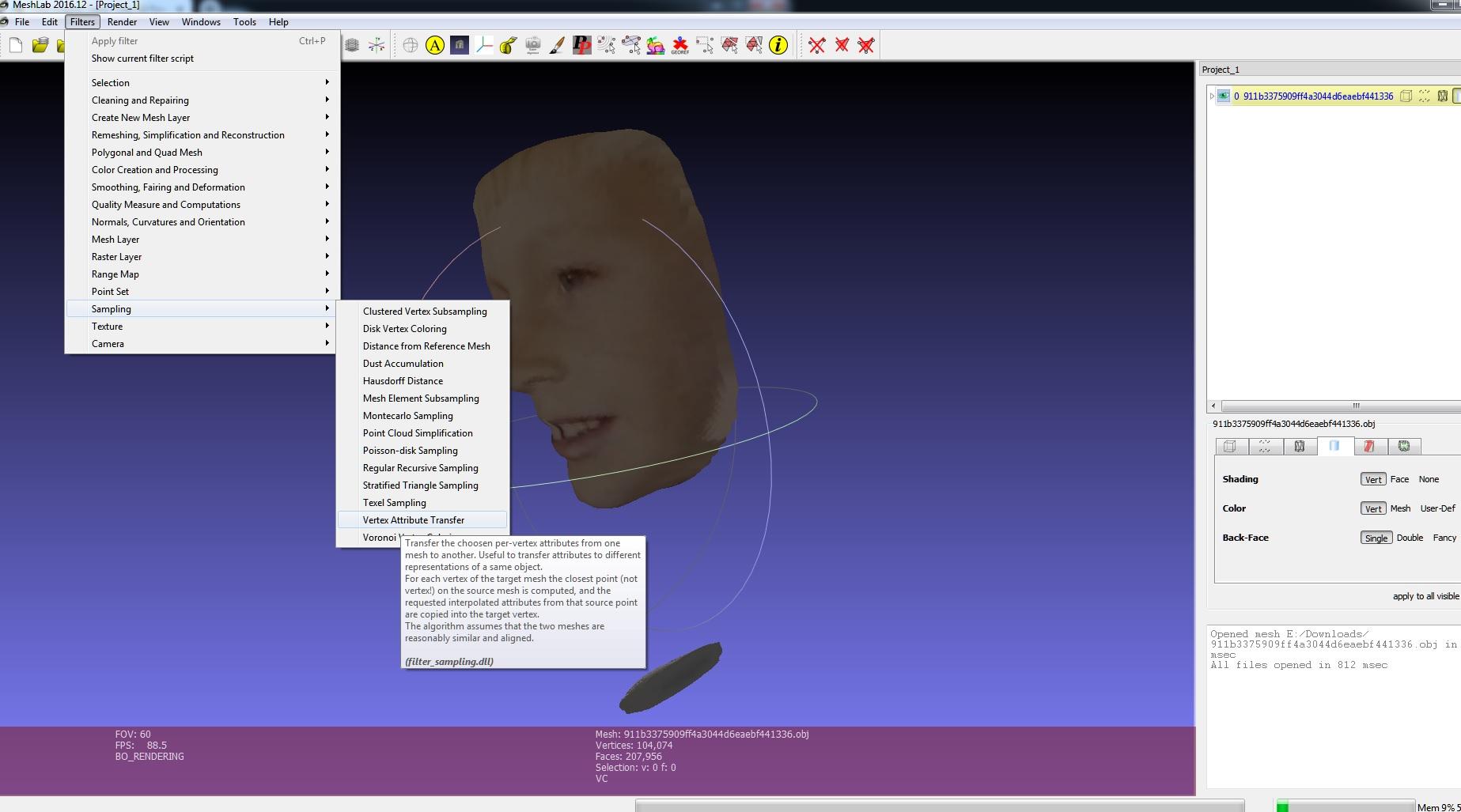
if using meshlab which is free
I find it flakey at best and have Zbrush so would use a zremeshed subdivided mesh I then run UVmaster on and append the first one as a subtool and transfer with Zprojection
3DXChange and DAZ rigging confusionYep, I turned off limits, but not sure what you mean by unlock nodes. None are locked in the parameters menu. I assumed they were all unlocked when limits were turned off. The only thing that seems to consistantly be problematic with G3 is that the twist of eith the shoulder or upper arms, the just don't quite twist as far as the motion does on G1 or G2. Like I said before the motion calls for hands being place on hips and after transfer the arms are twisted to about a 45% degree angle away from the hips outward. Its the same for all the G2 to G3 conversions I try.
1) Right click root node in the scene => select => select all children
2) While selection is active , edit => figure => unlock selected nodes
3) While selection is active , edit => figure => limits off rotation
Sydney 8I'm very happy that DAZ has been releasing older people. For many years, I was frustrated because DAZ didn't offer any. Now I'm frustrated because I don't have enough money to buy them all right away.
Being new to Daz and just signing up in December I was surprised at this too. While most of the models were these thin gorgeous model type ladies, they did have options for some other woman body shapes. There are tall women, short women, thin stick figure women, thicker women, athletic women, muscular women, but for some reason, there were / are not many older women. Eva and Gia are slightly older than most of them. I came across Mabel and she looked a bit too old and frankly she is a bit odd looking. Finally I came across Alexandra 8, now here was a nice proportionate and beautiful woman that is in the mid to upper 30's range. Further, Iike most of what was in the Pro Package. The problem is the price as it is too expensive, even with the PC discount. Now they released Sydney, finally someone in the 45 - 55 age range. Further, right now she is being offered at a good introductory price. As it is, being a newbie to Daz Studio, I didn't know better and my first couple orders I placed without knowing about the Platium Club. I know I racked up over $300 in December alone! I realized I had to make wiser purchases. Mainly I started to buy better dress packages in which many different outfits can be made from it. Sure I have my other favorites as well, but this one was area, I knew I could save some money. Hair is a problem though and only recently I been discovering that certain hair types for sale even offer adjustability in the hair style...again saving some money. But this situation with creating a pretty, older woman though...definitely requires some spending. I got myself the Genesis 8 female Skin Builder and I am hoping for the Aging Morph package goes on sale. But for now I think I should be able to do something with the skin builder and Sydney. So I am going to pick her up. Also with the Flashback sale going on, with a purchase of a new item (Sydney), I think I am also going to get the Eva 8 package, as that was a good one that had many items. Also as Laurie proved above, Eva is a good candidate for aging.
Permanently change a morph labelRichard, it looks as though I did exactly the same as this person...
https://www.daz3d.com/forums/discussion/228161/fixed-save-as-morph-asset-whuuuuuut
Do I have to undo anything? Or can I simply delete the new 'product' that I have created?
Can I just delete it from my HDD or do I need to delete it through the Daz interface somehow?Thank you
Permanently change a morph labelFile>Save as>Support Assets>Moprh Asset, seelct the oen you want to save and don't change any of the options. Note, however, that any update to the product will oerwrite your changes. If both morphs come from products in the Daz store it may be worth making a bug report.
I was looking for a way to solve the duplicate label problem and I followed this 'morph asset' instruction, but now Daz seems very slow to load anything into the scene (an empty scene). Any ideas what issue I may have created by doing this? Perhaps I clicked on the wrong checkbox in the properties when saving this 'morph asset'.
Do you know how I remove this 'asset'?
AWE Shading Kit for DAZ Studio and 3delightI think Riversoft and Sickleyield's Iray to 3DL converter gets rid of a ring around the eyes problem, too. I've seen it before... the eyes render fine in Iray but have a problem in 3DL. Never could get rid of it on my own. Also noticed it in a realistic eyes pack -- https://www.daz3d.com/rssy-iray-to-3delight-converter-and-merchant-resource
You have figured out another solution, wowie!
You mean the meniscus/tear? The problems most likely caused by the same issue. Anyway, why do it with a morph when you can just adjust bias in your lights or shader. I haven't noticed it until now because I never actually rendered out Genesis 3 or 8 in 'proper' 3delight.

Hahaha quite a story:D Seriously it's not only 3DL that has problems with G8 eyes, I've seen numerous threads on the subject lately. Don't know if the Iray problems are related, but lots of people are having issues. Anyway, nice workaround wowie! And skin looks nice too:)
On other renderers, you can probably adjust the ray epsilon. Speculation on my part, but I think they're calling it that because those renderers are supposed to be 'unbiased'.
I decided to rework the skin settings since the updated shader changes a lot of things. Just finished updating the character MATs and some presets. It was just a funny coincidence find the problem and fix with G3/G8. Found a bug, fix another, then fix the original bug.
Sydney 8There are a lot of settings in an Iray shader and you can essentially change all of them. If you don't like a skin's shininess, then you're going to need to adjust the amount and/or roughness of any gloss, particularly the dual lobe specular weight, reflectivity and roughness in the case of skin. I would try lowering the weight (or overall amount) of dual lobe specular to start with, maybe just 5% at a time, do a spot render over an area that seemed too glossy to you and see what you think. Changing the roughness will change the "spread" of the shine...that is to say a smaller number is less rough and the specular highlight will be smaller, sharper and brighter and a rougher (higher number) will give a larger, more diffuse shiny spot. The reflectivity setting will not change the amount of gloss or the size of the shiny spot, but will instead change how much light (or near objects in case of a shiny surface like glass) gets reflected back. You can fine tune just about everything in DS which is why I love it...everything from the skin to morphs to anything you want. You just need to experiment and/or take the time :).
And no, the last image hasn't got one drop of Sydney...lol. There are a lot of different gals in there, but no Sydney. But I have images of Sydney farther back in the thread. I just wanted to illustrate you can make pretty much anything you want if you're creative and patient :).
Laurie
I DID play around with the settings when I was having trouble with a shiny part of a dress I was trying to render in an outdoor environment and it was creating these harsh bright 'spots' all over the dress. It supposed to have a sheen to it. So I went into the shaders for the dress to fix it and in the end I messed it up. But I made a note of the settings you mentioned so this way I know what to go after now. Yes, there are a tremendous amount of settings and frankly I don't know what many of them do. Sadly the documentation for Daz Studio isn't the greatest. For making a character using the morphs and poses, I am fine with that, but when it comes to shaders and lighting, I am still learning much there.
No Sydney in that one, huh? Well, today I have decided to give my 'Older Offce Woman' another go. This time I used the skin from the Daisy / Malmorda package and put it into the the Skin Builder application. I mainly just played around with it with that skin because I was worried if I did something wrong I would 'damage' the base Genesis 8 model. Since that package I am going to return anyway, if I did something bad, it wouldn't be a big loss. However, as it turns out, Skin Builder does everything in a temporary directory and you can't save over the original file, which is good. So anyway, I used the settings to give the skin more spots, and more 'aged' details. But instead of putting back on Daisy's body...I then opened up a fress Genesis 8 female base figure and I put the newly redone skin on her. From there I worked on her face from scratch making all the adjustements using the Daz Studio facial morphs. I did a little on the body too, but not that much. One thing I noticed right off the bat is that the wrinkles, primairly those on the body where I don't have any aging morphs, the wrinkle is visually there, but there is no depth. I had better luck with the face since I HAD a few morphs to play with, such as forhead wrinkles, the crows feet and laugh lines.
Well, I have to say I had much better luck this time. And while I will not say that she is stunning...she is somewhat prettier now. Like I said, I think those face morphs were meant more for creating witches and 'hags'. Whereas I was looking to create a well aged, but pretty woman. I think I am almost there. I have to say it is much harder to create an older woman in Daz than a younger one! LOL!
At any rate, I like the Skin Builder, but again, it caters more to creating 'younger beauties', but dialing up the settings for the age spots, skin blotches, spider veins does help to add to the aging process. But it is true that the Aging Morph package would work more hand in hand with the Skin Builder to create a good way to age characters. Still I am wondering if teaming up the Skin Builder with Sydney would also give me a good base for creating older, but attractive women.
Thank you and everyone else for the input. I think I am getting there!
So far I what I have lined up for today is Sydney and also the Eva 8 Pro Bundle. Being a new item, Sydney would qualify me for the Flashback weekend discount and the Eva 8 Pro Bundle is listed. So that would be half the price on top of my PC discount. So picking up that bundle for $47, is an attractive deal as I know I will use most of the stuff in that bundle. As a bonus it has some cool fighting poses too. So I will be quite busy tonight!
Geo
Welcome to Toon World
Sailor Cutie Margarita Windows 10 wallpaper
Rendered in Carrara
Margarita is Aiko 3 plus kioki morph
AWE Shading Kit for DAZ Studio and 3delightOK. I think I found out what the deal is with Genesis 8 eyes. I was troubleshooting RAMWolff's Gino when I noticed I couldn't get any type of reflection/specular highlights, no mtater what I do. The only way I can get any sort of highlights is by turning on opacity. Once that's done, I tried re-enabling transmission and of course, the black spots shows up. No matter what settings I used, they simply won't go away.
So I sent the model to Hexagon and tried pulling out the eyes out of the head to see if something in the head was messing around with the render. Didn't help, but I forgot to turn on subdivision again and then I noticed the dark spots changed shape. OK. Then i guess it must be a geometry issue, since subD changes geometry. I sent the model to Hexagon again, selected the eyesurface and pull it out slightly so it slightly bulges outward. Re-render things in DS and the black spots are gone.
It does look like the cornea and eye moisture polygons of Genesis 8 are placed too close together for the default bias used by 3delight. The easiest workaround would be a morph to slightly bulges them outward, though I don't know how this would behave with closed eyelids (at the moment).
Edit:
OK. Worked out a possible solution in the shader, by adding a 0 (zero) bias to transmission. Hey, would that make AWE Surface "unbiased" ?
Textured Bob Hair for Genesis 8 and 3 Female - can't find the morphsI don't have that hair but usually morph dials are found under Actor in the parameters tab with the Hair selected.
Sydney 8It sounds to me that the kind of aging you want you're going to get mostly from normals and hi-def morphs. Fine lines and wrinkles are things that are best gotten on a base figure, like Sydney. You can make any character you want based on Sydney or on her textures. Some of the best ones you might want to look at are Eva, Sydney, Alexandra and maybe Edie. Those are all closer to the age group you're after.
In the image (forgive the grain - I didn't let it finish rendering fully), I didn't even use any aging morphs. There are a few morphs for aging in the base morph pack for Genesis 8 male and female, like a hi-def under eye crease, crows feet, etc. For women in the 45-55 age range, most of the wrinkles are going to be around the eye, maybe some light ones between the brows and maybe a few around the mouth, but not too many elsewhere. I achieved the extra "aging" by just mixing morphs in very small increments.
Laurie
Hello Laurie,
Yes, I like a light to medium aging. Usually between 40 an 65 ish. Eva is a bit too young still and only is a bit older than most of the women featured on Daz. Alexandra is more what I am after, but I am willing to go a bit older too. I am not sure if I could age her more with what I currently have. Sydney seems to come in at the right level, but I also want the ability to pull back the aging on her to make her bit younger too. Edie is getting into the 70+ arena and I just don't like her look. I would say that Alexandra and Sydney are my favorites in terms of a 'pretty' older woman that has her wrinkles in the right places.
That woman you created is awesome! Pretty much what I am looking for. Think too, Sandra Bullock. She is aging beautifully and I love her all around look. One thing I have noticed that Sydney has in comparison to Ms Bullock. That little crease in the middle of the nose tip. I love that! It is one of Sandra's defining features. She has a large nose, but I like that too. I am a fanatic of large, but pretty noses on a woman. Almost all the women I have created with Daz so far have a large (but pretty) nose. Only the last woman I just finished creating has a narrower nose, but it is still long. So Sydney, right off the bat wins it in the nose department. However, I do want to get rid of that orange look to her skin. It looks so much better with a natural look as with your creation and also the other one a bit up that I liked.
I have found out how to do a return, but I don't think that the people at Daz are there as Ihave not received a response as of yet. I guess they do not work weekends! But I wanted to return that one package and then get Sydney as she is still on sale.
Thank you!
If you want to minimize the orange, all you have to do is use the low or medium translucency setting that is included in most Daz Original material settings. The default, IMVHO, is much, much too high at 90%. That might be ok for a frog or a salamander, but not human skin ;). While it might be true that human skin does allow a good bit of light thru, it doesn't really intrude very far into the skin, not at 90% anyway. I also recommend Divamakup's Altern8 for the Genesis 8 crowd....it helps a lot to get a better looking skin.
As for Edie, give her another look. You'll notice that her skin looks much younger than she herself does...I think because she's more a fantasy figure that one jumps to the conclusion that she is old, when in fact her skin is quite nice (so is Ollie's for that matter). Anyway, just thought I'd mention it. :)
Oh, and btw...that character you liked above IS Eva, so her skin does lend itself to well to an older woman if you can pull off the morphing :). In fact, most of her IS Eva.
Laurie
Daz 3D is part of

Connect
DAZ Productions, Inc.
7533 S Center View Ct #4664
West Jordan, UT 84084Licensing Agreement | Terms of Service | Privacy Policy | EULA
© 2026 Daz Productions Inc. All Rights Reserved.