-
From Victoria 3 to Genesis 2
I'm able to load and manipulate the MilWom_V3 figure; what I want is to transfer her particular shape to G2F form. I've got the GenX AddOn Gen3 for V3 and M3 but that option doesn't come up when using GenX2.
Krampus HD for Genesis 8 Maleonly just got him but I'd say it is all one morph but you can try blending in shapes from other characters done that on a few of his
Iray Starter Scene: Post Your Benchmarks!As a rule of thumb, the only proper way to do every benchmark run is to:
1. Launch DAZ Studio
2. If your viewport was set to Iray instead of Textured put it back to Textured, close DAZ Studio and launch it again so it starts in textured mode.
3. Load benchmark scene.
4. Don't change any settings.
5. Hit render and don't touch PC until done.
After render is done, take the rendering time from the troubleshooting log. Doing anything else invalidates your result.It goes without saying that your PC should not be running other tasks in background while rendering (not even a web browser).
It was decided a few pages back that we are not measuring motherboard and memory settings. Therefore the viewport SHOULD be set to Iray to minimise the effect of differing systems and their differing pre-render transfer times. At the very least ignore the first render and record the 2nd render time.
Hair autofit on big heads not working greatcan you check show hidden and dial out the toon morph on the neck maybe, if it needs other adjustments to compensate dial head propegating scale or other such morphs in very slightly on the figure so they show in the hair too.
Toon Generations 2 uses Genesis 3, so there won't be separate morphs for each bone as there are with legacy rigs.
with most FBM I find with show hidden checked under actor head etc you will have greyed out corrective sliders that will also show up in clothing and hairs, they may need to be unlocked in parameter settings in some cases, I will need to load a figure and check if it is the case with toon generations 2.
OK looked,while you cannot undial the toon generations by body part you can indeed the whole morph then slightly as I said dial in head propegating scale and height on the figure, if you have Zevo's growing up use that, just a tiny increment of each so the sliders show in the hair
then dial out toon generations in the hair and dial in the head propegating scale and the height or age morph
Hair autofit on big heads not working greatcan you check show hidden and dial out the toon morph on the neck maybe, if it needs other adjustments to compensate dial head propegating scale or other such morphs in very slightly on the figure so they show in the hair too.
Toon Generations 2 uses Genesis 3, so there won't be separate morphs for each bone as there are with legacy rigs.
Hair autofit on big heads not working greatcan you check show hidden and dial out the toon morph on the neck maybe, if it needs other adjustments to compensate dial head propegating scale or other such morphs in very slightly on the figure so they show in the hair too.
Krampus HD for Genesis 8 Male
Josh hasn't weighed in yet, in the past he has been asked this about some of his other characters and he replied that his characters are full body morphs only. This means that you would need an additional purchase such as xmorph which allows you to split up morphs.If anyone purchases Krampus can you please tell me if the product has the functionality to morph just the legs on a G8 male character. I'm on the fence on buying it, but it would be a sure seller if I could use the morphs to create a satyr character.
Krampus HD for Genesis 8 MaleIf anyone purchases Krampus can you please tell me if the product has the functionality to morph just the legs on a G8 male character. I'm on the fence on buying it, but it would be a sure seller if I could use the morphs to create a satyr character.
From the description, doesn't look like the legs are a separate morph. Hooves are part of this product though: https://www.daz3d.com/hfs-ultimate-shapes-for-genesis-8-male
thanks for asking/answering this - i was about to post the same question! this new figure looks so awesome, all of it, and the skin is beautiful! i love this translucent blue.
the winter demon character i had in mind tho, who would have needed exactly this hue, while having legs like those (and not full-satyr legs that go from the thigh, which is rarer to find) is way less muscular, the fine androgynous type. so Dario's morphs (long wishlisted anyways but maybe a bit forgotten) are more what i look for. but i still wishlist Krampus, so i can use the awesome material with my chara, and him too - albeit as just for himself, he can be.. an older winter creature? the other's mentor/friend/enemy?... ^^
Josh's figures/charas are excellent!
Should I Always Use Victoria 8?I haven't gotten my hands on Victoria or Michael yet, since I'm still a bit new with Daz3D. My current main character is a G8 Female who has some elements of the Keriann morph.
It's okay, they're cool but not essential! Buy something else first for your library if you want to! ^^
Ugly toes in Genesis 2 issueI'm almost shure its some kind of feet pose applied by the shoes (Wearable Presets can include poses).
To select "all of the foot bones" select one foot in the viewport then in the Scene pane right-click the foot node/bone and choose Select > Select Children from the menu. All the nodes down the hierarchy should be highlighted now in the Scene pane and there will be selection boxes of all foot bones in the viewport.
Then use Edit>Figure>Zero>Zero Selected Item(s) Pose and Zero Selected Item(s) Shape.
If its not a pose it may be a morph. With the figure root node selected check the Parameters pane there is a group for "Currently Used" at the top maybe you find something suspicious in there.
None of this works, i've tried before... Finally, i created a new figure and worked again in the shape and pose and throw away the corrupted one. Thanks all for your help
Krampus HD for Genesis 8 MaleFrom the description, doesn't look like the legs are a separate morph. Hooves are part of this product though: https://www.daz3d.com/hfs-ultimate-shapes-for-genesis-8-male
Maxx HD Mega Pack for The Brute 8 [Commercial]Really, really enjoying him.
Maxx at the gym:
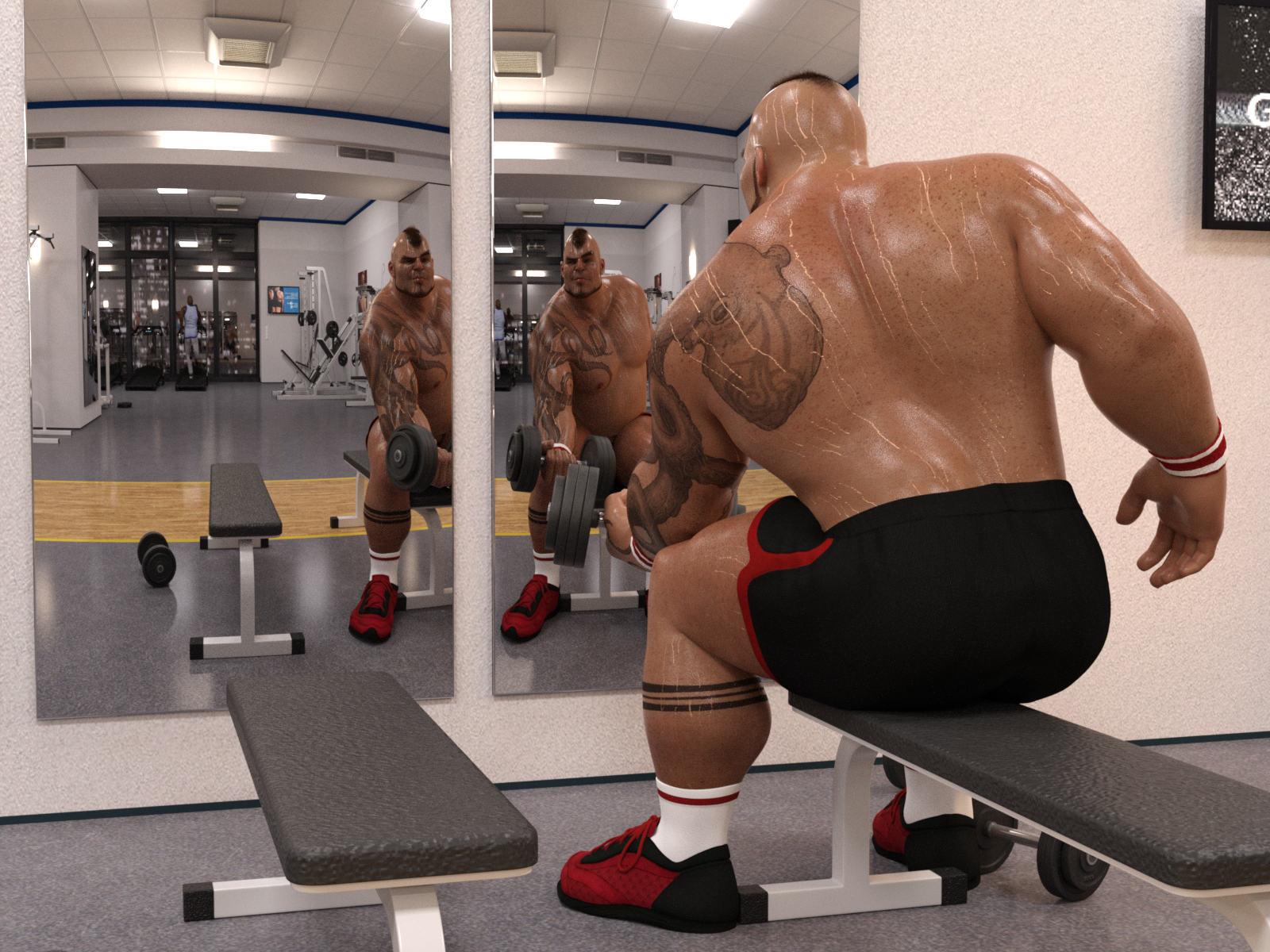
Click for full view.
He doesn't have HD dialed in there. Still looks good, but very young looking skin, am going to try the same thing again with HD applied.
Also I hadn't noticed the "pulled" morph yet, I appreciate that a lot, hadn't really seen an option for that before and had recently been looking around other sites for an option like that.
Trying to create bodysuit clothing using a push-modified G8F as basis, but there's pokethrough! Why?I'm trying to create a superhero style bodysuit and I'm doing this by exporting a G8F model with a 0.12 push modifier to hexagon and then importing it back as an OBJ. I then do the transfer utility onto the G8F. It looks OK on the base shape, but there's so much poke through with certain models and poses I had to add an additional push modifier to the bodysuit - set to 0.20 in at least one pose, to assure the skin wouldn't poke through. Why is this? I thought the recommended process was to being with the base G8F, but I'm disappointed by the results.
Transfer Utility FreezesActualy I wonder why you would want to use the Transfer Utility to fit the clothing in the first place.
If the clothing gets fitted to the figure all currently used morphs should get projected automaticly into the clothes.
If this dosn't work well then try save the Morph Asset first. Then delete the figure from the scene, save the scene, restart DazStudio, load the scene and load the figure fresh from the library before you try to fit the clothing again. This preparation will make shure the "embedded" morphs are gone and all new morph assets you saved gets loaded from the library.
Transfer Utility Freezes...fit clothing to a non-standard morph...
Just an idea... if there are currently any self made morphs on the Gen 8 female in the scene file you are working on, first make shure to save those morphs with File>Save As>Support Asset>Morph Asset to the library to have them loaded by default with the figure if its added to another scene.
Then its best to start with a new scene and load a fresh Genesis 8 female figure and the clothing from the Content Library before using the Transfer Utility.
If the morphs are not saved as Morph Assets but "embedded" in the scene file you see that the Transfer Utility history log under the progress dialog will load the "scene file".duf instead of a "morph name".duf for every embedded custom morphs that makes it take forever - I've see that before.
Ugly toes in Genesis 2 issueI'm almost shure its some kind of feet pose applied by the shoes (Wearable Presets can include poses).
To select "all of the foot bones" select one foot in the viewport then in the Scene pane right-click the foot node/bone and choose Select > Select Children from the menu. All the nodes down the hierarchy should be highlighted now in the Scene pane and there will be selection boxes of all foot bones in the viewport.
Then use Edit>Figure>Zero>Zero Selected Item(s) Pose and Zero Selected Item(s) Shape.
If its not a pose it may be a morph. With the figure root node selected check the Parameters pane there is a group for "Currently Used" at the top maybe you find something suspicious in there.
From Victoria 3 to Genesis 2So the skin conversion works for me; however, in trying to transfer shape, I've tried loading the V3 figure but it's a poser pzz file that doesn't register. Is there a way to get around this?
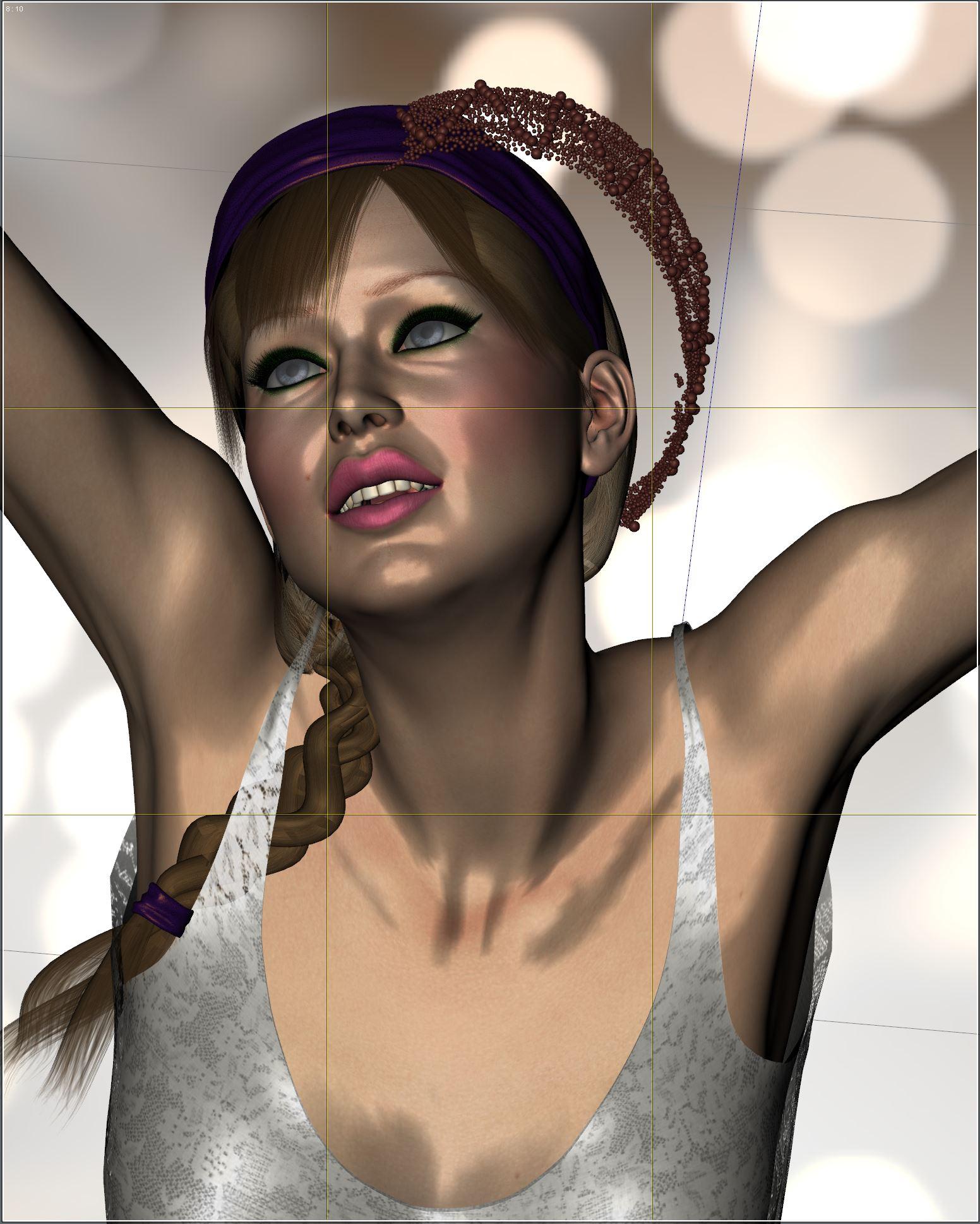
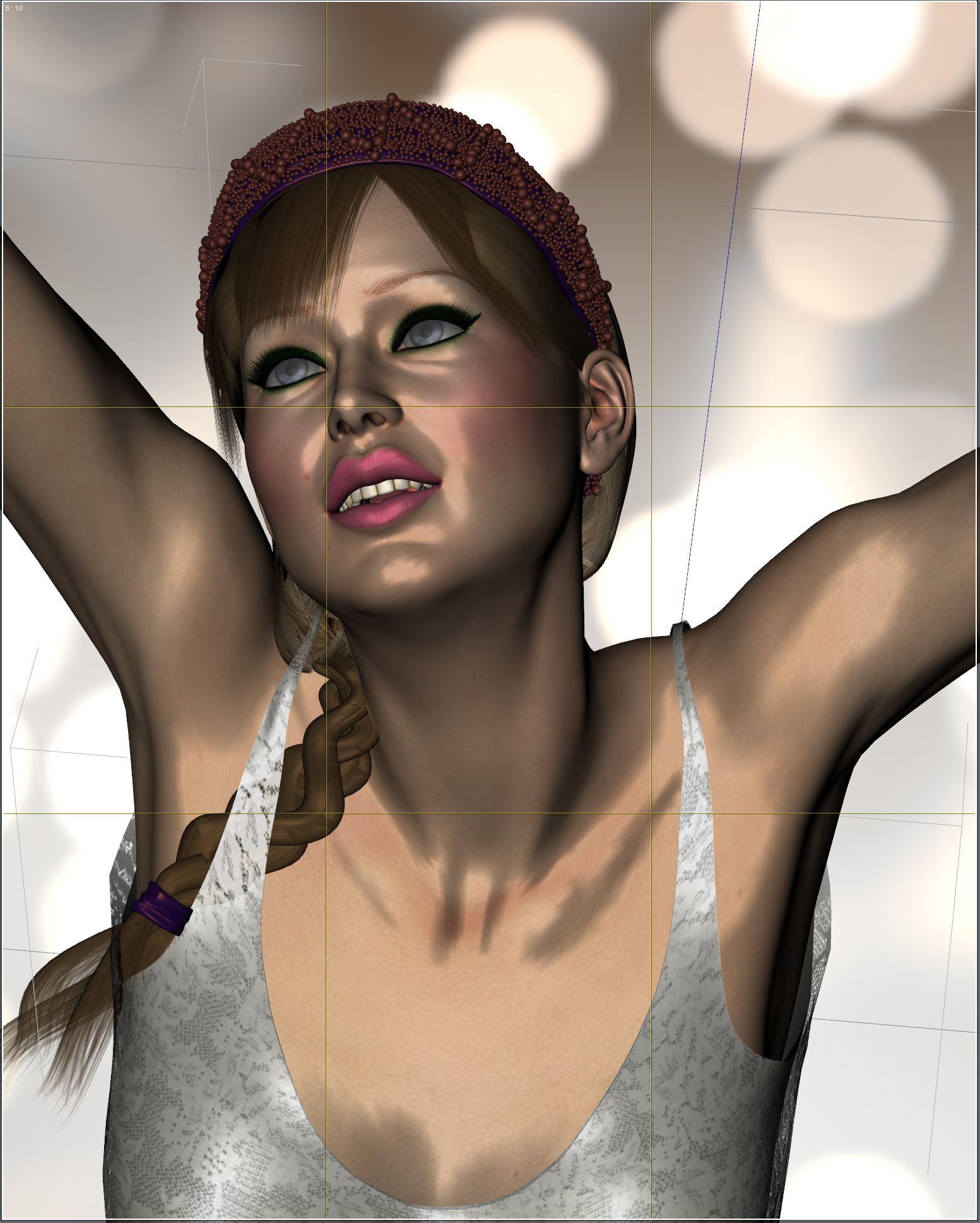
UltraScatterPro Experiments and ExperiencesLesson Learned: Settle on the final morph and pose of the target object before scattering the instances. If the target object is reposed or the shape is changed later, the instances will have to be rescattered. Rescattering is easy but can take some time for large complex scatters. To rescatter, just select the UltraScatterPro group in the Scene pane and run UltraScatterPro. Then just click the button to perform the scatter.
Original Scatter:
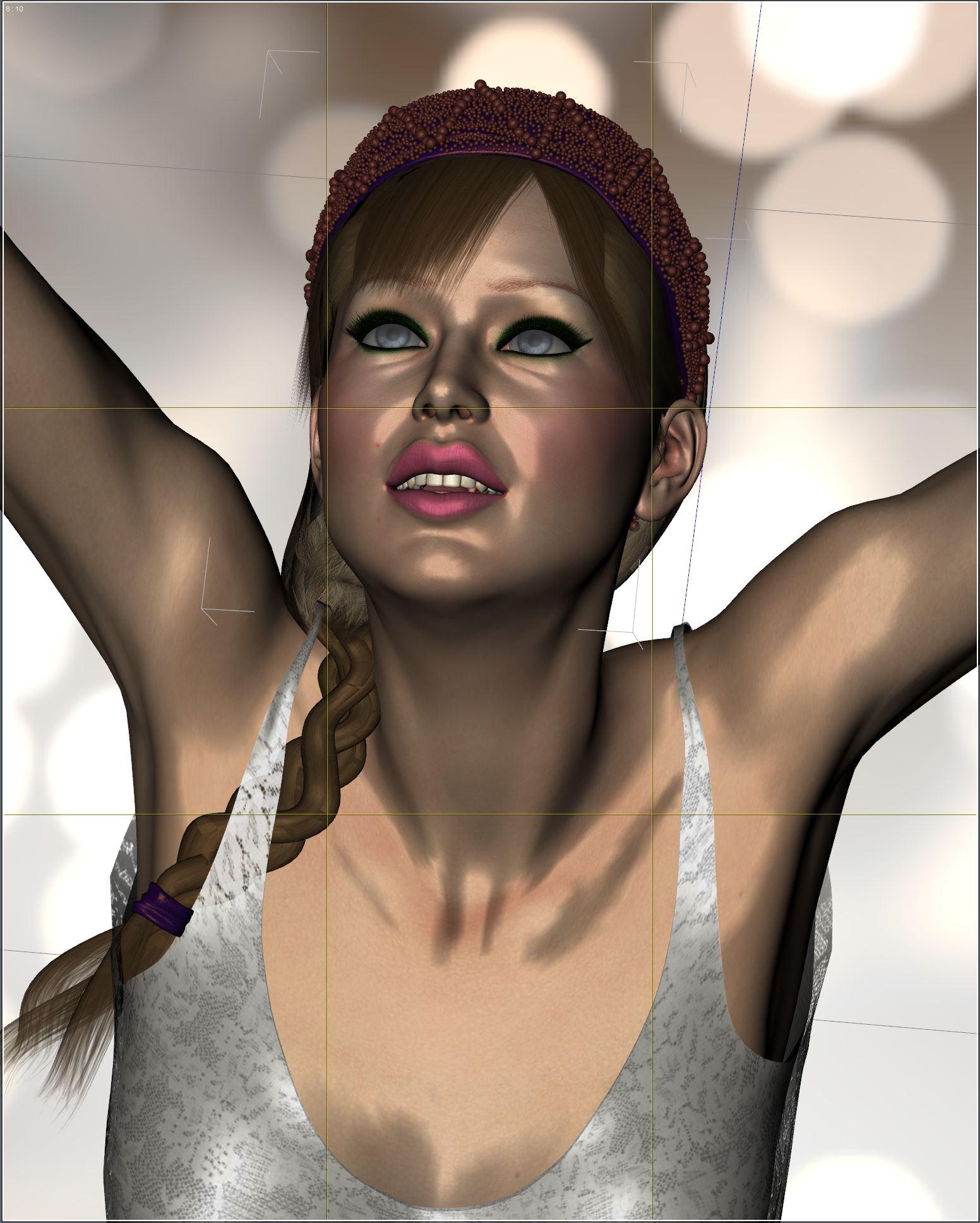
Reposed character head:
Previous scatter groups rescattered:
 Maxx HD Mega Pack for The Brute 8 [Commercial]
The 4 Anatomical Element morphs are:
- Maxx Foreskin HD: A custom HD uncircumcised morph. Less tight
- Maxx HD Details: adds custom HD detail
- Maxx Pulled: A "mid" morph to go between circumcised and uncircumciced
- Maxx Scale: The Brute (and Maxx) uses body scale. The default Anatomical Elements does not scale automatically. This help you adjust the size
They were sculpted to the default Anatomical Elements. So they totally work on all characters. The morphs are not dependant or related to Maxx textures in any way.
The custom layer can be applied to other characters, yes. The only layer that would need (optional) manual adjustment would be Skin Shades. Because it uses the Diffuse Maps of the current character for the detail. Think of this like when you tint the base color, except usually most of the color comes from translucency and SSS. Using the Skin Shades Layer makes it a one step only. Now, you could just leave the default settings which loads with Maxx Textures since the shades are intended to be used at low levels, so Maxx details would be on top of your character, but hardly visible (could be interesting as well). But if you want to be accurate with your character, yes, change the Skin Shades maps and use the diffuse maps of your character instead.
Hope this answers your questions :)
Maxx HD Mega Pack for The Brute 8 [Commercial]In the Pro-Mo Pictures for the Product, one of the images says "4 anatomical elements morphs." (1) I would like to know what this means. Gens, right. But usually two morphs at most are provided, circumcised and uncircumcised. What are the 4 for? (2) Also, once I know what this means, can these morphs be used on other Genesis 8 characters? I would guess "yes," but I'd like to know before I buy. (3) Again, are these morphs independent of the skin textures? That is, can I use a morph on another character without using Max's texture? (4) I'm guessing that I can use Max's skin texture and the various shaders on other characters, is this correct? The Pro-Mo Pictures say "Custom Skin Shade Layer Set a New Skin Color On Top Without Messing Several Options to Achieve It 15 Presets Included." (5) Now, can this Custom Skin Shade Layer be used on other Genesis 8 male characters who have skins that are not Max's? Or, is this available only for the Max skin texture?
I don't have the Brute, but I'm really tempted to buy this product. Still, I need to know more.
G3/G8 male anatomical elements come with circumsized/uncircumsized morphs. Maxx has his own set of morphs:

As you can see, other PAs are giving additional options for the gens, as well.
Any morph saved with the anatomical elements may be used on any character, although they may not work as well on characters they weren't designed for. Morphs are independent of textures. As long as a G8 male character has materials for the gens, that material can be used with the morphs. All G8 figures use the Base UV sets, allowing materials for any character to be applied to any G8 figure of the same sex. (And with G8 UV Swap, they can also be applied to characters of the opposite sex.),
The Maxx !Skin Shade Instructions state, among other things,: "… If you are using this layer with other characters, if is suggested to load their diffuse maps here." Here being the Skin Shades Color setting. You'll find these additional settings in the Surfaces->Editor for the various skin material zones. I haven't tried to do anything with them yet. And I'm pretty sure you'll need to apply Maxx's materials to another figure to get the custom layered skin shader.

Don't forget, Daz has a 30-day return policy. If you purchase Maxx and don't like him, you can return him. (I don't think you will, though. But it's nice to know one has the option.)
Daz 3D is part of

Connect
DAZ Productions, Inc.
7533 S Center View Ct #4664
West Jordan, UT 84084Licensing Agreement | Terms of Service | Privacy Policy | EULA
© 2026 Daz Productions Inc. All Rights Reserved.